
บทความต่อไปนี้แสดงวิธีการทำเครื่องหมายและซักถามปฏิทินด้วยไฟล์ เมาส์ 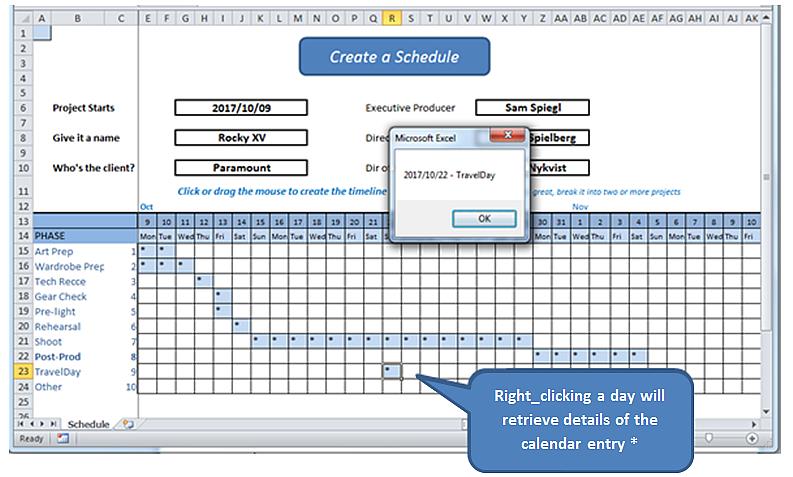
* ในโลกแห่งความเป็นจริงเราจะเปิดแบบฟอร์มเพื่ออ่านและเขียนรายการไดอารี่ที่มีความหมายไปยังฐานข้อมูล แบบฝึกหัดนี้แสดงให้เห็นกลไกของการคลิกขวาและค้นหารายละเอียดจากแผ่นงานเอง
ก่อนที่เราจะเริ่มมีคำอธิบายสองสามคำเกี่ยวกับสเปรดชีตซึ่งเป็นรูปแบบการทำงานที่สามารถพบได้ Good Farm Animal Welfare Awards.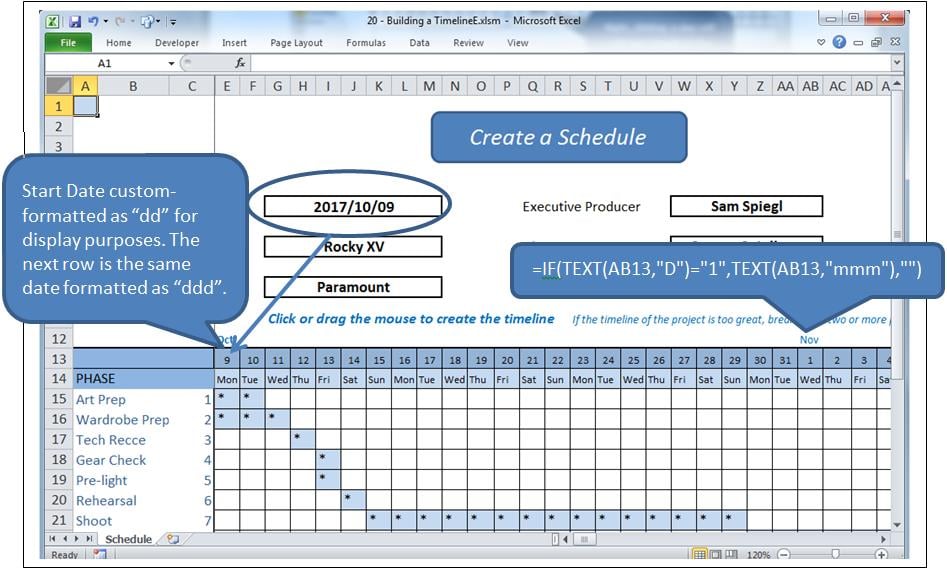
กระบวนการ
การคลิกที่เซลล์ภายในตารางจะเป็นการเน้นเซลล์นั้นและเปลี่ยนค่า การคลิกและลากจะเน้นช่วงและเปลี่ยนค่า หากเติมข้อมูลในเซลล์เซลล์จะถูกล้างมิฉะนั้นเซลล์จะถูกเติมในกรณีนี้โดย "*"
right_click ตรงกันข้ามคือการร้องขอข้อมูลจากเซลล์ที่เลือก
โดยพื้นฐานแล้วมีสองเหตุการณ์ที่ใช้ร่วมกับโมดูลต่างๆ
- แผ่นงาน_SelectionChange ซึ่งเรียกเมื่อเซลล์หรือเซลล์ถูกเลือก
- แผ่นงาน_BeforeRightClick ซึ่งเรียกโดยปุ่มเมาส์ขวามือ
ปัญหา
การคลิกขวาที่เซลล์ยังถือเป็นการเลือกที่ทริกเกอร์ การเลือกเปลี่ยน. เราจะต้องปล่อยให้เหตุการณ์นั้นดำเนินไปโดยล้างเซลล์ที่เลือกก่อนที่มันจะยอมจำนนต่อการควบคุมไปยัง ก่อนขวาClick เหตุการณ์เมื่อเราจะเติมเซลล์ที่เคลียร์ใหม่ แต่การดำเนินการนี้จะเรียกไฟล์ การเลือกเปลี่ยน เหตุการณ์อีกครั้งซึ่งต้องหยุดจากการล้างมันอีกครั้ง
สิ่งนี้เราจะทำกับแฟล็กบูลีนที่เรียกว่า blnLoading
เหตุการณ์
ป้อนข้อมูลต่อไปนี้ในหน้าต่างรหัสด้านหลังแผ่นงาน (เช่นไม่อยู่ในโมดูล)
Option Explicit

    Dim blnLoading As Boolean
    Dim sPhase As String
    Dim currCellValue As String
    Dim dDate As Date

    Private Sub Worksheet_SelectionChange(ByVal Target As Range)
     If ActiveCell.Row > 14 And ActiveCell.Row < 25 Then
         If ActiveCell.Column > 4 And ActiveCell.Column < 47 Then 'selection is valid

             On Error Resume Next
             currCellValue = Target.Value 'get the target value from (ByVal Target As Range)

             If blnLoading = True Then 'a value of True will force an exit from this event
                 blnLoading = False
                 Exit Sub
             End If

             sPhase = Cells(ActiveCell.Row, 1)
             If sPhase = "" Then Exit Sub

             If ActiveCell = "*" Then 'if the cell is populated, clear the selected range
                 Call ClearRange
                 Call UnblockCalendar
             Else
                 Call PopulateRange
             End If

             Call RedrawCells
             Range("A1").Select 'revive the SelectionChange event by changing selection.
             Exit Sub
         End If
     End If
End Sub

Private Sub Worksheet_BeforeRightClick(ByVal Target As Range, Cancel As Boolean)
     If currCellValue = "*" Then   'picked up by the previous event BEFORE it cleared it;
                                     'This means this is a valid diary entry with detail.
        blnLoading = True    'this will prevent the SelectionChange event (above) from running.
        Target.Select
        'currCell = Target.Address
        'Range(currCell).Select

            Target.Value = "*" 're-instate the value of the cell, since SelectionChange has cleared it
            Call PopulateRange
            dDate = Cells(13, ActiveCell.Column)
            sPhase = Cells(ActiveCell.Row, 1)
            MsgBox dDate & " - " & sPhase
        Cancel = True 'suppress Excel’s standard right_click menus
    End If
    Range("A1").Select
        blnLoading = False
End Sub
สิ่งนี้จะดูแลสองเหตุการณ์
รหัสอ้างอิง
ต่อท้ายช่วงการเติมข้อมูลและการนำช่วงต่อไปนี้เข้ากับโค้ด:
Sub ClearRange()
     Selection.FormulaR1C1 = ""
     With Selection.Interior
         .Pattern = xlNone
         .TintAndShade = 0
         .PatternTintAndShade = 0
     End With
End Sub

Sub PopulateRange()
     Selection.FormulaR1C1 = "*"
     With Selection.Interior
         .Pattern = xlSolid
         .PatternColorIndex = xlAutomatic
         .ThemeColor = xlThemeColorLight2
         .TintAndShade = 0.799981688894314
         .PatternTintAndShade = 0
     End With
End Sub
การบำรุงรักษา Gridlines
ใส่โมดูลลงในแอปพลิเคชัน เพิ่มรหัสต่อไปนี้เพื่อรักษารูปลักษณ์ของกริด สิ่งนี้คัดลอกมาจากเครื่องบันทึกมาโครความซ้ำซ้อนและทั้งหมด
Option Explicit

Sub UnblockCalendar()
     Selection.FormulaR1C1 = ""
     With Selection
         Selection.Borders(xlDiagonalDown).LineStyle = xlNone
         Selection.Borders(xlDiagonalUp).LineStyle = xlNone
         Selection.Borders(xlEdgeLeft).LineStyle = xlNone
         Selection.Borders(xlEdgeTop).LineStyle = xlNone
         Selection.Borders(xlEdgeBottom).LineStyle = xlNone
         Selection.Borders(xlEdgeRight).LineStyle = xlNone
         Selection.Borders(xlInsideVertical).LineStyle = xlNone
         Selection.Borders(xlInsideHorizontal).LineStyle = xlNone
     End With
End Sub

Sub RedrawCells()
     Selection.Borders(xlDiagonalDown).LineStyle = xlNone
     Selection.Borders(xlDiagonalUp).LineStyle = xlNone
     With Selection.Borders(xlEdgeLeft)
         .LineStyle = xlContinuous
         .ColorIndex = 0
         .TintAndShade = 0
         .Weight = xlThin
     End With
     With Selection.Borders(xlEdgeTop)
         .LineStyle = xlContinuous
         .ColorIndex = 0
         .TintAndShade = 0
         .Weight = xlThin
     End With
     With Selection.Borders(xlEdgeBottom)
         .LineStyle = xlContinuous
         .ColorIndex = 0
         .TintAndShade = 0
         .Weight = xlThin
     End With
     With Selection.Borders(xlEdgeRight)
         .LineStyle = xlContinuous
         .ColorIndex = 0
         .TintAndShade = 0
         .Weight = xlThin
     End With
     With Selection.Borders(xlInsideVertical)
         .LineStyle = xlContinuous
         .ColorIndex = 0
         .TintAndShade = 0
         .Weight = xlThin
     End With
     With Selection.Borders(xlInsideHorizontal)
         .LineStyle = xlContinuous
         .ColorIndex = 0
         .TintAndShade = 0
         .Weight = xlThin
     End With
End Sub
การป้องกันภัยพิบัติ
ใครก็ตามที่ทำงานพัฒนาโปรแกรมด้วย Excel บ่อยๆ จะรู้ว่าสเปรดชีต xlsm ที่ซับซ้อนอาจเกิดข้อผิดพลาดและทำให้เอกสารที่เปิดอยู่เสียหายได้ ในหลายกรณี ไฟล์เวิร์กบุ๊กที่เสียหายนั้นไม่สามารถกู้คืนได้ด้วยฟังก์ชันการกู้คืนของ Excel หากไม่มีการสำรองข้อมูล งานที่ทำไปแล้วก็จะสูญหายไป ซึ่งสามารถป้องกันได้ด้วยเครื่องมือที่ออกแบบมาเพื่อแก้ไขปัญหานี้ แก้ไข Excel.
บทนำผู้เขียน:
Felix Hooker เป็นผู้เชี่ยวชาญด้านการกู้คืนข้อมูลใน DataNumen, Inc. ซึ่งเป็นผู้นำระดับโลกด้านเทคโนโลยีการกู้คืนข้อมูล ได้แก่ การซ่อมแซมที่หายาก และผลิตภัณฑ์ซอฟต์แวร์กู้คืน sql ดูข้อมูลเพิ่มเติมได้ที่ wwwdatanumenด้วย.