
1. Introdução
A Lixeira é a rede de segurança integrada do Windows para arquivos excluídos. Enquanto um arquivo ainda estiver lá, recuperá-lo leva apenas alguns cliques. Este guia explica como recuperar arquivos excluídos da Lixeira no Windows, incluindo arquivos em locais externos, de rede e sincronizados com o OneDrive.
1.1 O que este guia abrange
- Recuperar arquivos que ainda estão na Lixeira
- Restaurar arquivos excluídos para sua localização original.
- Recuperar arquivos excluídos para um novo local quando a pasta original não estiver presente.
1.2 O que este guia não abrange
- Arquivos excluídos com Shift + Apagar, que ignoram completamente a Lixeira
- Arquivos excluídos ou removidos da Lixeira. Nesse caso, verifique este guia para recuperar os arquivos.
- Arquivos que excederam o limite de armazenamento da Lixeira e foram excluídos permanentemente.
2. Recuperar arquivos apagados da Lixeira
Se o arquivo foi excluído de uma unidade local com o Apagar tecla ou clique com o botão direito do mouse Apagar Ao executar o comando, o arquivo vai diretamente para a Lixeira. Para recuperá-lo, siga estes 3 passos:
2.1 Abra a Lixeira de Reciclagem
Utilize qualquer um dos seguintes métodos:
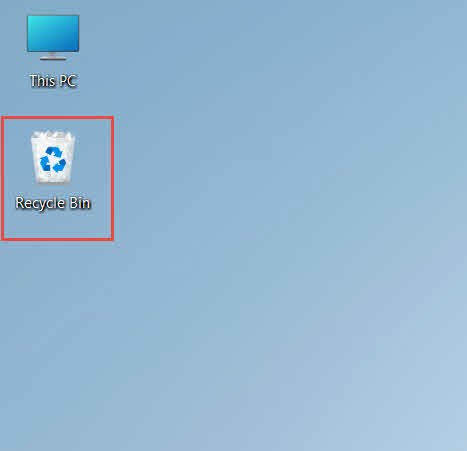
- Clique duas vezes no Lixeira ícone na área de trabalho

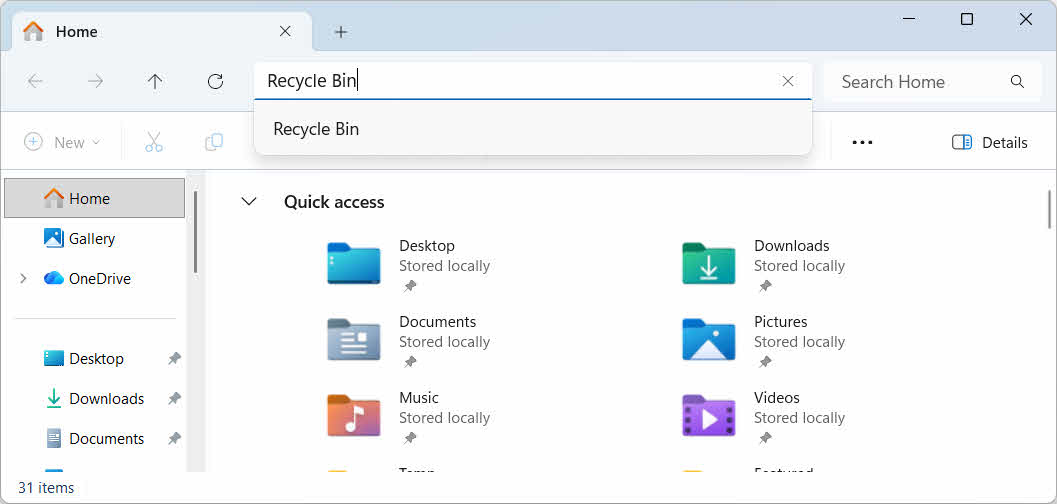
- Abra o Explorador de Arquivos e insira Lixeira na barra de endereço

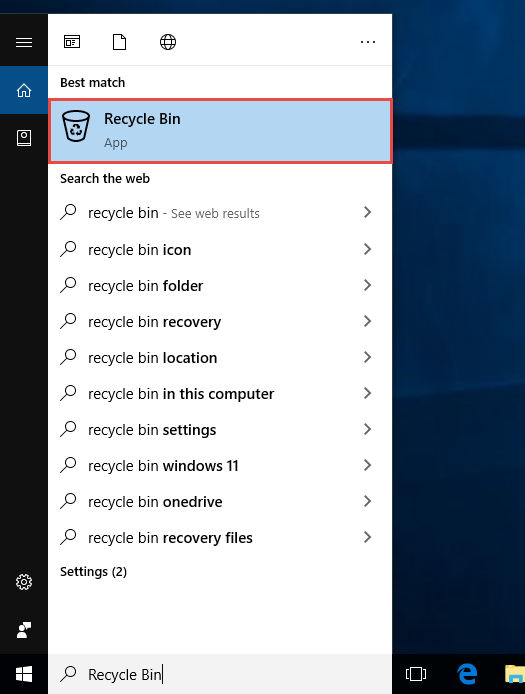
- Formato Lixeira na Pesquisa do Windows e selecione-o nos resultados.

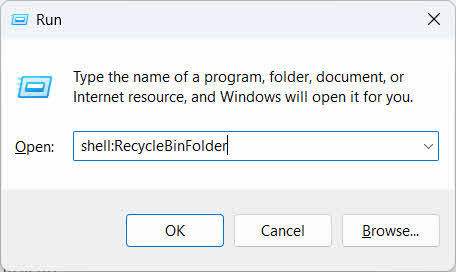
- Imprensa Wine Folly + R, Tipo shell: RecycleBinFoldere pressione Entrar

2.2 Localizar o arquivo ou pasta excluída
Após abrir a Lixeira de Reciclagem, localize os itens desejados utilizando um destes métodos:
- Digite o nome do arquivo na caixa de pesquisa no canto superior direito.
- Clique na Data de exclusão Cabeçalho da coluna para classificar pelas exclusões mais recentes
- Verifique o Localização Original coluna para confirmar se o arquivo veio da pasta esperada
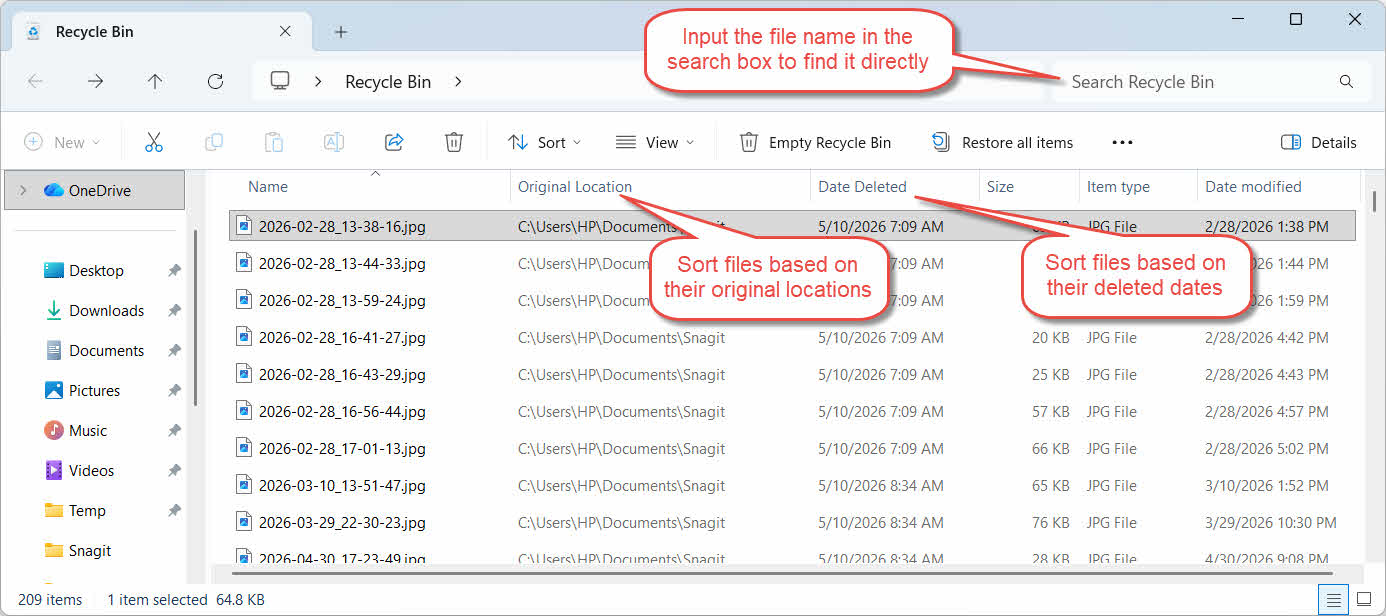
2.3 Restaurar arquivos ou pastas
Para restaurar um ou mais itens:
- Selecione um único arquivo ou mantenha pressionado. Ctrl e clique para selecionar vários arquivos ou mantenha pressionado Shift e clique para selecionar um intervalo
- Clique com o botão direito do mouse na seleção e escolha Restaurar
- Abra a pasta original para confirmar se o arquivo foi restaurado.

Para restaurar todos os itens da Lixeira de uma só vez, clique Restaurar todos os itens na barra de ferramentas sem precisar selecionar nenhum arquivo individualmente.
3. Restaurar arquivos excluídos da Lixeira para um local diferente.
O Restaurar O comando sempre retorna um arquivo para sua pasta original. Algumas situações exigem que ele seja movido para outro local.
3.1 Quando você deve usar este método
- A pasta original não existe mais.
- Já existe um novo arquivo com o mesmo nome na pasta original.
- Você não tem permissão para acessar a pasta original.
- Você não tem certeza de qual pasta o arquivo veio.
- Você deseja revisar o arquivo antes de colocá-lo de volta em seu lugar original.
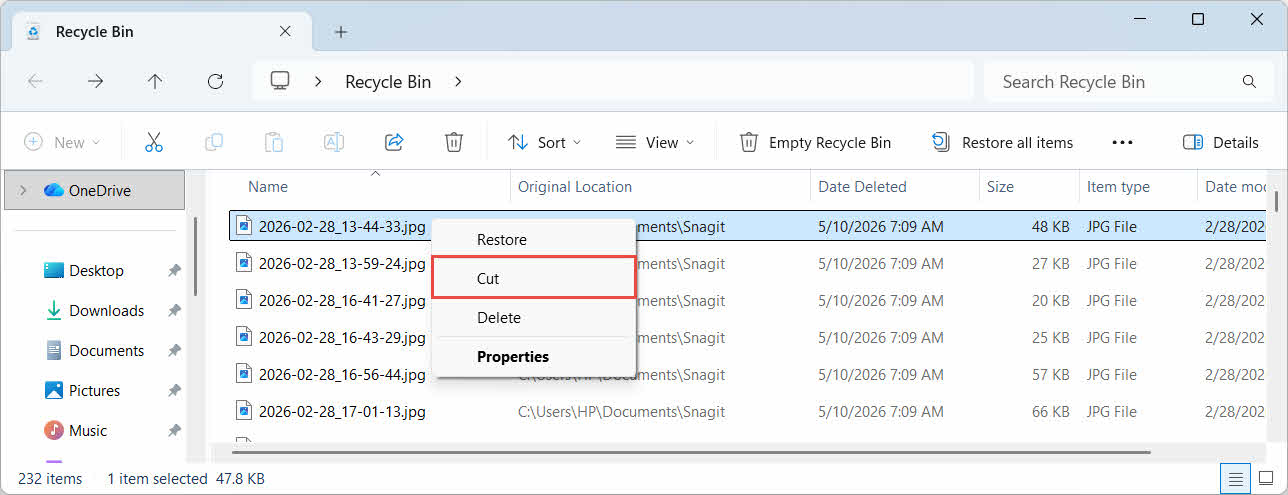
3.2 Arraste ou recorte o arquivo da Lixeira
Para mover um arquivo da Lixeira para uma pasta de sua escolha:
- Abra a Lixeira
- Selecione o arquivo ou pasta que deseja restaurar.
- Utilize um dos seguintes métodos para mover o arquivo ou pasta para a pasta de destino:
- Arraste-o diretamente para a janela da pasta de destino.
- Imprensa Ctrl + X Para recortar, abra a pasta de destino e pressione Ctrl + V para colar
- Clique com o botão direito do mouse na seleção e selecione CortarAbra a pasta de destino, clique com o botão direito do mouse e selecione macarrão para colar

4. Recuperando arquivos da Lixeira em unidades externas, de rede e na nuvem
As etapas em Seção 2 Suponha que o arquivo foi excluído da unidade principal do seu computador. O armazenamento externo, em rede e sincronizado na nuvem se comporta de maneira diferente.
4.1 Discos rígidos externos e unidades flash USB
O Windows trata discos rígidos externos (incluindo SSDs conectados via USB) da mesma forma que discos internos: cada um tem sua própria pasta Lixeira oculta por padrão. Mídias removíveis, como pen drives e cartões SD, são tratadas de forma diferente e não possuem uma Lixeira por padrão; portanto, os arquivos excluídos delas são removidos imediatamente.
4.1.1 Habilitando o suporte à Lixeira para a unidade
Para um disco rígido externo, confirme se o suporte à Lixeira está ativado:
- Clique com o botão direito do mouse no Lixeira ícone na área de trabalho e selecione Propriedades

- De acordo com o relatório Localização da lixeira Na lista, selecione a linha correspondente à unidade externa. Ela só aparecerá aqui depois que a unidade estiver conectada e tiver uma letra de unidade atribuída.
- Debaixo Configurações para o local selecionado, certificar-se de que Tamanho personalizado é selecionado, não Não mova arquivos para a Lixeira. Remova os arquivos imediatamente após serem excluídos.

- Clique Inscreva-se, Em seguida OK
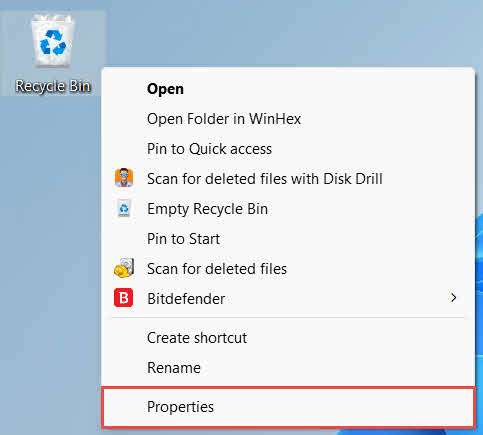
Cada unidade mantém essa configuração de forma independente, portanto, uma unidade externa pode ter o suporte à Lixeira desativado, mesmo que permaneça ativado para a unidade do sistema.
Para um pen drive ou cartão SD, ele não aparecerá nas Propriedades da Lixeira, pois o Windows não cria uma pasta Lixeira em mídias removíveis por padrão. Habilitá-la requer uma edição no registro do sistema:
- Imprensa Wine Folly + R, Tipo regedit, pressione Entrare aprove a solicitação
- Acessar HKEY_CURRENT_USER \ Software \ Microsoft \ Windows \ CurrentVersion \ Policies \ Explorer. Se o Explorer A chave não existe em Políticas internas, clique com o botão direito Políticas internas, selecione New -> Chave, e nomeá-lo Explorer
- Clique com o botão direito do mouse em uma área vazia no painel direito e selecione New -> Valor DWORD (32-bit), e nomeá-lo Unidades de lixeira de reciclagem
- Dê um duplo clique Unidades de lixeira de reciclagemconjunto Base para Hexadecimal, entrar ffffffff como os dados de valor e clique OK

- Repita os passos 2 a 4 em HKEY_LOCAL_MACHINE \ SOFTWARE \ Microsoft \ Windows \ CurrentVersion \ Policies \ Explorer
- Reinicie o computador
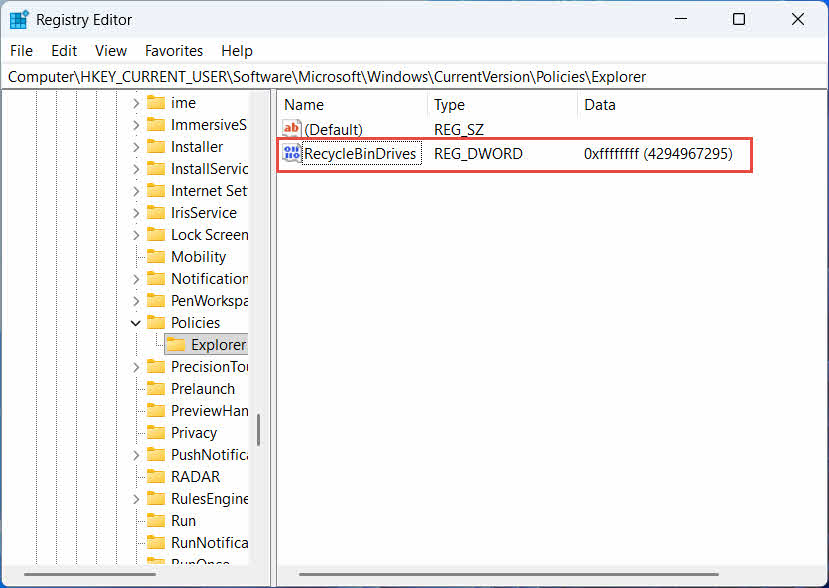
Para reverter a alteração, exclua o Unidades de lixeira de reciclagem valor de ambos os locais. Como isso envolve editar o registro, crie um ponto de restauração primeiro e considere se confiar em backups é mais simples para unidades que você usa apenas ocasionalmente.
4.1.2 Restauração de Arquivos
Depois de ativar a Lixeira para a unidade, restaurar um arquivo segue o mesmo processo descrito em Seção 2.3.
Excluir um arquivo de uma unidade de rede mapeada ou de uma pasta compartilhada o remove diretamente do servidor. Ele não passa pela Lixeira do seu computador. No entanto, se a Lixeira do servidor estiver habilitada, você poderá recuperar os arquivos excluídos a partir dela.
4.2.1 Lixeira do lado do servidor (se ativada)
Alguns servidores de arquivos habilitam Cópias de Sombra (Serviço de Cópias de Sombra de Volume), que permite restaurar versões anteriores de uma pasta compartilhada, possibilitando a recuperação de arquivos excluídos com esse recurso:
- Clique com o botão direito do mouse na pasta principal no compartilhamento de rede e selecione Propriedades
- Abra o Versões anteriores aba
- Selecione uma versão anterior à exclusão e clique. Restaurar
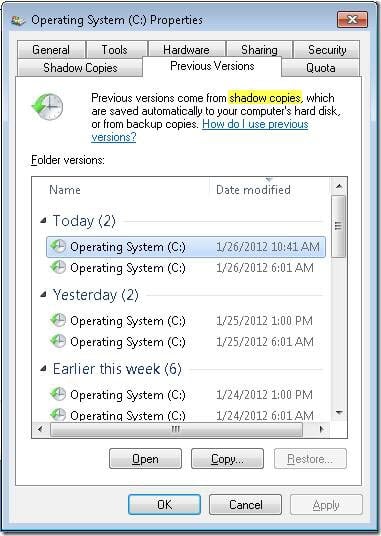
4.2.2 O que fazer se não houver lixeira no servidor
Se o Versões anteriores Se a aba estiver vazia ou indisponível, o compartilhamento não possui recuperação baseada em snapshot configurada. Entre em contato com o administrador de rede para verificar se o servidor possui um agendamento de backup próprio.
4.3 Lixeira do OneDrive (Pastas Sincronizadas na Nuvem)
As pastas sincronizadas com o OneDrive podem envolver duas Lixeiras separadas: a Lixeira local do Windows e a Lixeira do OneDrive baseada na web. A Lixeira que contém o seu arquivo depende de onde a exclusão ocorreu.
4.3.1 Exclusão local de um arquivo sincronizado (vai para a Lixeira local e para a Lixeira da Web)
Se você excluir um arquivo sincronizado do Explorador de Arquivos do seu PC, ele irá para a Lixeira local, exatamente como descrito em Seção 2Além disso, o cliente de sincronização do OneDrive também espelha a exclusão na nuvem, de modo que o arquivo pode ser recuperado também na Lixeira da Web do OneDrive.
4.3.2 Exclusão iniciada pela nuvem (somente na Lixeira da Web, a partir de maio de 2026)
Se o arquivo for excluído na nuvem, por exemplo, pelo site do OneDrive ou por outro dispositivo sincronizado, o comportamento mudou desde maio de 2026: a Microsoft parou de enviar exclusões iniciadas na nuvem para a Lixeira do Windows. Um arquivo removido dessa forma desaparece da sua pasta local sem aparecer na Lixeira local, e a recuperação só é possível na Lixeira do OneDrive ou do SharePoint.
4.3.3 Restaurando do OneDrive.com
Para restaurar um arquivo da Lixeira do OneDrive na Web:
- Entrar em onedrive.live.com or onedrive.com
- Selecionar Lixeira no painel de navegação
- Selecione o arquivo ou pasta e clique Restaurar
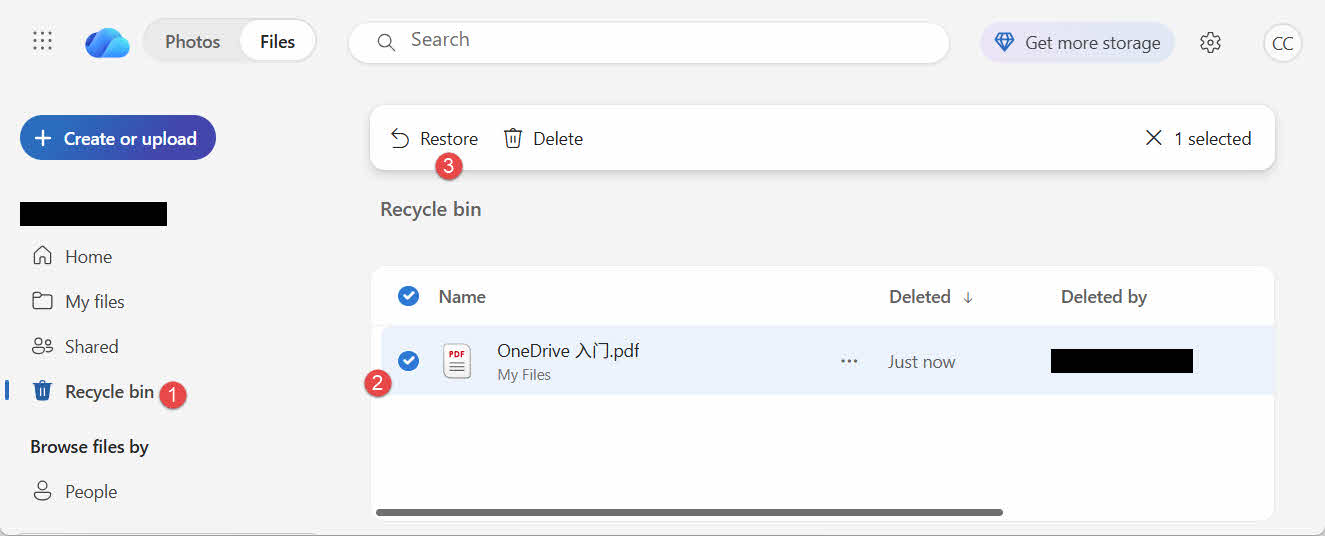
As contas pessoais da Microsoft mantêm os itens excluídos por até 30 dias; as contas corporativas ou escolares os mantêm por até 93 dias.
5. Solução de problemas de recuperação da Lixeira
5.1 Ícone da Lixeira Ausente na Área de Trabalho
A Lixeira ainda existe mesmo que seu ícone na área de trabalho esteja oculto. Para restaurar o ícone:
- Clique com o botão direito do mouse na área de trabalho e selecione personalizar
- Abra Temas, Em seguida Configurações de ícone da área de trabalho
- Verifique Lixeira e clique OK
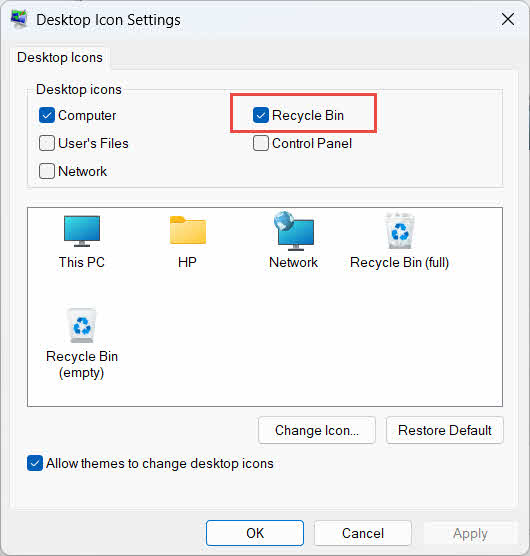
Você também pode abri-lo diretamente digitando Lixeira Na Pesquisa do Windows, no Explorador de Arquivos ou usando Win + R, conforme descrito em Seção 2.1.
5.2 O arquivo não está na Lixeira
Se os arquivos desejados não estiverem na Lixeira, considere as seguintes causas:
- Foi apagado de uma unidade externa sem suporte para a Lixeira (veja Seção 4.1)
- Foi apagado de uma unidade de rede (ver Seção 4.2)
- Foi excluído diretamente do OneDrive na web (veja Seção 4.3)
- Foi apagado permanentemente, por exemplo, com Shift + Apagarou a Lixeira de Reciclagem foi esvaziada
Se o arquivo foi excluído permanentemente, recuperá-lo requer um software específico de recuperação de dados, como... DataNumen Data RecoveryEm vez da Lixeira, evite salvar novos arquivos nessa unidade primeiro para reduzir a chance de os dados serem sobrescritos.
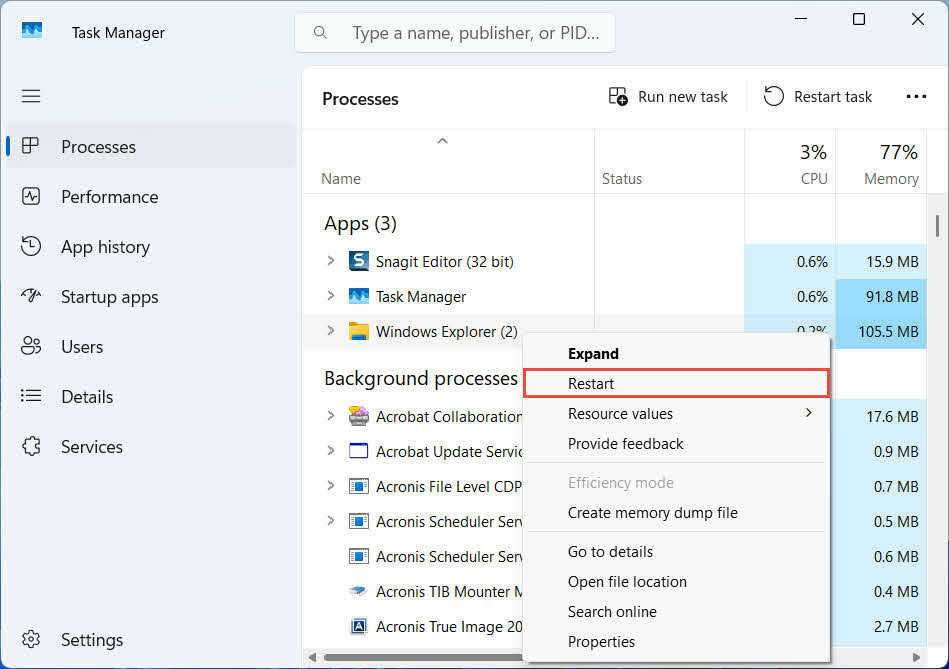
5.3 Opção de restauração desativada, ausente ou não funciona
Isso geralmente acontece quando os itens selecionados vieram de um local que não existe mais ou quando o índice interno da Lixeira está dessincronizado. Tente estas soluções:
- Reinicie o Explorador de Arquivos: use Ctrl + Alt + Del para abrir o Gerenciador de Tarefas e clique com o botão direito do mouse. Windows Explorere selecione Reiniciar

- Restaure os itens um de cada vez, em vez de em lote.
- If Restaurar Se o arquivo ainda não aparecer, arraste-o manualmente conforme descrito em Seção 3.2
5.4 Erros de “Acesso Negado” ou de Permissão ao Restaurar
Isso indica um problema de permissões na pasta original, não no arquivo em si. Verifique se:
- Você está conectado com a mesma conta que excluiu o arquivo.
- As permissões da pasta de destino ainda permitem acesso de gravação para sua conta.
- O Explorador de Arquivos não está bloqueado por nenhuma política em um computador gerenciado ou corporativo.
Se as permissões da pasta original tiverem sido alteradas, restaure o arquivo para um local diferente, seguindo as instruções. Seção 3.
5.5 A Lixeira Parece Vazia, Mas Eu Não a Esvazio
Os arquivos podem desaparecer da Lixeira sem que ninguém a esvazie manualmente:
- O Storage Sense pode ser configurado para excluir itens automaticamente após um determinado número de dias.
- A Lixeira atingiu seu limite de tamanho, então o Windows removeu os itens mais antigos para liberar espaço (veja Seção 6.1)
- Outra conta em um computador compartilhado a esvaziou.
- Uma Política de Grupo em um dispositivo gerenciado impõe o esvaziamento automático.
5.6 O arquivo restaurado está corrompido, em branco ou não abre.
Restaurar apenas move o arquivo de volta; não o repara. Se o arquivo já estava corrompido antes da exclusão, ou se estava sendo gravado no momento da exclusão, ele ainda pode não abrir após a restauração. Nesse caso, o problema é corrupção do arquivo, não um problema da Lixeira, e precisa ser resolvido. uma ferramenta de reparo adequado para esse formato de arquivo, em vez de outra tentativa de recuperação.
6. Gerenciando e configurando a Lixeira
6.1 Alterar o tamanho do recipiente de reciclagem
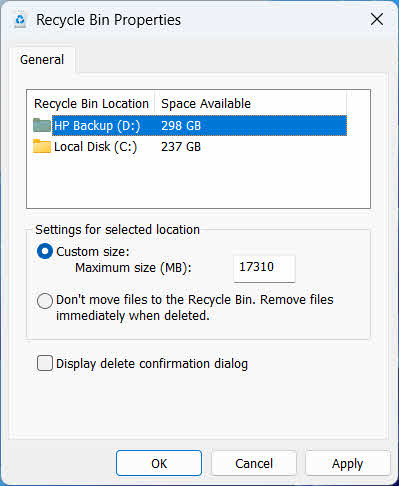
Cada unidade tem sua própria alocação de Lixeira. Para revisar ou alterar essa alocação:
- Clique com o botão direito do mouse no Lixeira ícone e selecione Propriedades
- Selecione uma unidade na lista de locais de coleta de reciclagem.
- Escolha Tamanho personalizado e insira um Tamanho máximo (MB)ou selecione Não mova arquivos para a Lixeira. Remova os arquivos imediatamente após serem excluídos. para desativá-lo para essa unidade
- Clique OK
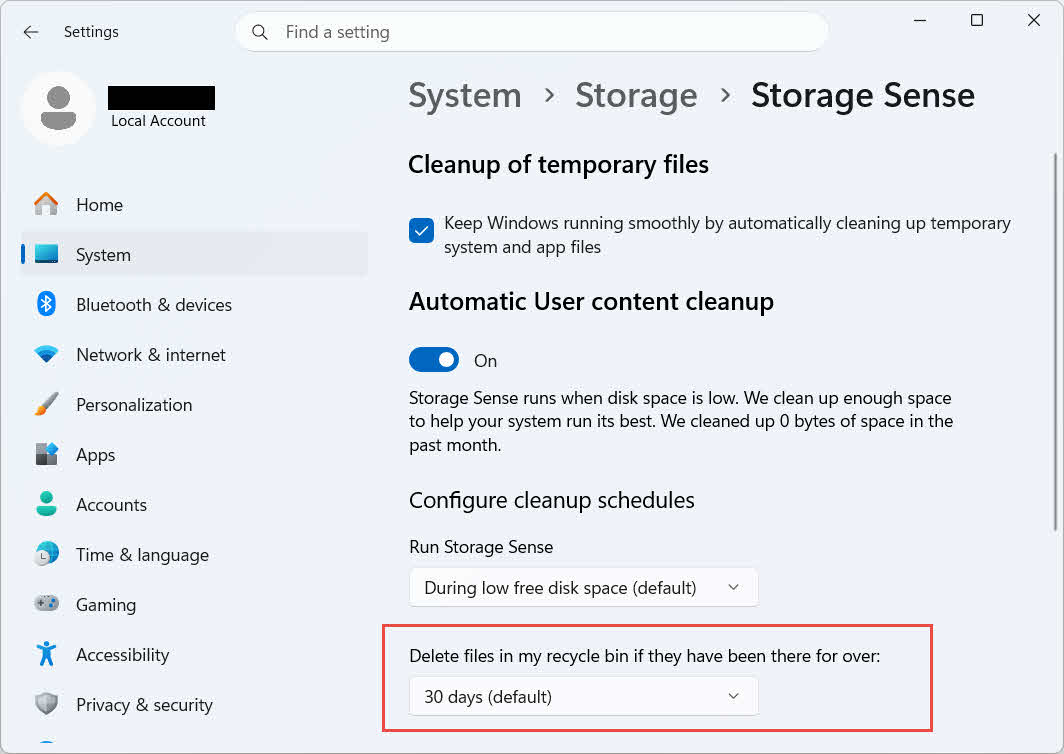
O Windows também oferece uma opção de limpeza separada, baseada na idade do arquivo: acesse Configurações -> Sistema -> Armazenamento -> Sensor de armazenamento E definir Exclua os arquivos da minha lixeira se eles estiverem lá há mais de um número de dias escolhido. O período de retenção padrão é 30 dias .
6.2 Habilitando a caixa de diálogo de confirmação de exclusão
Por padrão, o Windows 11 não exibe uma mensagem de confirmação antes de mover arquivos para a Lixeira. Para ativar essa opção:
- Clique com o botão direito do mouse no Lixeira ícone e selecione Propriedades
- Verifique Mostrar excluir diálogo de confirmação
- Clique OK
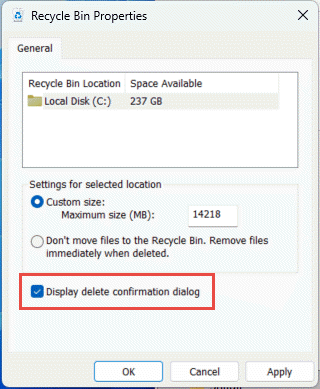
Essa configuração não impede exclusões permanentes, como por exemplo: Shift + Apagar ou exclusões de unidades sem suporte para Lixeira.
6.3 Configurando arquivos para ignorar a Lixeira (e por que evitar isso)
O mesmo Não mova arquivos para a Lixeira. Remova os arquivos imediatamente após serem excluídos. opção coberta em Seção 6.1 Pode ser aplicado a qualquer unidade para tornar todas as exclusões permanentes. Isso libera espaço em disco imediatamente, mas remove a única opção de recuperação rápida descrita neste guia, portanto, é melhor reservá-lo para unidades que não armazenam arquivos pessoais, como uma unidade de trabalho dedicada ou um volume temporário.
7. Melhores práticas para prevenir futuras perdas de dados
7.1 Ative o Histórico de Arquivos ou uma solução de backup
A Lixeira protege apenas contra exclusões acidentais, não contra falhas no disco rígido ou quando a Lixeira já foi esvaziada. Ativar o Histórico de Arquivos (Painel de Controle -> Sistema e Segurança -> Histórico de Arquivos)

Ou então, uma ferramenta de backup de terceiros adiciona uma segunda camada de proteção com seu próprio histórico de versões.
7.2 Use a Sincronização na Nuvem para Pastas Importantes
Sincronizar a área de trabalho, documentos e imagens com o OneDrive ou outro serviço de nuvem fornece a Lixeira da Web descrita em Seção 4.3 como um caminho de recuperação adicional, independente da Lixeira de Reciclagem local.
7.3 Verifique novamente antes de esvaziar a lixeira de reciclagem.
Antes de clicar Esvaziar Lixeira, ordenar por Data de exclusão e procure por arquivos recentes. Uma vez que o dispositivo esteja vazio, a única opção restante é um software dedicado à recuperação de dados, e o sucesso não é garantido.
8. FAQ
P: Ainda posso recuperar um arquivo depois de esvaziar a Lixeira?
A: Não através da própria Lixeira. Nesse ponto, o arquivo é marcado como excluído no nível do sistema de arquivos, mas ainda pode estar fisicamente presente na unidade até ser sobrescrito. Ferramentas como DataNumen Data Recovery São projetados para procurar e reconstruir esse tipo de dados. Pare de usar a unidade o mais rápido possível para aumentar as chances de uma recuperação bem-sucedida.
P: O Mac tem algo semelhante à Lixeira do Windows?
A: Sim, chama-se Lixeira e funciona da mesma forma: abra a Lixeira, clique com o botão direito do mouse no arquivo e selecione Restaurar. Este guia aborda especificamente a Lixeira do Windows. este guia Abrange especificamente a Lixeira do Mac.
P: Quanto tempo os arquivos permanecem na Lixeira antes de serem excluídos automaticamente?
A: A Lixeira local não tem um limite de tempo fixo por padrão; os itens são removidos somente quando o limite de tamanho é atingido ou quando o Sensor de Armazenamento está configurado para excluir itens antigos (consulte Seção 6.1A Lixeira da Web do OneDrive utiliza um período fixo: 30 dias para contas pessoais e até 93 dias para contas corporativas ou escolares (consulte Seção 4.3).
P: Devo restaurar um arquivo para sua localização original ou para uma nova?
A: Restaurar ao local original (Seção 2) é mais simples e preserva o caminho original do arquivo. Restaurar para um local diferente (Seção 3) em vez disso, caso a pasta original não exista mais ou já contenha um arquivo com o mesmo nome.
P: Posso recuperar arquivos apagados de um pen drive usando a Lixeira?
A: Não por padrão. Unidades flash e cartões SD não possuem uma pasta Lixeira, a menos que você a habilite manualmente, conforme explicado em Seção 4.1.
P: Por que a opção Restaurar está desativada ou ausente?
A: Isso geralmente é causado pela ausência da pasta original ou por um índice da Lixeira dessincronizado. Consulte Seção 5.3 para correções.
P: E se a Lixeira de Reciclagem estiver vazia, mas eu nunca a esvaziei?
A: O Sensor de Armazenamento, um limite de tamanho atingido, outra conta de usuário ou uma configuração de Política de Grupo podem limpar o armazenamento automaticamente. Consulte Seção 5.5.
P: Que software pode recuperar arquivos que não estão mais na Lixeira?
A: Software dedicado à recuperação de dados, como DataNumen Data Recovery, examina a unidade em um nível mais baixo para encontrar dados que o sistema de arquivos não referencia mais, algo que a própria interface da Lixeira não consegue fazer.
P: Restaurar um arquivo garante que ele será aberto corretamente?
R: Não. Restaurar apenas retorna o arquivo para uma pasta; não corrige nenhum dano que o arquivo já possuía antes ou durante a exclusão. Veja Seção 5.6.
9. Conclusão
Recuperar arquivos apagados da Lixeira é simples, desde que o item ainda esteja lá: abra a Lixeira, encontre o arquivo e restaure-o. Unidades externas, compartilhamentos de rede e pastas sincronizadas com o OneDrive apresentam suas próprias particularidades, e as seções de solução de problemas e configuração acima abordam as situações em que o processo de restauração padrão não funciona como esperado. Se o arquivo foi excluído permanentemente ou a Lixeira já foi esvaziada, o próximo passo é usar um software dedicado de recuperação de dados, e não a própria Lixeira.
Sobre o autor
Qian Gua É um especialista em recuperação de dados com mais de 10 anos de experiência em sistemas de arquivos Windows, tecnologias de armazenamento e soluções de recuperação de desastres. Ele já orientou com sucesso milhares de usuários em cenários críticos de perda de dados, tanto em ambientes pessoais quanto corporativos.
Qian é especialista em metodologias de recuperação de dados do Windows, análise de sistemas de arquivos e estratégias de backup preventivo. Sua vasta experiência prática inclui a recuperação de dados de unidades, a implementação de soluções abrangentes de backup e a resolução de problemas complexos de sistemas de arquivos em diversos sistemas. NTFSEle tem experiência com volumes FAT, exFAT e ReFS. Trabalhou com diversas ferramentas e técnicas de recuperação de dados, desde utilitários integrados do Windows até softwares profissionais de recuperação de dados.
Por meio de seus artigos técnicos, Qian se dedica a capacitar os usuários com conhecimento prático para proteger e recuperar seus dados valiosos. Ele se mantém atualizado sobre os últimos desenvolvimentos em tecnologias de recuperação de arquivos do Windows, inovações em dispositivos de armazenamento e melhores práticas de proteção de dados. Quando não está ajudando usuários a recuperar seus arquivos, ele também escreve artigos técnicos.ost fileQian gosta de pesquisar tecnologias de armazenamento emergentes e compartilhar dicas de segurança de dados que previnem futuras perdas de dados.
Tem dúvidas sobre este guia ou precisa de ajuda com a recuperação de dados? Qian está à disposição. comentários e sugestões para melhorar esses recursos de recuperação de dados.