
이 기사에서는 Ms Access 데이터베이스에서 바로 우편물 레이블을 인쇄하는 옵션을 살펴 봅니다.
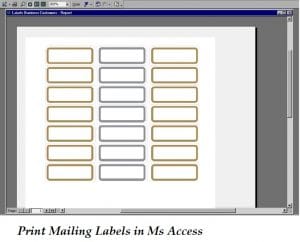 MS Access 사용자들이 가장 많이 요청하는 기능 중 하나는 Access 데이터베이스 테이블에 있는 데이터를 사용하여 우편 라벨을 만드는 것입니다. 다행히 MS Access에 내장된 라벨 마법사를 사용하면 간단하게 우편 라벨을 만들고 인쇄할 수 있습니다. 이 마법사를 사용하면 데이터베이스에서 라벨에 인쇄할 데이터를 선택할 수 있을 뿐만 아니라, 라벨 크기에 맞게 작은 보고서 형태로 라벨을 인쇄하고 만들 수도 있습니다. Access 테이블의 데이터를 사용하여 라벨을 만들려면 먼저 데이터가 라벨에 맞게 서식이 지정되어 있는지 확인해야 합니다.
레이블 마법사를 사용하면 다른 MS Office 응용 프로그램의 데이터를 활용하여 MS Access로 만든 우편 레이블에 인쇄할 수 있습니다. 레이블은 다양한 용도로 만들 수 있지만, 가장 일반적인 용도 중 하나는 우편 발송입니다. Access를 사용하여 우편 레이블을 만들면 보고서를 인쇄할 때 테이블에서 주소 데이터를 자동으로 가져와 모든 주소에 적합한 레이블을 생성합니다.
Ms Access에서 우편물 레이블 인쇄를 위해 따라야 할 주요 단계
- 우편물 레이블에 원하는 주소 데이터가 포함 된 데이터베이스를 엽니 다.
- 레이블에 포함 할 데이터가 포함 된 테이블, 쿼리, 보고서를 탐색 창에서 선택합니다.
- 탭 만들기로 이동하여 보고서 그룹에서 레이블 단추를 선택합니다.

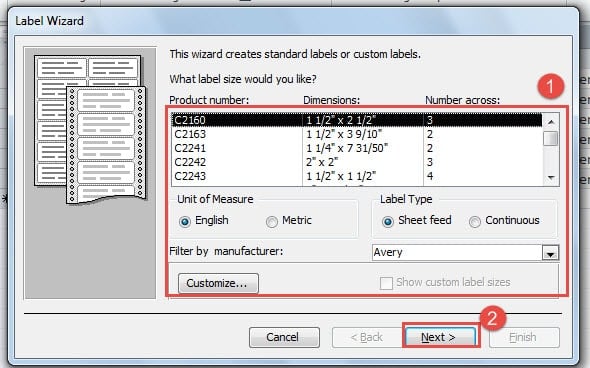
- 라벨 마법사가 열리면 인쇄 할 라벨 유형을 선택합니다. 다음을 클릭하여 진행하십시오.

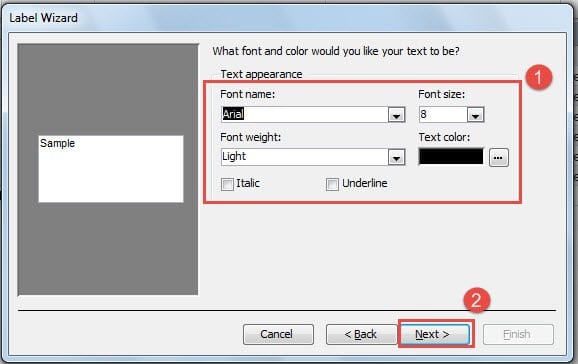
- 레이블, 글꼴 크기, 색상, 무게 등에 대한 모든 외관을 변경합니다. 다음을 클릭하여 계속합니다.

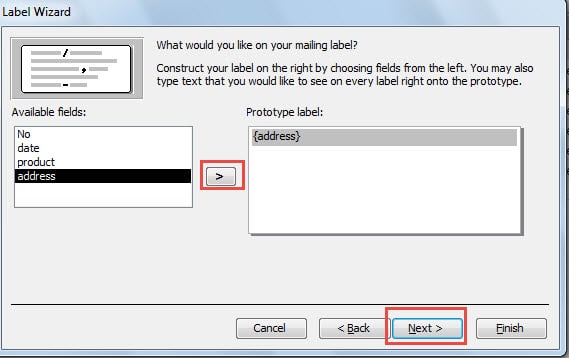
- '>'기호를 사용하여 프로토 타입 레이블에 포함 할 필드를 선택하십시오. 다음을 클릭하여 진행하십시오.

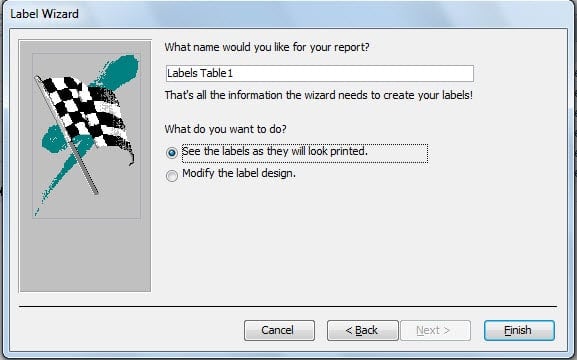
- 생성 한 보고서의 제목을 지정하고 마침을 클릭하여 종료합니다.

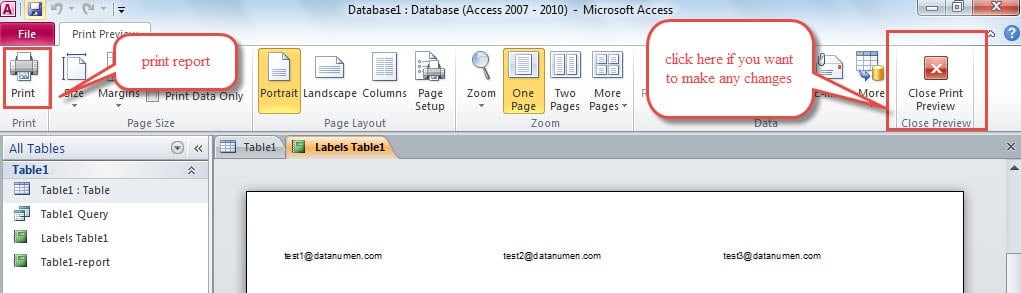
- 생성 된 라벨 보고서가 화면에 표시되며 필요한 경우 마지막 순간에 변경 사항을 적용하기 위해 미리 봅니다.
- 표시된 보고서에서 만족스러운 결과를 얻으면 프린터에 레이블을로드하고 보고서를 인쇄하십시오.

레이블을 정렬 할 수 있습니다. ZIP 대량 우편 발송 규정을 준수하기 위해 라벨 규격을 준수해야 합니다. 우편 라벨에 가장 적합한 형식을 선택하는 데 어려움이 있다면 라벨 패키지를 활용해 보세요. 이 패키지는 가장 적합한 라벨 유형에 대한 지침을 제공합니다.
Access를 사용하여 레이블을 만드는 것은 특히 레이블 마법사를 사용하는 경우 매우 간단한 작업입니다. 이 응용 프로그램은 주어진 조직이 최소한의 리소스로 효율적으로 작업 할 수 있도록 도와주는 매우 유용한 여러 기능으로 가득 차 있습니다. Access에서 레이블을 만들려면 주소 데이터가있는 데이터베이스 만 있으면됩니다.
MS Access 데이터베이스는 시간이 지남에 따라 손상되는 경향이 있습니다.
점점 더 많은 데이터가 Access 데이터베이스로 이동함에 따라 기본 파일이 손상 될 수 있습니다. 이러한 상황에 대처하기 위해서는 mdb 복구 주변의 소프트웨어. 또한 정기적 인 백업 유지를 포함하여 Ms Access 데이터베이스 사용에 대한 데이터베이스 모범 사례가 모든 사용자에게 전달되는지 확인해야합니다.
저자 소개 :
Vivian Stevens는 다음 분야의 데이터 복구 전문가입니다. DataNumen, Inc.는 다음과 같은 데이터 복구 기술 분야의 세계적 리더입니다. mdf 파일 손상 복구 그리고 엑셀 복구 소프트웨어 제품. 자세한 내용은 WWW.datanumen.COM