
많은 사용자가 압축 된 모든 파일을 zip 번거로운 저장 및 압축 해제없이 Outlook 이메일 첨부 zip 부착. 따라서 이 기사에서는 이를 실현하는 훨씬 더 효과적인 방법을 소개합니다.
를 인쇄하고 싶을 때 zip 첨부 파일을 열고 리본 메뉴에서 "빠른 인쇄" 버튼을 클릭하는 데 익숙하실 수도 있습니다. 하지만 이렇게 해도 Outlook에서는 먼저 파일을 저장하고 압축을 해제하라는 메시지가 나타납니다. 이러한 번거로운 단계를 피하려면 다음 VBA 코드를 사용하세요.
모든 파일 인쇄 Zip 이메일 첨부
- 먼저 Outlook 애플리케이션을 실행하세요.
- 그런 다음 기사 – "에 표시된 단계에 따라 Outlook VBA 편집기에 액세스하십시오.Outlook에서 VBA 코드를 실행하는 방법".
- 다음으로 "ThisOutlookSession" 프로젝트 또는 사용하지 않는 모듈을 열 수 있습니다.
- 그런 다음 아래 VBA 코드를 복사하여 붙여넣으십시오.
Dim objShell As Object
Dim objFileSystem As Object

Sub PrintAllFilesInZipAttachment ()
    Dim objAttachmentSelection As Outlook.AttachmentSelection
    Dim objAttachment, objTempAttachment As Outlook.Attachment
    Dim strTempFolder As String
    Dim strSavingPath As String
    Dim objTempMail As Outlook.MailItem
    Dim strFileName As String

    'Get selected attachment
    Set objAttachmentSelection = Outlook.Application.ActiveExplorer.AttachmentSelection
    Set objAttachment = objAttachmentSelection.Item(1)

    If Right(LCase(objAttachment.filename), 3) = "zip" Then

       'Save & Unzip the zip attachment
       Set objShell = CreateObject("Shell.Application")
       Set objFileSystem = CreateObject("Scripting.FileSystemObject")
       strTempFolder = objFileSystem.GetSpecialFolder(2).Path & "\Unzip" & Format(Now, "yyyymmddhhmmss")
       MkDir (strTempFolder)

       strSavingPath = strTempFolder & "\" & objAttachment.filename
       objAttachment.SaveAsFile (strSavingPath)
       objShell.NameSpace((strTempFolder)).CopyHere objShell.NameSpace((strSavingPath)).Items

       'Attach Unzipped files to a temp mail
       Set objTempMail = Outlook.Application.CreateItem(olMailItem)
       objTempMail.Display
       strFileName = Dir(strTempFolder & "\")

       While Len(strFileName) > 0
             objTempMail.Attachments.Add (strTempFolder & "\" & strFileName)
             strFileName = Dir()
       Wend

       'Print all attachments of the temp email
       Call PrintFiles(objTempMail)

       objTempMail.Close olDiscard

       objFileSystem.DeleteFolder (strTempFolder)
    End If
End Sub

Sub PrintFiles(ByVal objMail As Outlook.MailItem)
    Dim objAttachment As Outlook.Attachment
    Dim strTempFolder, strFilePath As String
    Dim objTempFolder As Object
    Dim objTempFolderItem As Object

    strTempFolder = objFileSystem.GetSpecialFolder(2).Path & "\TEMP" & Format(Now, "yyyymmddhhmmss")
    MkDir (strTempFolder)

    'Print all attachments
    For Each objAttachment In objMail.Attachments
        If Right(LCase(objAttachment.filename), 3) <> "zip" Then
           strFilePath = strTempFolder & "\" & objAttachment.filename
           objAttachment.SaveAsFile (strFilePath)

           Set objShell = CreateObject("Shell.Application")
           Set objTempFolder = objShell.NameSpace(0)
           Set objTempFolderItem = objTempFolder.ParseName(strFilePath)
           objTempFolderItem.InvokeVerbEx ("print")
        End If
    Next

    objFileSystem.DeleteFolder (strTempFolder)
End Sub
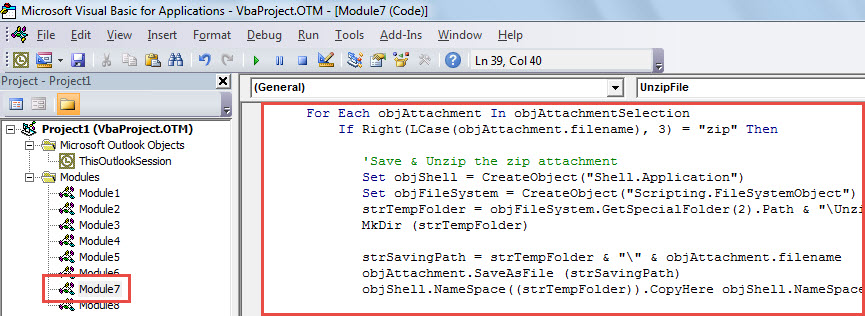
- 그런 다음 현재 VBA 편집기 창을 닫습니다.
- 나중에 Outlook 옵션으로 이동하여 새 매크로를 빠른 실행 도구 모음에 추가합니다.
- 마지막으로 촬영할 수 있습니다.
- 먼저, zip 이메일 첨부.
- 그런 다음 빠른 실행 도구 모음에서 매크로를 클릭합니다.

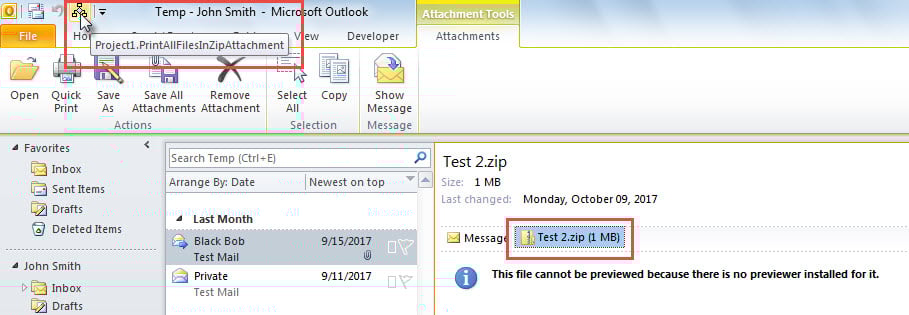
- 한 번에 파일이 선택한 형식으로 압축됩니다. zip 첨부파일이 출력됩니다.
Outlook 데이터 파일 백업
Outlook이 손상되기 쉽다는 사실을 알고 계실 수도 있습니다. Outlook이 손상되면 Outlook 데이터가 손실됩니다. 따라서 Outlook 데이터 파일을 정기적으로 백업하여 백업을 통해 Outlook 데이터를 쉽게 복구할 수 있도록 하는 것이 중요합니다. 하지만 백업이 몇 주 전에 생성되어 더 이상 유효하지 않다면, 신뢰할 수 있고 경험이 풍부한 전문가의 도움을 받는 수밖에 없습니다. PST 복구 도구, 같은 DataNumen Outlook Repair.
저자 소개 :
Shirley Zhang은 데이터 복구 전문가입니다. DataNumen, Inc.는 다음과 같은 데이터 복구 기술 분야의 세계적 리더입니다. 손상된 mdf 및 전망 수리 소프트웨어 제품. 자세한 내용은 WWW.datanumen.COM