
Outlook 이메일의 모든 이미지 첨부 파일을 Excel 워크 시트로 빠르게 내보내려면이 문서를 참조하십시오. 여기서는 수동으로 내보내는 것보다 더 효과적인 방법을 보여 드리겠습니다.
사진이 첨부된 이메일을 받았을 때, 엑셀로 보고서를 작성하려면 이러한 이미지를 일괄적으로 엑셀 워크시트로 내보내는 방법이 절실히 필요했을 것입니다. 이제 그 방법을 알려드리겠습니다.
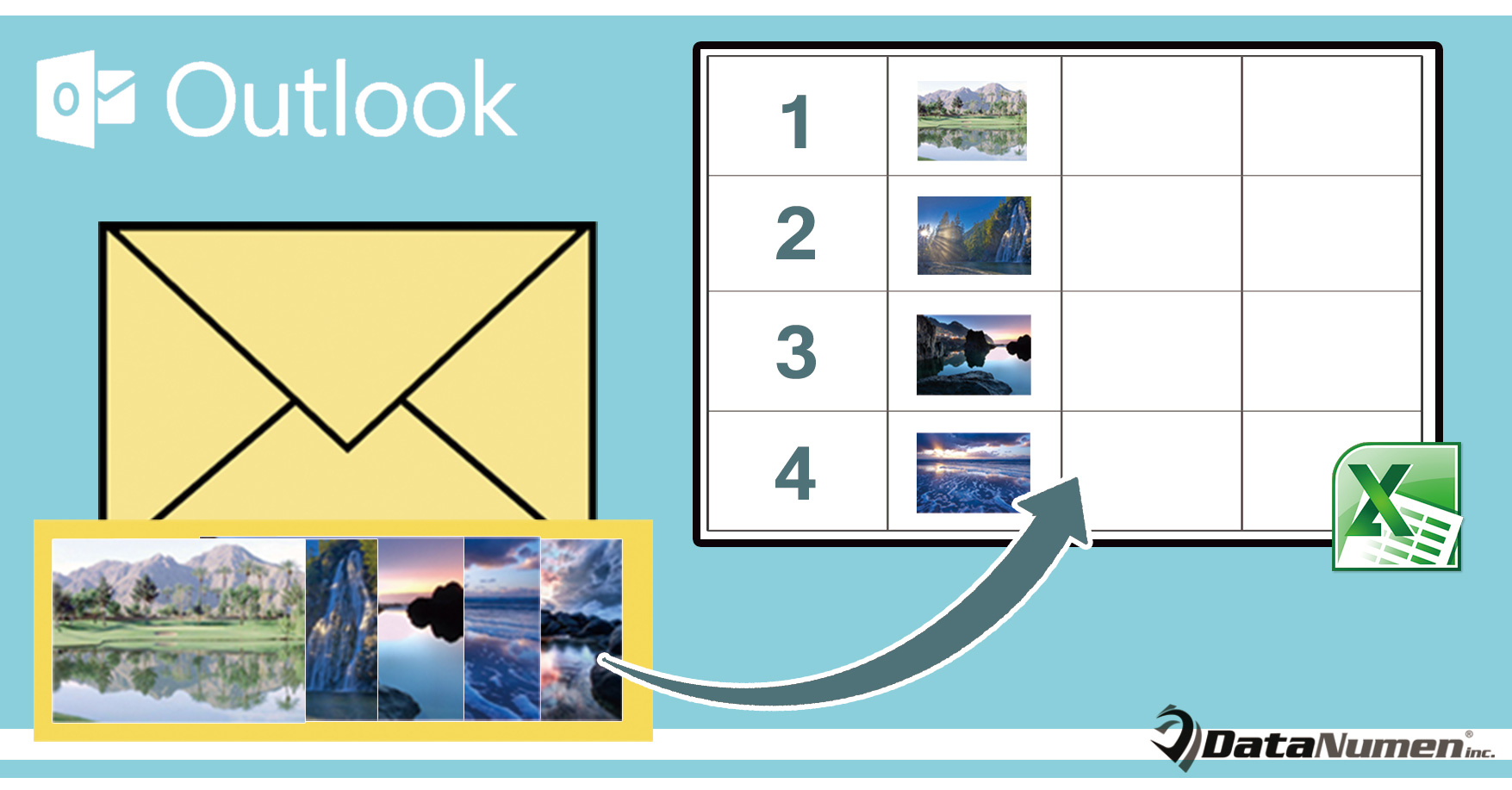
이메일의 모든 이미지 첨부 파일을 Excel 워크 시트로 내보내기
- 우선 Outlook 응용 프로그램에 일반적인 방식으로 액세스하십시오.
- 그런 다음 Outlook 창에서 "Alt + F11"키 바로 가기를 누르면 "Microsoft Visual Basic for Applications"창이 나타납니다.
- 이 화면에서 사용하지 않는 모듈을 열거 나 곧바로 새 모듈을 삽입해야합니다.
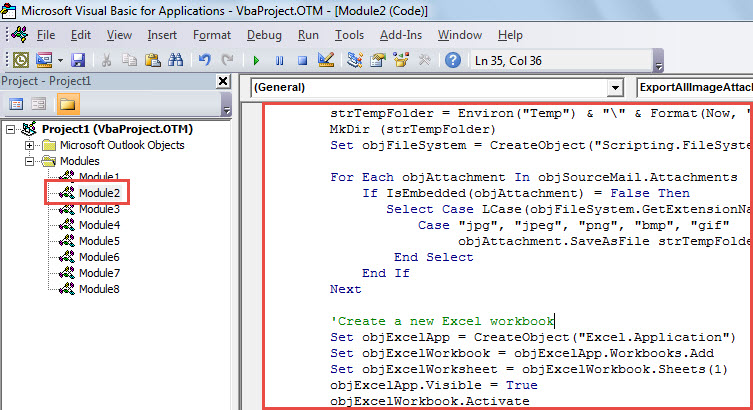
- 다음으로 아래의 VBA 코드를이 모듈에 복사해야합니다.
Sub ExportAllImageAttachmentsToExcelWorksheet()
    Dim objSourceMail As Outlook.MailItem
    Dim objAttachment As Outlook.Attachment
    Dim strImage As String
    Dim objExcelApp As Excel.Application
    Dim objExcelWorkbook As Excel.Workbook
    Dim objExcelWorksheet As Excel.Worksheet
    Dim objFile As Object
    Dim objFiles As Object
    Dim nRow As Integer

    Select Case Outlook.Application.ActiveWindow.Class
           Case olInspector
                Set objSourceMail = ActiveInspector.currentItem
           Case olExplorer
                Set objSourceMail = ActiveExplorer.Selection.Item(1)
    End Select

    If Not (objSourceMail Is Nothing) Then

       'Save the image attachments to a temporary folder
       strTempFolder = Environ("Temp") & "\" & Format(Now, "yyyymmddhhmmss") & "\"
       MkDir (strTempFolder)
       Set objFileSystem = CreateObject("Scripting.FileSystemObject")

       For Each objAttachment In objSourceMail.Attachments
           If IsEmbedded(objAttachment) = False Then
              Select Case LCase(objFileSystem.GetExtensionName(objAttachment.filename))
                     Case "jpg", "jpeg", "png", "bmp", "gif"
                          objAttachment.SaveAsFile strTempFolder & objAttachment.filename
              End Select
           End If
       Next

       'Create a new Excel workbook
        Set objExcelApp = CreateObject("Excel.Application")
        Set objExcelWorkbook = objExcelApp.Workbooks.Add
        Set objExcelWorksheet = objExcelWorkbook.Sheets(1)
        objExcelApp.Visible = True
        objExcelWorkbook.Activate

        'Get the images in the temporary folder
        Set objFiles = objFileSystem.GetFolder(strTempFolder).Files

        'Insert the images into this new Excel worksheet
        For Each objFile In objFiles
            strImage = strTempFolder & Trim(objFile.Name)
            nRow = nRow + 1
            With objExcelWorksheet
                 .Range("A" & nRow).value = objFile.Name
                 'Change the height and width as per your needs
                 .Range("B" & nRow).ColumnWidth = 10
                 .Range("B" & nRow).RowHeight = 80
                 .Range("B" & nRow).Activate
                 With .Pictures.insert(strImage)
                      With .ShapeRange
                           .LockAspectRatio = msoTrue
                           .Width = 50
                           .Height = 70
                      End With
                 End With
                 .Columns("A").AutoFit
                 .Activate
            End With
       Next
    End If
End Sub

Function IsEmbedded(objCurAttachment As Outlook.Attachment) As Boolean
    Dim objPropertyAccessor As Outlook.propertyAccessor
    Dim strProperty As String

    Set objPropertyAccessor = objCurAttachment.propertyAccessor
    strProperty = objPropertyAccessor.GetProperty("http://schemas.microsoft.com/mapi/proptag/0x3712001E")

    If InStr(1, strProperty, "@") > 0 Then
       IsEmbedded = True
    Else
       IsEmbedded = False
    End If
End Function
- 그 후에 매크로를 종료 할 수 있습니다.
- 그런 다음 "파일"> "옵션"> "빠른 실행 도구 모음"으로 이동하여이 매크로를 빠른 실행 도구 모음에 추가합니다.
- 마지막으로 지금 바로이 매크로를 사용해 볼 수 있습니다.
- 먼저 소스 이메일을 선택하거나 엽니 다.
- 그런 다음 빠른 실행 도구 모음에서 매크로 버튼을 클릭합니다.
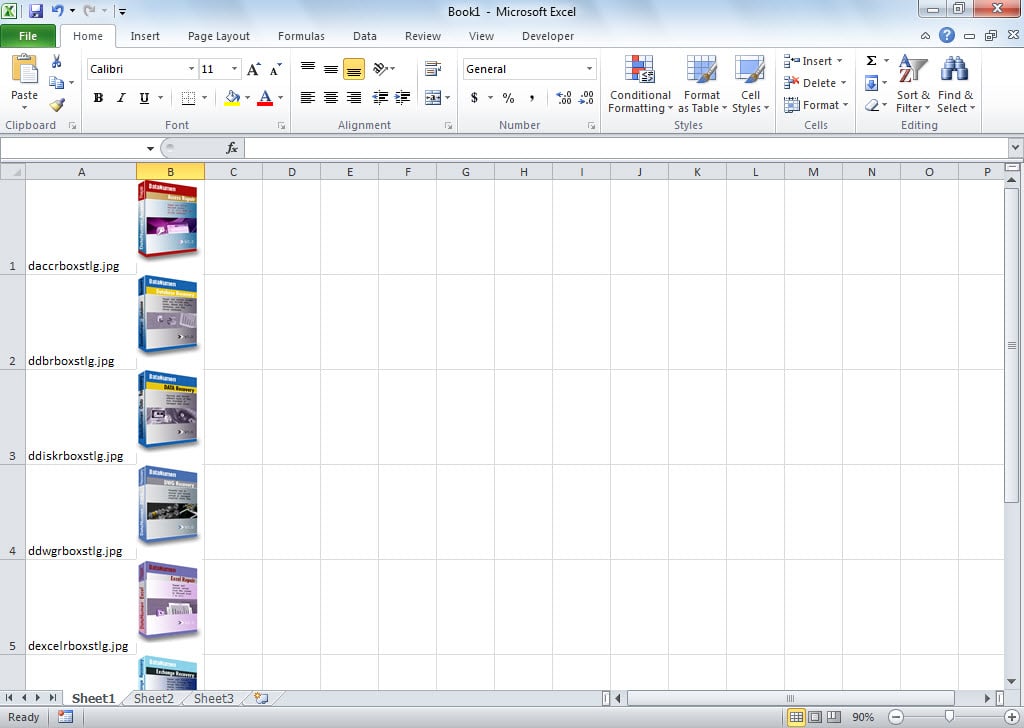
- 매크로가 완료되면 다음 스크린 샷과 같은 Excel 워크 시트가 표시됩니다.

Outlook 파일이 손상되지 않도록 보호
Outlook은 손상되기 쉬운 것으로 알려져 있습니다. 따라서 Outlook 양식 손상을 보호하는 방법을 이해해야합니다. 우선 바이러스 공격을 차단하려면 바이러스 백신 소프트웨어를 설치하고 알 수없는 첨부 파일을 다운로드하지 않아야합니다. 게다가, 우리는 다음과 같은 강력한 수리 도구를 확보하는 것이 좋습니다. DataNumen Outlook Repair이는 다음과 같은 경우에 가장 효과적인 해결책을 제공할 수 있습니다. Outlook 손상.
저자 소개 :
Shirley Zhang은 데이터 복구 전문가입니다. DataNumen, Inc.는 다음과 같은 데이터 복구 기술 분야의 세계적 리더입니다. SQL 복구 및 전망 수리 소프트웨어 제품. 자세한 내용은 WWW.datanumen.COM