
Outlook은 첨부 파일을 직접 압축하는 것을 허용하지 않지만 RAR 이 문서에 소개 된 VBA 코드를 사용하여 쉽게 실현할 수 있습니다.
우리 모두 알고 있듯이 하나의 이메일에 많은 대용량 파일을 첨부 할 때 Outlook의 첨부 파일 크기 제한에 대한 경고가 표시 될 수 있습니다. 또한 이메일에 너무 큰 첨부 파일이 있으면 성공적으로 발송하기가 더 어려워집니다. 따라서 이러한 첨부 파일에 직면하여 파일을 RAR 첨부 파일의 크기를 어느 정도 줄일 수 있습니다.
일반적으로 파일을 RAR Outlook이 압축을위한 기본 기능을 제공하지 않기 때문에 로컬 드라이브에서만 가능합니다. 그러나 많은 사람들은 Outlook 내에서 직접 수행하기를 희망합니다. 따라서 여기에서는 Outlook VBA로 가져 오는 방법을 알려드립니다.
모든 첨부 파일을 빠르게 압축 RAR Outlook 이메일의 파일
- 처음에는 Outlook 응용 프로그램을 시작하십시오.
- 그런 다음 기본 Outlook 창에서 "Alt + F11"키를 누릅니다.
- 다음으로 "Microsoft Visual Basic for Applications"창으로 들어갑니다. 빈 모듈을 열어야합니다.
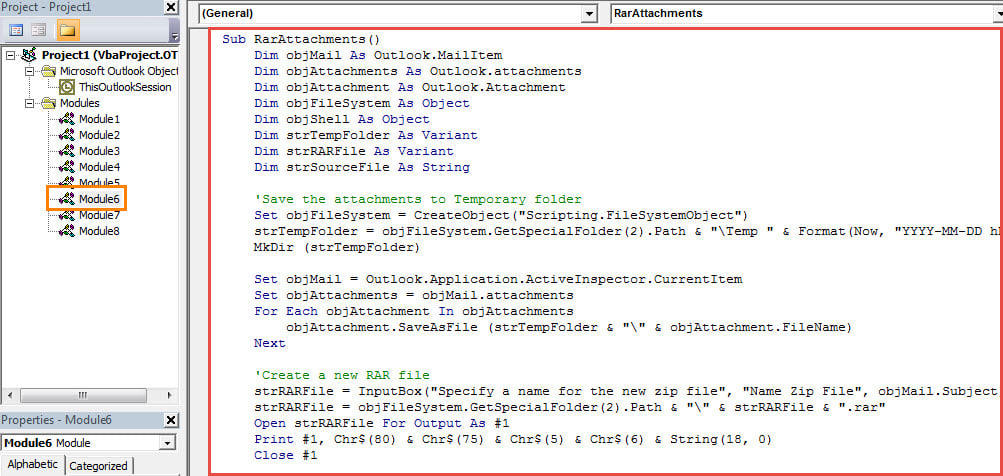
- 그런 다음 다음 VBA 코드를 복사하여이 모듈에 붙여 넣습니다.
Sub RarAttachments()
    Dim objMail As Outlook.MailItem
    Dim objAttachments As Outlook.attachments
    Dim objAttachment As Outlook.Attachment
    Dim objFileSystem As Object
    Dim objShell As Object
    Dim strTempFolder As Variant
    Dim strRARFile As Variant
    Dim strSourceFile As String

    'Save the attachments to Temporary folder
    Set objFileSystem = CreateObject("Scripting.FileSystemObject")
    strTempFolder = objFileSystem.GetSpecialFolder(2).Path & "\Temp " & Format(Now, "YYYY-MM-DD hh-mm-ss")
    MkDir (strTempFolder)

    Set objMail = Outlook.Application.ActiveInspector.CurrentItem
    Set objAttachments = objMail.attachments
    For Each objAttachment In objAttachments
        objAttachment.SaveAsFile (strTempFolder & "\" & objAttachment.FileName)
    Next

    'Create a new RAR file
    strRARFile = InputBox("Specify a name for the new zip file", "Name Zip File", objMail.Subject)
    strRARFile = objFileSystem.GetSpecialFolder(2).Path & "\" & strRARFile & ".rar"
    Open strRARFile For Output As #1
    Print #1, Chr$(80) & Chr$(75) & Chr$(5) & Chr$(6) & String(18, 0)
    Close #1

    Set objShell = CreateObject("Shell.Application")

    'Add the files to the New RAR file
    strSourceFile = Dir(strTempFolder)

    While strSourceFile <> ""
          'Change "C:\Program Files (x86)\WinRAR\WinRAR.exe" to the location where your WinRAR is installed
          objShell.Run Chr(34) & "C:\Program Files (x86)\WinRAR\WinRAR.exe" & Chr(34) & " a -r" & Chr(34) & strRARFile & Chr(34) & " " & Chr(34) & strSourceFile & Chr(34)
          strSourceFile = Dir
    Wend

    'Delete all the attachments
    Set objAttachments = objMail.attachments

    While objAttachments.Count > 0
          objAttachments.Item(1).Delete
    Wend

    'Add the new RAR file to the current email
    objMail.attachments.Add strRARFile

    'Prompt you
    MsgBox "Complete!", vbExclamation
End Sub
- 그런 다음 Outlook 매크로 보안 수준을 낮음으로 변경하십시오.
- 나중에 편리한 액세스를 위해 빠른 액세스 도구 모음에 매크로를 추가 할 수 있습니다.
- 결국 시도해 볼 수 있습니다.
- 먼저 첨부 파일이 많은 이메일을 엽니 다.
- 그런 다음 빠른 실행 도구 모음에서 매크로 버튼을 누릅니다.
- 다음으로 새 이름을 입력해야합니다. RAR 파일을 클릭하고 "확인"을 누르십시오.
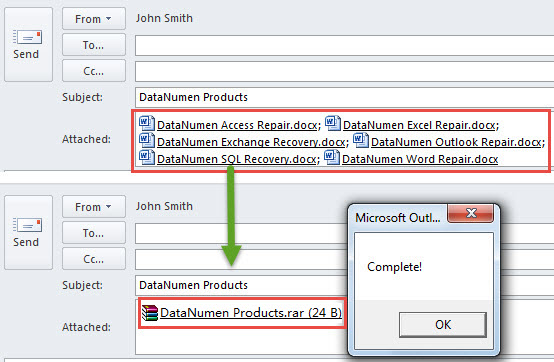
- 그 후 모든 원본 첨부 파일이 새 RAR 스크린 샷과 같은 파일 :

수 UnRAR .RAR Outlook의 첨부 파일
마찬가지로 Outlook에서도 사용자가 파일을 직접 압축 해제하는 것은 허용되지 않습니다. .RAR 그 안에 파일이 있습니다. 따라서 내부 파일을 보려면 .RAR 첨부 파일을 저장하고 로컬 드라이브에 압축을 풀어야합니다. 그러나 의심 할 여지없이 지루합니다. 다행히도 이전 기사에서 소개 한 Outlook에서이 기능을 수행하기 위해 VBA를 계속 사용할 수 있습니다.압축 해제 방법 .RAR VBA를 통해 Outlook에서 직접 첨부 파일".
저자 소개 :
Shirley Zhang은 데이터 복구 전문가입니다. DataNumen, Inc.는 다음과 같은 데이터 복구 기술 분야의 세계적 리더입니다. SQL Server 부패 및 전망 수리 소프트웨어 제품. 자세한 내용은 WWW.datanumen.COM