
때로는 특정 대화의 모든 이메일을 일괄 캡처한 다음 텍스트 파일로 로컬 폴더에 일괄 내보내기를 원할 수 있습니다. 이 기사는 빠른 시간 내에 그것을 얻는 방법을 알려줄 것입니다.
 어떤 이유로 특정 대화의 모든 이메일을 로컬 드라이브로 내보내야 할 수도 있습니다. 수동으로 하나하나 찾아서 저장하면 지루하고 힘든 작업이 될 것입니다. 따라서 다음과 같이 더 빠른 다른 방법을 찾는 것이 좋습니다. 땀을 흘리지 않고 VBA 코드 조각을 사용합니다.
대화의 모든 메일을 텍스트 파일로 일괄 내보내기
- 처음에는 Outlook 응용 프로그램을 시작하십시오.
- 그런 다음 "Alt + F11"키 버튼을 눌러 Outlook VBA 편집기에 액세스합니다.
- 이후 새 창에서 사용하지 않는 모듈을 열거나 새 모듈을 직접 삽입해야 합니다.
- 다음으로 다음 VBA 코드를 복사하여 이 모듈에 붙여넣어야 합니다.
Public strFilePath, strFileName As String

Sub ExportMailsInConversationAsTXT()
    Dim objSelectedMail As Outlook.MailItem
    Dim objConversation As Outlook.Conversation
    Dim objMail As Outlook.MailItem

    Set objSelectedMail = ActiveExplorer.Selection.Item(1)
    Set objConversation = objSelectedMail.GetConversation

    If Not (objConversation Is Nothing) Then
       'Get all root items in this conversation
       For Each objMail In objConversation.GetRootItems

          strFileName = objMail.Subject

          'Remove the unsupported characters in email subject
          strFileName = Replace(strFileName, "/", " ")
          strFileName = Replace(strFileName, "\", " ")
          strFileName = Replace(strFileName, ":", "")
          strFileName = Replace(strFileName, "?", " ")
          strFileName = Replace(strFileName, Chr(34), " ")

          strFileName = Format(objMail.ReceivedTime, "YYYY-MM-DD") & "_" & strFileName & ".txt"

         'Export as Text files
         'Change "E:\" to other local folder path as per your needs
         strFilePath = "E:\" & strFileName
         objMail.SaveAs strFilePath, OLTXT

         'Process all children as well
         Call ProcessChildren(objMail, objConversation)
      Next
   End If

   MsgBox "Complete!", vbExclamation
End Sub

Sub ProcessChildren(objCurMail As Outlook.MailItem, objCurConversation As Outlook.Conversation)
    Dim objItems As Outlook.SimpleItems
    Dim objItem As Outlook.MailItem

    Set objItems = objCurConversation.GetChildren(objCurMail)

    If objItems.Count > 0 Then
       For Each objItem In objItems

           strFileName = objItem.Subject

           strFileName = Replace(strFileName, "/", " ")
           strFileName = Replace(strFileName, "\", " ")
           strFileName = Replace(strFileName, ":", "")
           strFileName = Replace(strFileName, "?", " ")
           strFileName = Replace(strFileName, Chr(34), " ")

           strFileName = Format(objItem.ReceivedTime, "yyyy-mm-dd") & "_" & strFileName & ".txt"

           strFilePath = "E:\" & strFileName
           objItem.SaveAs strFilePath, OLTXT

           'Process all children recursively
           Call ProcessChildren(objItem, objCurConversation)
       Next
    End If
End Sub
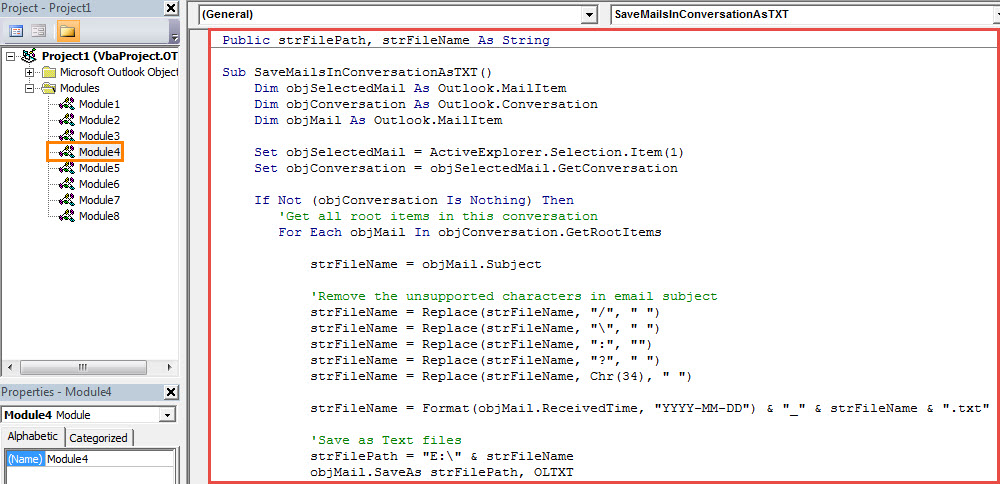
- 그런 다음 평소와 같이 새 VBA 프로젝트를 빠른 실행 도구 모음에 추가할 수 있습니다.
- 나중에 Outlook 매크로 보안 수준을 낮게 확인하십시오.
- 마지막으로 시도해 볼 수 있습니다.
- 먼저 이메일을 선택하십시오.
- 그런 다음 빠른 실행 도구 모음에서 새 매크로 버튼을 클릭합니다.
- "완료" 메시지가 표시되면 미리 정의된 로컬 폴더를 열 수 있으며 이 폴더에 "TXT" 형식의 이메일이 표시됩니다.
손상 후 PST 데이터 복원을 위한 팁
종종 Outlook에서 다양한 Outlook 오류가 발생할 수 있으며 그 중 일부는 심각하여 PST 손상으로 바로 이어질 수 있습니다. 그 때 조치를 취해야 한다. PST 수리 파일을 사용하여 소중한 데이터를 다시 찾으십시오. 이 경우 다음과 같이 평판이 좋고 입증된 도구를 다시 사용할 수 있습니다. DataNumen Outlook Repair.
저자 소개 :
Shirley Zhang은 데이터 복구 전문가입니다. DataNumen, Inc.는 다음과 같은 데이터 복구 기술 분야의 세계적 리더입니다. 복구 sql server 및 전망 수리 소프트웨어 제품. 자세한 내용은 WWW.datanumen.COM