
이번 글에서는 워드 문서에 목차를 빠르게 삽입하는 세 가지 방법을 알려드리겠습니다.
Word에서 문서를 읽는 동안 목차 나 탐색 창을 사용하여 내용을 빠르게 살펴볼 수 있습니다. 그러나 인쇄와 관련하여 탐색 창은 문서와 함께 인쇄 할 수 없습니다. 그러나 전자는 그렇습니다. 따라서 Word 문서, 특히 긴 문서에 목차를 삽입해야합니다. 다음은 세 가지 효과적인 방법입니다.
방법 1 : 수동으로 목차 삽입
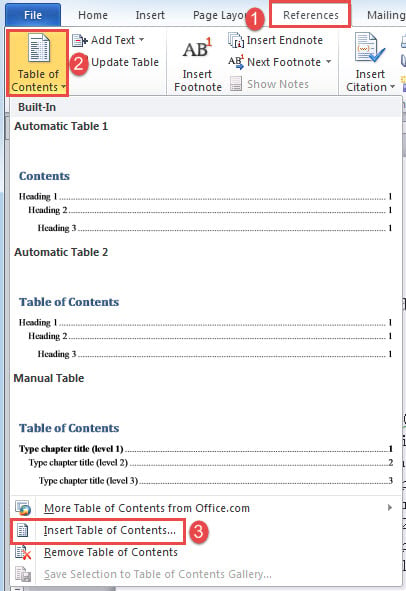
- 먼저 목차가 들어갈 위치에 커서를 놓습니다. "참조"탭을 클릭 한 다음 "목차"명령을 클릭합니다.
- 다음으로 "목차 삽입"을 선택합니다.
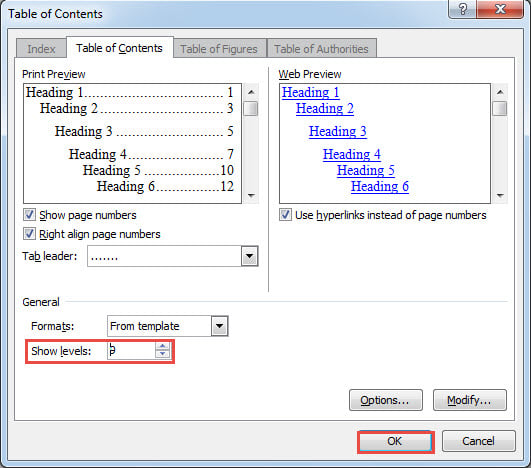
- 열린 대화 상자에서 "레벨 표시"와 같은 필요에 따라 구성을 설정합니다.
- "확인"을 클릭하십시오.

일반적으로 목차는 문서의 첫 페이지에 배치합니다. 만약 이전에 페이지 번호를 삽입했다면, 본문은 이제 2페이지부터 시작하게 됩니다. 하지만 어떤 사람들은 본문은 기존처럼 1페이지부터 시작하고 목차는 페이지 번호에서 제외하고 싶어합니다. 이를 위해서는 추가적인 작업이 필요합니다. 자세한 지침은 이 글을 참조하세요. 워드 문서에서 특정 페이지부터 페이지 번호를 매기는 방법
그리고 모든 조정 후 목차를 업데이트하는 것을 잊지 마십시오.
방법 2 : Word 매크로 실행
보시다시피 목차를 수동으로 삽입하는 방법은 페이지 번호 재설정과 같은 문제로 인해 약간 귀찮습니다. 따라서이 작업을 수행하기 위해 매크로 방식을 사용하는 것이 좋습니다. 매크로를 사용하면 몇 초 만에 전체 프로세스를 자동으로 수행 할 수 있습니다.
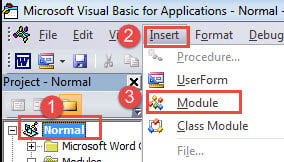
- 먼저 "Ctrl + Home" 키를 눌러 문서의 시작 부분으로 이동하세요.
- 그런 다음 "Alt + F11"을 눌러 VBA 편집기를 트리거합니다.
- 그런 다음 "일반"을 클릭 한 다음 "삽입"을 클릭합니다.
- “Module”을 선택하고 더블 클릭하여 편집 영역을 엽니 다.

- 그런 다음 여기에 다음 코드를 붙여 넣습니다.
Sub InsertTOC()
  Selection.InsertBreak Type:=wdSectionBreakNextPage
  Selection.HomeKey Unit:=wdStory
  With ActiveDocument
    .TablesOfContents.Add Range:=Selection.Range, RightAlignPageNumbers:= _
      True, UseHeadingStyles:=True, UpperHeadingLevel:=1, _
      LowerHeadingLevel:=9, IncludePageNumbers:=True, AddedStyles:="", _
      UseHyperlinks:=True, HidePageNumbersInWeb:=True, UseOutlineLevels:= _True
    .TablesOfContents(1).TabLeader = wdTabLeaderDots
    .TablesOfContents.Format = wdIndexIndent
  End With
  ActiveDocument.Sections(1).PageSetup.DifferentFirstPageHeaderFooter = True
  With ActiveDocument.Sections(2)
    .Footers(wdHeaderFooterPrimary).LinkToPrevious = False
    .Footers(wdHeaderFooterPrimary).PageNumbers.RestartNumberingAtSection = True
    .Footers(wdHeaderFooterPrimary).PageNumbers.StartingNumber = 1
  End With
  ActiveDocument.TablesOfContents(1).Update
End Sub
- 마지막으로 "실행"을 클릭합니다.

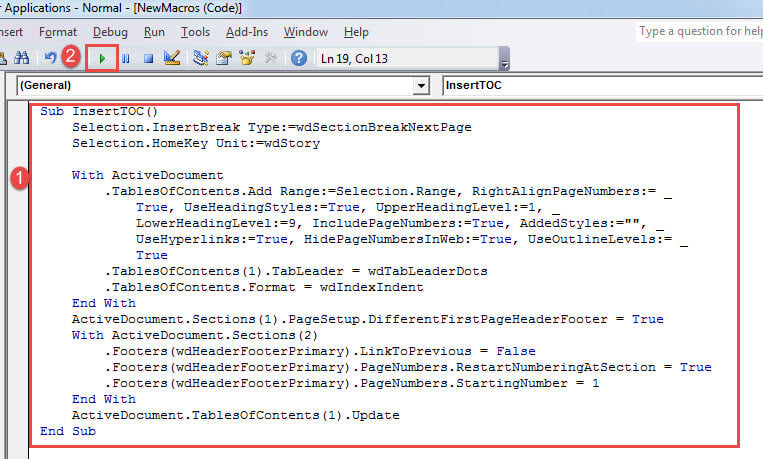
매크로를 실행하면 새로 삽입된 목차가 첫 페이지에 배치되고 페이지 번호는 두 번째 페이지부터 시작됩니다. 또한 목차가 이미 업데이트되었습니다.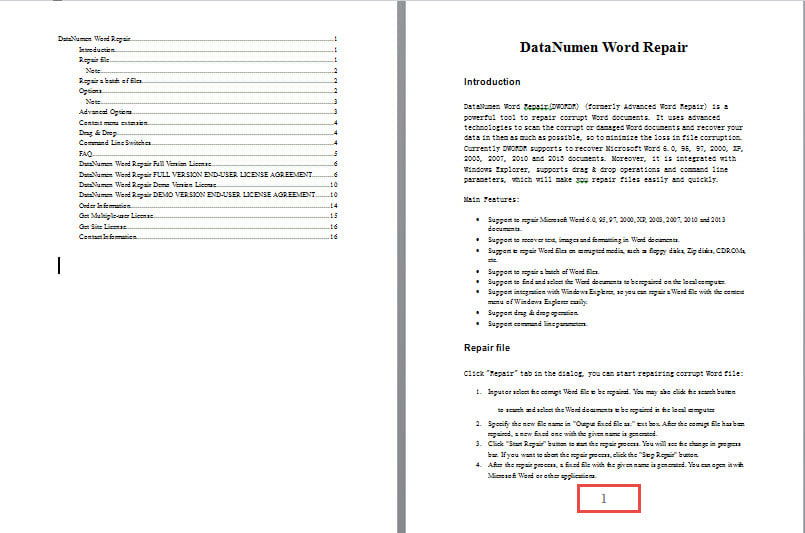
방법 3 : 여러 문서에 목차 삽입
일괄 처리의 용이성을 좋아하는 경우 다음 매크로를 사용합니다.
Sub InsertTOCForMultiDoc()
  Dim objDoc As Document
  Dim strFile As String, strFolder As String

  '  Initialization
  strFolder = "C:\Users\Public\Documents\New folder\Test1\"
  strFile = Dir(strFolder & "*.docx", vbNormal)

  '  Precess each document in the folder.
  While strFile <> ""
    Set objDoc = Documents.Open(FileName:=strFolder & strFile)

    Selection.InsertBreak Type:=wdSectionBreakNextPage
    Selection.HomeKey Unit:=wdStory
    With ActiveDocument
      .TablesOfContents.Add Range:=Selection.Range, RightAlignPageNumbers:= _
        True, UseHeadingStyles:=True, UpperHeadingLevel:=1, _
        LowerHeadingLevel:=9, IncludePageNumbers:=True, AddedStyles:="", _
        UseHyperlinks:=True, HidePageNumbersInWeb:=True, UseOutlineLevels:= _
        True.TablesOfContents(1).TabLeader = wdTabLeaderDots
      .TablesOfContents.Format = wdIndexIndent
    End With
    ActiveDocument.Sections(1).PageSetup.DifferentFirstPageHeaderFooter = True
    With ActiveDocument.Sections(2)
      .Footers(wdHeaderFooterPrimary).LinkToPrevious = False
      .Footers(wdHeaderFooterPrimary).PageNumbers.RestartNumberingAtSection = True
      .Footers(wdHeaderFooterPrimary).PageNumbers.StartingNumber = 1
    End With
    ActiveDocument.TablesOfContents(1).Update

    objDoc.Save
    objDoc.Close
    strFile = Dir()
  Wend
End Sub
방법 2에서 동일한 단계를 수행하여 매크로를 설치하고 실행하십시오.
노트
- 먼저 동일한 디렉토리에 모든 문서를 정렬해야합니다.
- "C : \ Users \ Public \ Documents \ New folder \ Test1 \"을 실제 폴더 경로로 바꾸는 것을 잊지 마십시오. 마지막 "\"를 잊지 마십시오.
Word 용 복구 도구
Word가 갑자기 충돌하기 때문에 도구를 준비해야합니다. 수리 단어 워드 문서와 같은 파일도 포함됩니다. 신속한 복구를 통해 최대한 많은 데이터를 확보할 수 있으므로, 사전에 전문적인 복구 프로그램을 확보하는 것이 좋습니다.
저자 소개 :
Vera Chen은 데이터 복구 전문가입니다. DataNumen, Inc.는 다음과 같은 데이터 복구 기술 분야의 세계적 리더입니다. Excel 수정 pdf 수리 소프트웨어 제품. 자세한 내용은 WWW.datanumen.COM