
이 기사에서는 Word 문서에서 구역 나누기 유형을 변경하는 두 가지 빠른 방법이 있습니다.
워드에서 가장 많이 사용되는 섹션 나누기 유형은 "다음 페이지"와 "연속"입니다. "다음 페이지"를 선택하면 새 섹션마다 새 페이지가 시작됩니다. 이렇게 하면 섹션을 보기 좋게 나눌 수 있습니다. 하지만 인쇄할 때는 용지가 추가로 필요하게 되므로 환경 친화적이지 않습니다. 용지를 절약하고 싶다면 "연속" 나누기를 고려해 볼 수 있지만, 분리 요구 사항을 완벽하게 충족하지는 못할 수 있습니다.
따라서 특정 요구 사항에 따라 선택할 수있는 방법을 소개하고자합니다.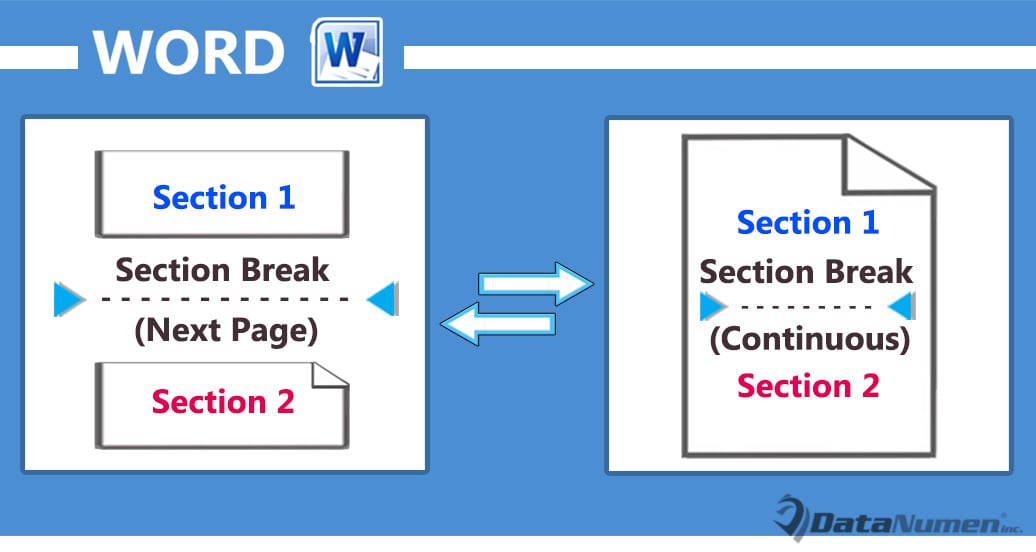
방법 1 : 페이지 설정 변경
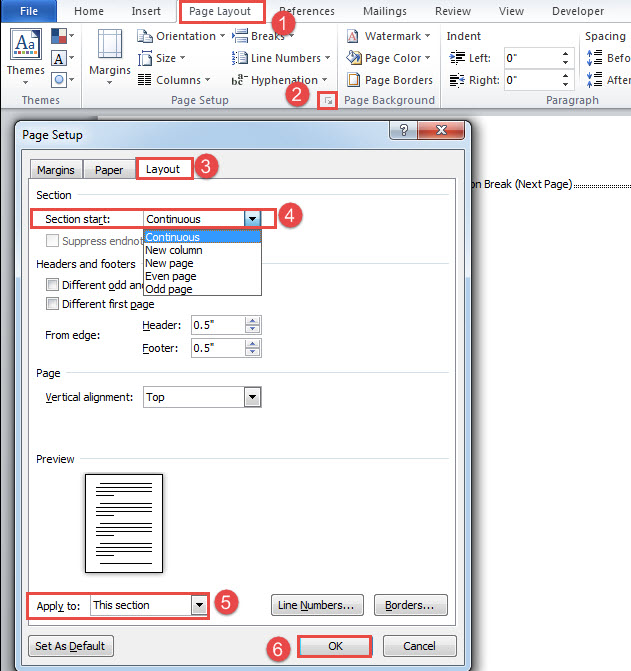
- 먼저, 원하는 영역 안에 커서를 놓고 리본 메뉴에서 "페이지 레이아웃" 탭을 클릭합니다.
- 그런 다음 "페이지 설정"그룹의 화살표 버튼을 클릭하여 동일한 이름 대화 상자를 엽니 다.
- 그런 다음 상자에서 "레이아웃"탭을 클릭합니다.
- "섹션 시작" 콤보 상자에서 원하는 섹션 나누기 유형을 선택하십시오.
- 다음으로 "적용 대상"콤보 상자에서 적용 범위를 선택합니다. 단일 섹션 나누기 또는 여러 섹션 나누기의 유형을 변경할 수도 있습니다.

결과는 다음과 같습니다.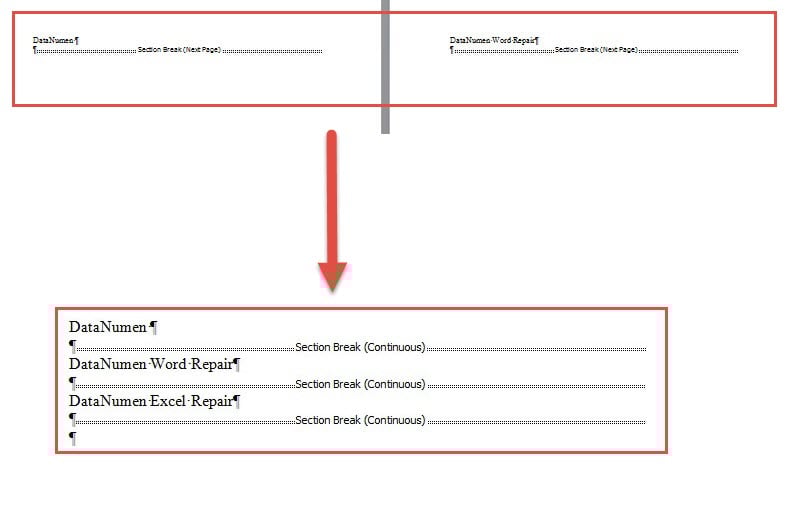
방법 2 : Word 매크로를 실행하여 문서의 모든 구역 나누기 유형 변경
- 먼저 "Alt + F11" 키를 눌러 Word에서 VBA 편집기를 엽니다.
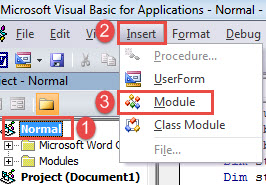
- 다음으로“Normal”프로젝트를 클릭하고 메뉴 바에서“Insert”탭을 클릭합니다.
- 그런 다음 드롭 다운 메뉴에서 "모듈"을 선택합니다.

- 다음으로 새 모듈을 두 번 클릭하여 엽니 다.
- 이제 편집 공간에서 다음 코드를 붙여 넣으십시오.
Sub ChangeNextPageBreakToContinuous()
  Dim nSectionNum As Integer
  Dim objDoc As Document

  Application.ScreenUpdating = False

  Set objDoc = ActiveDocument
  nSectionNum = objDoc.Sections.Count

  For nSectionNum = nSectionNum To 1 Step -1
    With objDoc.Sections(nSectionNum).Range.PageSetup
      If .SectionStart = wdSectionNewPage Then
        .SectionStart = wdSectionContinuous
      End If
    End With
  Next nSectionNum

  Application.ScreenUpdating = True
End Sub
- 매크로를 실행하려면 "F5"를 누르십시오.

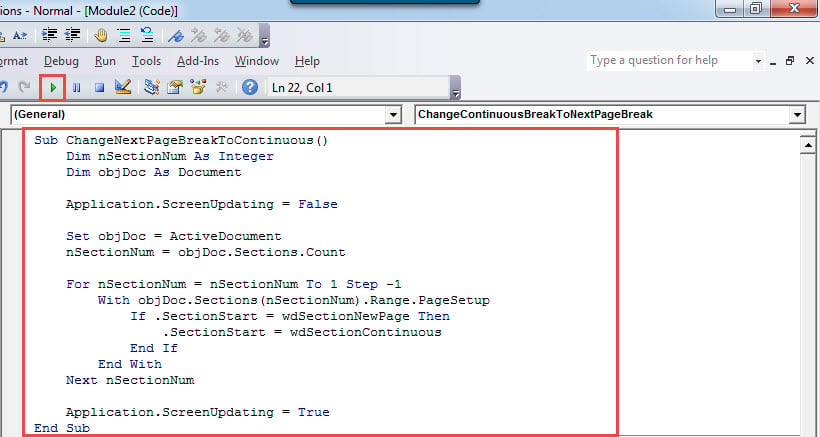
이 매크로는 "다음 페이지"유형의 모든 섹션 나누기를 "연속"으로 변경합니다. 결과는 방법 1의 결과와 동일합니다.
이제 모든 연속 구역 나누기를 "다음 페이지"유형으로 변경해야하는 경우 다음 매크로를 사용하십시오.
Sub ChangeContinuousBreakToNextPageBreak()
  Dim nSectionNum As Integer
  Dim objDoc As Document

  Application.ScreenUpdating = False

  Set objDoc = ActiveDocument
  nSectionNum = objDoc.Sections.Count

  For nSectionNum = nSectionNum To 1 Step -1
    With objDoc.Sections(nSectionNum).Range.PageSetup
      If .SectionStart = wdSectionContinuous Then
        .SectionStart = wdSectionNewPage
      End If
    End With
  Next nSectionNum

  Application.ScreenUpdating = True
End Sub
문서 복구 도구
Word 문제를 접하고 결국 손상된 docx. 따라서 즉시 조치를 취해야합니다. 데이터를 복구하는 가장 빠른 방법은 자격을 갖춘 수리 도구를 선택하는 것입니다.
저자 소개 :
Vera Chen은 데이터 복구 전문가입니다. DataNumen, Inc.는 다음과 같은 데이터 복구 기술 분야의 세계적 리더입니다. xls 수리 pdf 수리 소프트웨어 제품. 자세한 내용은 WWW.datanumen.COM