
無料のヒント、高度な方法、プロ仕様のツールなど、完全ガイドで削除したWord文書の復元方法を学びましょう。
はじめに
Word文書を誤って削除してしまうことは、WindowsとMacで最もよくあるデータ損失のシナリオの一つです。Deleteキーを使用した場合でも、ごみ箱を空にした場合でも、迅速に対応し、影響を受けたドライブへの新しいデータの書き込みを停止すれば、多くの場合、復元が可能です。
このガイドでは、以下の3つのシナリオについて説明します。
- 誤って削除した場合 ― ファイルは削除されましたが、ごみ箱に残っている可能性があります。
- 完全に削除 — ごみ箱が空になったか、Shift+Delete キーが使用されました
- コンテンツの削除 — 開いているドキュメント内で、テキスト、ページ、画像、またはセクションが誤って削除されました
2. 方法1:Ctrl+Zで削除を取り消す
2.1 Ctrl+Zで削除したWord文書を復元する
ファイルを削除したばかりで、他の操作を一切行っていない場合は、Ctrl+Zが最も速い復元方法です。
ショートカット方法:
- Windows: を押す Ctrlキー+ Z (複数回の削除を取り消すには、必要に応じて繰り返してください)
- Mac: 押す コマンド+ Z (必要に応じて繰り返してください)
GUI方式:
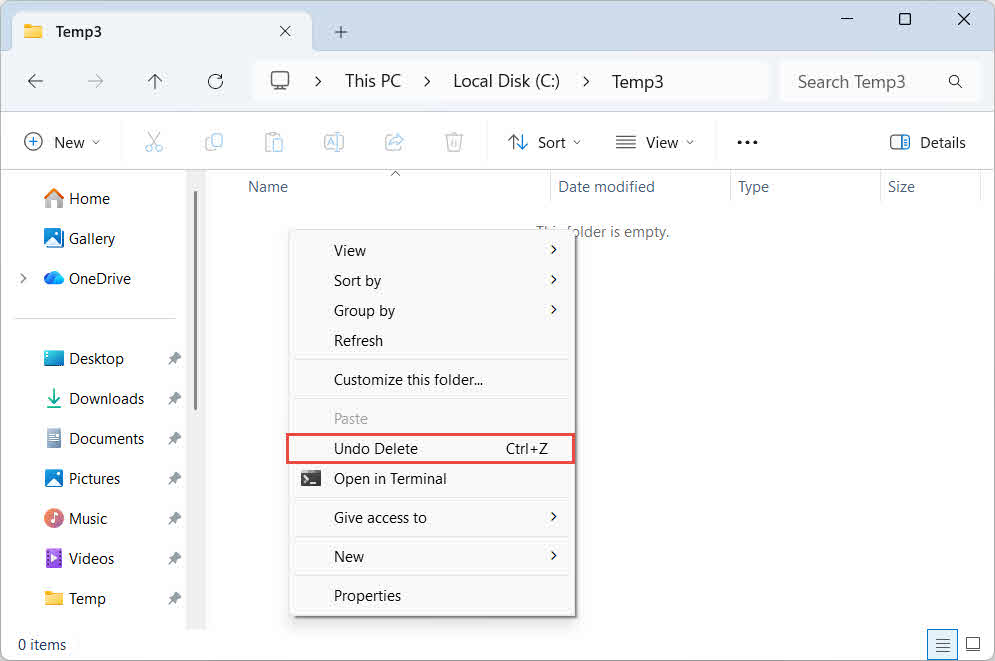
- ファイルエクスプローラーで、削除前にファイルが保存されていたフォルダーを開きます。
- フォルダー内の空白領域を右クリックして、 削除元に戻します.
2.2 Ctrl+Zで削除したコンテンツを復元する
テキスト、ページ、画像、またはセクションが誤って削除され、ドキュメントがまだ開いている場合は、 Ctrlキー+ Z 削除をすぐに取り消す。
制限事項:
- Wordでは、デフォルトではセッションごとに最大100件の取り消し可能な操作が保持されます。削除後に多くの編集を行った場合、Ctrl+Zキーを繰り返し押す必要があるかもしれません。また、削除されたコンテンツが既に取り消しの制限を超えている可能性もあります。
- ドキュメントを閉じると、元に戻す履歴が消去されます。ファイルが閉じられて再度開かれると、Ctrl+Z で削除されたコンテンツを復元できなくなります。その場合、 以前のバージョンを復元する 代わりに(第6.2節)。
3. 方法2:ごみ箱から復元する
3.1 方法2.1:Windowsごみ箱
ファイルを通常の方法で削除した場合(Shift+Deleteキーを使わずに削除した場合)、Windowsはファイルを完全に消去するのではなく、ごみ箱に移動します。ごみ箱からファイルを復元するには、以下の手順に従ってください。
- ダブルクリック ごみ箱 デスクトップ上のアイコンをクリックするか、スタートメニューで検索してください。

- Word文書を探してください。検索ボックスを使用するか、並べ替えてください。 名前 or 削除日 より早く見つけるため。
- ファイルを右クリックして選択 リストアファイルは元の場所に戻ります。



メモ: ネットワーク共有ドライブの場合は、ローカルのごみ箱ではなく、サーバー側の専用ごみ箱を確認する必要があります。
ガイドを確認してください ごみ箱から削除したファイルを復元する方法 をご覧ください。
3.2 方法2.2:Macのゴミ箱
Mac では、削除されたファイルは ゴミ 永久撤去前に。
- クリック ゴミ Dock のアイコン。
- Word文書を探してください。
- ファイルを右クリックして選択 戻す それを元の場所に戻す。

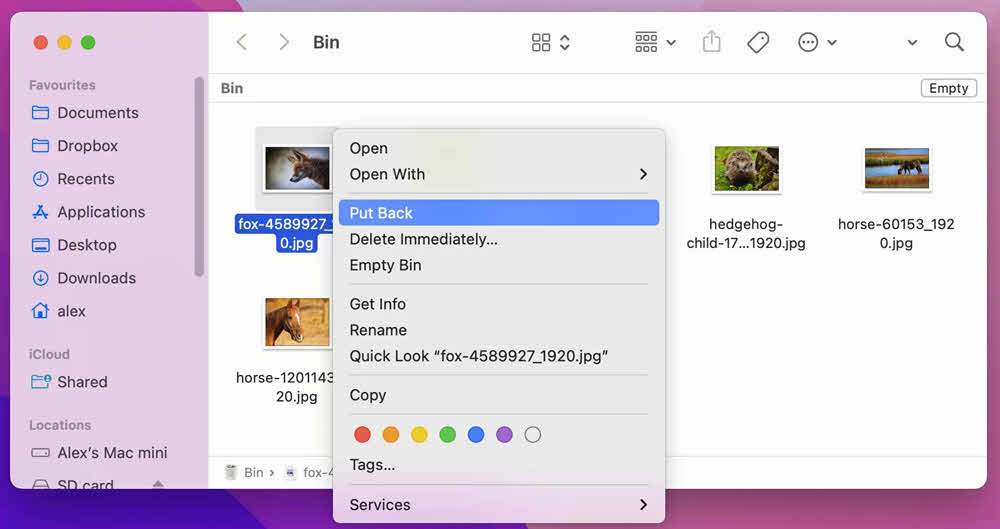
チェック このガイド Macのゴミ箱からファイルを復元する方法の詳細については、こちらをご覧ください。
3.3 方法2.3:クラウドドライブのごみ箱
ファイルがクラウドストレージに保存されている場合は、専用のごみ箱を確認してください。
メモ: Word モバイル アプリでファイルを削除すると (3 点メニュー -> 削除) 実際には、ローカルファイルではなく OneDrive 上のクラウドファイルが削除されるため、スマートフォンのローカルごみ箱には表示されません。代わりに OneDrive のごみ箱を確認してください。
SharePointに関する注意事項: ファイルがエンドユーザーのごみ箱にない場合、SharePoint 管理者はサイト コレクションのごみ箱または保存保留ライブラリを確認できます。
4. 方法3: ファイルを再ダウンロード/再送信する
削除したファイルが元々インターネットからダウンロードされたもの、または電子メールの添付ファイルとして受信したものである場合、復元方法よりも再取得の方が速い場合があります。以下の点を確認してください。
- 添付ファイルを含むメールの受信トレイと送信済みアイテム
- チェック ダウンロード ローカルコピー用のフォルダを選択するか、ダウンロード履歴を参照して直接再ダウンロードリンクを探してください。
- 元の送信者またはファイルがホストされているウェブサイトに連絡して、新しいコピーをリクエストしてください。
5. 方法4: バックアップまたはコピーから復元する
ディスクレベルの復旧を試みる前に、ファイルのバックアップまたはコピーが存在する可能性のあるすべての場所を洗い出してください。
- 定期バックアップまたは自動バックアップ: バックアップソフトウェアやサービスを使用している場合は、バックアップを確認してください。
- クラウドドライブ: OneDrive、Google Drive、Dropbox、iCloud Driveなど、多くのファイルが自動的に同期されます。
- その他のクラウドベースサービス: Googleドキュメントなど、多くのドキュメントは通常の使用中にクラウドサービスに自動的に保存されます。
- 共有ネットワークドライブ: ファイルはチームまたは部署のフォルダに保存されている可能性があります。
- 外付けドライブ: USBドライブや外付けハードドライブなど、コピーを保存または転送した可能性のある場所。
- 他のデバイス: ファイルを同期した可能性のあるノートパソコン、自宅のPC、またはモバイルデバイス
6. 方法5:ファイル履歴/タイムマシンを使用して復元する
6.1 削除されたWord文書を復元する
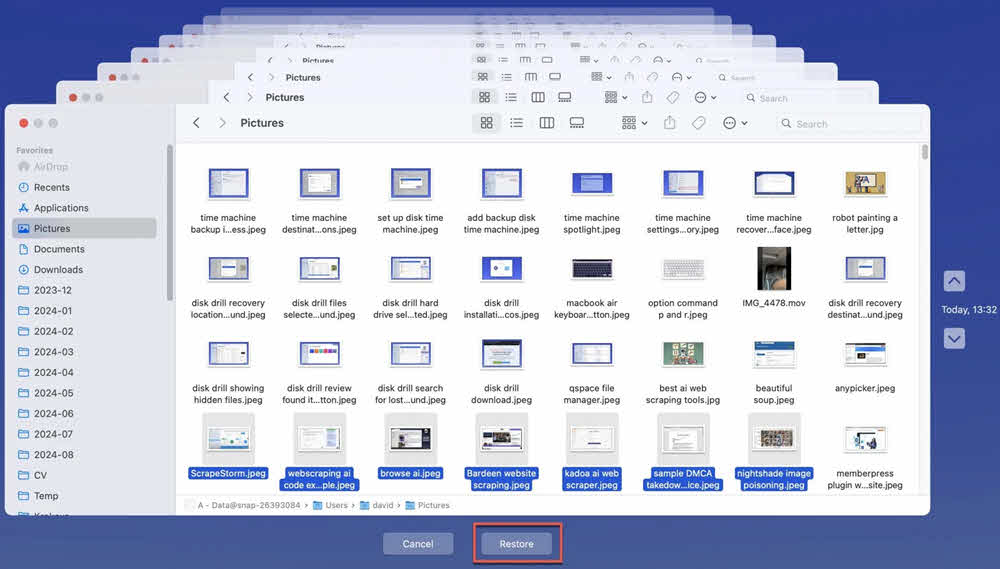
ファイル履歴(Windows)またはタイムマシン(Mac)が削除前に有効になっていた場合は、フォルダをファイルが削除される前の時点に復元できます。
6.1.1 Windows ファイル履歴
メモ: ファイルを削除する前に、ファイル履歴をオンにする必要があります。 コントロールパネル -> ファイルの履歴 検証します。
- ファイルエクスプローラーを開き、削除したファイルが含まれていたフォルダーに移動します。
- フォルダを右クリックして選択 特性.
- クリック 以前のバージョン タブ。利用可能なバックアップスナップショットの一覧が表示されます。
![プロパティ ダイアログの [以前のバージョン] タブ。](data:image/svg+xml,%3Csvg%20xmlns='http://www.w3.org/2000/svg'%20viewBox='0%200%20388%20476'%3E%3C/svg%3E)
- ファイルが削除される前の日付のバージョンを選択してください。
- コンテンツをプレビューするには、展開します 店は開いています をクリックして ファイル履歴で開く.
- 詳しくはこちら リストア フォルダ全体を復元する。
![プロパティ ダイアログの [以前のバージョン] タブ。](https://www.datanumen.com/wp-content/uploads/2025/12/previous-versions1.png)
6.1.2 Mac版タイムマシン
- 削除したファイルが保存されていたフォルダを開きます。
- 店は開いています タイムマシン メニューバーから、または 用途.
- 右側のタイムラインまたは矢印を使用して、ファイルが存在していた時点まで遡ってください。
- ファイルを選択してクリック リストア.
6.2 ファイル履歴から削除されたコンテンツを復元する
ドキュメントからコンテンツが削除され、その後ファイルが保存されて閉じられた場合、削除されたコンテンツがまだ含まれている以前のバージョンのドキュメントを復元することで、削除されたコンテンツを復元できます。これは、ローカルドライブとクラウドドライブの両方のファイルで有効です。
- Windows ファイル履歴: の手順に従ってください セクション6.1.1ただし、親フォルダーではなく、Word文書自体に適用してください。コンテンツが削除される前の日付のバージョンを選択してください。
- Mac タイムマシン: の手順に従ってください セクション6.1.2ただし、親フォルダーではなく、Word文書自体に適用してください。コンテンツが削除される前の日付のバージョンを選択してください。
- Google ドライブのバージョン履歴
- OneDriveのバージョン履歴
- SharePoint のバージョン履歴
- Dropboxのバージョン履歴
7. 方法6:自動回復による復旧
Wordが削除される前にファイルの自動回復スナップショットを作成していた場合、そのスナップショットから削除されたWord文書を復元できます。
7.1 ファイル→開く
- Wordを開いてクリックします File -> 店は開いています -> 最近の.
- リストの一番下までスクロールしてクリックします 未保存の文書を復元する.
- 店は開いています ウィンドウを開き、ファイルを選択してクリックします。 店は開いています.
- 復元したファイルをすぐに保存するには、 File -> 名前を付けて保存.
![削除した Word 文書を復元するには、[ファイル] -> [開く] -> [最近使用した項目] -> [Word で保存されていない文書を復元] を選択します。](https://www.datanumen.com/wp-content/uploads/2026/05/word-open-recover-unsaved.jpg)
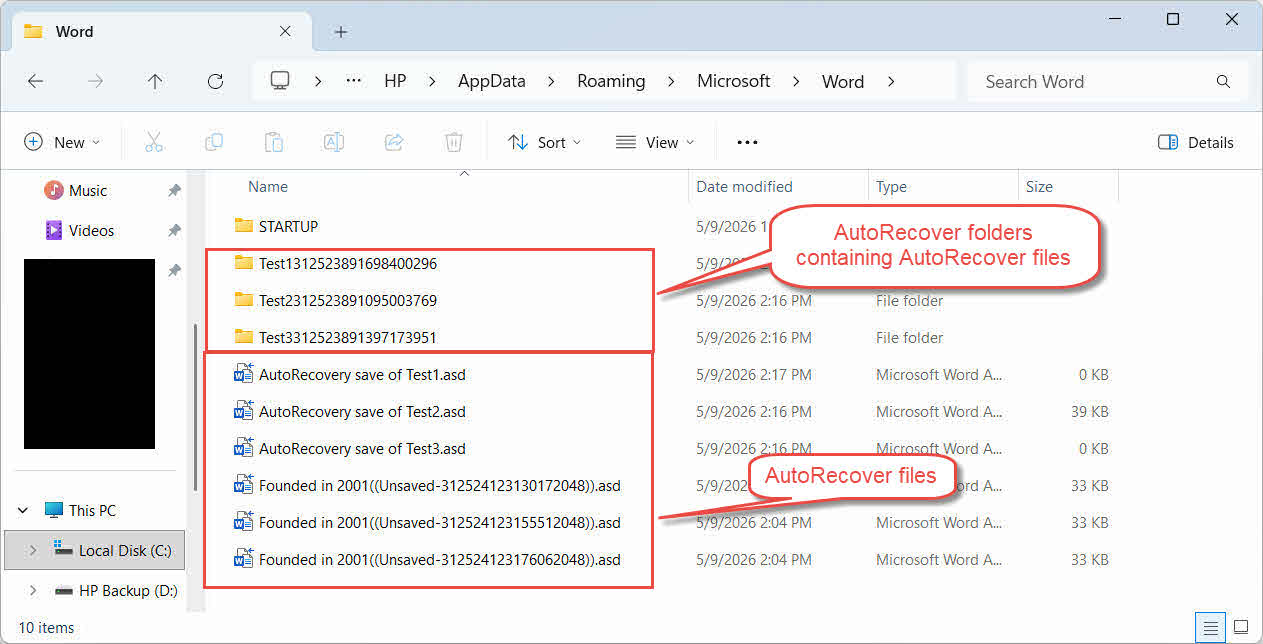
7.2 自動回復フォルダーを手動で確認する
上記の手順で結果が得られない場合は、AutoRecoverフォルダーを直接検索してください。
- メディア掲載 Windowsキー+ R、タイプ %AppData%\Microsoft\Word\、プレス Enter.
- クリック 更新日 列ヘッダーは、ファイルを新しい順に並べ替えるためのものです。
- すべてチェック .asd (AutoRecover) ファイル、およびそれらを含む可能性のあるすべてのサブフォルダー。
- 候補ファイルをダブルクリックするか、Word 内からファイルを開きます。 File -> 店は開いています紛失した書類を特定するため。
- ファイルが開けない場合、 拡張子を変更する 〜へ .DOC し、再試行してください。
メモ: .asd ファイルの実際の形式は .doc なので、拡張子を次のように変更する必要があります。 .DOC 。のdocx. - 復元したファイルをすぐに保存します File -> 名前を付けて保存.
8. 方法7:自動バックアップファイルからの復元
Status 常にバックアップコピーを作成する 以前は Word で有効になっていたオプション .wbk バックアップファイルは、ファイルの新しいバージョンが保存されるたびに同じフォルダに作成されます。そのため、バックアップから削除したWord文書を復元できます。
- ファイルエクスプローラーを開き、元のWord文書と同じフォルダーに移動します。
- という名前のファイルを探します [ファイル名].wbk のバックアップ.
- ダブルクリックするとWordで開きます。
- File -> 名前を付けて保存 安全な場所に永続的なコピーを保存する。
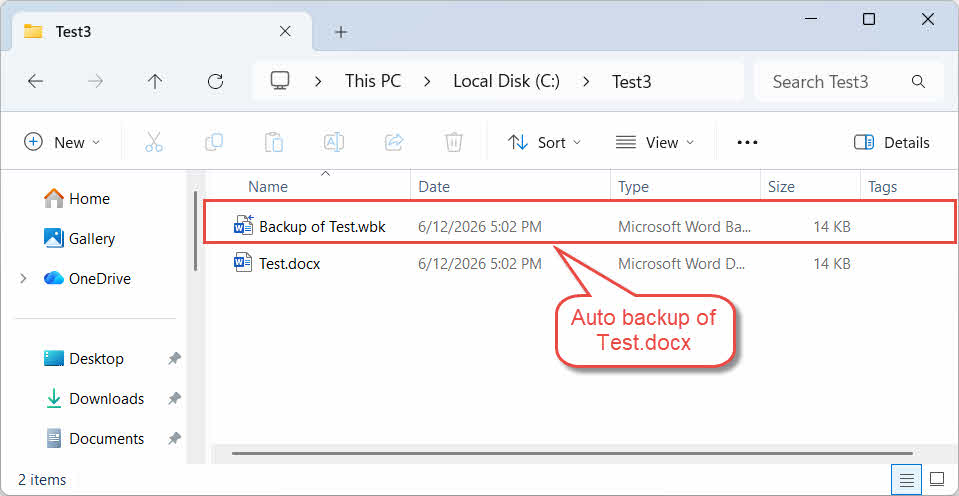
メモ: 自動バックアップは、保存したドキュメントの以前のバージョンです。
9. 方法8:一時バックアップファイルフォルダを確認する
OneDriveクライアントを使用してWord文書を同期している場合、一部のユーザーは専用のTemporaryBackupFileフォルダーから失われた文書を正常に復元できたと報告しています。
- ファイル エクスプローラーを開き、次の場所に移動します。
C:\Users\<Username>\AppData\Local\Microsoft\Word\TemporaryBackupFile
- 元のファイル名と一致するファイルを探し、それらを開いて内容を確認してください。
- ファイルが開かない場合:
- File -> 名前を付けて保存 安全な場所に永続的なコピーを保存する。
10. 方法9:未保存ファイルキャッシュフォルダを確認する
Office は、削除された Word 文書の復元可能なコピーが含まれている可能性のある専用の UnsavedFiles キャッシュ フォルダーを保持しています。
- ファイルエクスプローラーを開き、次の場所に移動します C:\Users\[ユーザー名]\AppData\Local\Microsoft\Office\UnsavedFiles.
- クリック 更新日 列ヘッダーは、ファイルを新しい順に並べ替えるためのものです。
- 関連するファイルを開いてください。
- ファイルが開かない場合:
- 復元したファイルをすぐに保存してください File -> 名前を付けて保存.
11. 方法10:一時フォルダを検索する
上記の方法がすべて失敗した場合は、オペレーティングシステムの一時ファイルフォルダから削除されたWordファイルを復元することもできます。
Windows:
- メディア掲載 Windowsキー+ R、タイプ の%temp%、プレス Enter.
- ファイルエクスプローラーの検索ボックスに、次のように入力します。 * Tmpは 結果を並べ替える 更新日.
- 作業セッション中に作成された、0KBより大きい候補ファイルを探してください。
- ファイルのコピーを作成し、 コピーの拡張子を変更する 〜へ 。のdocx.
- コピーをWordで開いてください。
- ファイルが正常に開いたら、すぐに保存してください。 File -> 名前を付けて保存.
メモ: また、一時フォルダーと元のファイルが保存されたフォルダーにある、~、~$、または$で始まるファイルも確認してください。Wordはアクティブなセッション中にこれらのファイルを作成し、復元可能なコンテンツが含まれている可能性があります。ファイルエクスプローラーの検索ボックスに、次のフィルターを入力してください。
- で始まるファイル ~:
System.FileName:~<"~" - で始まるファイル ~$:
System.FileName:~<"~$" - で始まるファイル $:
System.FileName:~<"$"
Mac:
- 店は開いています ターミナル (Spotlightを使って検索してください。)
- タイプ $ TMPDIRを開く を押し Enter.
- 開いた Finder ウィンドウで、 TemporaryItems フォルダにコピーします。
- Word文書を探して開き、内容を確認してください。
- すぐに永久保存版を保存してください。
12. 方法11:コンピュータ全体を検索する
個々のフォルダを一つずつ確認する代わりに、作業中に作成されたWordファイルや一時ファイルをコンピュータ全体で検索することもできます。
- ファイルエクスプローラーを開いてクリックします このPC 左側のパネルで、すべてのドライブを検索するオプションを選択します。
- 右上隅の検索ボックスをクリックして入力してください
*.doc OR *.docx OR *.asd OR *.wbk OR *.tmp、次にプレス Enter. - 結果を並べ替える 更新日 最新のファイルを一番上に表示する。
- 結果を確認している間は、Wordを開かないでください。自動回復機能や一時ファイルのクリーンアップが実行される場合があります。
- 有望なファイルは、開く前に別のフォルダにコピーしてください。
- 『Brooklyn Galaxy』のために、倪氏はブルックリン美術館のコレクションからXNUMX点の名品を選び、そのイメージを極めて詳細に描き込みました。これらの作品は、彼の作品とともに中国ギャラリーに展示されています。彼はXNUMX年にこの作品の制作を開始しましたが、最初の硬貨には、当館が所蔵する .tmp ファイル、 拡張子を変更する 〜へ 。のdocx。 のために .asd ファイル、拡張子を .DOC を代わりにお使いください。
- Wordでファイルを開きます。正常に開いたら、すぐに保存します。 File -> 名前を付けて保存.
13. 方法12:Windowsファイル回復機能を使用する
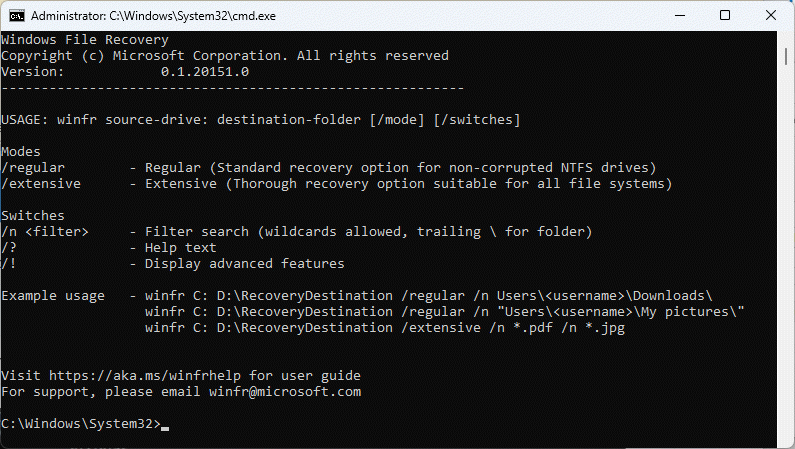
Windowsファイル復元は、マイクロソフトが提供する無料のコマンドラインツールで、完全に削除されたファイルを復元できます。
- ダウンロードしてインストール Windowsファイルの回復 Microsoftストアから。
- Windows キー、タイプ Windowsファイルの回復、アプリを開きます。 はい プロンプトが表示されたら
- リカバリコマンドを以下の形式で入力してください。
winfr ソースドライブ: 宛先フォルダ [/モード] [/スイッチ]

レギュラー 最近削除されたファイルのモード NTFS ドライブ:winfr C: E:\Recovery /regular /n *.docx /n *.doc
広範 ずっと前に削除されたファイルや非NTFS ドライブ:
winfr C: E:\Recovery /extensive /n *.docx /n *.doc
- タイプ Y 確認とスキャン開始を求められた場合。
- スキャンが完了したら、保存先のフォルダを開いて復元されたファイルを確認してください。
- ファイルによっては元の名前が失われている場合があります。各ファイルを開いて内容を確認してください。
14. 方法13:プロ仕様のファイル復元ソフトウェアを使用する
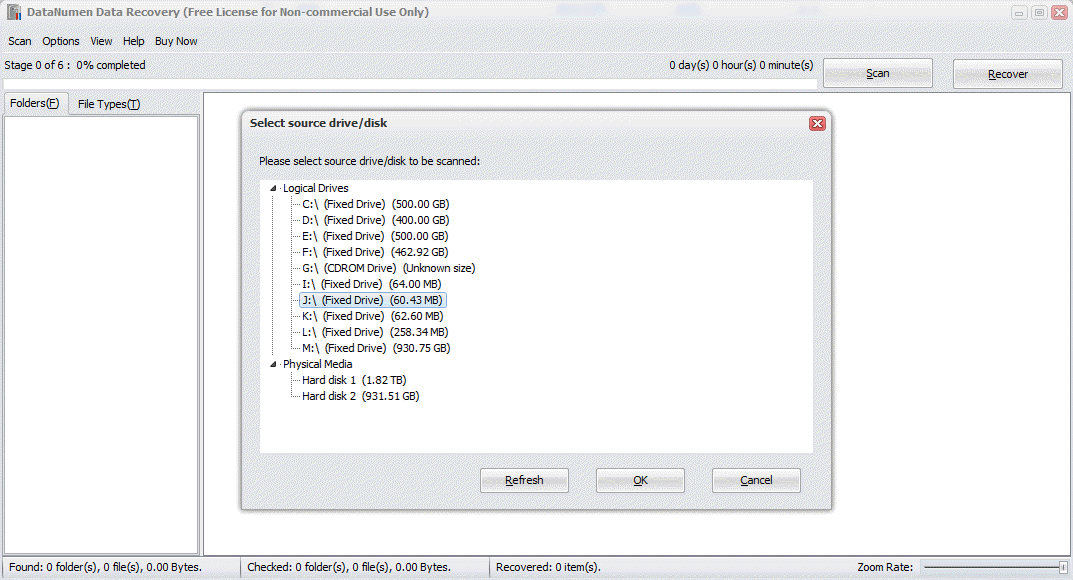
上記の方法がすべて失敗した場合、次のような専門的なデータ復旧ソフトウェアを使用します。 DataNumen Data Recovery 削除されたWord文書の復元に役立ちます。
- お気軽にご連絡ください DataNumen Data Recovery.
- 削除されたファイルが過去に保存されていたソースドライブを選択し、次にクリックします。 OK スキャンします。

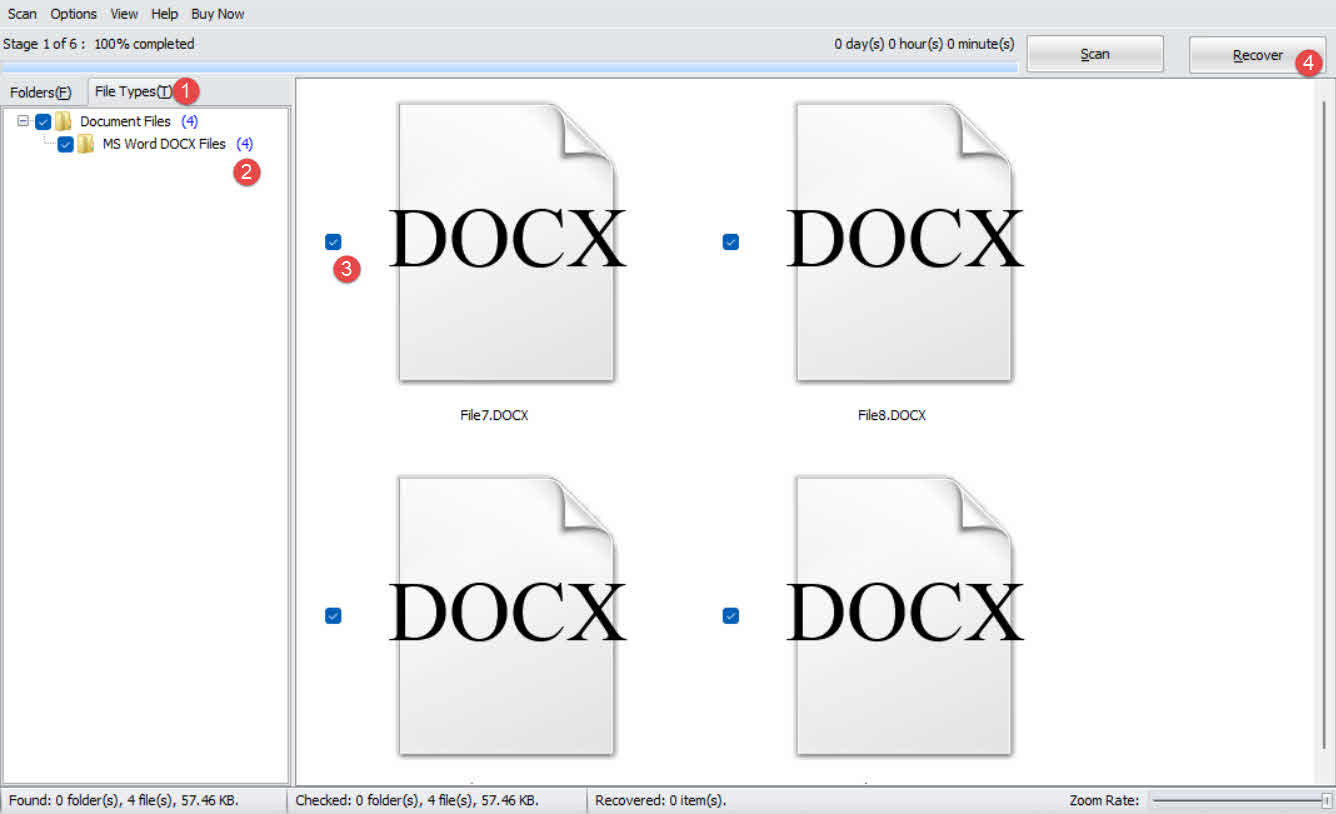
- スキャン結果で、 ファイルの種類 左側のパネルのタブ。
- 選択 文書ファイル 結果を絞り込むか、選択する MS Word DOCXファイル より具体的な結果を得るには。
- 結果パネルに表示されている候補ファイルを確認してください。
- 回復したいファイルにチェックを入れてクリックします 回復する.

- 回復先を選択してください 今とは異なる データの上書きを避けるためドライブし、次にクリックします OK.
15. 破損した復元済みWord文書を修復する
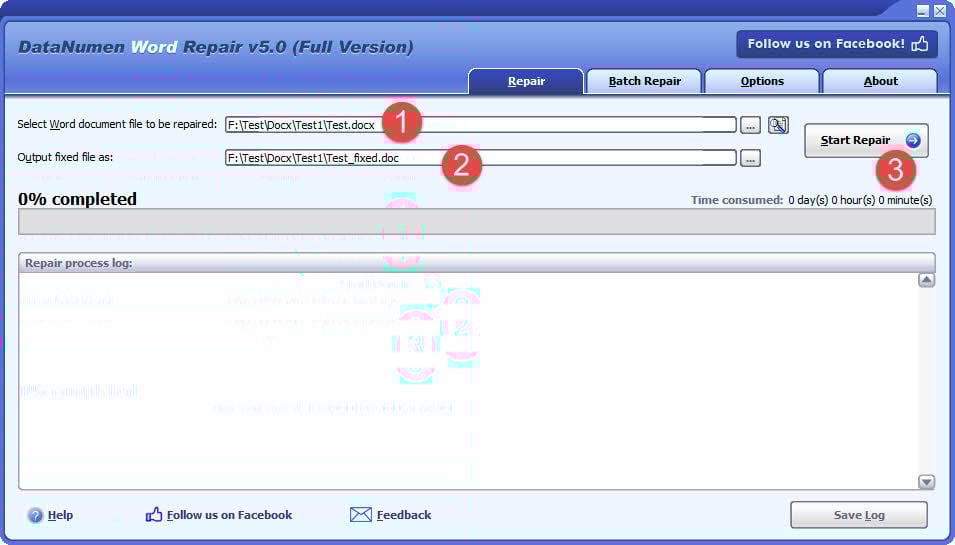
復元されたファイル、特に一時ファイルやデータ復旧スキャンから取得されたファイルは破損している可能性があり、Word で開けない場合があります。そのような場合は、 DataNumen Word Repair 以下のファイルを修復できます。
- Wordおよびソースファイルを開いている可能性のあるその他のアプリケーションをすべて閉じます。
- お気軽にご連絡ください DataNumen Word Repair.
- 破損したWord文書を選択してください。
- 出力固定ファイル名を設定します。
- 詳しくはこちら 修復を開始する.
- 処理が完了したら、出力ファイルを開いて復元されたデータを確認してください。
16.将来の損失を防ぐ方法
以下の対策を講じることで、誤って削除してしまったWord文書を完全に失うリスクを大幅に軽減できます。
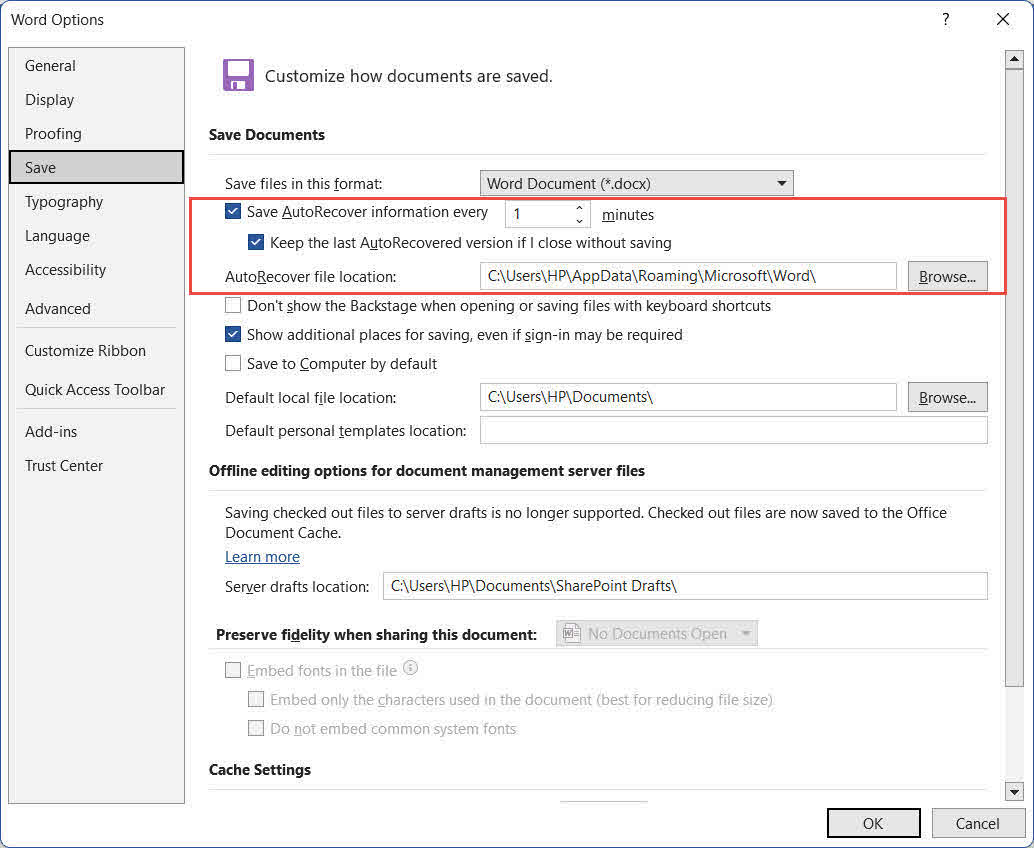
- 短い間隔で自動復旧を有効にする。 に行く File -> オプション -> Save。 確認してください [n]分ごとに自動回復情報を保存します チェックして、間隔を1~2分に短縮します。また、 保存せずに閉じた場合、最新の自動回復バージョンが保持される.

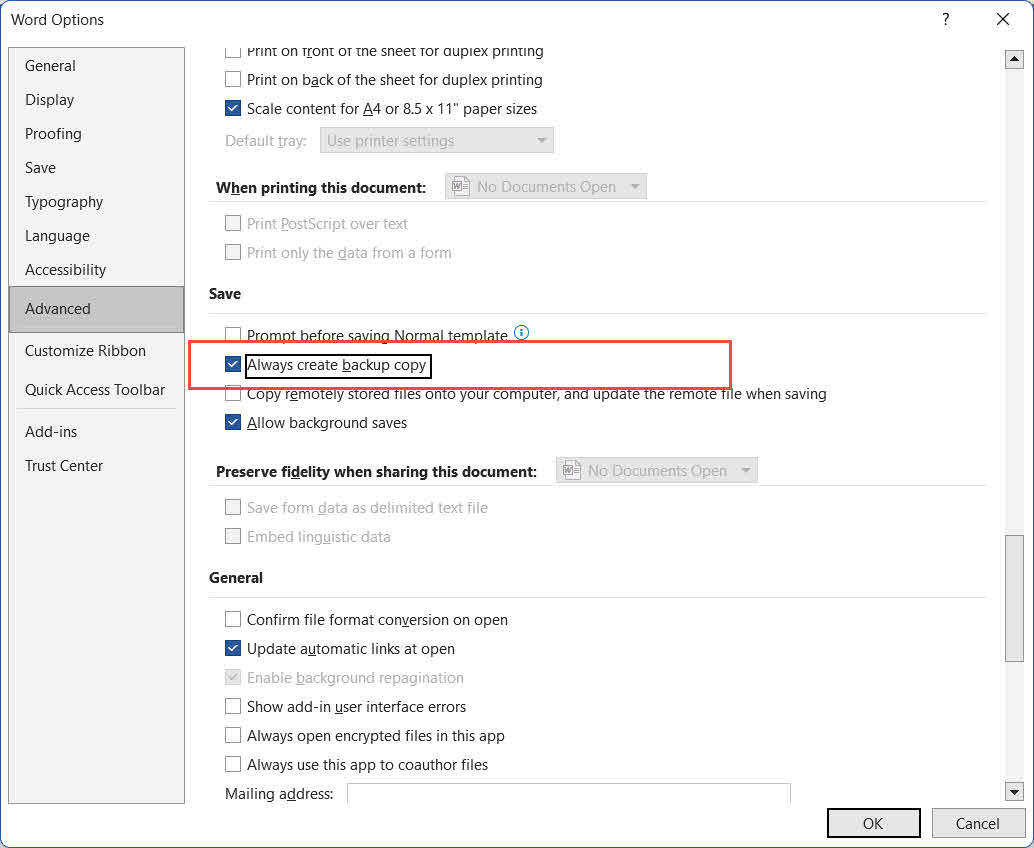
- 自動バックアップを有効にする。 に行く File -> オプション -> 高機能、スクロールして Save セクション、およびチェック 常にバックアップコピーを作成する. Word は作成します .wbk 保存するたびに同じフォルダにバックアップファイルを作成します。注:Excelとは異なり、これはグローバル設定であり、有効にした後に保存されるすべてのドキュメントに適用されます。
- ファイル履歴を有効にする。 外付けドライブを接続して、 コントロールパネル -> ファイルの履歴 個人ファイルの自動バックアップを定期的に有効にする。

- 定期的なバックアップ戦略を実施してください。 3-2-1ルールを適用してください。重要なファイルは少なくとも3つのコピーを保持し、それぞれ異なる種類のメディアに保存してください。うち1つのコピーはオフサイトまたはクラウドに保存してください。
- Shift+Deleteキーの使用は避けてください。 常に標準を使用してください 削除 ファイルをごみ箱に送るためのキーであり、ごみ箱を完全に迂回するものではありません。
- ウイルス対策ソフトを使用してください。 マルウェアは、気づかないうちにファイルを削除したり破損させたりすることがあります。マルウェアによるデータ損失を防ぐため、ウイルス対策ソフトの定義ファイルを常に最新の状態に保ってください。

17 よくある質問
Q:Word文書全体ではなく、文書内の削除されたテキストやページだけを復元することはできますか?
A: ドキュメントがまだ開いている場合は、 Ctrlキー+ Z すぐに(セクション2.2)。ファイルが保存され閉じられた場合は、 Windowsのファイル履歴またはクラウド版履歴 (セクション6.2)コンテンツがまだ含まれている以前のバージョンのドキュメントを復元します。 自動回復スナップショット (第7条)または 自動バックアップ (第8項)には、内容の以前のバージョンが含まれている場合もあります。
質問:私のドキュメントは完全に削除され、ごみ箱も空になっています。それでも復元できますか?
A: はい、ディスク領域が上書きされていない限り可能です。影響を受けたドライブの使用を直ちに中止し、 Windowsファイルの回復 (第13条)または 専門的なデータ回復ソフトウェア (第14項)ドライブの使用が続くにつれて、復旧の成功率は低下します。
質問:削除した文書はネットワークドライブ上にあり、ローカルのごみ箱にはありません。どこを探せばいいですか?
A:ネットワーク共有から削除されたファイルは、ローカルのWindowsごみ箱には移動しません。ネットワーク共有のごみ箱またはゴミ箱フォルダを確認してください。表示されない場合は、IT管理者に連絡してください。ネットワークサーバーには、ファイルを取得するために管理者権限が必要なサーバー側のごみ箱がある可能性があります。
質問:完全に削除されたWord文書は、復元できなくなるまでどれくらいの期間がありますか?
A:明確な期間はありません。HDDの場合、使用頻度が低いと削除されたデータが数日から数週間残ることがあります。TRIMが有効になっているSSDでは、データは数分以内に消去される可能性があります。直ちに対処し、影響を受けたドライブに新しいデータを書き込まないようにしてください。
Q: 変更を保存した際に、Word文書を上書きしてしまいました。以前のバージョンに戻すことはできますか?
A: へ行く File -> インフォ -> 文書を管理 確認する 自動回復スナップショット (第7項)もし 常にバックアップコピーを作成する 有効にすると、 .wbkバックアップファイル 最後に保存する前のバージョンを保持します(セクション 8)。OneDrive または SharePoint のファイルの場合は、 バージョン履歴 (セクション 6.2)Windows ファイル履歴が有効になっていた場合は、 前のバージョン ファイル(セクション6.1.1)
Q:サードパーティ製のデータ復旧ツールは安全に使用できますか?
A:信頼できるツールはスキャン中は読み取り専用モードで動作し、ソースドライブを変更しません。復元したファイルは、他の復元可能なデータを上書きしないように、必ず元のドライブではなく別のドライブに保存してください。
Q:Word文書を誤って削除してしまった場合、すぐに何をすべきですか?
A: 影響を受けたドライブの使用を直ちに中止してください。新しいデータが書き込まれると、削除されたファイルのデータセクションが上書きされ、復元が不可能になる可能性があります。 ごみ箱 まず(セクション 3)。ファイルが存在しない場合は、以下の方法を順番に試してください。 セクション4 以降。復旧作業中は、影響を受けたドライブにソフトウェアをインストールしたり、ファイルをダウンロードしたり、ディスククリーンアップツールを実行したりしないでください。
質問:復元したWord文書が破損していて開けません。どうすれば良いでしょうか?
A: Word の組み込み機能を使用する [開いて修復 関数を最初に: 移動 File -> 店は開いています -> ブラウズファイルを選択し、横にあるドロップダウン矢印をクリックします。 店は開いています、選択して [開いて修復. それが失敗した場合は、 DataNumen Word Repair (第15項)ファイル構造のより詳細な修復について。
18. 結論
削除されたWord文書を復元するには、まず最も速い方法から試してみましょう。 Ctrlキー+ Z (第2節)および ごみ箱 (セクション 3)。これらが失敗した場合は、ディスクレベルの復旧を試みる前に、ファイルのコピーが他の場所に存在するかどうかを確認してください(セクション 3)。 4–5)。 使用 ファイル履歴またはタイムマシン 次に(セクション 6)、次に AutoRecover、バックアップ、および一時ファイル方式(セクション 1、2、3、4、5、6、7、8、9、9、10、11、12、13、14、15、16、17、18、19 7–12) バックアップのない完全に削除されたファイルの場合は、 Windowsファイルの回復 (第13条)または専門的な復旧ツールなど DataNumen Data Recovery (セクション 14) 復元されたファイルが破損している場合は、 DataNumen Word Repair (セクション 15) で復元できます。この状況の再発を防ぐには、予防措置を有効にしてください。 セクション16 — 特に短い間隔での自動回復、 常にバックアップコピーを作成するクラウドまたは外付けドライブによるバックアップ戦略。
著者について
ショウ・シェン 10年以上のWord、Excel、および PowerPoint 企業環境および教育環境におけるトラブルシューティングを幅広く手掛けています。数千人ものユーザーが失われた作業の復旧、ファイル破損問題の解決、Officeワークフローの最適化を実現できるよう支援してきました。
Shouはテクニカルライティングを通じて、複雑なOfficeのトラブルシューティングを、あらゆるスキルレベルのユーザーが理解しやすい、明確で実践的な手順にまとめることに尽力しています。Microsoft 365の最新の開発動向を常に把握し、実際のファイル破損シナリオで手法を継続的にテストすることで、正確性を確保しています。
このガイドについてご質問がある場合や、Officeの問題で追加のサポートが必要な場合は、 フィードバックと提案 これらのトラブルシューティング リソースを改善します。