
次の記事は、カレンダーをマークアウトして問い合わせる方法を示しています。 ねずみ。 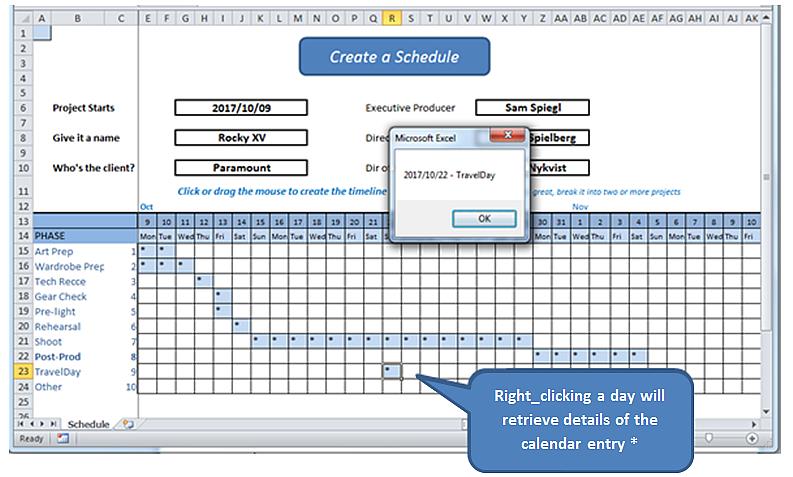
*現実の世界では、意味のある日記エントリをデータベースに読み書きするためのフォームを開きます。 この演習では、右クリックの仕組みを明らかにし、ワークシート自体から詳細を見つけます。
始める前に、スプレッドシートについて少し説明します。スプレッドシートの作業モデルを見つけることができます。 こちら.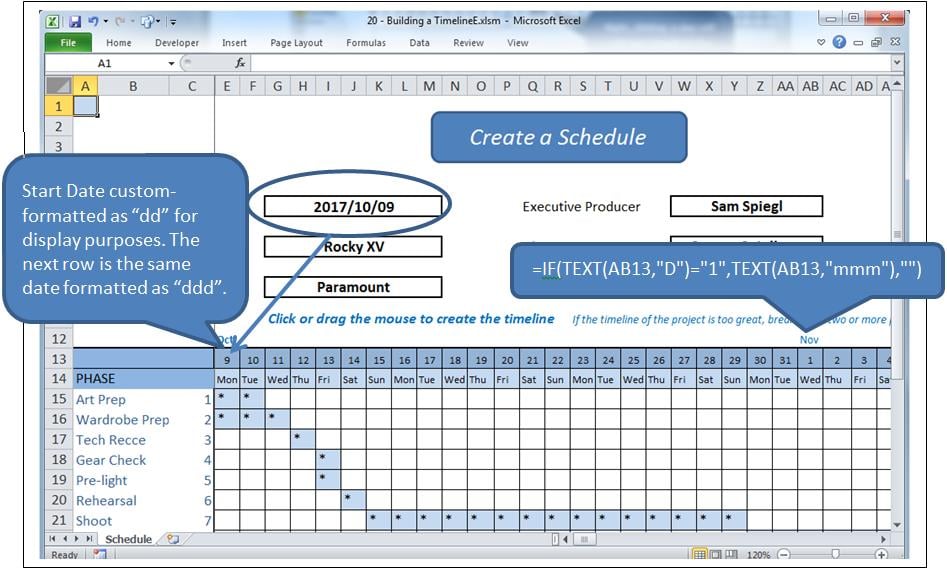
プロセス
グリッド内のセルをクリックすると、そのセルが強調表示され、その値が変更されます。 クリックアンドドラッグすると、範囲が強調表示され、その値が変更されます。 セルにデータが入力されている場合はクリアされます。それ以外の場合は、この場合は「*」が入力されます。
対照的に、右クリックは、選択したセルからの情報の要求です。
いくつかのモジュールとともに、基本的にXNUMXつのイベントが使用されます。
- ワークシート_選択変更 これは、XNUMXつまたは複数のセルが選択されたときに呼び出されます。
- ワークシート_右クリック前 これは、マウスの右ボタンで呼び出されます。
課題
セルを右クリックすると、選択も構成され、トリガーされます 選択変更。 そのイベントにコースを実行させ、選択したセルをクリアしてから、制御を 右クリック前kイベント、クリアされたセルを再作成するとき。 しかし、このアクションはトリガーします 選択が変更されました もう一度イベントをクリアするのを止めなければなりません。
これは、blnLoadingと呼ばれるブールフラグを使用して行います。
そのイベント
ワークシートの後ろのコードウィンドウに次のように入力します(つまり、モジュールではありません)。
Option Explicit

    Dim blnLoading As Boolean
    Dim sPhase As String
    Dim currCellValue As String
    Dim dDate As Date

    Private Sub Worksheet_SelectionChange(ByVal Target As Range)
     If ActiveCell.Row > 14 And ActiveCell.Row < 25 Then
         If ActiveCell.Column > 4 And ActiveCell.Column < 47 Then 'selection is valid

             On Error Resume Next
             currCellValue = Target.Value 'get the target value from (ByVal Target As Range)

             If blnLoading = True Then 'a value of True will force an exit from this event
                 blnLoading = False
                 Exit Sub
             End If

             sPhase = Cells(ActiveCell.Row, 1)
             If sPhase = "" Then Exit Sub

             If ActiveCell = "*" Then 'if the cell is populated, clear the selected range
                 Call ClearRange
                 Call UnblockCalendar
             Else
                 Call PopulateRange
             End If

             Call RedrawCells
             Range("A1").Select 'revive the SelectionChange event by changing selection.
             Exit Sub
         End If
     End If
End Sub

Private Sub Worksheet_BeforeRightClick(ByVal Target As Range, Cancel As Boolean)
     If currCellValue = "*" Then   'picked up by the previous event BEFORE it cleared it;
                                     'This means this is a valid diary entry with detail.
        blnLoading = True    'this will prevent the SelectionChange event (above) from running.
        Target.Select
        'currCell = Target.Address
        'Range(currCell).Select

            Target.Value = "*" 're-instate the value of the cell, since SelectionChange has cleared it
            Call PopulateRange
            dDate = Cells(13, ActiveCell.Column)
            sPhase = Cells(ActiveCell.Row, 1)
            MsgBox dDate & " - " & sPhase
        Cancel = True 'suppress Excel’s standard right_click menus
    End If
    Range("A1").Select
        blnLoading = False
End Sub
これにより、XNUMXつのイベントが処理されます。
参照コード
次の範囲の入力と削除をコードに追加します。
Sub ClearRange()
     Selection.FormulaR1C1 = ""
     With Selection.Interior
         .Pattern = xlNone
         .TintAndShade = 0
         .PatternTintAndShade = 0
     End With
End Sub

Sub PopulateRange()
     Selection.FormulaR1C1 = "*"
     With Selection.Interior
         .Pattern = xlSolid
         .PatternColorIndex = xlAutomatic
         .ThemeColor = xlThemeColorLight2
         .TintAndShade = 0.799981688894314
         .PatternTintAndShade = 0
     End With
End Sub
グリッド線のメンテナンス
モジュールをアプリケーションに挿入します。 グリッドの外観を維持するために、次のコードを追加します。 これは、マクロレコーダー、冗長性などからコピーされました。
Option Explicit

Sub UnblockCalendar()
     Selection.FormulaR1C1 = ""
     With Selection
         Selection.Borders(xlDiagonalDown).LineStyle = xlNone
         Selection.Borders(xlDiagonalUp).LineStyle = xlNone
         Selection.Borders(xlEdgeLeft).LineStyle = xlNone
         Selection.Borders(xlEdgeTop).LineStyle = xlNone
         Selection.Borders(xlEdgeBottom).LineStyle = xlNone
         Selection.Borders(xlEdgeRight).LineStyle = xlNone
         Selection.Borders(xlInsideVertical).LineStyle = xlNone
         Selection.Borders(xlInsideHorizontal).LineStyle = xlNone
     End With
End Sub

Sub RedrawCells()
     Selection.Borders(xlDiagonalDown).LineStyle = xlNone
     Selection.Borders(xlDiagonalUp).LineStyle = xlNone
     With Selection.Borders(xlEdgeLeft)
         .LineStyle = xlContinuous
         .ColorIndex = 0
         .TintAndShade = 0
         .Weight = xlThin
     End With
     With Selection.Borders(xlEdgeTop)
         .LineStyle = xlContinuous
         .ColorIndex = 0
         .TintAndShade = 0
         .Weight = xlThin
     End With
     With Selection.Borders(xlEdgeBottom)
         .LineStyle = xlContinuous
         .ColorIndex = 0
         .TintAndShade = 0
         .Weight = xlThin
     End With
     With Selection.Borders(xlEdgeRight)
         .LineStyle = xlContinuous
         .ColorIndex = 0
         .TintAndShade = 0
         .Weight = xlThin
     End With
     With Selection.Borders(xlInsideVertical)
         .LineStyle = xlContinuous
         .ColorIndex = 0
         .TintAndShade = 0
         .Weight = xlThin
     End With
     With Selection.Borders(xlInsideHorizontal)
         .LineStyle = xlContinuous
         .ColorIndex = 0
         .TintAndShade = 0
         .Weight = xlThin
     End With
End Sub
大惨事からの保護
多くのExcel開発を行う人なら誰でも、複雑なxlsmスプレッドシートがときどきクラッシュして、開いているドキュメントが破損する可能性があることを知っているでしょう。 予想よりも多くの場合、破損したブックはExcelの回復ルーチンでは回復できません。 バックアップがない場合、実行される作業はlです。ost。 これは、実行するように設計されたツールで防ぐことができます Excelの修正.
著者紹介:
フェリックスフッカーは、のデータ復旧の専門家です DataNumen、Inc。は、以下を含むデータ復旧技術の世界的リーダーです。 rar 修理 およびSQL回復ソフトウェア製品。 詳細については、次のWebサイトをご覧ください。 WWW。datanumen.com