
为了节省打印机墨水和纸张,一些用户希望将电子邮件中的所有图像仅打印在一页上,而不是每页打印一张图像。 现在,本文将分享一种实现方法。
众所周知,打印图像非常浪费打印机墨水。 因此,为了节省打印机墨水和纸张,您可能更喜欢在同一页上打印许多图像附件,而不是在单独的页面上打印图像。 虽然 Outlook 不提供这样的功能,但您仍然可以通过以下方式实现它。
仅在一页上打印 Outlook 电子邮件的所有图像附件
- 首先,启动 Outlook 应用程序。
- 然后,在 Outlook 窗口中,点击“Alt + F11”键按钮。
- 接下来,您将进入“Microsoft Visual Basic for Applications”窗口,您首先需要在该窗口中启用“Microsoft Word 对象库”。
- 之后,您需要打开一个未被使用的模块。
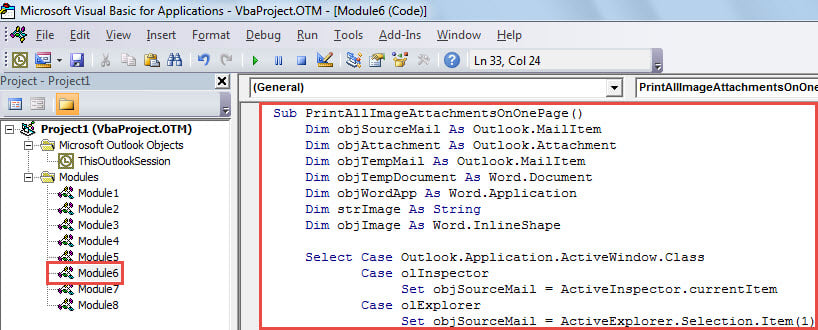
- 随后,将以下 VBA 代码复制并粘贴到该模块中。
Sub PrintAllImageAttachmentsOnOnePage()
    Dim objSourceMail As Outlook.MailItem
    Dim objAttachment As Outlook.Attachment
    Dim objTempMail As Outlook.MailItem
    Dim objTempDocument As Word.Document
    Dim objWordApp As Word.Application
    Dim strImage As String
    Dim objImage As Word.InlineShape

    Select Case Outlook.Application.ActiveWindow.Class
           Case olInspector
                Set objSourceMail = ActiveInspector.currentItem
           Case olExplorer
                Set objSourceMail = ActiveExplorer.Selection.Item(1)
    End Select

    If Not (objSourceMail Is Nothing) Then
       'Create a temp mail
       Set objTempMail = Outlook.Application.CreateItem(olMailItem)
       objTempMail.Display
       Set objTempDocument = objTempMail.GetInspector.WordEditor
       Set objWordApp = objTempDocument.Application

       Set objFileSystem = CreateObject("Scripting.FileSystemObject")

       For Each objAttachment In objSourceMail.attachments
           'Get the Image attachments, instead of inserted Images
           If IsEmbedded(objAttachment) = False Then
              Select Case LCase(objFileSystem.GetExtensionName(objAttachment.filename))
                     Case "jpg", "jpeg", "png", "bmp", "gif"
                          strImage = "E:\" & objAttachment.filename
                          objAttachment.SaveAsFile strImage

                          'Insert the images into the temp mail
                          Set objImage = objWordApp.Selection.InlineShapes.AddPicture(filename:=strImage, LinkToFile:=False, SaveWithDocument:=True)
                          objWordApp.Selection.TypeText Text:=" "

                          'shrink the images to insure that they are on one page
                          objImage.ScaleHeight = 20
                          objImage.ScaleWidth = 20

                          Kill strImage
             End Select
           End If
       Next

       objTempMail.PrintOut
       objTempMail.Close olDiscard
    End If
End Sub

Function IsEmbedded(objCurAttachment As Outlook.Attachment) As Boolean
    Dim objPropertyAccessor As Outlook.propertyAccessor
    Dim strProperty As String

    Set objPropertyAccessor = objCurAttachment.propertyAccessor
    strProperty = objPropertyAccessor.GetProperty("http://schemas.microsoft.com/mapi/proptag/0x3712001E")

    If InStr(1, strProperty, "@") > 0 Then
       IsEmbedded = True
    Else
       IsEmbedded = False
    End If
End Function
- 稍后,您可以返回电子邮件列表。 选择或打开您要打印其图片附件的电子邮件。
- 然后,触发这个宏。 在当前宏窗口中,只需按“F5”键或单击工具栏中的“运行”图标即可。
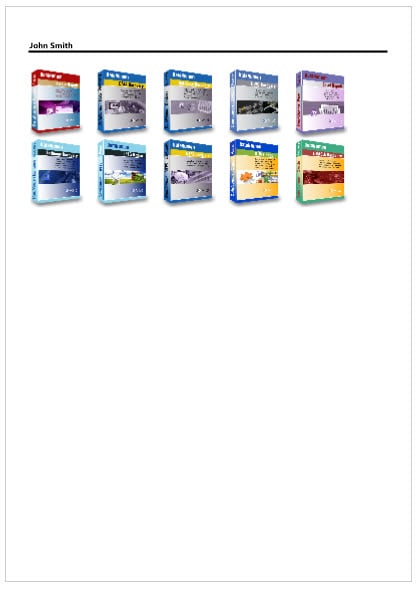
- 最后,当宏运行完成后,源邮件的所有图像附件将打印在一页上,如下截图:

处理损坏的 Outlook 文件
随着越来越多的数据存储在您的 Outlook 中,您的 Outlook 文件越来越容易受到攻击。 由于各种内部和外部因素,它可能会受到损害。 此外,很难预测 Outlook 损坏。 因此,您可以做的是确保在遇到 Outlook 损坏时立即有效地进行救援。 例如,你必须保持一个专门的 PST修复 工具,例如 DataNumen Outlook Repair 在附近。 它将轻而易举地扫描和恢复损坏的文件。
作者简介:
Shirley Zhang 是一位数据恢复专家 DataNumen, Inc.,它是数据恢复技术领域的世界领先者,包括 恢复 Sql Server 和 outlook 修复软件产品。 欲了解更多信息,请访问 datanumen.com