
如果您想快速将 Outlook 电子邮件的所有图像附件导出到 PDF 文件,您可以使用本文介绍的方法。 它利用一段VBA代码快速实现这种“导出”。
有时,您可能希望将许多图像组合成一个 PDF 文件,例如将电子邮件的所有图像附件导出到 PDF 文件。 听起来有点难。 但在下文中,我们将展示一种可以毫不费力地快速实现这一目标的方法。
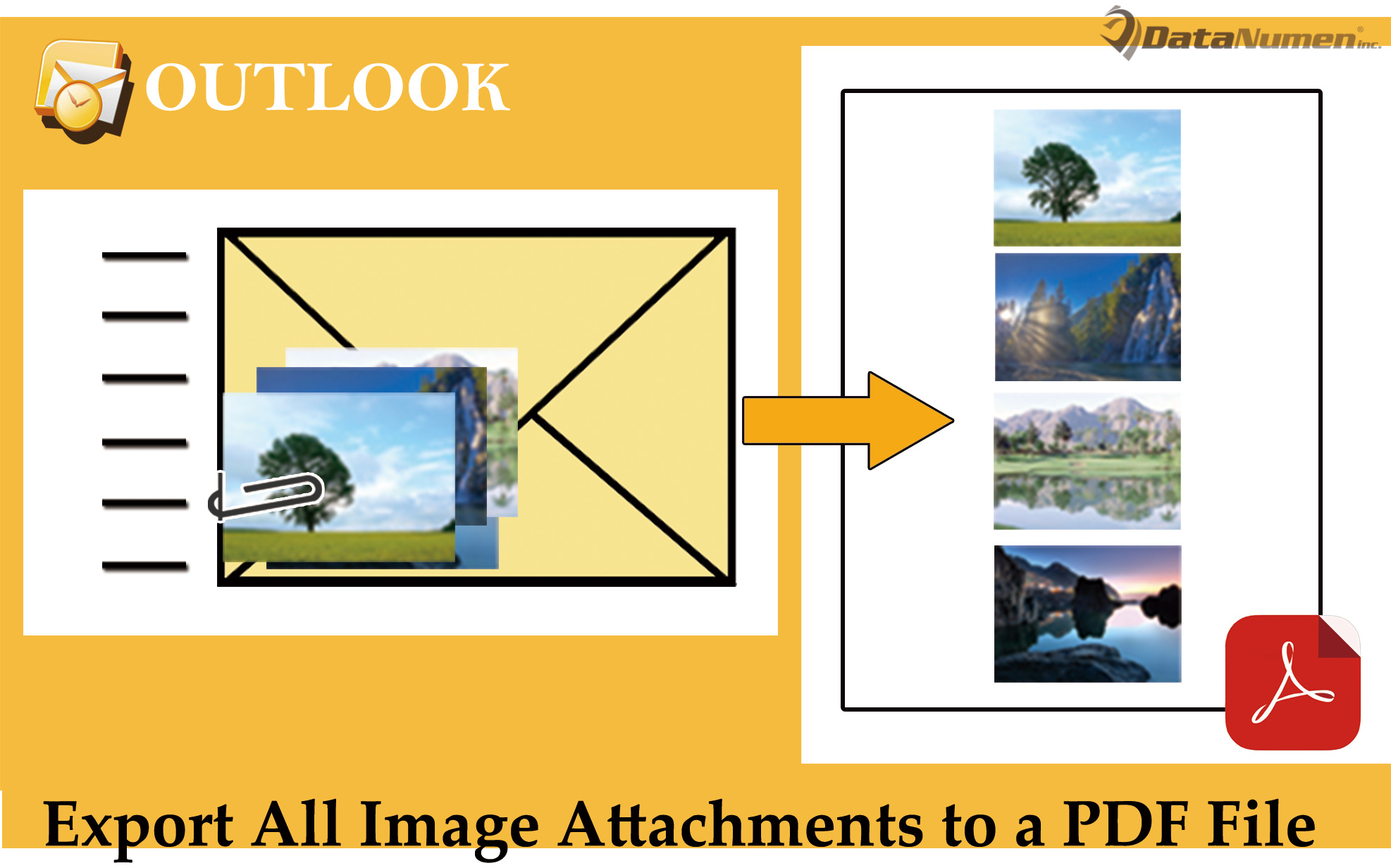
将电子邮件的所有图像附件导出到 PDF 文件
- 首先,像往常一样启动 Outlook 程序。
- 然后,在 Outlook 主窗口中,点击“Alt + F11”键按钮。
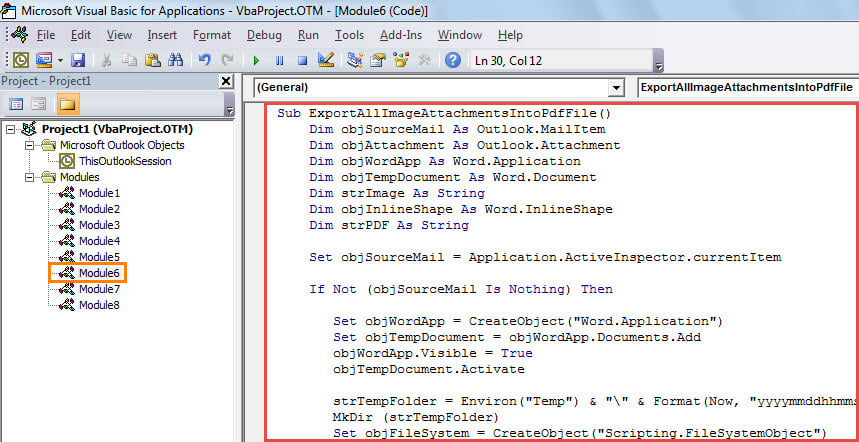
- 随后,您将看到弹出的“Microsoft Visual Basic for Applications”窗口。
- 在此窗口中,您需要访问一个未被使用的模块。
- 接下来,您可以将以下 VBA 代码复制并粘贴到该模块中。
Sub ExportAllImageAttachmentsIntoPdfFile()
    Dim objSourceMail As Outlook.MailItem
    Dim objAttachment As Outlook.Attachment
    Dim objWordApp As Word.Application
    Dim objTempDocument As Word.Document
    Dim strImage As String
    Dim objInlineShape As Word.InlineShape
    Dim strPDF As String

    Set objSourceMail = Application.ActiveInspector.currentItem

    If Not (objSourceMail Is Nothing) Then

       Set objWordApp = CreateObject("Word.Application")
       Set objTempDocument = objWordApp.Documents.Add
       objWordApp.Visible = True
       objTempDocument.Activate

       strTempFolder = Environ("Temp") & "\" & Format(Now, "yyyymmddhhmmss") & "\"
       MkDir (strTempFolder)
       Set objFileSystem = CreateObject("Scripting.FileSystemObject")

       For Each objAttachment In objSourceMail.Attachments
           If IsEmbedded(objAttachment) = False Then
              Select Case LCase(objFileSystem.GetExtensionName(objAttachment.filename))
                     Case "jpg", "jpeg", "png", "bmp", "gif"
                           objAttachment.SaveAsFile strTempFolder & objAttachment.filename
              End Select
           End If
       Next

       strImage = Dir(strTempFolder & "*.*", vbNormal)

       Do Until Len(strImage) = 0
          With Selection
               .InlineShapes.AddPicture (strTempFolder & strImage)
               .TypeParagraph
               .Collapse Direction:=wdCollapsEnd
               .ParagraphFormat.Alignment = wdAlignParagraphCenter
               .TypeParagraph
          End With
          strImage = Dir()
       Loop

       For Each objInlineShape In objTempDocument.InlineShapes
           objInlineShape.Select
           Selection.ParagraphFormat.Alignment = wdAlignParagraphCenter
           objInlineShape.ScaleHeight = 50
           objInlineShape.ScaleWidth = 50
       Next

       'Change the path to save the PDF file
       strPDF = "E:\Image Attachments.pdf"

       'Export the temp Word document as a PDF file
       objTempDocument.ExportAsFixedFormat strPDF, wdExportFormatPDF

       objTempDocument.Close False
       objWordApp.Quit

       MsgBox "Complete!"
    End If
End Sub

Function IsEmbedded(objCurAttachment As Outlook.Attachment) As Boolean
    Dim objPropertyAccessor As Outlook.propertyAccessor
    Dim strProperty As String

    Set objPropertyAccessor = objCurAttachment.propertyAccessor
    strProperty = objPropertyAccessor.GetProperty("http://schemas.microsoft.com/mapi/proptag/0x3712001E")

    If InStr(1, strProperty, "@") > 0 Then
       IsEmbedded = True
    Else
       IsEmbedded = False
    End If
End Function
- 之后,您可以关闭当前窗口。
- 稍后,您可以转到“文件”>“选项”>“快速访问工具栏”。 现在您可以将新宏添加到快速访问工具栏。
- 最后,你可以试试这个宏。
- 首先,打开一封电子邮件,其图像附件要导出到 PDF 文件中。
- 然后,单击快速访问工具栏中的宏按钮。
- 宏完成后,您将收到一条消息。
- 之后,您可以前往预定义的本地文件夹查找 PDF 文件,其中包含所有附加到打开的电子邮件的图像。

检索受损的 Outlook 数据
如果 Outlook 损坏,您应该努力恢复损坏的数据。 在这种情况下,您可以先试试内置的修复工具——Scanpst。 假设它不能胜任修复 Outlook 文件的任务,您还可以借助外部工具,例如 DataNumen Outlook Repair. 它善于恢复 损坏的外观 损坏最少的文件。
作者简介:
Shirley Zhang 是一位数据恢复专家 DataNumen, Inc.,它是数据恢复技术领域的世界领先者,包括 中密度纤维板修复 和 outlook 修复软件产品。 欲了解更多信息,请访问 datanumen.com