
如果您想快速将邮件正文中嵌入的所有图片更改为电子邮件附件,则无需手动删除并重新附加。 您可以只使用本文中公开的一段 VBA 代码。
有时,您可能希望将所有嵌入的图像批量转换为附件。 例如,邮件正文中过多的图片会打断您阅读正文中的文字。 因此,您想从电子邮件正文中删除它们并将它们添加为附件。 当然,您可以手动执行此操作。 但是如果有什么工具或者VBA代码可以一次性搞定,那肯定更方便。 下面我们就为大家揭开这样一段VBA代码。
快速将所有嵌入图像转换为附件
- 首先,启动 Outlook 程序。
- 然后你可以切换到“开发人员”选项卡并点击“Visual Basic”按钮。
- 接下来您将进入 Outlook VBA 编辑器窗口。
- 随后,您需要将以下 VBA 代码复制到空白模块中。
Sub TurnEmebeddedImagestoAttachments()
    Dim objMail As Outlook.MailItem
    Dim objAttachments As Outlook.attachments
    Dim objAttachment As Outlook.Attachment
    Dim objFileSystem As Object
    Dim strTempFolder As String
    Dim strFile As String
    Dim i As Long

    Select Case Outlook.Application.ActiveWindow.Class
           Case olInspector
                Set objMail = ActiveInspector.CurrentItem
           Case olExplorer
                Set objMail = Application.ActiveExplorer.Selection.Item(1)
    End Select

    Set objAttachments = objMail.attachments

    'Create a temp folder
    Set objFileSystem = CreateObject("Scripting.FileSystemObject")
    strTempFolder = objFileSystem.GetSpecialFolder(2).Path & "\Temp " & Format(Now, "YYYY-MM-DD hh-mm-ss")
    MkDir (strTempFolder)

    'Save all embedded images to temp folder
    For i = objAttachments.Count To 1 Step -1
        Set objAttachment = objAttachments.Item(i)
        If IsEmbedded(objAttachment) = True Then
           objAttachment.SaveAsFile strTempFolder & "\" & objAttachment.FileName
        End If
    Next

    'Add extracted images as attachments
    strTempFolder = strTempFolder & "\"
    strFile = Dir(strTempFolder)

    While Len(strFile) > 0
          objMail.attachments.Add (strTempFolder & strFile)
          strFile = Dir
    Wend

    'Remove embedded images from message body
    With objMail
        .BodyFormat = olFormatPlain
    End With
End Sub

Function IsEmbedded(objCurAttachment As Outlook.Attachment) As Boolean
    Dim objPropertyAccessor As Outlook.PropertyAccessor
    Dim strProperty As String

    Set objPropertyAccessor = objCurAttachment.PropertyAccessor
    strProperty = objPropertyAccessor.GetProperty("http://schemas.microsoft.com/mapi/proptag/0x3712001E")

    If InStr(1, strProperty, "@") > 0 Then
       IsEmbedded = True
    Else
       IsEmbedded = False
    End If
End Function
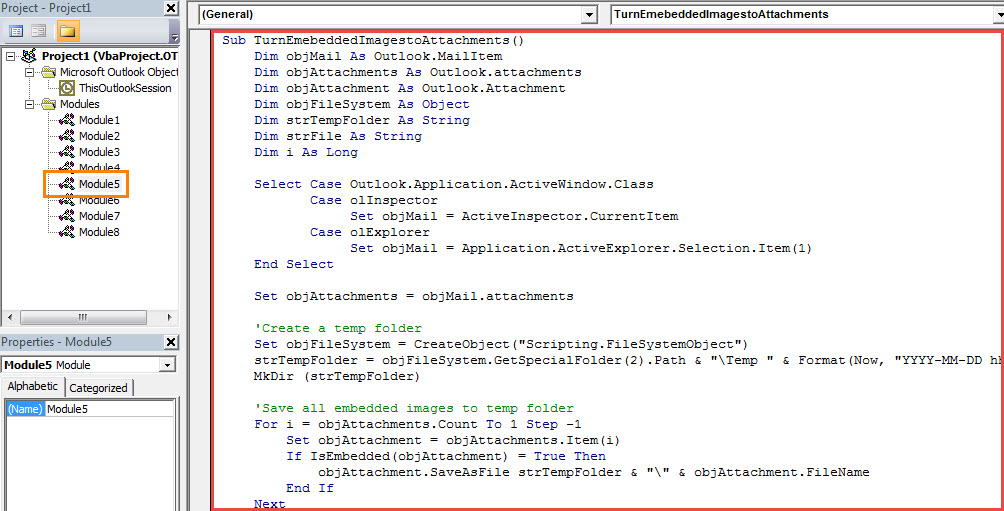
- 之后,您应该确认您的 Outlook 设置为允许宏。
- 或者,如果您经常需要这样做,最好将新宏添加到快速访问工具栏,以便将来方便检查。
- 最终你可以尝试一下。 选择或打开一封电子邮件,然后通过单击快速访问工具栏中的新建宏按钮来运行宏。
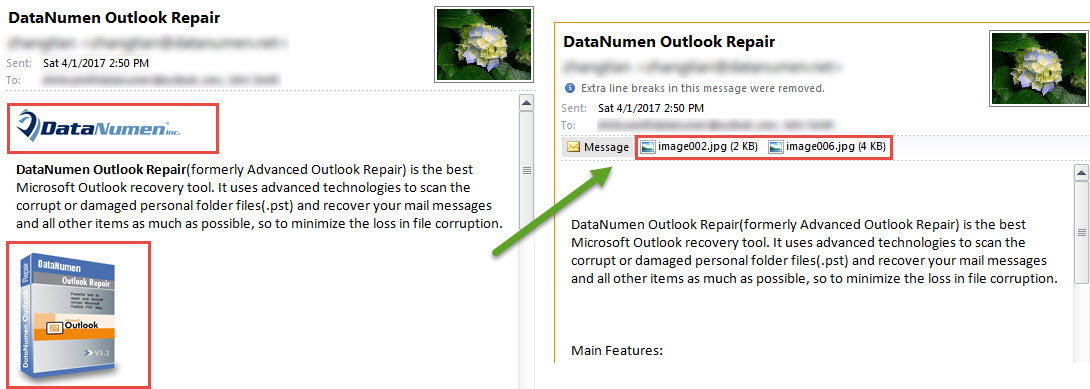
- 立即,所有嵌入的图像将更改为附件,如下图所示:

保护您宝贵的 Outlook 数据的技巧
众所周知,Outlook PST 文件与普通文件(如 Word 文档或 Excel 电子表格)一样容易受到攻击。 因此,您应该时刻注意 PST 文件周围的所有风险,例如病毒或不当处理。 因此,您需要定期为 PST 文件进行数据备份。 此外,如果您负担得起,明智的做法是保持健壮 Outlook修复 工具方便,比如 DataNumen Outlook Repair.
作者简介:
Shirley Zhang 是一位数据恢复专家 DataNumen, Inc.,它是数据恢复技术领域的世界领先者,包括 恢复 mdf 和 outlook 修复软件产品。 欲了解更多信息,请访问 datanumen.com