
有时,您可能希望快速找到特定 Windows 文件夹中最后修改的文件并将其附加到 Outlook 电子邮件中。 在这种情况下,您可以使用本文介绍的方法。
有些用户希望 Outlook 能快速查找并把 Windows 文件夹中最后修改的文件(例如最近创建、修改或保存的文件)添加到电子邮件中。然而,Outlook 本身并没有提供这样的直接功能。因此,下面我们将介绍一段 VBA 代码,它可以轻松实现此功能。
将 Windows 文件夹中最后修改的文件附加到电子邮件
- 一开始,您应该启动 Outlook 应用程序。
- 然后,进入 Outlook 主窗口后,您可以按“Alt + F11”键按钮。
- 接下来您将成功访问Outlook VBA 编辑器窗口。
- 随后,您应该找到并打开一个未被使用的模块。
- 然后将以下 VBA 代码复制并粘贴到此模块窗口中。
Sub AttachLastModifiedSpecificFile()
    Dim objShell As Object
    Dim objSelectedFolder As Object
    Dim objFileSystem As Object
    Dim strSourceFolderPath As String
    Dim objSourceFolder As Object
    Dim objFile As Object
    Dim dLastModifiedDate As Date
    Dim strLastModifiedFilePath As String
    Dim objMail As Outlook.MailItem

    On Error GoTo ErrorHandler
    'Select a local source folder
    Set objShell = CreateObject("Shell.Application")
    Set objSelectedFolder = objShell.BrowseForFolder(0, "Select the source folder", 0, "")
    strSourceFolderPath = objSelectedFolder.self.Path

    Set objFileSystem = CreateObject("Scripting.FileSystemObject")
    Set objSourceFolder = objFileSystem.GetFolder(strSourceFolderPath)

    If objSourceFolder.Files.Count > 0 Then
       For Each objFile In objSourceFolder.Files
           'Find the last modified file within "xlsx" file type in the selected Windows folder
           If (objFile.DateLastModified > dLastModifiedDate) And (objFileSystem.GetExtensionName(objFile) = "xlsx") Then
              'You can add or change criteria, such as
              'Left(objFile.Name, 4) = "Test" ---> file whose name begins with "Test"
              '(objFile / 1024) / 1024 > 2 --> File exceeds 2 MB
              'Note: Use "And" to connect more than one criteria
              strLastModifiedFilePath = objFile.Path
              dLastModifiedDate = objFile.DateLastModified
           End If
       Next

       If strLastModifiedFilePath <> "" Then
          'Confirm attaching it to the current outlook email
          strMsg = "The last modified file in the " & Chr(34) & strSourceFolderPath & Chr(34) & " is: " & vbCrLf & vbCrLf & "File: " & strLastModifiedFilePath & vbCrLf & "Date: " & dLastModifiedDate & vbCrLf & vbCrLf & "Do you want to attach it?"
          nPrompt = MsgBox(strMsg, vbQuestion + vbYesNo, "Confirm Attaching Last Modified File")

          If nPrompt = vbYes Then
             Set objMail = Outlook.Application.ActiveInspector.CurrentItem
             objMail.Attachments.Add strLastModifiedFilePath
         End If
      Else
         MsgBox "No file in the selected folder can meet your predefined criteria!", vbExclamation + vbOKOnly
      End If
    Else
      MsgBox "No file exists in the selected Windows folder!", vbExclamation + vbOKOnly
    End If

ErrorHandler:
    Exit Sub
End Sub
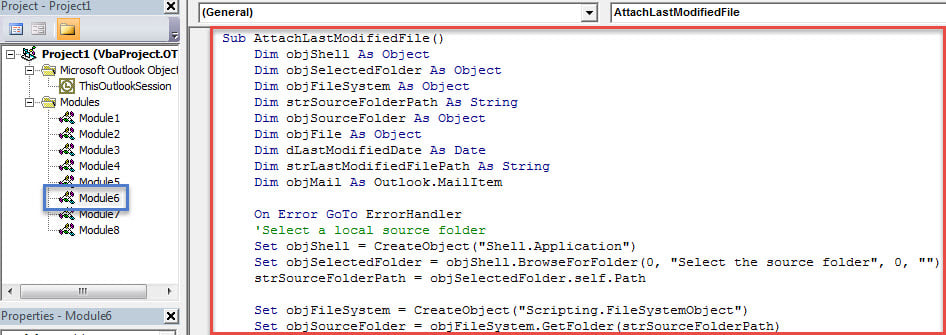
- 之后,您可以退出当前的 VBA 编辑器窗口并继续将新宏添加到快速访问工具栏或消息窗口的功能区。
- 稍后您需要将 Outlook 宏安全级别更改为低。
- 最终你可以尝试一下。
- 首先,像往常一样创建和撰写新的 Outlook 电子邮件。
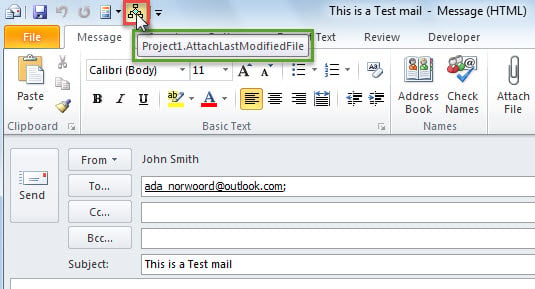
- 然后点击快速访问工具栏中的宏按钮,如下图所示:

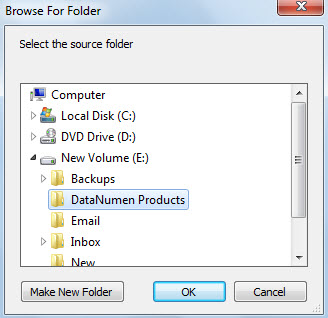
- 接下来,您将需要选择一个源 Windows 文件夹并点击“确定”。

- 如果所选的 Windows 文件夹中有这样的文件,您将得到如下屏幕截图的提示:

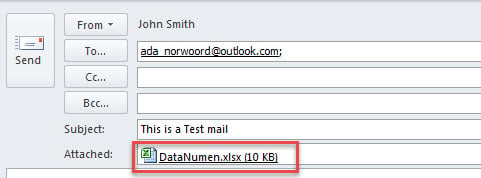
- 当您点击“是”时,该文件将立即附加。


尽快解决Outlook问题
每当您遇到任何 Outlook 问题时,建议您尽快解决。 在这种情况下,你最好准备一个坚固的 展望修复 提前使用工具,例如 DataNumen Outlook Repair. 它能够修复 PST 错误并有效地拯救您的 Outlook 数据。
作者简介:
Shirley Zhang 是一位数据恢复专家 DataNumen, Inc.,它是数据恢复技术领域的世界领先者,包括 损坏的中密度纤维板 和 outlook 修复软件产品。 欲了解更多信息,请访问 datanumen.com