
本文将教您一个使用 VBA 的快速技巧,当您在特定时间内未收到特定电子邮件的回复时,让 Outlook 自动提示您是否发送通知电子邮件。
有时,对于至关重要的电子邮件,您一定会期待它的回复。 也就是说,你一定希望收件人能尽快回复你。 否则,只要您在预期时间内还没有收到回复,您就会再次向收件人发送一封后续通知邮件。 因此,针对这一需求,这里介绍一种使用VBA使Outlook在这种情况下自动警告和提示的方法。 继续阅读以获得详细的步骤和代码。
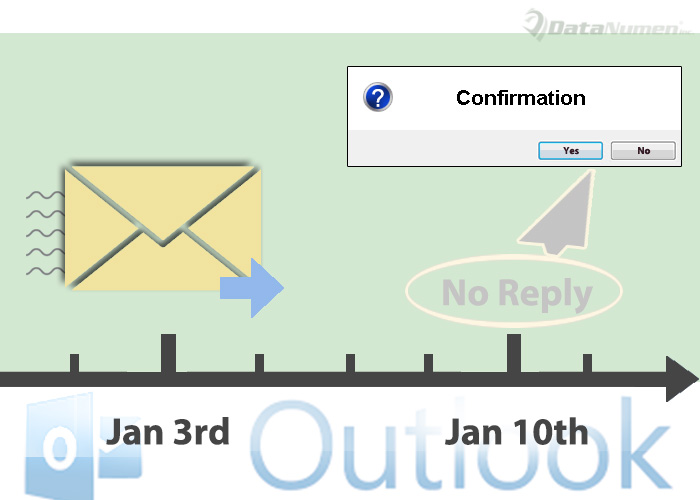
如果在预期时间内未收到特定电子邮件的回复,则获取通知
- 首先,启动 Outlook。
- 然后你需要给具体的邮件设置具体的提醒时间。
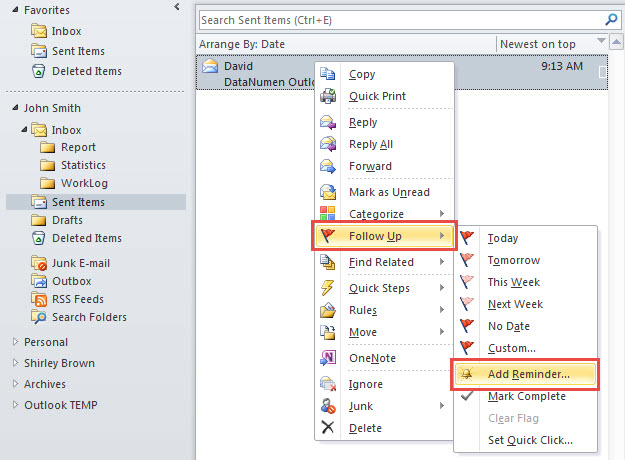
- 首先,右键单击特定的电子邮件。
- 然后选择“跟进”>“添加提醒”。

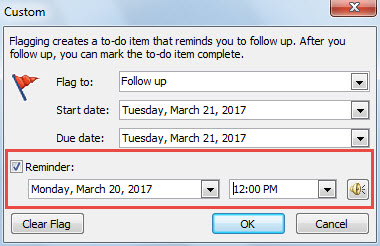
- 在对话框中,您可以将提醒时间设置为与您希望收到回复的具体时间相同。

- 之后,按“Alt + F11”键按钮访问 Outlook VBA 编辑器。
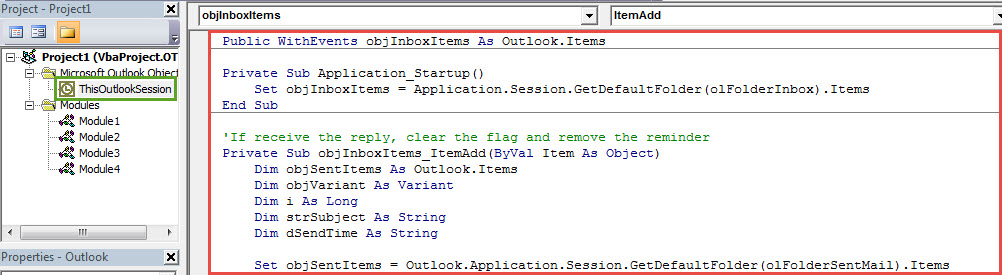
- 接下来在新窗口中,打开“ThisOutlookSession”项目并将以下代码复制到其中。
Public WithEvents objInboxItems As Outlook.Items

Private Sub Application_Startup()
    Set objInboxItems = Application.Session.GetDefaultFolder(olFolderInbox).Items
End Sub

'If receive the reply, clear the flag and remove the reminder
Private Sub objInboxItems_ItemAdd(ByVal Item As Object)
    Dim objSentItems As Outlook.Items
    Dim objVariant As Variant
    Dim i As Long
    Dim strSubject As String
    Dim dSendTime As String

    Set objSentItems = Outlook.Application.Session.GetDefaultFolder(olFolderSentMail).Items

    If Item.Class = olMail Then
       For i = 1 To objSentItems.Count
           If objSentItems.Item(i).Class = olMail Then
              Set objVariant = objSentItems.Item(i)
              strSubject = LCase(objVariant.Subject)
              dSendTime = objVariant.SentOn

              If LCase(Item.Subject) = "re: " & strSubject Or InStr(LCase(Item.Subject), strSubject) > 0 Then
                 If Item.SentOn > dSendTime Then
                    With objVariant
                         .ClearTaskFlag
                         .ReminderSet = False
                         .Save
                    End With
                 End If
              End If
           End If
       Next i
    End If
End Sub

'Get a prompt asking if to send a notification email
Private Sub Application_Reminder(ByVal Item As Object)
    Dim strPrompt As String
    Dim nResponse As Integer
    Dim objFollowUpMail As Outlook.MailItem

    'You can change the subject as per your real case
    If (Item.Class = olMail) And (LCase(Item.Subject) = "datanumen outlook repair") Then
       strPrompt = "You haven't yet recieved the reply of " & Chr(34) & Item.Subject & Chr(34) & " within your expected time. Do you want to send a follow-up notification email?"
       nResponse = MsgBox(strPrompt, vbYesNo + vbQuestion, "Confirm to Send a Follow-Up Notification Email")
       If nResponse = vbYes Then
          Set objFollowUpMail = Application.CreateItem(olMailItem)
          With objFollowUpMail
               .To = Item.Recipients.Item(1).Address
               .Subject = "Follow Up: " & Chr(34) & Item.Subject & Chr(34)
               .Body = "Please respond to my email " & Chr(34) & Item.Subject & Chr(34) & "as soon as possible"
               .attachments.Add Item
               .Display
          End With
       End If
    End If
End Sub
- 随后,签署此代码。
- 稍后更改 Outlook 宏设置以允许数字签名的宏。
- 最后重启 Outlook 以激活新宏。从现在开始,Outlook 将按如下方式运行:
- 如果您在弹出提醒之前收到了特定电子邮件的回复,Outlook 将自动清除标志并禁用提醒。
- 如果您在其提醒触发时未收到回复,Outlook 将询问您是否发送后续通知电子邮件。 如果您选择“是”,电子邮件将被发送出去。 如果选择“否”,提示将立即消失。
解决烦人的 Outlook 问题
由于 Outlook 容易出错,为了防止 前景腐败,你最好不要只依赖收件箱工具,Scanpst.exe。 您应该准备另一个强大且信誉良好的修复工具,例如 DataNumen Outlook Repair,它可以解决 Scanpst.exe 无法解决的烦人问题。
作者简介:
Shirley Zhang 是一位数据恢复专家 DataNumen, Inc.,它是数据恢复技术领域的世界领先者,包括 sql损坏 和 outlook 修复软件产品。 欲了解更多信息,请访问 datanumen.com