
也许您已经创建了几封电子邮件草稿并希望重新使用它们 多次。 如果是这样,为什么不将它们批量保存为 Outlook 模板呢? 本文将教你通过VBA一次完成。
默认情况下,Outlook 只允许用户一次将一封电子邮件另存为模板。 换句话说,您不能将多封电子邮件草稿批量保存为模板。 如您所见,当您选择多个邮件并转到“文件”>“另存为”时,您在“保存类型”列表中找不到“Outlook 模板”格式,只有“纯文本”可用。 但是,我们将在下面向您介绍如何批量实现它。
将多封草稿邮件批量保存为 Outlook 模板
- 一开始,触发 Outlook VBA 编辑器。
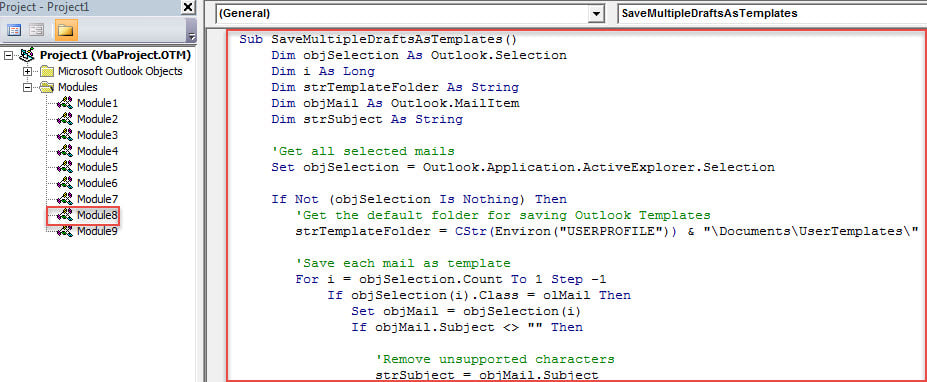
- 在新的“Microsoft Visual Basic for Applications”窗口中,复制并粘贴下面的 VBA 代码。
Sub SaveMultipleDraftsAsTemplates()
    Dim objSelection As Outlook.Selection
    Dim i As Long
    Dim strTemplateFolder As String
    Dim objMail As Outlook.MailItem
    Dim strSubject As String

    'Get all selected mails
    Set objSelection = Outlook.Application.ActiveExplorer.Selection

    If Not (objSelection Is Nothing) Then
       'Get the default folder for saving Outlook Templates
       strTemplateFolder = CStr(Environ("USERPROFILE")) & "\Documents\UserTemplates\"

       'Save each mail as template
       For i = objSelection.Count To 1 Step -1
           If objSelection(i).Class = olMail Then
              Set objMail = objSelection(i)
              If objMail.Subject <> "" Then

                 'Remove unsupported characters
                 strSubject = objMail.Subject
                 strSubject = Replace(strSubject, "/", " ")
                 strSubject = Replace(strSubject, "\", " ")
                 strSubject = Replace(strSubject, ":", "")
                 strSubject = Replace(strSubject, "?", " ")
                 strSubject = Replace(strSubject, Chr(34), " ")

                 objMail.SaveAs strTemplateFolder & strSubject & ".oft", olTemplate
              Else
                 objMail.SaveAs strTemplateFolder & "Template" & i & ".oft", olTemplate
              End If
           End If
       Next

       'Open the folder of Templates
       Shell "Explorer.exe" & " " & strTemplateFolder, vbNormalFocus
    End If
End Sub
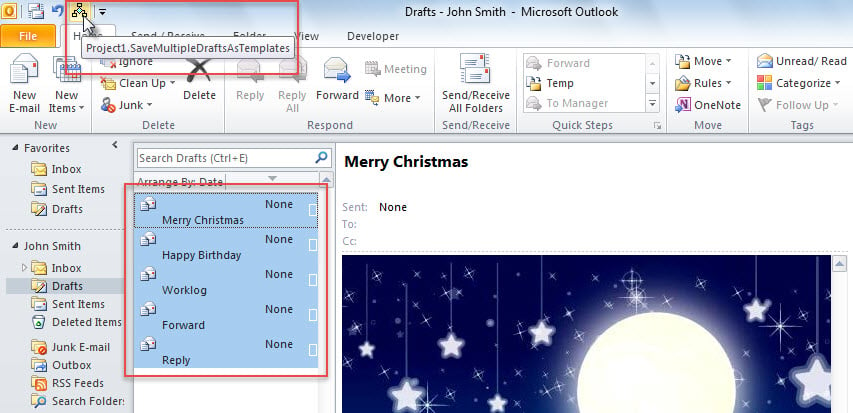
- 之后,为了以后方便,建议将这个宏附加到快速访问工具栏(QAT)。 详细步骤可以阅读《如何在 Outlook 中运行 VBA 代码“
- 最终,您可以按照以下操作进行拍摄。
- 首先,选择要保存为模板的电子邮件草稿。
- 然后,单击 QAT 中的宏按钮。

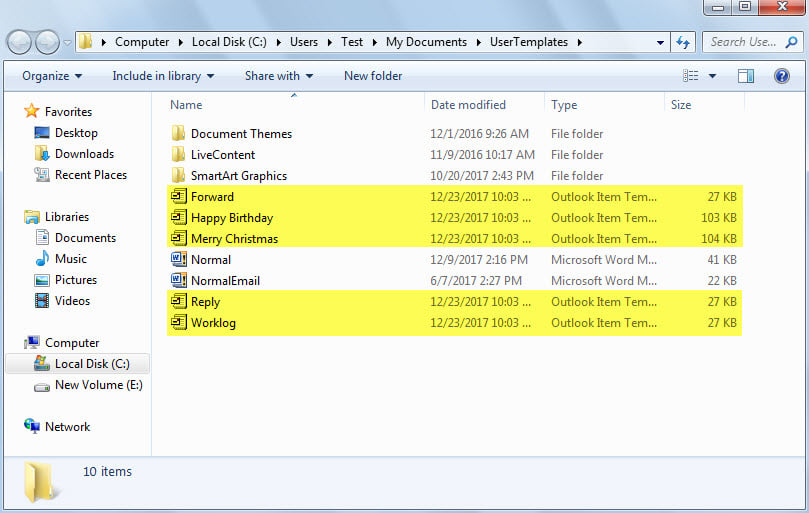
- 宏完成后,将显示用于保存默认 Outlook 模板的 Windows 文件夹。 您可以看到所选电子邮件草稿中的模板就在那里。

收件箱修复工具仍然会失败
说到内部 Outlook 修复工具 – Scanpst,很多用户都会喜欢它。 毫无疑问,这个实用程序确实能够解决 Outlook 中的大多数小问题。 然而,它并非完美无缺。 它仍然会失败并引发许多错误。 例如,在严重的情况下 前景腐败, 它无法修复受损的 PST 文件。 在这种情况下,您别无选择,只能使用更强大的顶级第三方工具,例如 DataNumen Outlook Repair.
作者简介:
Shirley Zhang 是一位数据恢复专家 DataNumen, Inc.,它是数据恢复技术领域的世界领先者,包括 sql恢复 和 outlook 修复软件产品。 欲了解更多信息,请访问 datanumen.com