
许多用户希望 Outlook 能够根据附件文件名自动移动和归档收到的电子邮件到特定的邮件文件夹。 因此,在本文中,我们将提供一种快速方法来帮助您使用 Outlook VBA 获取它。
如果您希望根据附件的文件名将收到的电子邮件自动移动到特定文件夹,您肯定会首先想到使用 Outlook 规则。 但是,您最终会发现 Outlook 规则没有检查附件文件名的功能。 因此,如果你真的想实现它,你必须使用其他方式,例如,通过第三方加载项或 Outlook VBA。 所以这里就教大家如何用VBA来实现。 继续阅读以获得详细的操作和具体的 VBA 代码。

根据附件自动将收到的电子邮件移动到特定文件夹
- 首先,像往常一样启动 Outlook 程序。
- 然后按“Alt + F11”键按钮访问 VBA 编辑器。
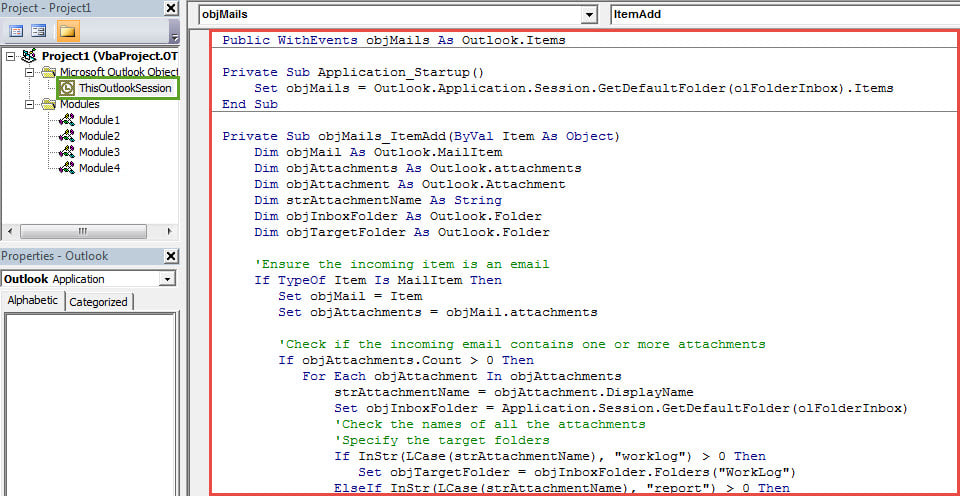
- 在随后出现的“Microsoft Visual Basic for Applications”窗口中,您可以找到并双击左侧的“ThisOutlookSession”项目。
- 接下来在打开的“ThisOutlookSession”项目窗口中,复制并粘贴以下 VBA 代码。
Public WithEvents objMails As Outlook.Items

Private Sub Application_Startup()
 Set objMails = Outlook.Application.Session.GetDefaultFolder(olFolderInbox).Items
End Sub

Private Sub objMails_ItemAdd(ByVal Item As Object)
    Dim objMail As Outlook.MailItem
    Dim objAttachments As Outlook.attachments
    Dim objAttachment As Outlook.Attachment
    Dim strAttachmentName As String
    Dim objInboxFolder As Outlook.Folder
    Dim objTargetFolder As Outlook.Folder

    'Ensure the incoming item is an email
    If TypeOf Item Is MailItem Then
       Set objMail = Item
       Set objAttachments = objMail.attachments

       'Check if the incoming email contains one or more attachments
       If objAttachments.Count > 0 Then
          For Each objAttachment In objAttachments
              strAttachmentName = objAttachment.DisplayName
              Set objInboxFolder = Application.Session.GetDefaultFolder(olFolderInbox)
              'Check the names of all the attachments
              'Specify the target folders
              If InStr(LCase(strAttachmentName), "worklog") > 0 Then
                 Set objTargetFolder = objInboxFolder.Folders("WorkLog")
              ElseIf InStr(LCase(strAttachmentName), "report") > 0 Then
                 Set objTargetFolder = objInboxFolder.Folders("Report")
              ElseIf InStr(LCase(strAttachmentName), "statistics") > 0 Then
                 Set objTargetFolder = objInboxFolder.Folders("Statistics")
              End If
         Next
         'Move the email to specific folder
          objMail.Move objTargetFolder
       End If
    End If
End Sub
- 随后,您需要对新的 VBA 项目进行数字签名。
- 首先,您可以使用内置工具——VBA 项目数字证书来创建个人证书。
- 然后在VBA编辑器中,点击工具栏中的“工具”>“数字签名”。
- 接下来按照屏幕上的说明进行签名。
- 之后,您可以退出 VBA 编辑器并将 Outlook 宏安全性更改为低。
- 稍后您需要重启 Outlook 以激活新的 VBA 项目。
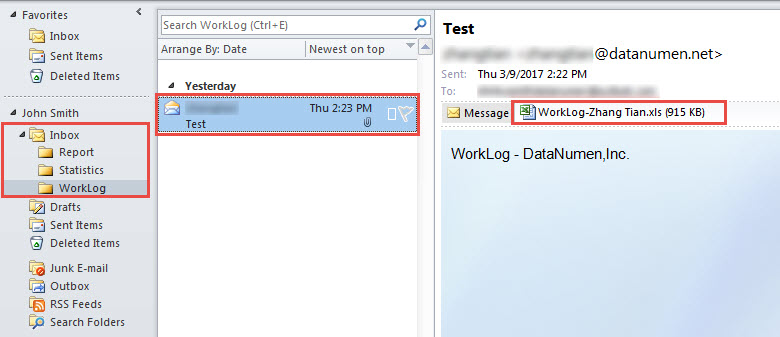
- 最终,从现在开始,Outlook 将自动检查所有传入电子邮件的附件文件名,并将特定的附件移至特定的文件夹。

保护您的 PST 数据
Outlook 容易损坏几乎是公认的事实。因此,保护 PST 数据免受损坏是一项相当艰巨的任务。但您仍然可以找到一些规则和技巧。例如,为了避免 PST 数据丢失,您可以坚持定期进行数据备份。此外,为了在 Outlook 崩溃后立即恢复数据,您可以准备一个经验丰富的备份工具。 PST修复 工具,例如 DataNumen Outlook Repair.
作者简介:
Shirley Zhang 是一位数据恢复专家 DataNumen, Inc.,它是数据恢复技术领域的世界领先者,包括 SQL Server 恢复 和 outlook 修复软件产品。 欲了解更多信息,请访问 datanumen.com