
在这篇文章中,我们将向您展示 4 种快速删除 Word 文档中不需要的边框的方法。
在某种程度上,框架与文本框非常相似,两者都用于在文档中容纳文本。但框架比文本框有一些优势。例如,框架可以包含一些字段,并且可以在其中添加脚注或尾注,而这些功能在文本框中也同样适用。 
尽管如此,我们不能忽略删除您不再需要的框架的需要。 因此,我们为您提供以下 4 种简单快捷的方法:
方法 1:手动删除框架
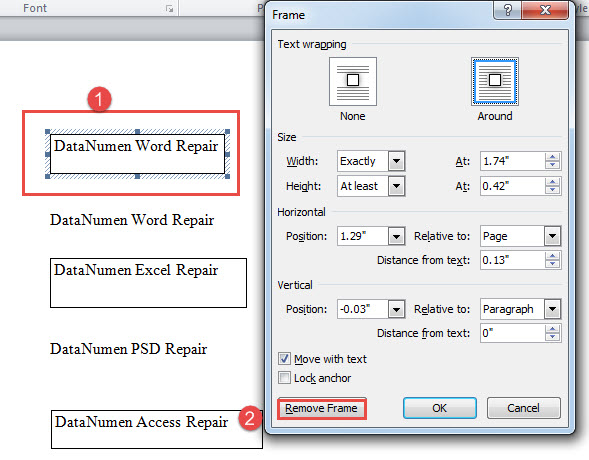
- 首先,右键单击框架边框。
- 然后在上下文菜单中选择“格式化框架”。
- 接下来在打开的“Frame”框中,单击“Remove Frame”选项卡。

方法 2:删除选区中的所有帧
如您所见,使用方法 1 中的步骤一个一个地删除多个帧是乏味的。为了节省您的时间,更快的方法是使用 VBA 代码。
- 首先,选择一系列包含框架的文本。
- 其次,按“Alt+F11”打开VBA编辑器。
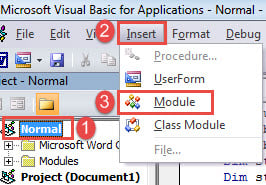
- 接下来单击“正常”项目,然后单击“插入”。
- 在下拉菜单中,选择“模块”。

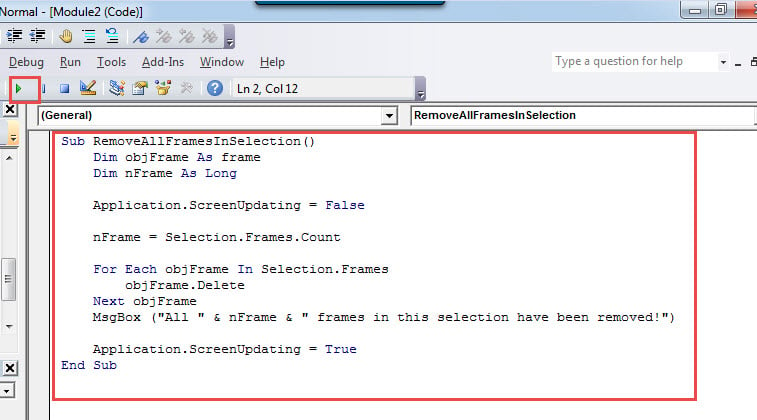
- 双击打开模块并在其中粘贴以下代码:
Sub RemoveAllFramesInSelection()
  Dim objFrame As frame
  Dim nFrame As Long

  Application.ScreenUpdating = False

  nFrame = Selection.Frames.Count

  For Each objFrame In Selection.Frames
    objFrame.Delete
  Next objFrame
  MsgBox ("All " & nFrame & " frames in this selection have been removed!")

  Application.ScreenUpdating = True
End Sub
- 最后,单击“运行”按钮或按“F5”执行代码。

您将收到一个消息框,指示您的结果,如下所示: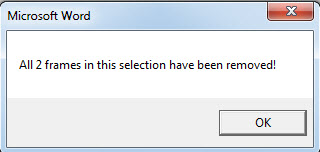
方法 3:删除当前文档中的所有框架
尽管如此,我们仍需要一个宏来进行批处理。
- 使用方法 2 中的步骤安装并运行宏。
- 然后用这个替换那个宏:
Sub RemoveAllFramesInDoc()
  Dim objFrame As frame
  Dim nFrame As Long

  Application.ScreenUpdating = False

  nFrame = ActiveDocument.Frames.Count

  For Each objFrame In ActiveDocument.Frames
    objFrame.Delete
  Next objFrame
  MsgBox ("All " & nFrame & " frames in this document have been removed!")

  Application.ScreenUpdating = True
End Sub
同样,一旦该过程结束,您将收到一个消息框通知。
方法 4:从文件夹中删除多个文档中的所有框架
如果您有一批文档都包含框架,我们还提供了一个宏来完成任务。
- 在 VBA 模块中粘贴并运行这些代码:
Sub RemoveAllFramesInAllDocsInFolder()
  Dim objDoc As Document
  Dim dlgFile As FileDialog
  Dim nFile As Integer
  Dim objFrame As frame
  Dim nFrame As Long

  Set dlgFile = Application.FileDialog(msoFileDialogFilePicker)

  With dlgFile
    dlgFile.AllowMultiSelect = True
    If .Show = -1 Then
      For nFile = 1 To dlgFile.SelectedItems.Count
        Documents.Open dlgFile.SelectedItems(nFile)
        Set objDoc = ActiveDocument

        nFrame = ActiveDocument.Frames.Count
        For Each objFrame In ActiveDocument.Frames
          objFrame.Delete
        Next objFrame
        objDoc.Save
        objDoc.Close
      Next nFile
    Else
      MsgBox "No file is selected! Please select a target file."
      Exit Sub
    End If
  End With
End Sub
- 现在,您将打开“浏览”窗口。选择目标文档,然后单击“打开”。几秒钟后,所选文档中的所有框架都将被移除。
克服数据灾难
不用说,数据灾难绝不是可怕的。 在某种程度上,它甚至可能是职业威胁。 因此,保护数据并了解在数据丢失发生后应采取的正确措施至关重要。 明智的措施之一是获得一个 文档修复 工具提前。
作者简介:
Vera Chen 是一位数据恢复专家 DataNumen, Inc.,它是数据恢复技术领域的世界领先者,包括 xlsx修复 和 pdf 修复软件产品。 欲了解更多信息,请访问 datanumen.com