
在本文中,我们很高兴为您提供 3 种实用的方法来打印没有脚注和尾注的 Word 文档。
脚注和尾注有助于说明 Word 文档中的模糊点。 话虽这么说,但在印刷时,您可能需要在论文的任何地方添加脚注和尾注。 可悲的是,没有直接的方法可以像使用标记那样将它们排除在打印之外。 相反,您可以在此处选择以下解决方法来完成您想要的。
方法一:在“草稿”视图下操作
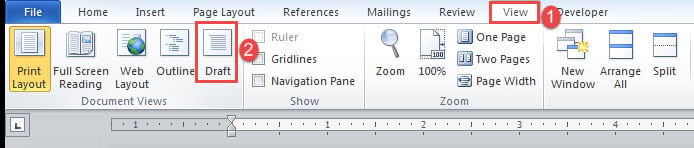
- 首先,让我们以脚注为例。 单击功能区中的“查看”选项卡。
- 接下来点击“草稿”。

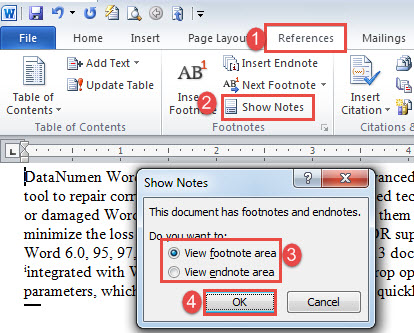
- 然后单击“参考”并单击“显示注释”。
- 在打开的框中,选择“查看脚注区域”或“查看尾注区域”框。
- 点击“确定”。

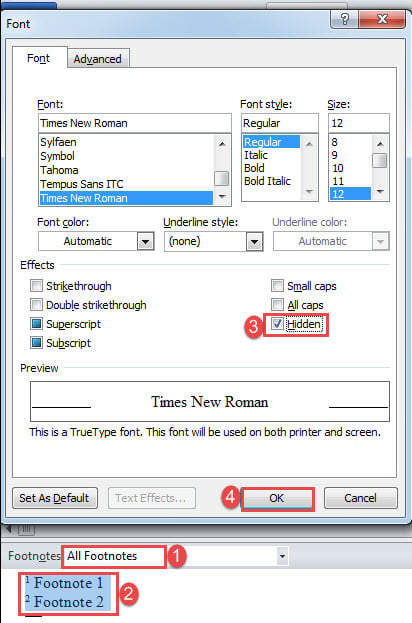
- 在屏幕底部,单击下拉按钮选择“所有脚注”。
- 然后按“Ctrl+A”选择所有脚注。
- 接下来按“Ctrl+D”打开“字体”框。
- 选中“隐藏”框,然后单击“确定”。

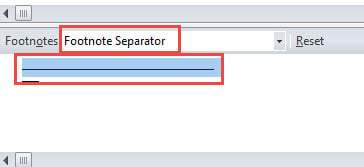
- 接下来在下拉菜单中选择“脚注分隔符”。
- 选择脚注分隔符。

- 重复步骤 8 和 9。
- 然后选择“脚注连续分隔符”。
- 选择脚注延续分隔符。

- 重复步骤 8 和 9。
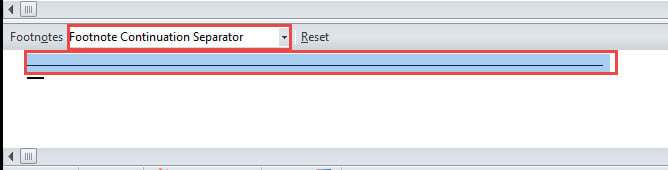
现在,脚注参考编号在正文中仍然可见。 如果您还需要隐藏它们,请按照下列步骤操作:
- 单击“主页”选项卡,然后单击“查找”上的下拉按钮。
- 选择“高级查找”。

- 接下来在“查找内容”文本框中输入“^f”。 如果您要处理尾注参考,请输入“^e”。
- 单击“查找位置”并选择“主文档”。
- 现在所有脚注参考号都在选择中。 将它们格式化为隐藏文本。


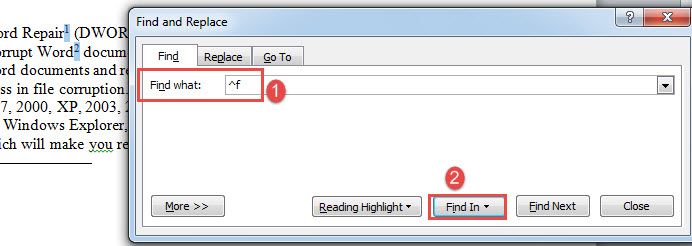
现在还有最后一步。 单击“文件”,然后单击“选项”,打开“Word 选项”框。 在打开的框中,单击“显示”并确保未选中“打印隐藏文本”框,然后单击“确定”。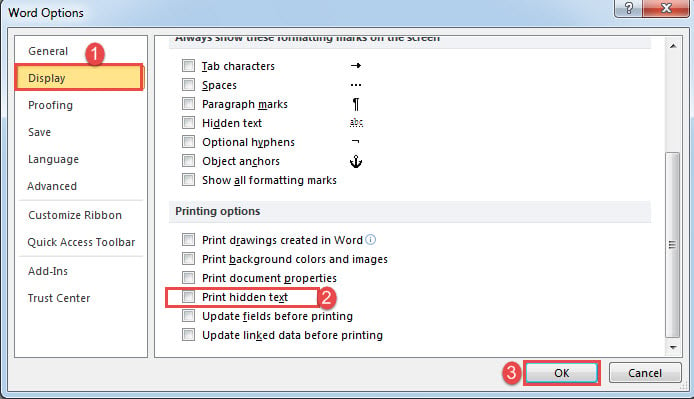
对于尾注,程序非常相似。
方法二:隐藏样式
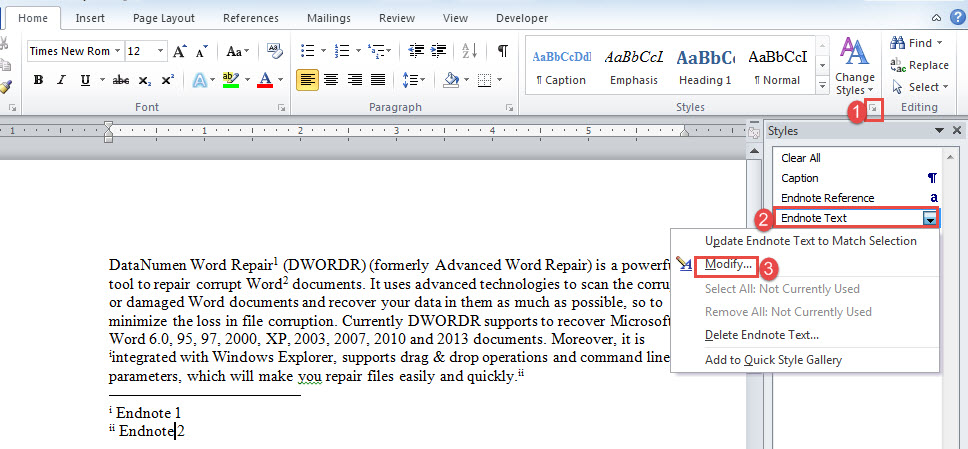
- 首先,通过单击“样式”组中的箭头按钮打开“样式”窗口。
- 比如我们这次选择隐藏尾注,在“尾注文本”样式上右击。
- 选择“修改”。

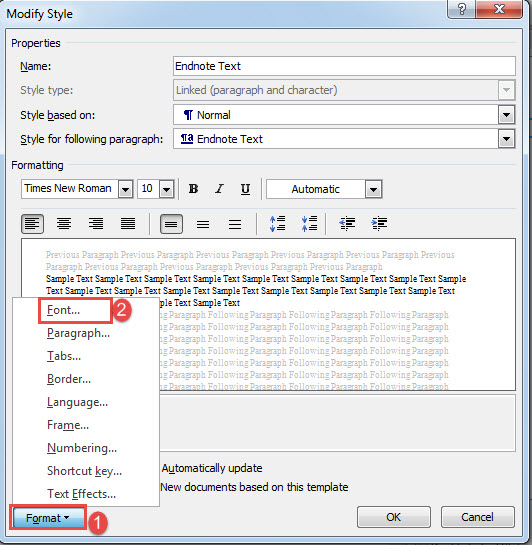
- 在“修改样式”框中,单击“格式”并选择“字体”。
- 在“字体”框中,选中“隐藏”框,然后单击“确定”。

- 然后在“修改样式”框中单击“确定”。
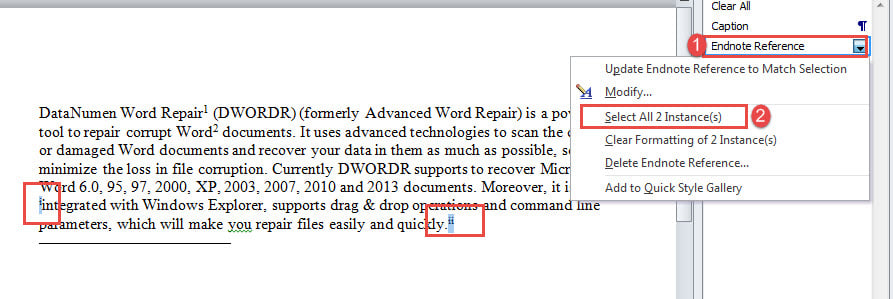
- 接下来在“样式”窗口中,右键单击“尾注参考”。
- 选择“选择所有 XX 实例”。
- 现在所有尾注参考文献都在选择中。 将它们格式化为隐藏文本。

- 如您所见,尾注分隔符仍然存在,因此您也需要将其隐藏。 按照方法 1 中的步骤进行操作。
方法一:使用Word VBA
- 首先,按“Alt+F11”打开VBA编辑器。
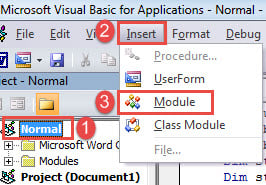
- 接下来单击左栏中的“正常”。
- 然后单击“插入”和“模块”。

- 双击打开新模块,粘贴以下代码:
Sub PrintWithoutFootnotesAndEndnotes()
  Dim objDoc As Document
  Dim nFootnoteRefFontColorIndex As Integer
  Dim nFootnoteTxtFontColorIndex As Integer
  Dim nFootnoteSeparatorFontColorIndex As Integer
  Dim nFootnoteContinuationSeparatorColorIndex As Integer
  Dim nEndnoteRefFontColorIndex As Integer
  Dim nEndnoteTxtFontColorIndex As Integer
  Dim nEndnoteSeparatorFontColorIndex As Integer
  Dim nEndnoteContinuationSeparatorColorIndex As Integer

  Set objDoc = ActiveDocument

  With objDoc
    '  Save the current color index.
    nFootnoteRefFontColorIndex = .Styles("Footnote Reference").Font.ColorIndex
    nFootnoteTxtFontColorIndex = .Styles("Footnote Text").Font.ColorIndex
    nFootnoteSeparatorFontColorIndex = .Footnotes.Separator.Font.ColorIndex
    nFootnoteContinuationSeparatorColorIndex = .Footnotes.ContinuationSeparator.Font.ColorIndex

    nEndnoteRefFontColorIndex = .Styles("Endnote Reference").Font.ColorIndex
    nEndnoteTxtFontColorIndex = .Styles("Endnote Text").Font.ColorIndex
    nEndnoteSeparatorFontColorIndex = .Endnotes.Separator.Font.ColorIndex
    nEndnoteContinuationSeparatorColorIndex = .Endnotes.ContinuationSeparator.Font.ColorIndex

    .Styles("Footnote Reference").Font.ColorIndex = wdWhite
    .Styles("Footnote Text").Font.ColorIndex = wdWhite
    .Footnotes.Separator.Font.ColorIndex = wdWhite
    .Footnotes.ContinuationSeparator.Font.ColorIndex = wdWhite

    .Styles("Endnote Reference").Font.ColorIndex = wdWhite
    .Styles("Endnote Text").Font.ColorIndex = wdWhite
    .Endnotes.Separator.Font.ColorIndex = wdWhite
    .Endnotes.ContinuationSeparator.Font.ColorIndex = wdWhite
  End With

  Dialogs(wdDialogFilePrint).Show

  With objDoc
    '  Restore the color index
    .Styles("Footnote Reference").Font.ColorIndex = nFootnoteRefFontColorIndex
    .Styles("Footnote Text").Font.ColorIndex = nFootnoteTxtFontColorIndex
    .Footnotes.Separator.Font.ColorIndex = nFootnoteSeparatorFontColorIndex
    .Footnotes.ContinuationSeparator.Font.ColorIndex = nFootnoteContinuationSeparatorColorIndex

    .Styles("Endnote Reference").Font.ColorIndex = nEndnoteRefFontColorIndex
    .Styles("Endnote Text").Font.ColorIndex = nEndnoteTxtFontColorIndex
    .Endnotes.Separator.Font.ColorIndex = nEndnoteSeparatorFontColorIndex
    .Endnotes.ContinuationSeparator.Font.ColorIndex = nEndnoteContinuationSeparatorColorIndex
  End With
End Sub
- 最后点击“运行”。

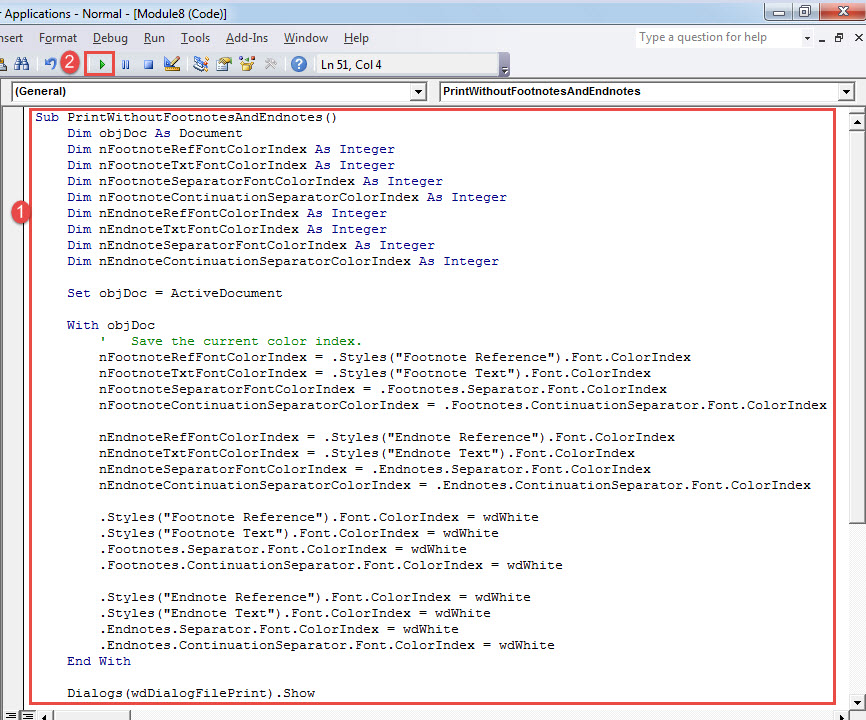
运行宏将打印不带脚注和尾注的文档,同时在原始文件中保持它们完好无损。
处理单词问题
Word 有时会失败。 这绝对威胁到我们宝贵文件的安全。 但是,如果您在使用 Word 时遇到任何问题,总有一个工具可以解决 单词恢复.
作者简介:
Vera Chen 是一位数据恢复专家 DataNumen, Inc.,它是数据恢复技术领域的世界领先者,包括 恢复Excel 和 pdf 修复软件产品。 欲了解更多信息,请访问 datanumen.com