
在这篇文章中,我们很高兴向您展示两种快速跳转到 Word 文档中特定段落的方法。
Word中有“转到”功能,我们可以通过它快速跳转到特定的页面、部分、书签等。但遗憾的是,内置功能无法通过点击将我们带到指定的段落。 话虽如此,我们觉得有义务向您介绍一些解决方法。
方法 1:转到没有段落编号的文档中的特定段落
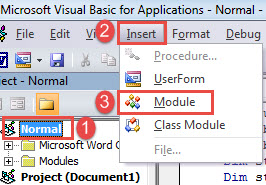
- 首先,按下“Alt+F11”键,即可在 Word 中打开 VBA 编辑器。
- 然后单击左侧栏中的“正常”。
- 接下来单击“插入”并在其下拉菜单中选择“模块”。

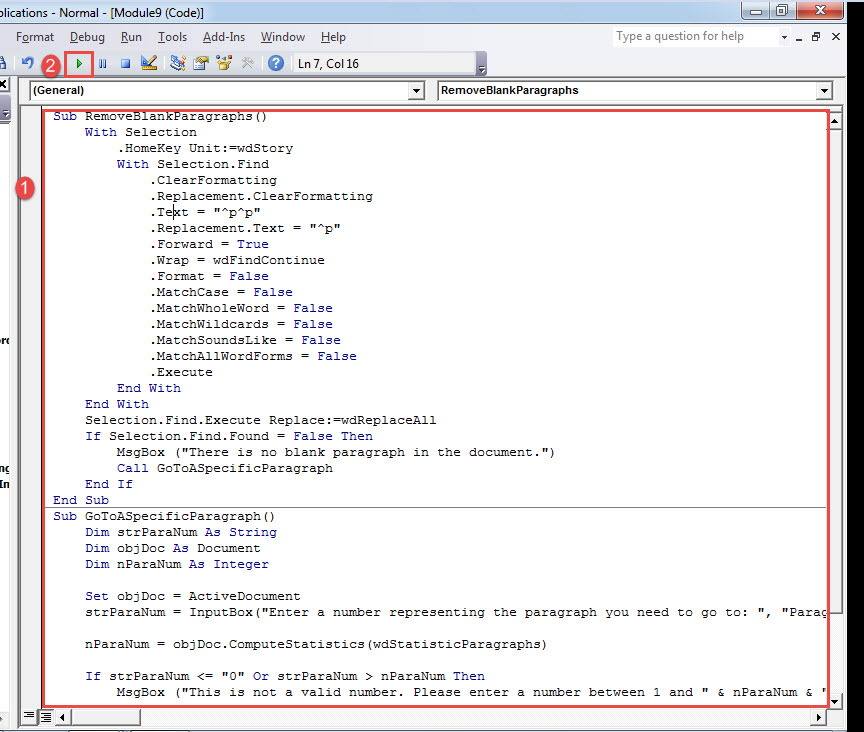
- 现在双击新模块将其打开。 将以下代码粘贴到那里:
Sub RemoveBlankParagraphs()
  With Selection
    .HomeKey Unit:=wdStory
    With Selection.Find
      .ClearFormatting
      .Replacement.ClearFormatting
      .Text = "^p^p"
      .Replacement.Text = "^p"
      .Forward = True
      .Wrap = wdFindContinue
      .Format = False
      .MatchCase = False
      .MatchWholeWord = False
      .MatchWildcards = False
      .MatchSoundsLike = False
      .MatchAllWordForms = False
      .Execute
    End With
  End With
  Selection.Find.Execute Replace:=wdReplaceAll
  If Selection.Find.Found = False Then
    MsgBox ("There is no blank paragraph in the document.")
    Call GoToASpecificParagraph
  End If
End Sub

Sub GoToASpecificParagraph()
  Dim strParaNum As String
  Dim objDoc As Document
  Dim nParaNum As Integer

  Set objDoc = ActiveDocument
  strParaNum = InputBox("Enter a number representing the paragraph you need to go to: ", "Paragraph Number")

  nParaNum = objDoc.ComputeStatistics(wdStatisticParagraphs)

  If strParaNum <= "0" Or strParaNum > nParaNum Then
    MsgBox ("This is not a valid number. Please enter a number between 1 and " & nParaNum & ".")
  End If

  objDoc.Paragraphs(strParaNum).Range.Select

End Sub
- 单击“运行”。

- 多次运行宏,直到出现以下消息框。

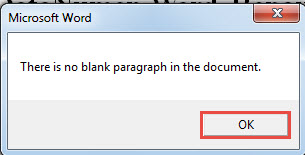
然后单击“确定”。 我们多次单击“运行”按钮的原因是删除文档中的所有空白段落。 默认情况下,Word 将它们视为普通段落。 所以最终的结果可能不是我们想要去的确切段落。
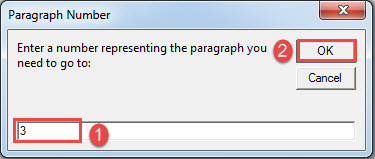
- 然后在下一个打开的框中,输入一个数字,代表您需要访问的段落。
- 然后单击“确定”。

你会看到目标段落已被选中。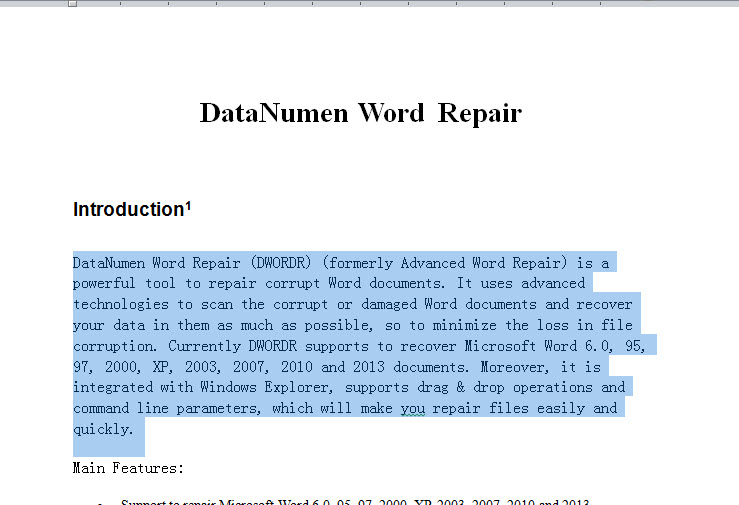
方法 2:使用段落编号转到文档中的特定段落
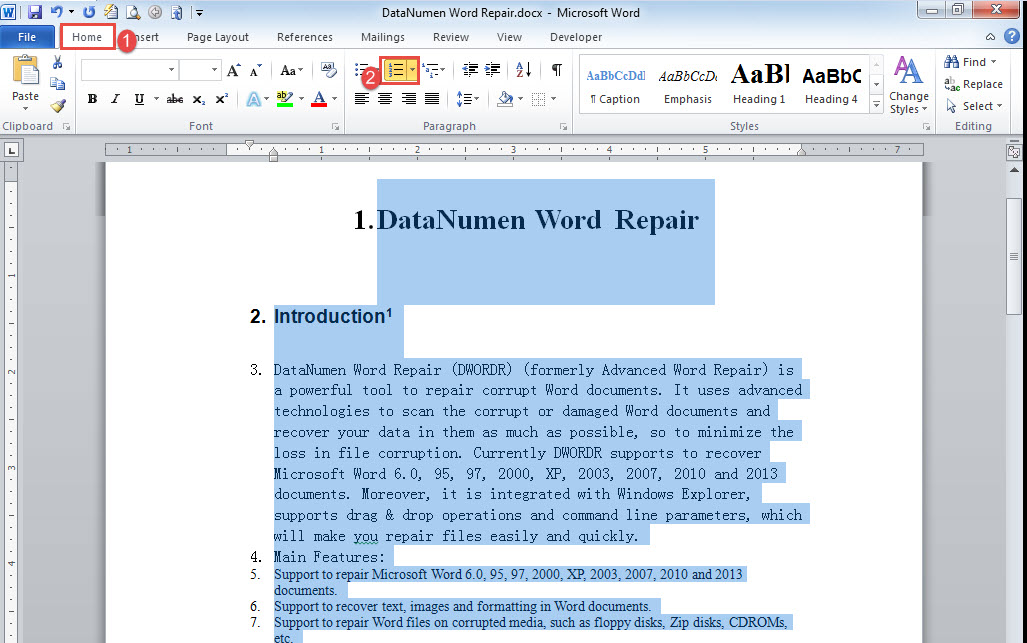
- 首先,按“Ctrl+A”选择文档中的所有文本。
- 然后单击“主页”选项卡下的“编号”。

- 接下来按照方法 1 中的相同步骤安装和运行宏。
- 只有这一次用下面的宏替换宏:
Sub GoTOParaInDocWithParaNum()
  Dim strParaNum As String
  Dim objPara As Paragraph
  Dim objDoc As Document
  Dim nParaNum As Integer

  Set objDoc = ActiveDocument

  strParaNum = InputBox("Enter a paragraph number following with a period:", "Paragraph Number")

  nParaNum = objDoc.ComputeStatistics(wdStatisticParagraphs)

  If strParaNum <= "0" Or strParaNum > nParaNum Then
    MsgBox ("This is not a valid number. Please enter a number between 1 and " & nParaNum & ".")
  End If

  For Each objPara In objDoc.Paragraphs
    If strParaNum = objPara.Range.ListFormat.ListString Then
      objPara.Range.Select
    End If
  Next
End Sub
- 接下来单击“运行”或按“F5”。
- 打开的盒子里, 输入段落编号后跟句号 在文本框中。
- 单击“确定”继续。

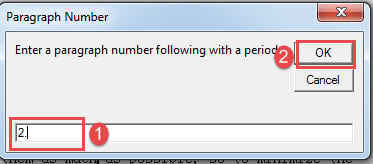
同样,目标段落现在应该已经选定了。
修复损坏的文件
一旦发现文件已损坏,您就不能不碰碰运气,希望下次打开它时它会回来。 相反,您必须抓紧时间获得卓越的工具 文档损坏 修复,在修复的过程中分秒必争。
作者简介:
Vera Chen 是一位数据恢复专家 DataNumen, Inc.,它是数据恢复技术领域的世界领先者,包括 修复 xlsx 和 pdf 修复软件产品。 欲了解更多信息,请访问 datanumen.com