
在这篇文章中,我们将重点介绍在 Word 中快速重命名文档的两种巧妙方法。
有时,在用 Word 绘图时,我们会不断更改文件名。 然而每次,我们都必须先关闭文档才能重命名它。 这完全不方便。 默认情况下,我们无法重命名打开的文件。 但是在宏的帮助下,这是可能的。
以下是可以解决此类问题的 2 个宏。
方法 1:在 Word 中重命名文档
- 首先,按下“开发工具”选项卡,然后按下“Visual Basic”打开 Word VBA 编辑器。
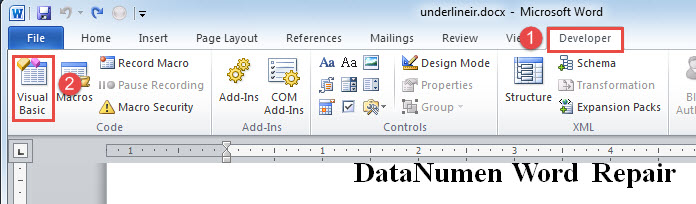
- 接下来单击“正常”项目。
- 然后单击“插入”并选择“模块”。
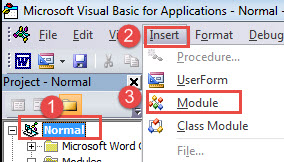
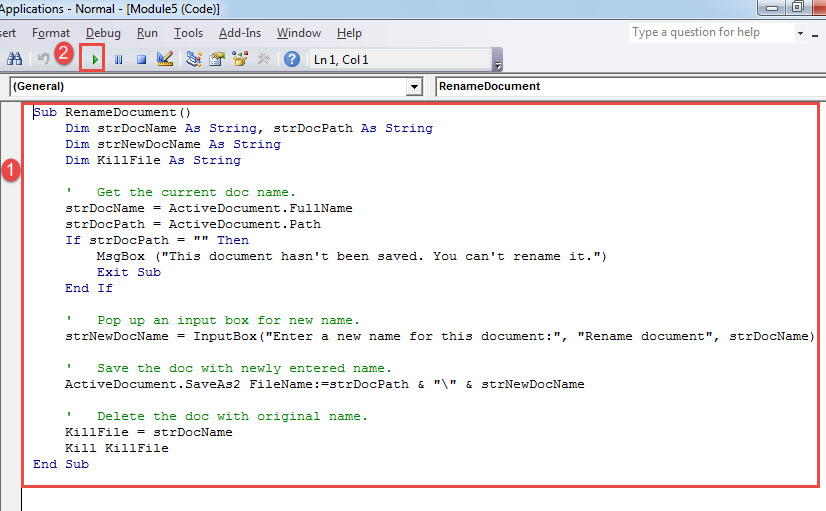
- 双击新模块打开编码区域并将以下代码粘贴到那里:
Sub RenameDocument()
  Dim strDocName As String, strDocPath As String
  Dim strNewDocName As String
  Dim KillFile As String

  '  Get the current doc name.
  strDocName = ActiveDocument.FullName
  strDocPath = ActiveDocument.Path
  If strDocPath = "" Then
    MsgBox ("This document hasn't been saved. You can't rename it.")
    Exit Sub
  End If

  '  Pop up an input box for new name.
  strNewDocName = InputBox("Enter a new name for this document:", "Rename document", strDocName)

  '  Save the doc with newly entered name.
  ActiveDocument.SaveAs2 FileName:=strDocPath & "\" & strNewDocName

  '  Delete the doc with original name.
  KillFile = strDocName
  Kill KillFile
End Sub
- 现在单击“运行”或按“F5”。

- 将弹出一个输入框。 只需在文本框中输入一个新名称,然后单击“确定”。

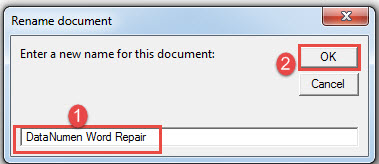
现在文档将以新名称存储在同一位置。 并且运行宏会删除原来的文件。
方法 2:重命名文档并附加日期信息
在许多情况下,文档将根据修订日期重命名。 在这种情况下,文件名的主要部分保持不变,只是后面跟着一个日期字符串。 例如,这是一个没有日期字符串的文档。
为了添加它,我们可以运行这个宏:
Sub RenameDocumentWithDate()
  Dim strDocName, strDocNameNoExten, strDocFullName, strDocPath As String
  Dim strNewDocName As String
  Dim KillFile As String
  Dim strDate As String

  '  Get the current doc name.
  strDocName = ActiveDocument.Name
  strDocFullName = ActiveDocument.FullName
  strDocNameNoExten = Left(strDocName.Name, Len(strDocName.Name) - 5)
  strDocPath = ActiveDocument.Path
  strDate = Format(Date, "mm - dd - yyyy")

  If strDocPath = "" Then
    MsgBox ("This document hasn't been saved. You can't rename it.")
    Exit Sub
  End If

  '  Save the doc in new name with date.
  ActiveDocument.SaveAs2 FileName:=strDocPath & "\" & strDocNameNoExten & " " & strDate
  KillFile = strDocFullName
  Kill KillFile
End Sub
您可以按照方法 1 中的确切步骤安装并运行上述宏。 它会很好地工作。 您会看到当前日期字符串跟在原始名称之后,例如: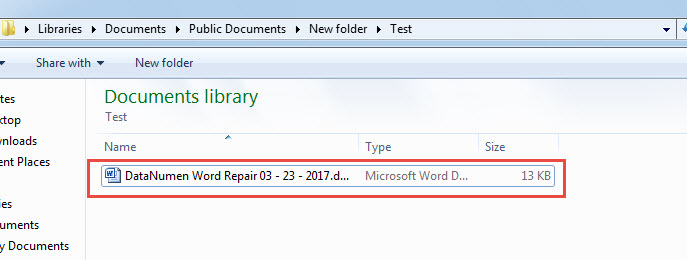
Word文档损坏的解决方案
我们无法通过一劳永逸的方法来防止文档损坏。我们能做的就是做好备份,并尽可能避免人为错误。其中最重要的一点是熟悉文档损坏后的处理方法。正确的做法是获取…… 文档恢复 工具尽快。
作者简介:
Vera Chen 是一位数据恢复专家 DataNumen, Inc.,它是数据恢复技术领域的世界领先者,包括 Excel损坏 和 pdf 修复软件产品。 欲了解更多信息,请访问 datanumen.com