
在本文中,我们将为您提供 2 种快速查找或删除 Word 中包含特定文本的句子的方法。
众所周知,我们可以使用 Word 中的“查找和替换”功能轻松查找特定词语的所有出现位置。然后,我们可以轻松地选中、替换或删除它们。如您所见,目标是单个单词或短语。然而,今天我们很高兴地向您介绍一种使用宏来查找或删除包含特定文本的句子的方法。
方法 1:查找或删除包含特定文本的句子
- 首先,按“Alt+F11”在 Word 中触发 VBA 编辑器。
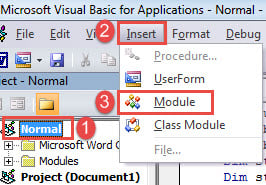
- 接下来通过单击“正常”创建一个新模块。
- 然后单击“插入”并选择“模块”以获取新的模块。

- 并双击打开模块。
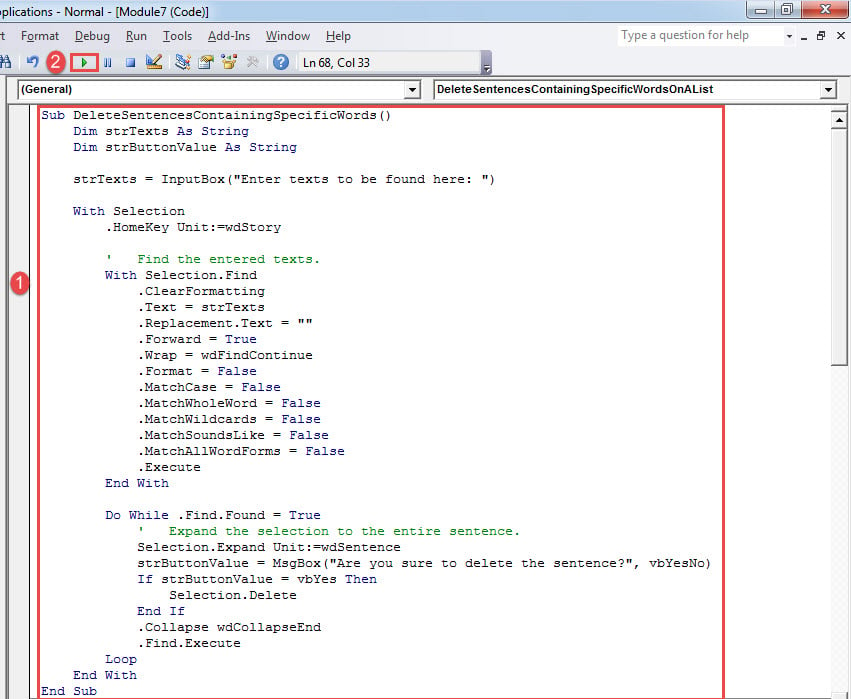
- 现在粘贴以下代码:
Sub DeleteSentencesContainingSpecificWords()
  Dim strTexts As String
  Dim strButtonValue As String

  strTexts = InputBox("Enter texts to be found here: ")

  With Selection
    .HomeKey Unit:=wdStory

    '  Find the entered texts.
    With Selection.Find
      .ClearFormatting
      .Text = strTexts
      .Replacement.Text = ""
      .Forward = True
      .Wrap = wdFindContinue
      .Format = False
      .MatchCase = False
      .MatchWholeWord = False
      .MatchWildcards = False
      .MatchSoundsLike = False
      .MatchAllWordForms = False
      .Execute
    End With

    Do While .Find.Found = True
      '  Expand the selection to the entire sentence.
      Selection.Expand Unit:=wdSentence
      strButtonValue = MsgBox("Are you sure to delete the sentence?", vbYesNo)
      If strButtonValue = vbYes Then
        Selection.Delete
      End If
      .Collapse wdCollapseEnd
      .Find.Execute
    Loop
  End With
End Sub
- 接下来点击“运行”。

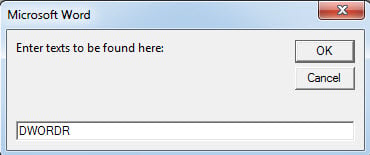
- 将有一个输入框,要求您输入文本。 只需键入所有句子包含的通用文本。 单击“确定”。

- 然后您将看到一个包含所选文本的句子,并会弹出一个消息框。 单击“是”删除该句子,单击“否”保留它。

- 确认后,选中下一句包含指定文本的句子。同时,还会弹出确认框。也就是说,该宏会引导您遍历整个文档,查找目标句子,并每次都要求您确认。
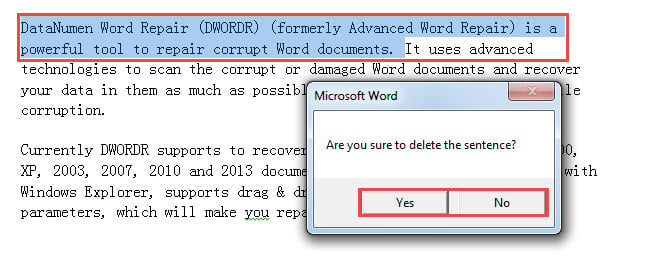
方法 2:查找或删除包含列表中任何文本的句子
使用方法 1 中的宏,您一次只能搜索一个词或短语。 当然,您可以重复运行该宏来搜索多个单词或短语实例。 为了满足多重搜索的需要,我们将为您提供另一个宏。
- 首先将所有目标文本放入一个新文档中。确保每段文本占据一个段落,段落末尾不要有空格。关闭并保存文档。
- 接下来使用方法 1 中的确切步骤安装并运行宏。
- 然后用这个替换宏:
Sub DeleteSentencesContainingSpecificWordsOnAList()
  Dim objListDoc As Document, objTargetDoc As Document
  Dim objParaRange As Range
  Dim objParagraph As Paragraph
  Dim strFileName As String, strButtonValue As String
  Dim dlgFile As FileDialog

  Set dlgFile = Application.FileDialog(msoFileDialogFilePicker)

  With dlgFile
    If .Show = -1 Then
      strFileName = .SelectedItems(1)
    Else
      MsgBox "No file is selected! Please select the target file."
      Exit Sub
    End If
  End With
  Set objTargetDoc = ActiveDocument
  Set objListDoc = Documents.Open(strFileName)
  objTargetDoc.Activate

  For Each objParagraph In objListDoc.Paragraphs
    Set objParaRange = objParagraph.Range
    objParaRange.End = objParaRange.End - 1

    With Selection
      .HomeKey Unit:=wdStory

      '  Find target words.
      With Selection.Find
        .ClearFormatting
        .Text = objParaRange
        .MatchWholeWord = True
        .MatchCase = False
        .Execute
      End With

      '  Expand the selection to the entire sentence.
      Do While .Find.Found
        Selection.Expand Unit:=wdSentence
        strButtonValue = MsgBox("Are you sure to delete the sentence?", vbYesNo)
        If strButtonValue = vbYes Then
          Selection.Delete
        End If
        .Collapse wdCollapseEnd
        .Find.Execute
      Loop
    End With
  Next objParagraph
End Sub
- 现在“浏览”窗口将打开。 选择刚才保存的文件,点击“打开”。
- 下面的过程与方法一相同。
处理损坏文件的方法
丢失有价值的数据绝对是毁灭性的。 它甚至会使您的业务受到威胁。 为了避免这种挫败感,你需要掌握一个 单词修复 工具尽快。 这样的工具将帮助您赢得与文件损坏的斗争。
作者简介:
Vera Chen 是一位数据恢复专家 DataNumen, Inc.,它是数据恢复技术领域的世界领先者,包括 修复Excel 和 pdf 修复软件产品。 欲了解更多信息,请访问 datanumen.com