
在本文中,我们将为您提供 6 种将 Word 文档中的所有脚注转换为尾注的方法,反之亦然。
众所周知,默认情况下,脚注文本排列在单个页面的底部,而尾注位于文档末尾。 然而,这样的默认设置并不能一直让人满意。 甚至 Word 都有内置命令供用户将脚注转换为尾注,反之亦然。 因此,我们生成了 6 种方法供您选择。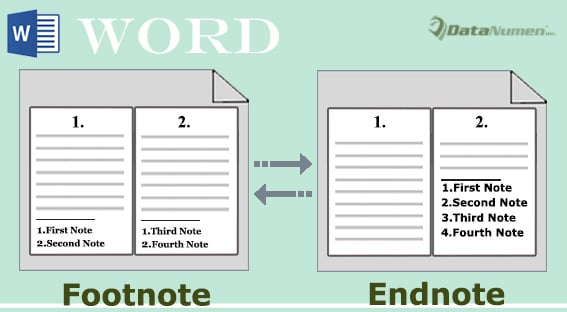
方法 1:手动将一个文档中的所有脚注转换为尾注
这是脚注和尾注通常停留的位置: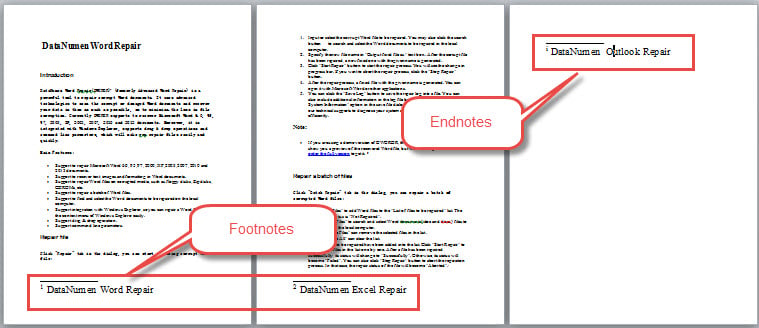
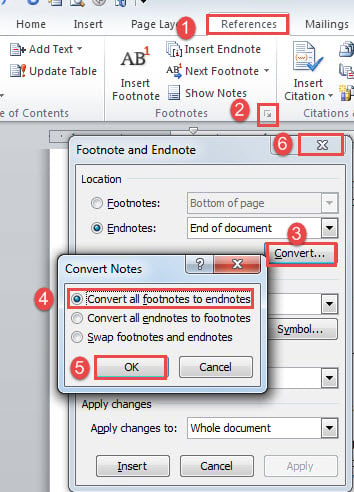
- 首先,单击“参考”选项卡,然后单击“脚注”组中的箭头按钮以打开“脚注和尾注”对话框。
- 接下来单击“转换”按钮。
- 然后选择“将所有脚注转换为尾注”选项。
- 然后单击“确定”。
- 最后,关闭“脚注和尾注”框。

效果如下: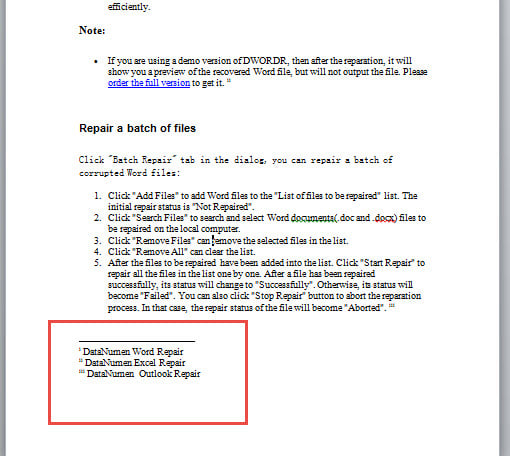
方法 2:手动将一个文档中的所有尾注转换为脚注
将尾注转换为脚注非常相似。
- 重复方法 1 中的步骤 2 和 1。
- 这次选择“将所有尾注转换为脚注”选项。
- 仍然重复方法 4 中的步骤 5 和 1。
检查以下结果: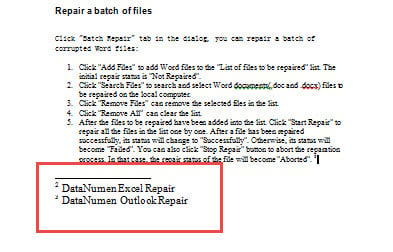
方法三:通过VBA将一个文档中的所有脚注转为尾注
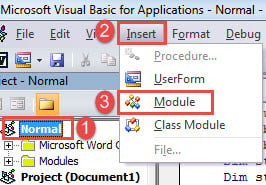
- 首先,按“Alt+F11”在 Word 中打开 VBA 编辑器。
- 接下来点击“正常”。
- 单击“插入”选项卡。
- 然后在下拉菜单中选择“模块”。

- 然后双击模块将其打开。
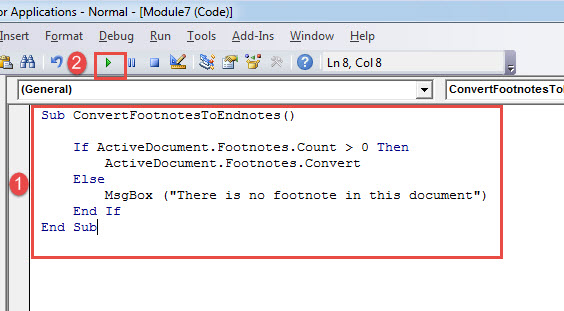
- 将以下代码粘贴到那里:
Sub ConvertFootnotesToEndnotes()

  If ActiveDocument.Footnotes.Count > 0 Then
    ActiveDocument.Footnotes.Convert
  Else
    MsgBox ("There is no footnote in this document")
  End If
End Sub
- 最后,单击“运行”。

方法四:通过VBA将一个文档中的所有尾注转为脚注
同样,按照方法3中相同的步骤安装并运行宏。 但是,用下面的宏替换宏:
Sub ConvertEndnotesToFootnotes()

 If ActiveDocument.Endnotes.Count > 0 Then
 ActiveDocument.Endnotes.Convert
 Else
 MsgBox ("There is no endnote in this document")
 End If
End Sub
 方法五:通过VBA批量将多个文档中的所有脚注转为尾注
 方法五:通过VBA批量将多个文档中的所有脚注转为尾注
如果您需要处理大量文件,请先将它们全部放在一个文件夹中。 然后安装并运行这个宏:
Sub BatchConvertFootnotesToEndnotes()
  Dim objWordApplication As New Word.Application
  Dim strFile As String
  Dim strFolder As String

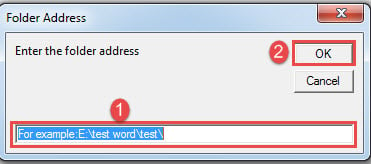
  strFolder = InputBox("Enter the folder address", "Folder Address", "For example:E:\test word\test\")
  strFile = Dir(strFolder & "*.doc*", vbNormal)

  While strFile <> ""
    With objWordApplication
      .Documents.Open (strFolder & strFile)
      .ActiveDocument.Footnotes.Convert
      .ActiveDocument.Close
    End With
    strFile = Dir()
  Wend

  Set objWordApplication = Nothing

End Sub
运行此宏将弹出一个输入框,您应在其中输入文件夹路径。 并且不要忘记文件夹地址末尾应该有一个“\”。
方法六:通过VBA批量将多个文档中的所有尾注转为脚注
最后,这是将多个文档中的尾注自动批量转换为脚注的宏:
Sub BatchConvertEndnotesToFootnotes()
  Dim objWordApplication As New Word.Application
  Dim strFile As String
  Dim strFolder As String

  strFolder = InputBox("Enter the folder address", "Folder Address", "For example:E:\test word\test\")
  strFile = Dir(strFolder & "*.doc*", vbNormal)

  While strFile <> ""
    With objWordApplication
      .Documents.Open (strFolder & strFile)
      .ActiveDocument.Endnotes.Convert
      .ActiveDocument.Close
    End With
    strFile = Dir()
  Wend

  Set objWordApplication = Nothing

End Sub
如何解决单词问题
Word 可能会毫无征兆地失败。 虽然你可能会觉得这样的厄运会降临到你身上令人难以置信,但你别无选择,只能求助于合格的维修工具来修复 腐败文件.
作者简介:
Vera Chen 是一位数据恢复专家 DataNumen, Inc.,它是数据恢复技术领域的世界领先者,包括 损坏的Excel 以及 pdf 修复软件产品。 欲了解更多信息,请访问 datanumen.com