
当您收到一封附有多个附件的电子邮件时,有时您可能希望批量打开它们。 本文将着眼于这个问题,并向您介绍两种获取方法。
您一定曾经收到过这样一封包含多个附件的电子邮件。 只需双击其中一个附件即可轻松打开它。 但是如果你想快速批量打开所有的附件,怎么办呢? 很明显,Outlook 并没有为我们提供这样的功能。 因此,您需要寻求其他方法。 以下是2个技巧。
方法一:通过保存所有附件批量打开所有附件
如果附件属于同一文件类型,可以使用此方法:
- 到tart with,选择一个电子邮件。
- 然后在阅读窗格中选择一个附件。

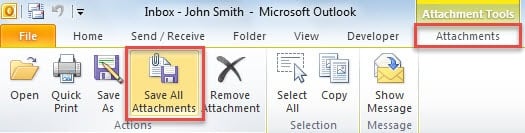
- 接下来在可见的“附件”功能区中,您可以找到并单击“保存所有附件”按钮。

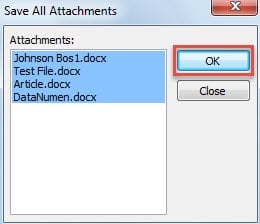
- 随后,在弹出的小对话框中,点击“确定”。

- 在接下来的“保存所有附件”对话框中,选择保存附件的目标文件夹,然后单击“确定”。
- 最后,您可以打开选定的文件夹。

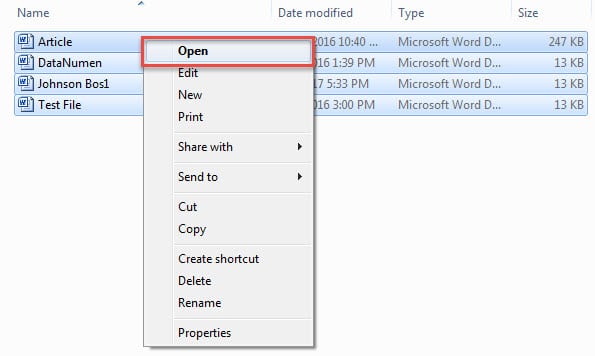
- 按“Ctrl + A”选择所有已保存的附件。
- 然后右键单击它们。
- 在右键菜单中,您可以选择“打开”选项。

以上方法仅适用于cab导致所有附件都属于同一文件类型的情况。 但是,如果没有,您可以使用以下方法。
方法二:通过Outlook VBA批量打开所有附件
如果附件是常见的文件类型——“.docx”、“.doc”、“.txt”、“.xlsx”、“xls”、“.jpg”、“.png”、“jpeg”,该方法将有效”。
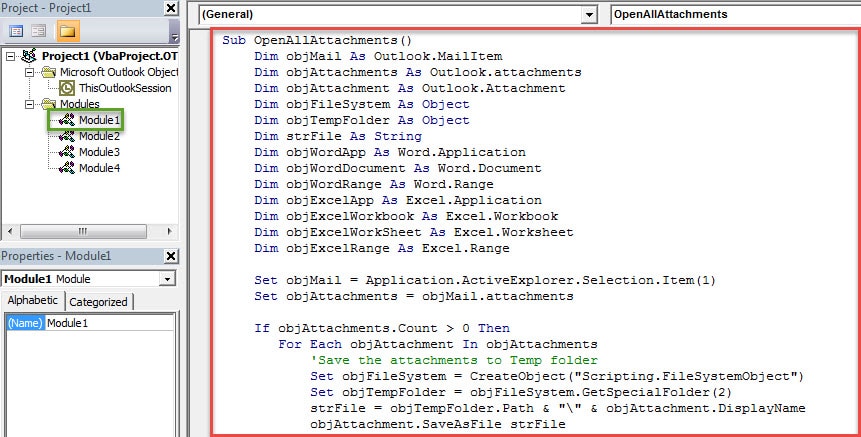
- 首先,按“Alt + F11”键按钮。
- 然后您将进入 VBA 编辑器窗口。
- 现在您需要打开一个未使用的模块。
- 随后,将以下 VBA 代码复制并粘贴到其中。
Sub OpenAllAttachments()
    Dim objMail As Outlook.MailItem
    Dim objAttachments As Outlook.attachments
    Dim objAttachment As Outlook.Attachment
    Dim objFileSystem As Object
    Dim objTempFolder As Object
    Dim strFile As String
    Dim objWordApp As Word.Application
    Dim objWordDocument As Word.Document
    Dim objWordRange As Word.Range
    Dim objExcelApp As Excel.Application
    Dim objExcelWorkbook As Excel.Workbook
    Dim objExcelWorkSheet As Excel.Worksheet
    Dim objExcelRange As Excel.Range

    Set objMail = Application.ActiveExplorer.Selection.Item(1)
    Set objAttachments = objMail.attachments

    If objAttachments.Count > 0 Then
       For Each objAttachment In objAttachments
           'Save the attachments to Temp folder
           Set objFileSystem = CreateObject("Scripting.FileSystemObject")
           Set objTempFolder = objFileSystem.GetSpecialFolder(2)
           strFile = objTempFolder.Path & "\" & objAttachment.DisplayName
           objAttachment.SaveAsFile strFile

           'Batch open all the attached Word documents and Text Files
           If InStr(LCase(strFile), "docx") > 0 Or InStr(LCase(strFile), "doc") > 0 Or InStr(LCase(strFile), "txt") > 0 Then
              Set objWordApp = CreateObject("Word.Application")
              Set objWordDocument = objWordApp.Documents.Open(strFile)
              objWordDocument.Activate
              Set objWordRange = objWordDocument.Range(0, 0)
              objWordApp.Visible = True
              objWordDocument.ActiveWindow.Visible = True
           End If

          'Batch open all the attached Excel workbooks
          If InStr(LCase(strFile), "xlsx") > 0 Or InStr(LCase(strFile), "xls") > 0 Then
             Set objExcelApp = CreateObject("Excel.Application")
             Set objExcelWorkbook = objExcelApp.Workbooks.Open(strFile)
             Set objExcelWorkSheet = objExcelWorkbook.Sheets(1)
             objExcelWorkSheet.Activate
             Set objExcelRange = objExcelWorkSheet.Range("A1")
             objExcelRange.Activate
             objExcelApp.Visible = True
          End If

          'Batch open all the attached pictures via Windows image view
          If InStr(LCase(strFile), "jpg") > 0 Or InStr(LCase(strFile), "png") > 0 Or InStr(LCase(strFile), "jpeg") > 0 Then
             Shell "RunDLL32.exe C:\Windows\System32\Shimgvw.dll,ImageView_Fullscreen " & strFile
          End If
       Next
    End If
End Sub
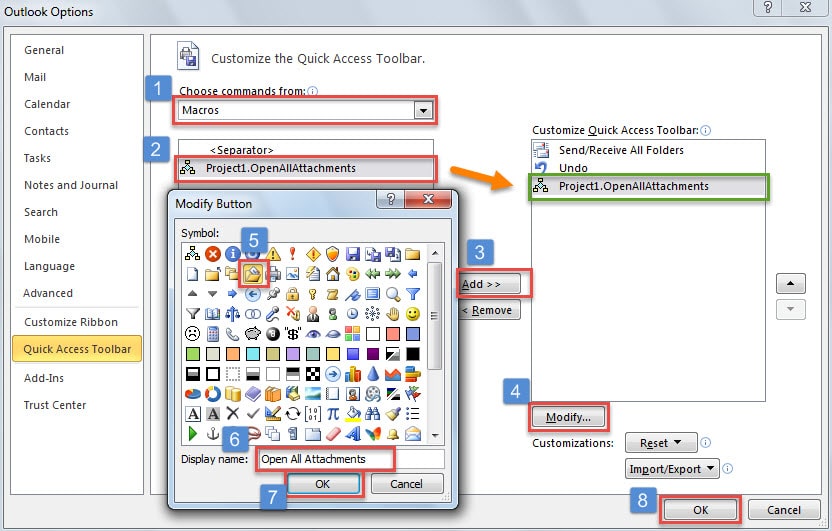
- 之后,您可以关闭 VBA 编辑器并将宏添加到快速访问工具栏。

- 最后你可以试试看。
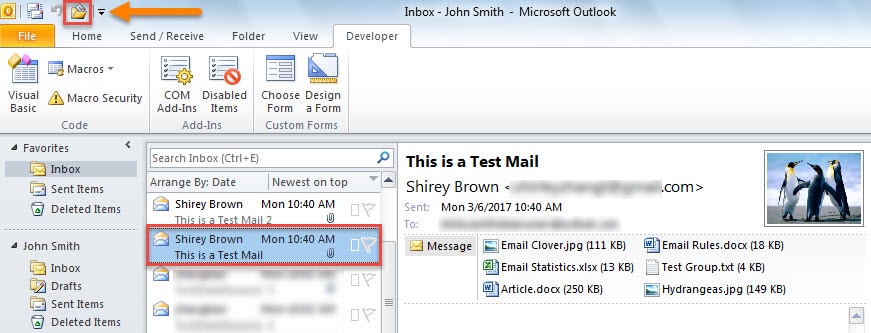
- 首先,选择一个电子邮件。
- 然后单击快速访问工具栏中的宏按钮。

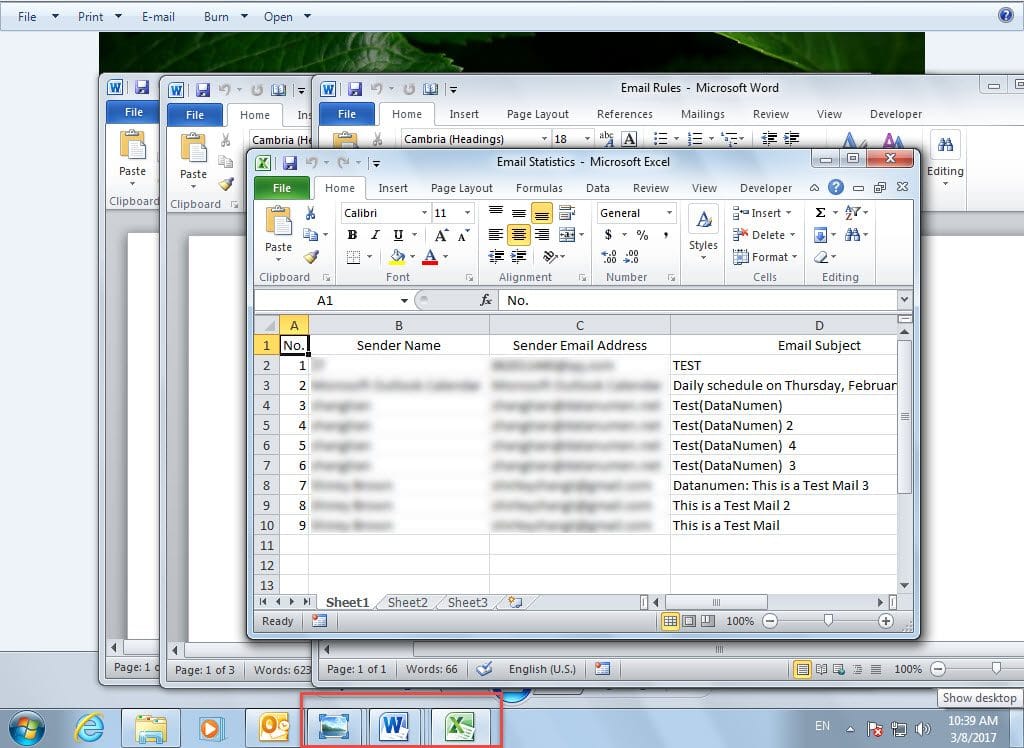
- 随即,选中邮件中的所有附件将被批量打开,如下截图:

有效保护您的 PST 数据
由于 Outlook PST 容易受到各种因素的影响,您应该付出很多努力来防止它损坏。 否则,一旦您的 PST 被损坏, 修复PST 将是一项相当艰巨的任务。 在这种情况下,Scanpst.exe 将无济于事。 所以你唯一的办法是应用一个强大的外部工具,比如 DataNumen Outlook Repair.
作者简介:
Shirley Zhang 是一位数据恢复专家 DataNumen, Inc.,它是数据恢复技术领域的世界领先者,包括 损坏的中密度纤维板 和 outlook 修复软件产品。 欲了解更多信息,请访问 datanumen.com