
回复或转发电子邮件时,您可能希望应用相同的类别。 在本文中,我们将教您使用 VBA 代码实现这一点。
如果您习惯于将原始电子邮件的相同颜色类别分配给其所有回复和转发,为什么不让 Outlook 自动实现这一点呢? 即使 Outlook 不提供这种直接的功能,您仍然可以借助 VBA 代码获得它。 下面将详细步骤和代码公开给大家。
自动将电子邮件的类别应用于所有回复和转发
- 首先,启动 Outlook 应用程序。
- 然后,按“Alt + F11”键运行 Outlook VBA 编辑器。
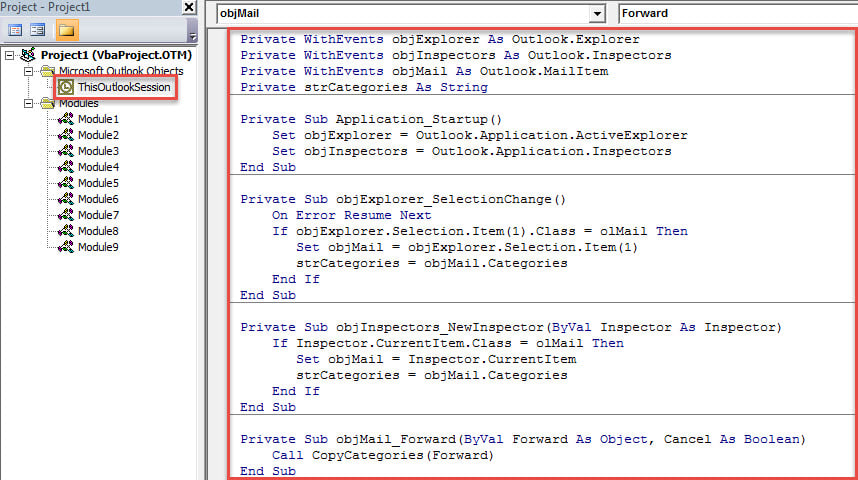
- 接下来,将以下 VBA 代码复制到“ThisOutlookSession”项目中。
Private WithEvents objExplorer As Outlook.Explorer
Private WithEvents objInspectors As Outlook.Inspectors
Private WithEvents objMail As Outlook.MailItem
Private strCategories As String

Private Sub Application_Startup()
    Set objExplorer = Outlook.Application.ActiveExplorer
    Set objInspectors = Outlook.Application.Inspectors
End Sub

Private Sub objExplorer_SelectionChange()
    On Error Resume Next
    If objExplorer.Selection.Item(1).Class = olMail Then
       Set objMail = objExplorer.Selection.Item(1)
       strCategories = objMail.Categories
    End If
End Sub

Private Sub objInspectors_NewInspector(ByVal Inspector As Inspector)
    If Inspector.CurrentItem.Class = olMail Then
       Set objMail = Inspector.CurrentItem
       strCategories = objMail.Categories
    End If
End Sub

Private Sub objMail_Forward(ByVal Forward As Object, Cancel As Boolean)
    Call CopyCategories(Forward)
End Sub

Private Sub objMail_Reply(ByVal Response As Object, Cancel As Boolean)
    Call CopyCategories(Response)
End Sub

Private Sub objMail_ReplyAll(ByVal Response As Object, Cancel As Boolean)
    Call CopyCategories(Response)
End Sub

Private Sub CopyCategories(ByVal objNewMail As Object)
    objNewMail.Categories = strCategories
End Sub
- 之后,restar用你的 Outlook 来激活这个项目。
- 从那时起,您可以按照以下步骤进行尝试。
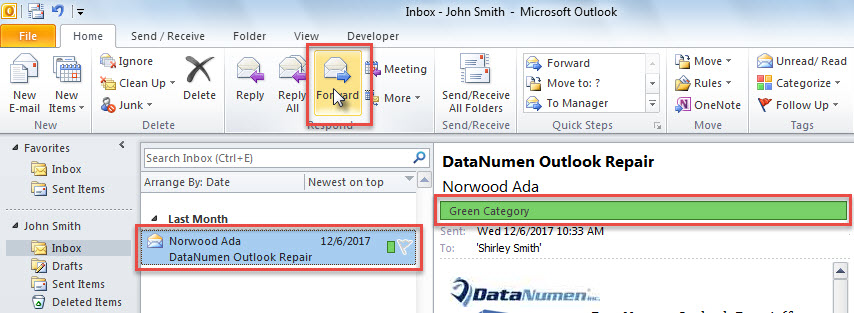
- 首先,选择一个电子邮件并点击“转发”按钮。

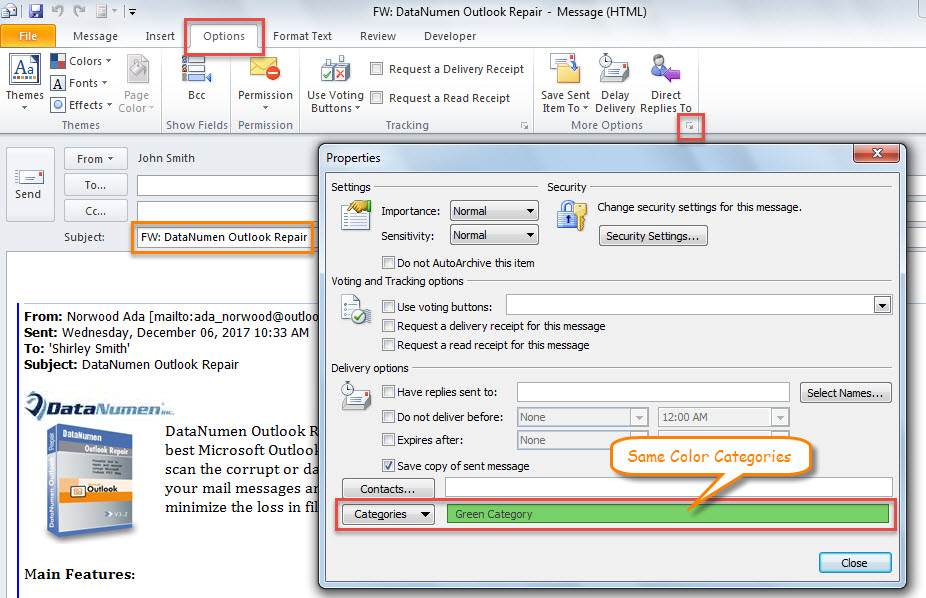
- 然后,将显示一封转发电子邮件,您可以在其中切换到“选项”选项卡,然后点击“更多选项”组右下角的扩展图标。
- 接下来,在弹出的“属性”对话框中,您可以看到这封电子邮件被分配了与原始电子邮件相同的颜色类别。

修复损坏的 Outlook 文件
鉴于 Outlook 易受攻击,您必须采取很多措施来避免 Outlook 数据丢失。 例如,您需要定期进行数据备份。 另外,您有必要提防未知电子邮件,包括嵌入的链接或附件。 最后但并非最不重要的一点是,你应该掌握一个尖端的外部修复工具,比如 DataNumen Outlook Repair. 它能够帮助您从中检索最大数据 腐败的前景 文件中。
作者简介:
Shirley Zhang 是一位数据恢复专家 DataNumen, Inc.,它是数据恢复技术领域的世界领先者,包括 SQL Server 固定 和 outlook 修复软件产品。 欲了解更多信息,请访问 datanumen.com