
在本文中,我们想为您提供将多张图片批量插入到您的 Word 文档中的方法。
在 Word 中处理图片时,您会感觉很舒服。 将图片插入文档后,您可能需要手动调整其大小或输入其名称。 使用宏来自动执行任务怎么样?
我们将向您展示的宏具有以下功能:
- 首先,它会在每个页面中插入您指定的准确数量的图片。
- 其次,它在每张图片下方插入名称。
- 第三,它会根据您输入的尺寸数字调整图片大小。
现在让我们看看如何让它工作。
批量插入多张图片到文档
- 首先,将所有要插入的图片安排在同一个文件夹下。
- 然后按“Alt+F11”在Word中调用VBA编辑器。
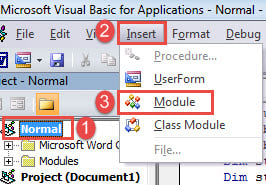
- 接下来单击“正常”项目。
- 然后在菜单栏上,单击“插入”。
- 在下拉菜单中,选择“模块”。

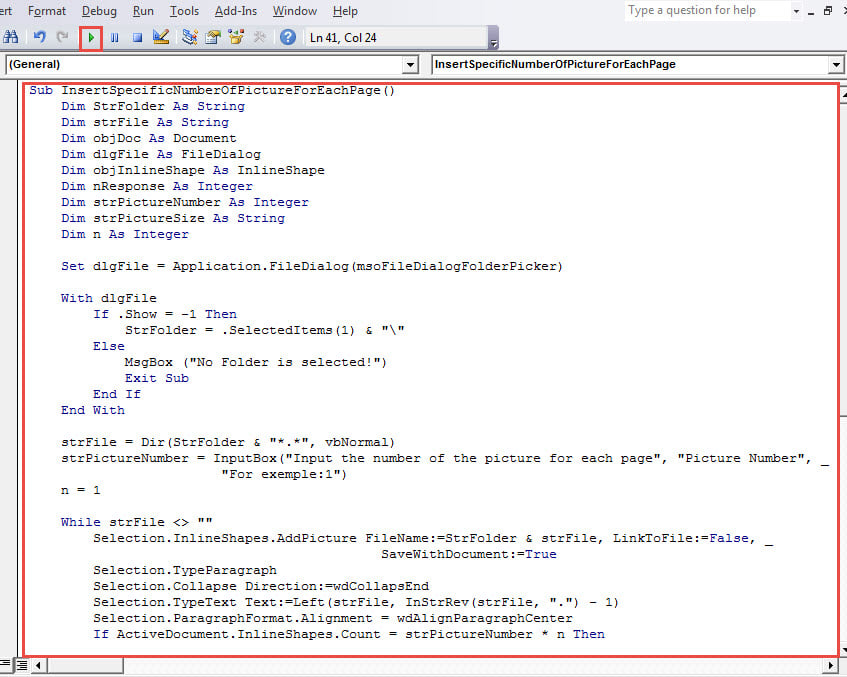
- 双击打开模块并粘贴以下代码:
Sub InsertSpecificNumberOfPictureForEachPage()
  Dim StrFolder As String
  Dim strFile As String
  Dim objDoc As Document
  Dim dlgFile As FileDialog
  Dim objInlineShape As InlineShape
  Dim nResponse As Integer
  Dim strPictureNumber As Integer
  Dim strPictureSize As String
  Dim n As Integer

  Set dlgFile = Application.FileDialog(msoFileDialogFolderPicker)

  With dlgFile
    If .Show = -1 Then
      StrFolder = .SelectedItems(1) & "\"
    Else
      MsgBox ("No Folder is selected!")
      Exit Sub
    End If
  End With

  strFile = Dir(StrFolder & "*.*", vbNormal)
  strPictureNumber = InputBox("Input the number of the picture for each page", "Picture Number", "For exemple: 1")
  n = 1

  While strFile <> ""
    Selection.InlineShapes.AddPicture FileName:=StrFolder & strFile, LinkToFile:=False, SaveWithDocument:=True
    Selection.TypeParagraph
    Selection.Collapse Direction:=wdCollapsEnd
    Selection.TypeText Text:=Left(strFile, InStrRev(strFile, ".") - 1)
    Selection.ParagraphFormat.Alignment = wdAlignParagraphCenter
    If ActiveDocument.InlineShapes.Count = strPictureNumber * n Then
      Selection.InsertNewPage
      Selection.TypeBackspace
      n = n + 1
    End If
    Selection.TypeParagraph
    strFile = Dir()
  Wend

  For Each objInlineShape In ActiveDocument.InlineShapes
    objInlineShape.Select
    Selection.ParagraphFormat.Alignment = wdAlignParagraphCenter
  Next objInlineShape

  nResponse = MsgBox("Do you want to resize all pictures?", 4, "Resize Picture")
  If nResponse = 6 Then
    strPictureSize = InputBox("Input the height and width of the picture, seperated by comma", "Height and Width", "For exemple:500,500")
    For Each objInlineShape In ActiveDocument.InlineShapes
      objInlineShape.Height = Split(strPictureSize, ",")(0)
      objInlineShape.Width = Split(strPictureSize, ",")(1)
    Next objInlineShape
  End If
End Sub
- 然后单击“运行”或按“F5”。

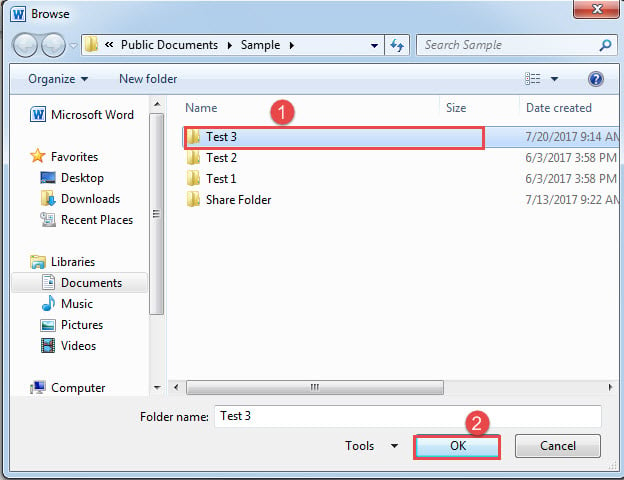
- 运行宏时,会弹出“浏览”窗口。 只需选择您在步骤 1 中保存图片的文件夹,然后单击“确定”。

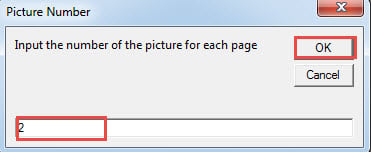
- 接下来在“图片编号”框中,输入一个数字,表示您希望在单个页面中显示的图片总数。 然后单击“确定”继续。

- 在“调整图片大小”框中,单击“是”调整所有图片的大小,单击“否”取消调整。

- 现在在“高度和宽度”框中,输入值并使用逗号分隔。 请记住先输入高度,然后再输入宽度。 逗号后没有空格。
- 同样,单击“确定”继续。

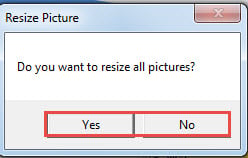
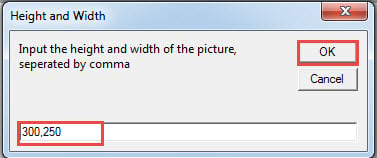
现在一页中有 2 张图片,每张图片下方都有其名称。 这是结果: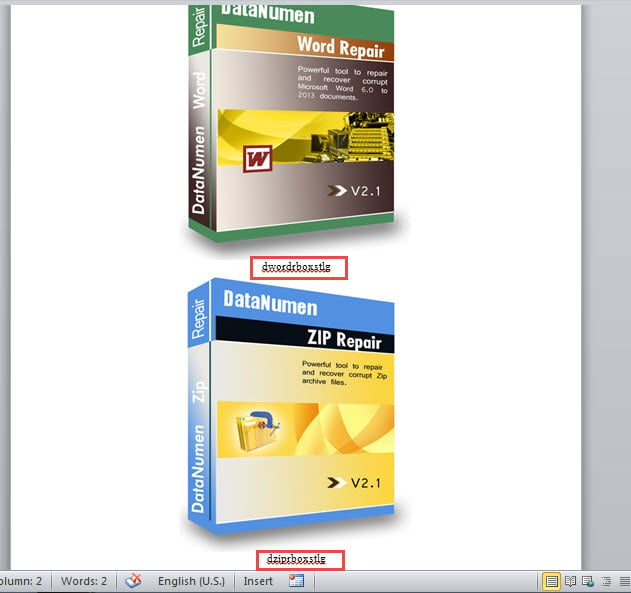
密切关注数据完整性
始终存在丢失数据或以某种方式受到损害的风险。 这意味着我们必须定期检查数据完整性。 一旦我们发现任何迹象 字损,恢复数据的最佳方法是获得修复工具。
作者简介:
Vera Chen 是一位数据恢复专家 DataNumen, Inc.,它是数据恢复技术领域的世界领先者,包括 Excel恢复 以及 pdf 修复软件产品。 欲了解更多信息,请访问 datanumen.com