
1. Giriş
Geri Dönüşüm Kutusu, Windows'un silinen dosyalar için yerleşik güvenlik ağıdır. Dosya hala içindeyse, kurtarmak sadece birkaç tıklama gerektirir. Bu kılavuz, harici, ağ ve OneDrive ile senkronize edilmiş konumlardaki dosyalar da dahil olmak üzere, Windows'ta Geri Dönüşüm Kutusu'ndan silinen dosyaları nasıl kurtaracağınızı açıklar.
1.1 Bu Kılavuzun Kapsamı
- Geri Dönüşüm Kutusu'nda bulunan dosyaları kurtarma
- Silinen dosyaları orijinal konumlarına geri yükleme
- Orijinal klasör bulunmadığında silinen dosyaları yeni bir konuma geri yükleme
1.2 Bu Kılavuz Neleri Kapsamaz?
- Silinen dosyalar vardiya + SilGeri Dönüşüm Kutusu'nu tamamen atlayan
- Silinen veya Geri Dönüşüm Kutusu'ndan boşaltılan dosyalar. Bu durumda, kontrol edin. Bu kılavuzu dosyaları kurtarmak için.
- Geri Dönüşüm Kutusu depolama sınırını aşan ve kalıcı olarak silinen dosyalar.
2. Geri Dönüşüm Kutusundan Silinen Dosyaları Kurtarma
Dosya yerel sürücüden silindiyse Sil tuşu veya sağ tıklama Sil Bu komut doğrudan Geri Dönüşüm Kutusu'na gider. Aşağıdaki 3 adımla geri alabilirsiniz:
2.1 Geri Dönüşüm Kutusunu Açın
Aşağıdaki yöntemlerden herhangi birini kullanın:
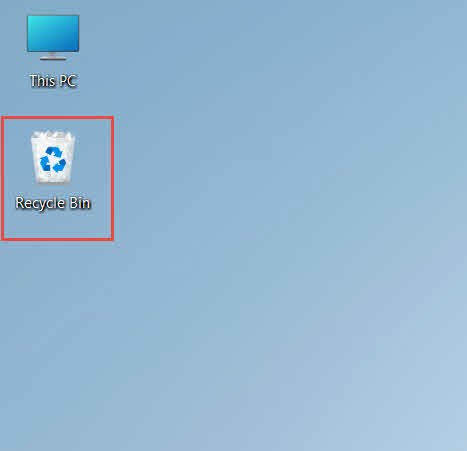
- Çift tıklayın Geri Dönüşüm Kutusu masaüstündeki simge

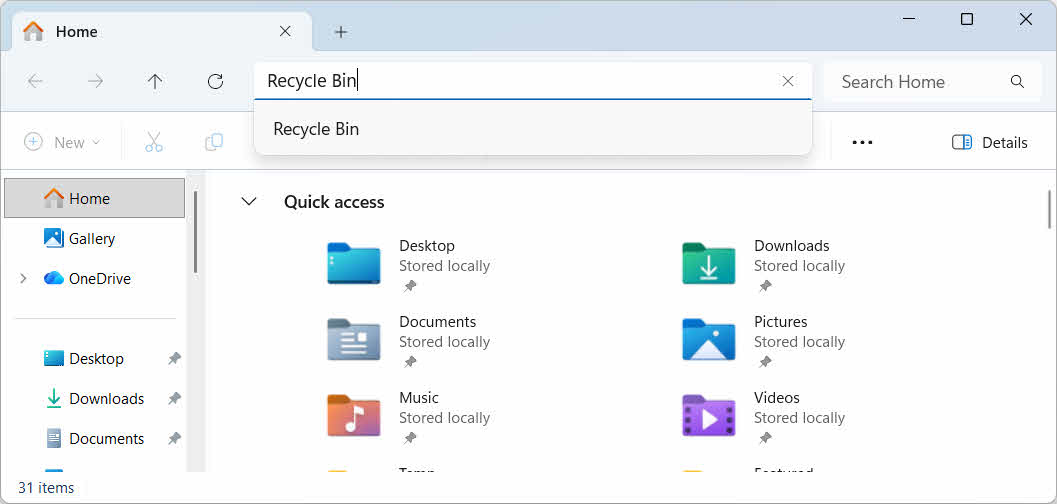
- Dosya Gezgini'ni açın ve şunu girin: Geri Dönüşüm Kutusu adres çubuğunda

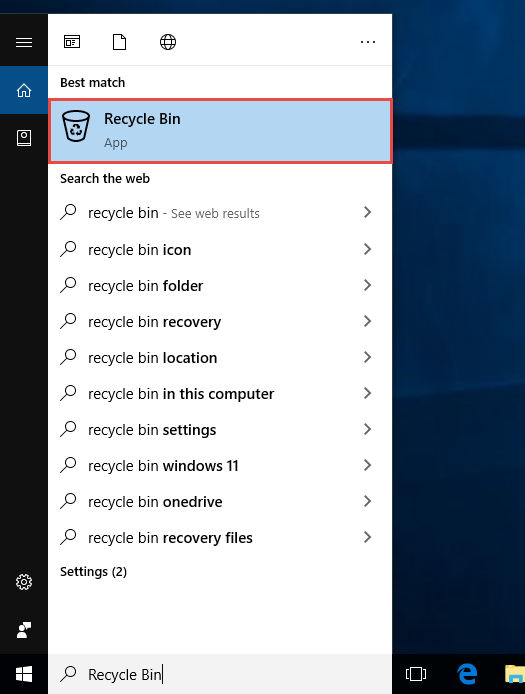
- Menşei Geri Dönüşüm Kutusu Windows Arama'ya yazın ve sonuçlardan seçin.

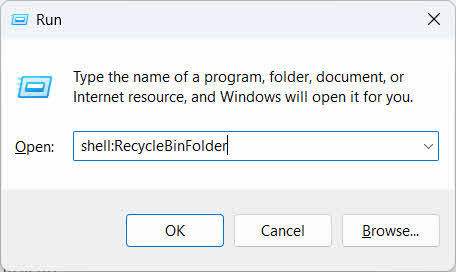
- Basın kazanmak + Ryazın kabuk: RecycleBinFolder, ve bas Keşfet

2.2 Silinen Dosya veya Klasörü Bulma
Geri dönüşüm kutusu açıldıktan sonra, aşağıdaki yöntemlerden birini kullanarak istediğiniz öğeleri bulun:
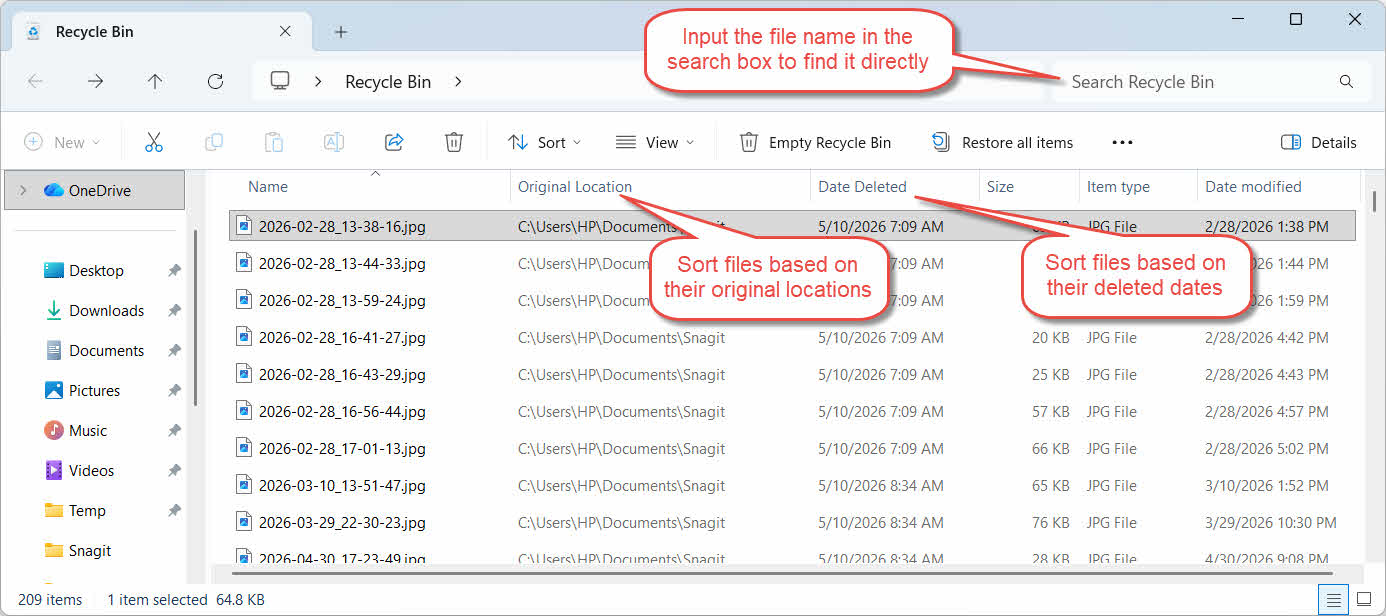
- Dosya adını sağ üst köşedeki arama kutusuna yazın.
- Tıkla Silinme Tarihi En son silinenlere göre sıralamak için sütun başlığı
- kontrol Orijinal Konum Dosyanın beklediğiniz klasörden geldiğini doğrulamak için sütunu işaretleyin.
2.3 Dosyaları veya Klasörleri Geri Yükleme
Bir veya daha fazla öğeyi geri yüklemek için:
- Tek bir dosya seçin veya basılı tutun. Ctrl Birden fazla dosya seçmek için tıklayın veya basılı tutun. vardiya ve bir aralık seçmek için tıklayın.
- Seçimi sağ tıklayın ve seçin Restore
- Dosyanın geri geldiğini doğrulamak için orijinal klasörü açın.

Geri Dönüşüm Kutusu'ndaki tüm öğeleri aynı anda geri yüklemek için tıklayın. Tüm öğeleri geri yükle Araç çubuğunda, önce herhangi bir dosyayı seçmeden.
3. Silinen Dosyaları Geri Dönüşüm Kutusundan Farklı Bir Konuma Geri Yükleyin
MKS Restore Bu komut dosyayı her zaman orijinal klasörüne geri döndürür. Bazı durumlarda ise dosyayı başka bir yere taşımak gerekebilir.
3.1 Bu Yöntemi Ne Zaman Kullanmalısınız?
- Orijinal klasör artık mevcut değil.
- Orijinal klasörde aynı ada sahip yeni bir dosya zaten mevcut.
- Orijinal klasöre erişim izniniz yok.
- Dosyanın hangi klasörden geldiğinden emin değilsiniz.
- Dosyayı asıl yerine geri koymadan önce gözden geçirmek istiyorsunuz.
3.2 Dosyayı Geri Dönüşüm Kutusundan Sürükleyerek veya Keserek Çıkarma
Geri Dönüşüm Kutusu'ndaki bir dosyayı istediğiniz bir klasöre taşımak için:
- Geri Dönüşüm Kutusu'nu açın
- Geri yüklenecek dosyayı veya klasörü seçin.
- Dosyayı veya klasörü hedef klasöre taşımak için aşağıdaki yöntemlerden birini kullanın:
- Doğrudan hedef klasör penceresine sürükleyin.
- Basın Ctrl + X Kesmek için hedef klasörü açın ve basın. Ctrl + V yapıştırmak için
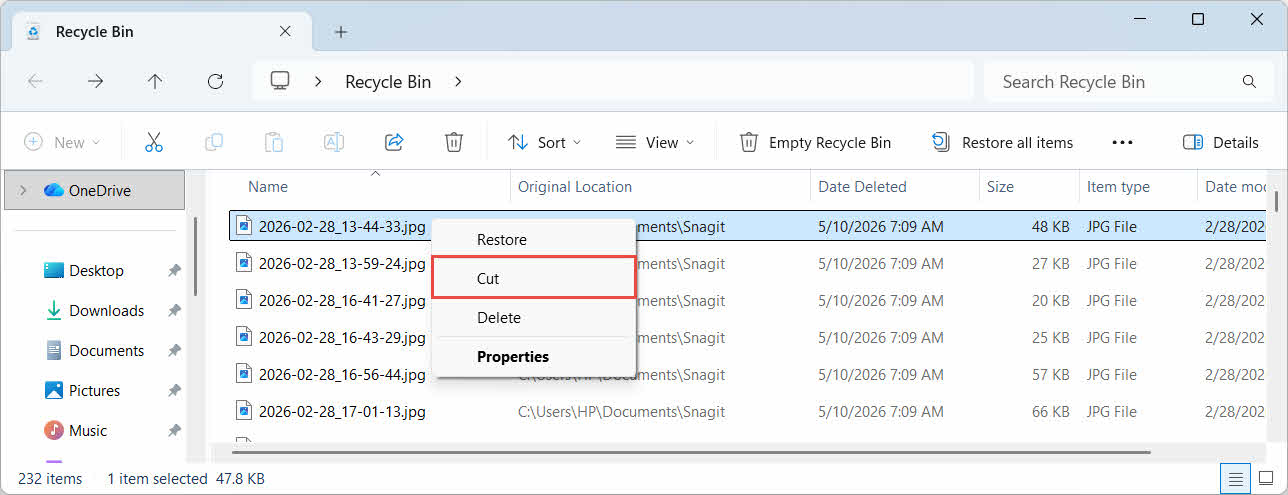
- Seçime sağ tıklayın ve seçin. kesimHedef klasörü açın, sağ tıklayın ve seçin. Ezme yapıştırmak için

4. Harici, Ağ ve Bulut Sürücülerdeki Geri Dönüşüm Kutusundan Dosyaları Kurtarma
Adımlar Bölüm 2 Dosyanın bilgisayarınızın ana sürücüsünden silindiğini varsayalım. Harici, ağ ve bulut senkronizasyonlu depolama alanları farklı davranır.
4.1 Harici Sabit Diskler ve USB Flash Sürücüler
Windows, harici sabit diskleri (USB üzerinden bağlanan SSD'ler dahil) dahili disklerle aynı şekilde ele alır: her biri varsayılan olarak kendi gizli Geri Dönüşüm Kutusu klasörüne sahiptir. USB flash sürücüler ve SD kartlar gibi çıkarılabilir ortamlar farklı şekilde ele alınır ve varsayılan olarak Geri Dönüşüm Kutusu'na sahip olmazlar, bu nedenle bunlardan silinen dosyalar hemen kaldırılır.
4.1.1 Drive için Geri Dönüşüm Kutusu Desteğini Etkinleştirme
Harici bir sabit sürücü için Geri Dönüşüm Kutusu desteğinin açık olduğundan emin olun:
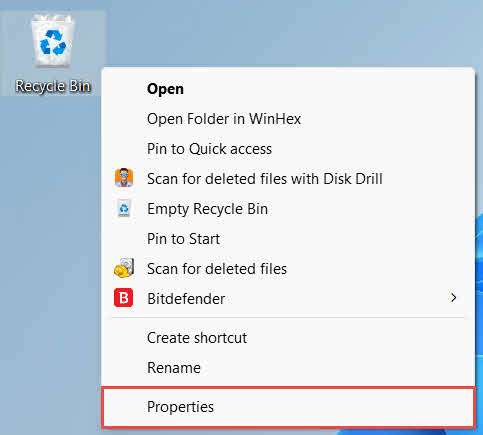
- Sağ tıklayın. Geri Dönüşüm Kutusu masaüstündeki simgeyi seçin ve Emlaklar

- içinde Geri Dönüşüm Kutusu Konumu Listede, harici sürücüye ait satırı seçin. Bu seçenek yalnızca sürücü bağlandıktan ve bir sürücü harfi atandıktan sonra burada görünür.
- Seçilen konum için ayarlar, emin olmak özel boyutlu seçilir, değil Dosyaları Geri Dönüşüm Kutusu'na taşımayın. Dosyaları silindiğinde hemen kaldırın

- Tıkla Uygula, Daha sonra OK
Her sürücü bu ayarı bağımsız olarak korur, bu nedenle harici bir sürücünün Geri Dönüşüm Kutusu desteği kapalıyken sistem sürücüsünde açık kalabilir.
USB flash sürücü veya SD kart için, Geri Dönüşüm Kutusu Özellikleri'nde hiçbir şekilde görünmeyecektir, çünkü Windows varsayılan olarak çıkarılabilir medyada Geri Dönüşüm Kutusu klasörü oluşturmaz. Bunu etkinleştirmek için kayıt defterinde bir düzenleme yapılması gerekir:
- Basın kazanmak + Ryazın regedit, basın Keşfetve istemi onaylayın.
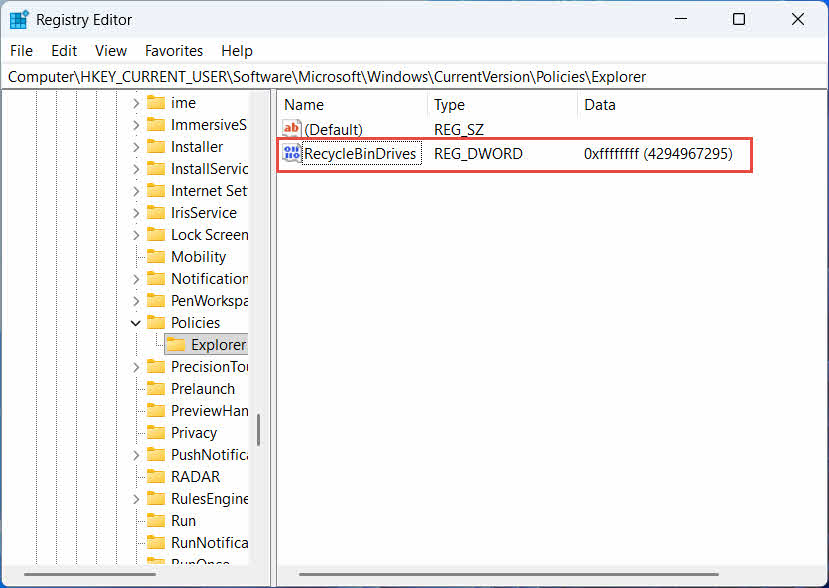
- Şu yöne rotayı ayarla HKEY_CURRENT_USER \ Software \ Microsoft \ Windows \ CurrentVersion \ Policies \ Explorer. Eğer kâşif Anahtar mevcut değil. Politikaları, sağ tık Politikalarıseçin Yeni -> anahtar, ve adını kâşif
- Sağ bölmedeki boş bir alana sağ tıklayın ve seçin. Yeni -> DWORD (32-bit) değeri, ve adını Geri Dönüşüm Kutusu Sürücüleri
- Çift tıklayın Geri Dönüşüm Kutusu Sürücüleri, ayarla baz için Onaltılık, girmek offfffff değer verisi olarak ve tıklayın OK

- 2 ila 4. adımları aşağıdaki gibi tekrarlayın. HKEY_LOCAL_MACHINE \ SOFTWARE \ Microsoft \ Windows \ CurrentVersion \ Policies \ Explorer
- Bilgisayarı yeniden başlat
Değişikliği geri almak için silin. Geri Dönüşüm Kutusu Sürücüleri Değeri her iki konumdan da alın. Bu işlem kayıt defterini düzenlemeyi gerektirdiğinden, öncelikle bir geri yükleme noktası oluşturun ve yalnızca ara sıra kullandığınız sürücüler için yedeklemelere güvenmenin daha kolay olup olmadığını değerlendirin.
4.1.2 Dosyaların Geri Yüklenmesi
Sürücü için Geri Dönüşüm Kutusu etkinleştirildikten sonra, bir dosyayı geri yükleme işlemi, aşağıda açıklanan süreçle aynıdır. Bölüm 2.3.
Eşlenmiş bir ağ sürücüsünden veya paylaşılan bir klasörden bir dosyayı silmek, dosyayı doğrudan sunucudan siler. Bilgisayarınızın yerel Geri Dönüşüm Kutusu'ndan geçmez. Ancak sunucu tarafında bir geri dönüşüm kutusu etkinleştirilmişse, silinen dosyaları oradan kurtarabilirsiniz.
4.2.1 Sunucu Tarafı Geri Dönüşüm Kutusu (etkinleştirilmişse)
Bazı dosya sunucuları şunları sağlar: Gölge Kopyalar (Cilt Gölge Kopya Hizmeti)Bu özellik sayesinde paylaşılan bir klasörün önceki sürümlerine geri dönebilir ve silinen dosyaları kurtarabilirsiniz:
- Ağ paylaşımındaki üst klasöre sağ tıklayın ve seçin. Emlaklar
- Açın Önceki Sürümler çıkıntı
- Silinmeden önceki bir tarihe ait sürümü seçin ve tıklayın. Restore
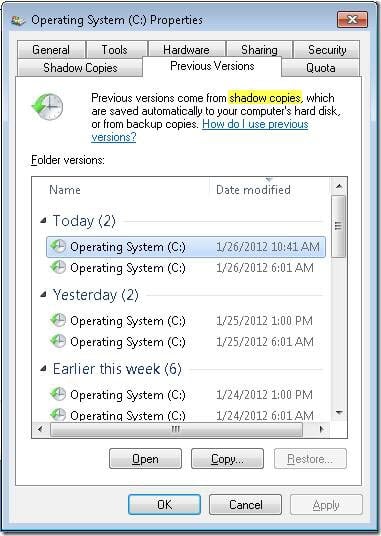
4.2.2 Sunucu Tarafında Geri Dönüşüm Kutusu Yoksa Ne Yapılmalı?
Eğer Önceki Sürümler Sekme boş veya kullanılamıyorsa, paylaşımda anlık görüntü tabanlı kurtarma yapılandırılmamıştır. Sunucunun kendi yedekleme planına sahip olup olmadığını kontrol etmek için ağ yöneticinizle iletişime geçin.
4.3 OneDrive Geri Dönüşüm Kutusu (Bulutla Senkronize Edilen Klasörler)
OneDrive ile senkronize edilen klasörler iki ayrı Geri Dönüşüm Kutusu içerebilir: yerel Windows Geri Dönüşüm Kutusu ve web tabanlı OneDrive Geri Dönüşüm Kutusu. Dosyanızın hangisinde olduğu, silme işleminin nerede gerçekleştiğine bağlıdır.
4.3.1 Senkronize Edilmiş Bir Dosyanın Yerel Olarak Silinmesi (Hem Yerel Hem de Web Geri Dönüşüm Kutusuna Gider)
Bilgisayarınızdaki Dosya Gezgini'nden senkronize edilmiş bir dosyayı silerseniz, dosya tam olarak aşağıda açıklandığı gibi yerel Geri Dönüşüm Kutusu'na gider. Bölüm 2Ayrıca OneDrive senkronizasyon istemcisi silme işlemini buluta da yansıtır, böylece dosya OneDrive web Geri Dönüşüm Kutusu'ndan da kurtarılabilir hale gelir.
4.3.2 Bulut Tarafından Başlatılan Silme (Yalnızca Web Geri Dönüşüm Kutusu, Mayıs 2026'dan İtibaren)
Dosya bulut tarafından, örneğin OneDrive web sitesi veya senkronize edilmiş başka bir cihaz aracılığıyla silinirse, Mayıs 2026'dan itibaren davranış değişti: Microsoft, bulut tarafından başlatılan silme işlemlerini yerel Windows Geri Dönüşüm Kutusu'na göndermeyi durdurdu. Bu şekilde kaldırılan bir dosya, yerel Geri Dönüşüm Kutusu'nda görünmeden yerel klasörünüzden kaybolur ve kurtarma yalnızca OneDrive veya SharePoint web Geri Dönüşüm Kutusu'ndan mümkündür.
4.3.3 OneDrive.com'dan Geri Yükleme
OneDrive web Geri Dönüşüm Kutusu'ndan bir dosyayı geri yüklemek için:
- Şurada oturum açın: onedrive.live.com or onedrive.com
- Seç Geri dönüşüm kutusu gezinti bölmesinde
- Dosyayı veya klasörü seçin ve tıklayın. Restore
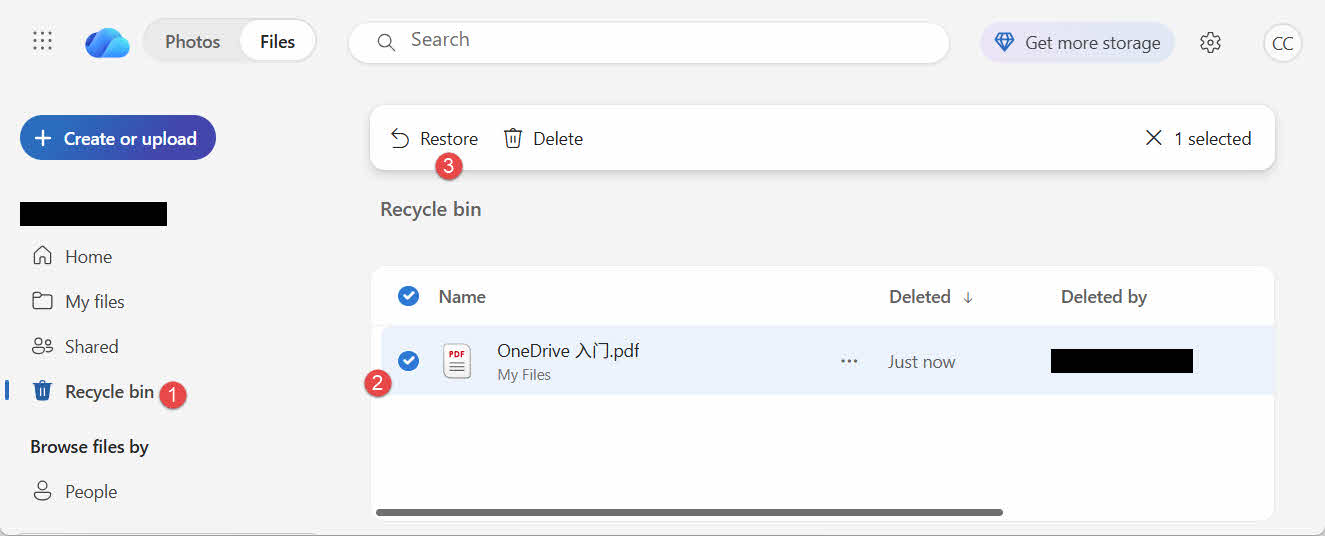
Kişisel Microsoft hesapları silinen öğeleri en fazla 30 gün, iş veya okul hesapları ise en fazla 93 gün saklar.
5. Geri Dönüşüm Kutusu Kurtarma Sorunlarının Giderilmesi
5.1 Masaüstünde Geri Dönüşüm Kutusu Simgesi Eksik
Geri Dönüşüm Kutusu, masaüstü simgesi gizlenmiş olsa bile hala mevcuttur. Simgeyi geri yüklemek için:
- Masaüstüne sağ tıklayın ve seçin kişiselleştirin
- Açılış Temalar, Daha sonra Masaüstü simgesi ayarları
- Kontrol Geri Dönüşüm Kutusu ve tıklayın OK
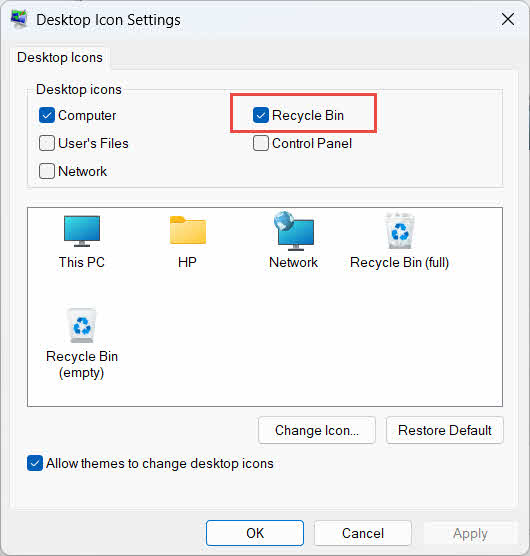
İsterseniz doğrudan yazarak da açabilirsiniz. Geri Dönüşüm Kutusu Windows Arama'da, Dosya Gezgini'nde veya Win + R tuş kombinasyonunu kullanarak, aşağıda açıklandığı gibi. Bölüm 2.1.
5.2 Dosya Geri Dönüşüm Kutusunda Değil
Aradığınız dosyalar Geri Dönüşüm Kutusu'nda yoksa, şu nedenleri göz önünde bulundurun:
- Geri Dönüşüm Kutusu desteği olmayan harici bir sürücüden silindi (bkz. Bölüm 4.1)
- Ağ sürücüsünden silindi (bkz. Bölüm 4.2)
- Dosya doğrudan internet üzerinden OneDrive'dan silindi (bkz. Bölüm 4.3)
- Örneğin, kalıcı olarak silindi. vardiya + Silveya Geri Dönüşüm Kutusu boşaltılmış.
Dosya kalıcı olarak silindiyse, onu kurtarmak için özel veri kurtarma yazılımı gerekir; örneğin, bir yazılım güncellemesi. DataNumen Data RecoveryGeri Dönüşüm Kutusu yerine, yeni dosyaları o sürücüye kaydetmeyi bırakın. Verilerin üzerine yazılma olasılığını azaltmak için öncelikle o sürücüye yeni dosya kaydetmeyi bırakın.
5.3 Geri Yükleme Seçeneği Gri Renkte, Eksik veya Çalışmıyor
Bu durum genellikle seçilen öğelerin artık mevcut olmayan bir konumdan gelmesi veya Geri Dönüşüm Kutusu'nun dahili dizininin senkronize olmaması durumunda ortaya çıkar. Şu çözümleri deneyin:
- Dosya Gezgini'ni yeniden başlatın: Görev Yöneticisi'ni açmak için Ctrl + Alt + Del tuşlarını kullanın, ardından sağ tıklayın. Windows GezginiSeçin ve Yeniden

- Öğeleri toplu olarak değil, tek tek geri yükleyin.
- If Restore Dosya hala görünmüyorsa, açıklanan şekilde dosyayı manuel olarak sürükleyip bırakın. Bölüm 3.2
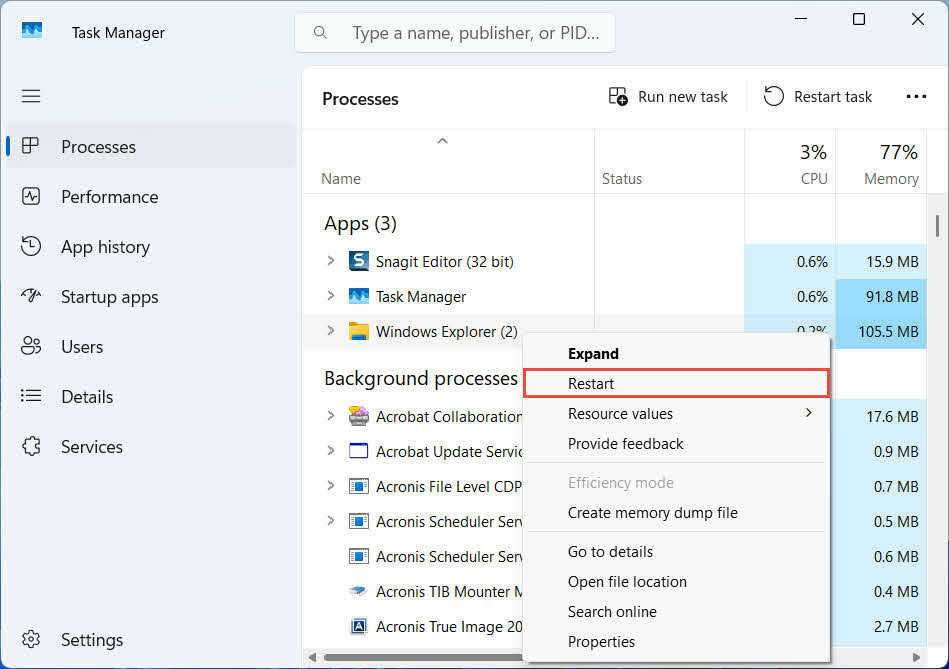
5.4 Geri Yükleme Sırasında "Erişim Engellendi" veya İzin Hataları
Bu durum, dosyanın kendisinde değil, orijinal klasörde bir izin sorunu olduğunu gösteriyor. Lütfen şunları kontrol edin:
- Dosyayı silen aynı hesapla oturum açmış durumdasınız.
- Hedef klasörün izinleri, hesabınız için hala yazma erişimine izin vermektedir.
- Dosya Gezgini, yönetilen veya iş bilgisayarlarında bir politika tarafından engellenmemektedir.
Orijinal klasörün izinleri değiştiyse, dosyayı aşağıdaki adımları izleyerek farklı bir konuma geri yükleyin. Bölüm 3.
5.5 Geri Dönüşüm Kutusu Boş Görünüyor Ama Ben Boşaltmıyorum
Dosyalar, geri dönüşüm kutusu manuel olarak boşaltılmadan da kaybolabilir:
- Storage Sense, belirli bir gün sayısından sonra öğeleri otomatik olarak silmek üzere yapılandırılabilir.
- Geri Dönüşüm Kutusu boyut sınırına ulaştığı için Windows, yer açmak amacıyla en eski öğeleri sildi (bkz. Bölüm 6.1)
- Paylaşımlı bilgisayardaki başka bir hesap, içindekileri boşalttı.
- Yönetilen bir cihazdaki Grup İlkesi, otomatik boşaltmayı zorunlu kılar.
5.6 Geri Yüklenen Dosya Bozuk, Boş veya Açılmıyor
Geri yükleme yalnızca dosyayı eski yerine taşır; onarmaz. Dosya silinmeden önce zaten hasar görmüşse veya silindiği anda üzerine yazı yazılıyorsa, geri yüklemeden sonra bile açılmayabilir. Bu durumda sorun dosya bozulmasıdır, Geri Dönüşüm Kutusu sorunu değildir ve müdahale gerektirir. bir tamir aleti Başka bir kurtarma girişiminden ziyade, o dosya formatına uygun olan yöntem.
6. Geri Dönüşüm Kutusunun Yönetimi ve Yapılandırılması
6.1 Geri Dönüşüm Kutusu Saklama Boyutunun Değiştirilmesi
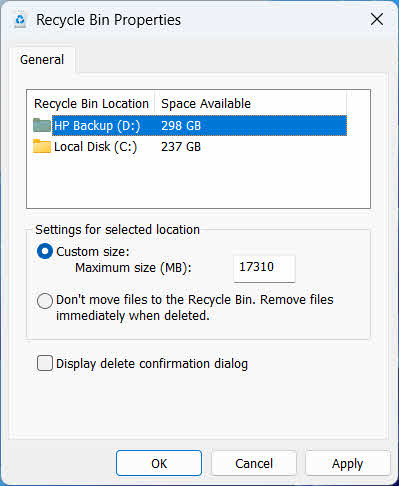
Her sürücünün kendine ait bir Geri Dönüşüm Kutusu tahsisi vardır. Bunu incelemek veya değiştirmek için:
- Sağ tıklayın. Geri Dönüşüm Kutusu simgesi ve seç Emlaklar
- Geri Dönüşüm Kutusu konumları listesinden bir sürücü seçin.
- Klinik özel boyutlu ve bir girin Maksimum boyut (MB)veya seçin Dosyaları Geri Dönüşüm Kutusu'na taşımayın. Dosyaları silindiğinde hemen kaldırın o sürücü için devre dışı bırakmak
- Tıkla OK
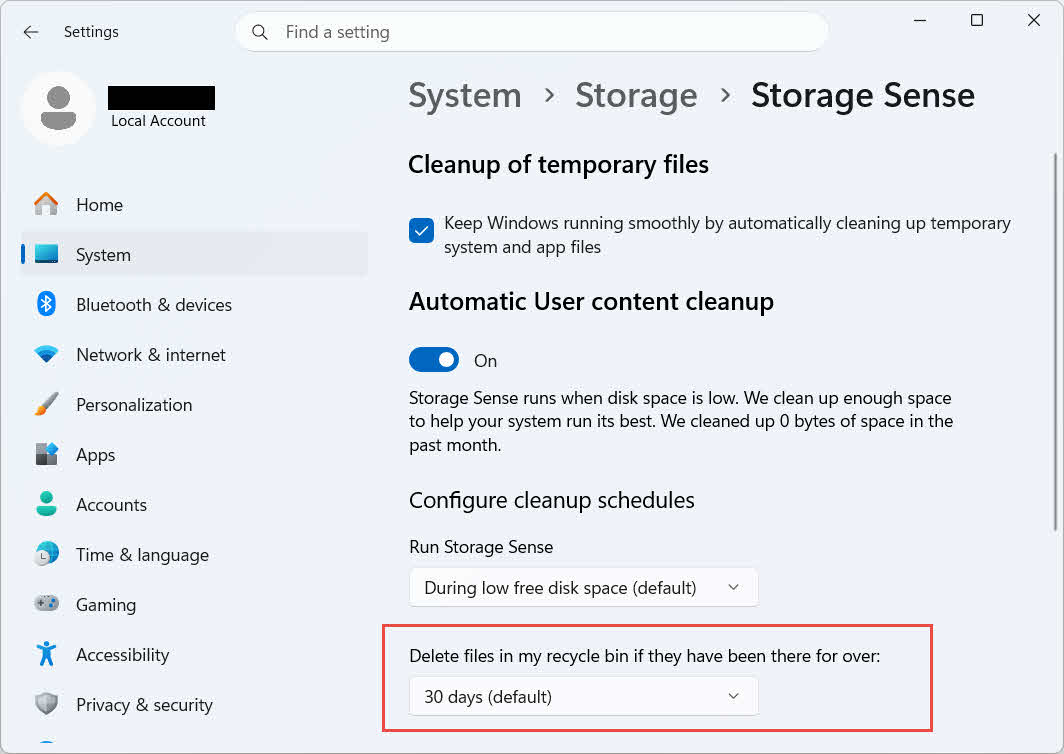
Windows ayrıca yaşa dayalı ayrı bir temizleme seçeneği de sunuyor: şuraya gidin: Ayarlar -> Sistem -> Depolama -> Depolama Algısı ve ayarla Uzun süredir oradalarsa, geri dönüşüm kutumdaki dosyaları sil Seçilen gün sayısı. Varsayılan saklama süresi şöyledir: 30 gün.
6.2 Silme Onay Diyaloğunu Etkinleştirme
Windows 11, varsayılan olarak dosyaları Geri Dönüşüm Kutusu'na taşımadan önce onay istemi göstermez. Bunu etkinleştirmek için:
- Sağ tıklayın. Geri Dönüşüm Kutusu simgesi ve seç Emlaklar
- Kontrol onay iletişim kutusunu silmek Ekran
- Tıkla OK
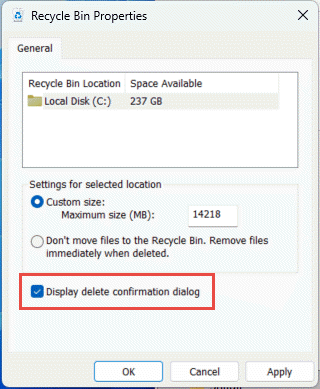
Bu ayar, kalıcı silme işlemlerini engellemez, örneğin: vardiya + Sil veya Geri Dönüşüm Kutusu desteği olmayan sürücülerden yapılan silme işlemleri.
6.3 Dosyaları Geri Dönüşüm Kutusunu Atlayacak Şekilde Ayarlamak (ve Bunu Neden Yapmamalısınız)
Aynısı Dosyaları Geri Dönüşüm Kutusu'na taşımayın. Dosyaları silindiğinde hemen kaldırın kapsanan seçenek Bölüm 6.1 Bu özellik, herhangi bir sürücüye uygulanarak tüm silme işlemlerini kalıcı hale getirir. Bu işlem disk alanını anında boşaltır ancak bu kılavuzda açıklanan tek hızlı kurtarma seçeneğini ortadan kaldırır; bu nedenle, özel bir geçici depolama alanı gibi kişisel dosya içermeyen sürücüler için en uygunudur.
7. Gelecekteki Veri Kaybını Önlemek İçin En İyi Uygulamalar
7.1 Dosya Geçmişini veya Yedekleme Çözümünü Etkinleştirin
Geri Dönüşüm Kutusu yalnızca yanlışlıkla silinmeye karşı koruma sağlar, sürücü arızasına veya zaten boşaltılmış bir Geri Dönüşüm Kutusu'na karşı koruma sağlamaz. Dosya Geçmişini Açma (Denetim Masası -> Sistem ve Güvenlik -> Dosya Geçmişi)

Veya üçüncü taraf bir yedekleme aracı, kendi sürüm geçmişiyle ikinci bir koruma katmanı ekler.
7.2 Önemli Klasörler İçin Bulut Senkronizasyonunu Kullanın
Masaüstü, Belgeler ve Resimleri OneDrive veya başka bir bulut hizmetine senkronize etmek, size açıklanan web Geri Dönüşüm Kutusu'nu sağlar. Bölüm 4.3 Yerel Geri Dönüşüm Kutusu'ndan bağımsız, ek bir kurtarma yolu olarak.
7.3 Geri Dönüşüm Kutusunu Boşaltmadan Önce İki Kez Kontrol Edin
tıklamadan önce Geri Dönüşüm Kutusu'nu Boşalt, göre sırala Silinme Tarihi ve yakın zamanda yapılmış herhangi bir şey için tarama yapın. Disk boşaltıldıktan sonra geriye kalan tek seçenek, özel veri kurtarma yazılımı kullanmaktır ve başarı garantisi yoktur.
8. SSS
S: Geri Dönüşüm Kutusu'nu boşalttıktan sonra dosyayı kurtarabilir miyim?
A: Geri Dönüşüm Kutusu aracılığıyla değil. Bu noktada dosya, dosya sistemi düzeyinde silinmiş olarak işaretlenir, ancak üzerine yazılana kadar fiziksel olarak sürücüde bulunabilir. Şu gibi araçlar: DataNumen Data Recovery Bu tür verileri taramak ve yeniden oluşturmak için tasarlanmışlardır. Başarılı bir kurtarma olasılığını artırmak için sürücüyü mümkün olan en kısa sürede kullanmayı bırakın.
S: Mac'te Windows'taki Geri Dönüşüm Kutusu'na benzer bir şey var mı?
A: Evet, buna Çöp Kutusu deniyor ve aynı şekilde çalışıyor: Çöp Kutusu'nu açın, dosyaya sağ tıklayın ve Geri Yükle'yi seçin. Bu kılavuz özellikle Windows Geri Dönüşüm Kutusu'nu ele alıyor. Ve Bu kılavuzu Bu, özellikle Mac Çöp Kutusu'nu kapsar.
S: Dosyalar Geri Dönüşüm Kutusu'nda otomatik olarak silinmeden önce ne kadar süre kalır?
A: Yerel Geri Dönüşüm Kutusu varsayılan olarak sabit bir zaman sınırına sahip değildir; öğeler yalnızca boyut sınırına ulaşıldığında veya Depolama Algısı eski öğeleri temizleyecek şekilde yapılandırıldığında kaldırılır (bkz. Bölüm 6.1OneDrive web Geri Dönüşüm Kutusu sabit bir süre kullanır: kişisel hesaplar için 30 gün ve iş veya okul hesapları için 93 güne kadar (bkz. Bölüm 4.3).
S: Dosyayı orijinal konumuna mı yoksa yeni bir konuma mı geri yüklemeliyim?
A: Orijinal konumuna geri yükleme (Bölüm 2) daha basittir ve dosyanın orijinal yolunu korur. Farklı bir konuma geri yükle (Bölüm 3Eğer orijinal klasör artık mevcut değilse veya aynı adlı bir dosya zaten içeriyorsa, bunun yerine yeni bir klasör oluşturun.
S: Geri Dönüşüm Kutusu'nu kullanarak USB flash sürücüden silinen dosyaları kurtarabilir miyim?
A: Varsayılan olarak değil. Flash sürücüler ve SD kartlar, manuel olarak etkinleştirmediğiniz sürece Geri Dönüşüm Kutusu klasörüne sahip olmazlar, bu durum aşağıda açıklandığı gibidir. Bölüm 4.1.
S: Geri Yükle seçeneği neden gri renkte veya görünmüyor?
A: Bu genellikle orijinal klasörün eksik olmasından veya Geri Dönüşüm Kutusu dizininin senkronize olmamasından kaynaklanır. Bkz. Bölüm 5.3 düzeltmeler için.
S: Geri dönüşüm kutusu boşsa ama ben onu hiç boşaltmadıysam ne olur?
A: Depolama Alanı Algılama, ulaşılan boyut sınırı, başka bir kullanıcı hesabı veya Grup İlkesi ayarı bunların hepsini otomatik olarak temizleyebilir. Bkz. Bölüm 5.5.
S: Geri Dönüşüm Kutusu'nda olmayan dosyaları hangi yazılım kurtarabilir?
A: Veri kurtarma için özel olarak geliştirilmiş yazılımlar, örneğin... DataNumen Data RecoveryBu işlem, dosya sisteminin artık referans vermediği verileri bulmak için sürücüyü daha alt bir seviyede tarar; bu, Geri Dönüşüm Kutusu arayüzünün kendisinin yapamayacağı bir şeydir.
S: Bir dosyayı geri yüklemek, dosyanın doğru şekilde açılacağını garanti eder mi?
A: Hayır. Geri yükleme yalnızca dosyayı bir klasöre geri getirir; dosyanın silinmeden önce veya silinme sırasında zaten sahip olduğu hasarı düzeltmez. Bakınız Bölüm 5.6.
9. Sonuç
Geri Dönüşüm Kutusu'ndan silinen dosyaları kurtarmak, dosya hala orada olduğu sürece oldukça basittir: Geri Dönüşüm Kutusu'nu açın, dosyayı bulun ve geri yükleyin. Harici sürücüler, ağ paylaşımları ve OneDrive ile senkronize edilmiş klasörler kendi koşullarını ekler ve yukarıdaki sorun giderme ve yapılandırma bölümleri, standart geri yükleme işleminin beklendiği gibi gitmediği durumları kapsar. Dosya kalıcı olarak silindiyse veya Geri Dönüşüm Kutusu zaten boşaltıldıysa, bir sonraki adım Geri Dönüşüm Kutusu değil, özel veri kurtarma yazılımı kullanmaktır.
Yazar Hakkında
Qian Gua Windows dosya sistemleri, depolama teknolojileri ve felaket kurtarma çözümleri konusunda 10 yılı aşkın deneyime sahip bir veri kurtarma uzmanıdır. Hem kişisel hem de kurumsal ortamlarda binlerce kullanıcıyı kritik veri kaybı senaryolarında başarıyla yönlendirmiştir.
Qian, Windows veri kurtarma yöntemleri, dosya sistemi analizi ve önleyici yedekleme stratejileri konusunda uzmanlaşmıştır. Kapsamlı uygulamalı deneyimi, sürücülerden veri kurtarma, kapsamlı yedekleme çözümleri uygulama ve karmaşık dosya sistemi sorunlarını giderme konularını içermektedir. NTFSFAT, exFAT ve ReFS disk birimleri konusunda deneyimlidir. Windows'un yerleşik yardımcı programlarından profesyonel veri kurtarma yazılımlarına kadar çeşitli kurtarma araçları ve teknikleriyle çalışmıştır.
Qian, teknik yazıları aracılığıyla kullanıcılara değerli verilerini koruma ve kurtarma konusunda pratik bilgiler sunmaya kendini adamıştır. Windows dosya kurtarma teknolojileri, depolama aygıtı yenilikleri ve veri koruma en iyi uygulamalarındaki en son gelişmeleri yakından takip etmektedir. Kullanıcıların verilerini kurtarmalarına yardımcı olmadığı zamanlarda ise...ost fileQian, gelişmekte olan depolama teknolojilerini araştırmaktan ve gelecekteki veri kayıplarını önleyen veri güvenliği ipuçlarını paylaşmaktan keyif alıyor.
Bu kılavuzla ilgili sorularınız mı var veya veri kurtarma konusunda yardıma mı ihtiyacınız var? Qian size yardımcı olmaktan memnuniyet duyar. geri bildirim ve öneriler Bu veri kurtarma kaynaklarını iyileştirmek için.