
1. Оршил
Хогийн сав нь устгагдсан файлуудыг хадгалах Windows-ийн суурилуулсан аюулгүйн сүлжээ юм. Файл дотор нь байгаа л бол сэргээхэд хэдхэн товшилт л хангалттай. Энэхүү гарын авлагад гадаад, сүлжээний болон OneDrive-тай синк хийгдсэн байршил дахь файлуудыг оролцуулан Windows дээрх Хогийн савнаас устгагдсан файлуудыг хэрхэн сэргээх талаар тайлбарласан болно.
1.1 Энэ гарын авлагад юу багтдаг
- Хогийн саванд байгаа файлуудыг сэргээх
- Устгасан файлуудыг анхны байршилд нь сэргээх
- Анхны хавтас байхгүй үед устгасан файлуудыг шинэ байршил руу сэргээх
1.2 Энэхүү гарын авлагад юу хамаарахгүй вэ
- Файлуудыг устгасан Shift + устгах, нь Хогийн савыг бүрэн тойрч гардаг
- Хогийн савнаас устгасан эсвэл хоосолсон файлууд. Энэ тохиолдолд шалгана уу энэ гарын авлага файлуудыг сэргээх.
- Хогийн савны хадгалах хязгаараас хэтэрсэн файлууд бүрмөсөн устгагдсан
2. Хогийн савнаас устгасан файлуудыг сэргээх
Хэрэв файлыг локал дискнээс устгасан бол устгах товчлуур эсвэл хулганы баруун товчийг дарна уу устгах тушаалыг дарахад энэ нь шууд Хогийн сав руу очно. Дараах 3 алхамаар үүнийг сэргээнэ үү:
2.1 Хогийн савыг нээх
Дараах аргуудын аль нэгийг ашиглана уу:
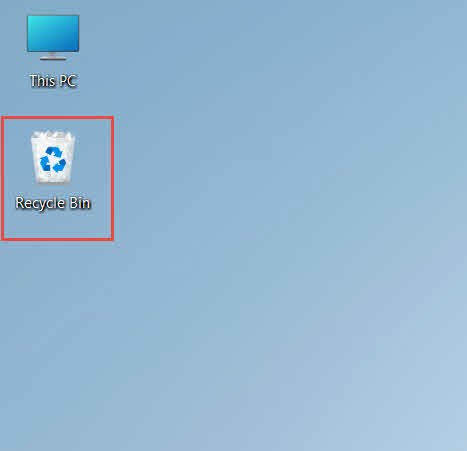
- Дарна уу Хогийн сав ширээний компьютер дээрх дүрс

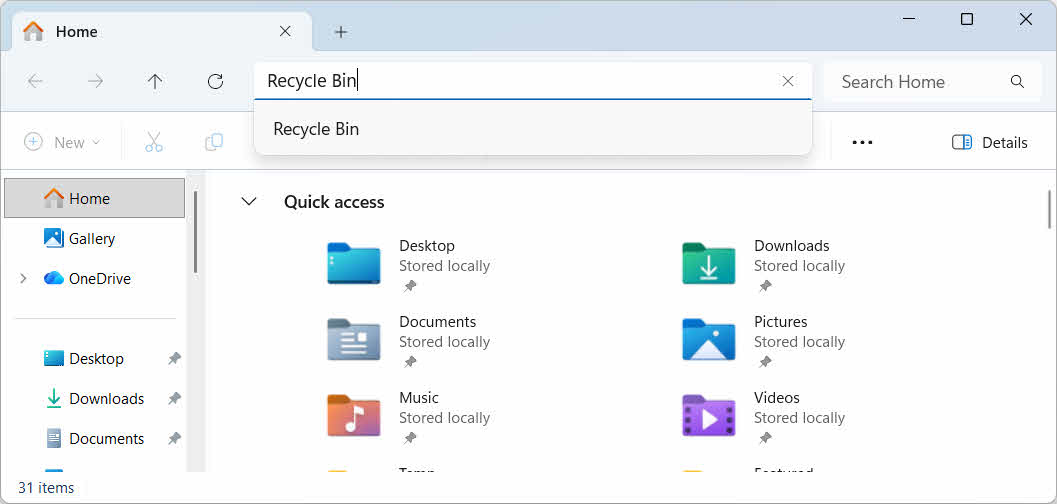
- Файл хайгчийг нээгээд оруулна уу Хогийн сав хаягийн мөрөнд

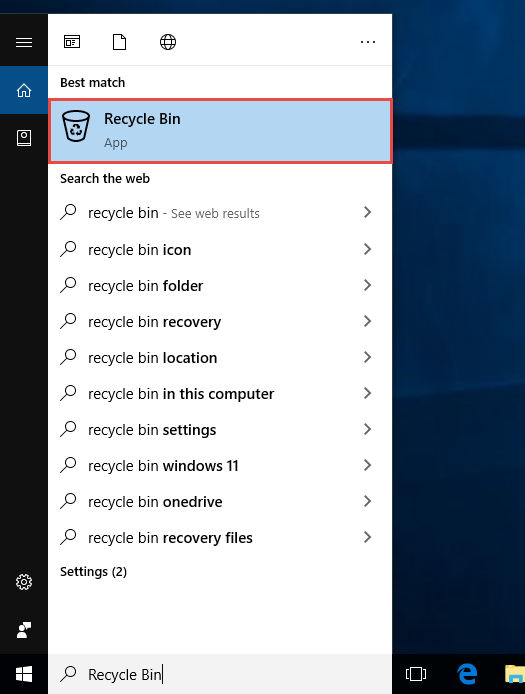
- Төрөл: Хогийн сав Windows хайлт руу орж, үр дүнгээс сонгоно уу

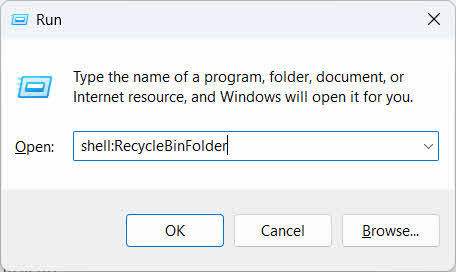
- Press Win + R, төрөл бүрхүүл:RecycleBinFolder, болон дар оруулна уу

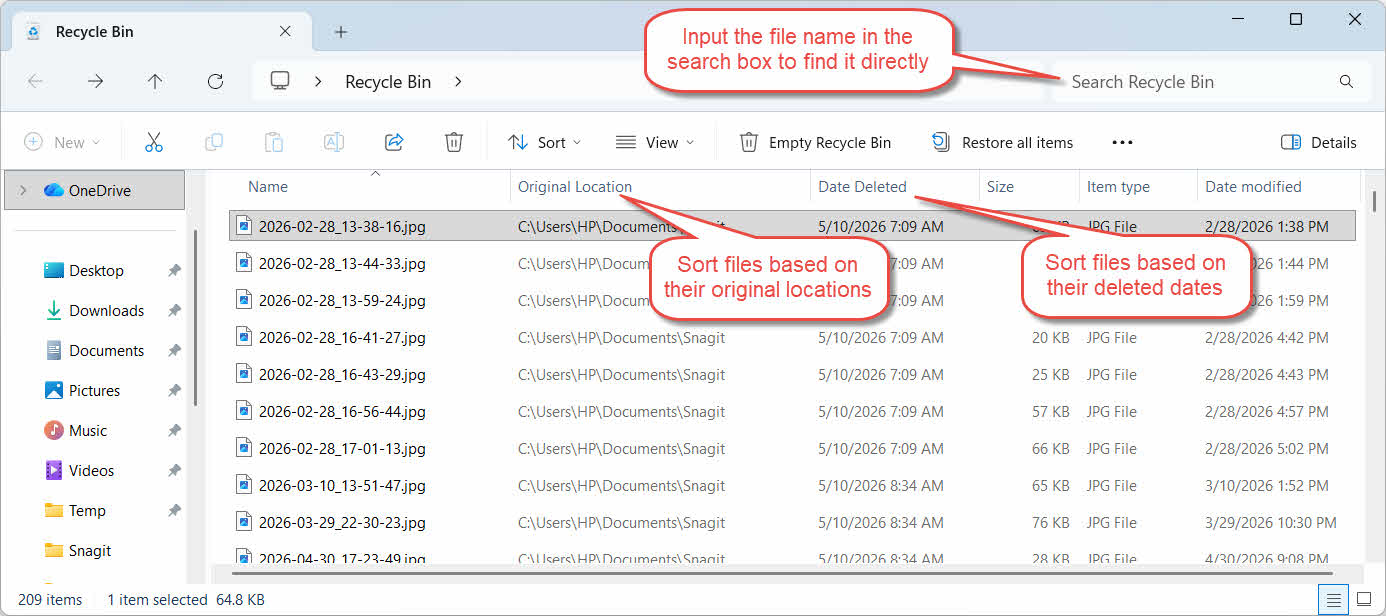
2.2 Устгасан файл эсвэл хавтсыг олох
Хогийн сав нээгдсэний дараа дараах аргуудын аль нэгийг ашиглан хүссэн зүйлсээ олоорой.
- Баруун дээд буланд байрлах хайлтын талбарт файлын нэрийг оруулна уу
- дээр дарна уу Устгасан огноо хамгийн сүүлийн үеийн устгалтаар эрэмбэлэх баганын толгой хэсэг
- шалгана уу Анхны байршил файл таны хүлээж байсан хавтаснаас ирсэн эсэхийг баталгаажуулах баганад
2.3 Файл эсвэл хавтсыг сэргээх
Нэг буюу хэд хэдэн зүйлийг сэргээхийн тулд:
- Ганц файл сонгох эсвэл удаан дарна уу Ctrl мөн олон файл сонгохын тулд дарна уу, эсвэл удаан дарна уу Shift мөн хүрээг сонгохын тулд дарна уу
- Сонголт дээр хулганы баруун товчийг дараад сонгоно уу Сэргээх
- Файл буцаж ирсэнийг баталгаажуулахын тулд анхны фолдерыг нээнэ үү

Хогийн саванд байгаа бүх зүйлийг нэг дор сэргээхийн тулд дарна уу Бүх зүйлийг сэргээх эхлээд ямар ч файлыг сонгохгүйгээр хэрэгслийн самбар дээр.
3. Хогийн савнаас устгасан файлуудыг өөр байршилд сэргээх
The Сэргээх тушаал нь файлыг үргэлж анхны хавтас руу нь буцаадаг. Зарим тохиолдолд файлыг өөр газар зөөх шаардлагатай болдог.
3.1 Энэ аргыг хэзээ хэрэглэх ёстой вэ
- Анхны фолдер байхгүй болсон
- Анхны хавтсанд ижил нэртэй шинэ файл аль хэдийн байна
- Танд анхны фолдерт хандах зөвшөөрөл байхгүй байна
- Та файл аль хавтаснаас ирсэнийг сайн мэдэхгүй байна
- Та файлыг анхны байранд нь буцааж оруулахаасаа өмнө шалгахыг хүсэж байна
3.2 Файлыг Хогийн савнаас чирж гаргах эсвэл хайчилж авах
Файлыг Хогийн савнаас өөрийн сонгосон хавтас руу зөөхийн тулд:
- Хогийн савыг нээх
- Сэргээх файл эсвэл фолдерыг сонгоно уу.
- Файл эсвэл хавтсыг зорилтот хавтас руу зөөхийн тулд дараах аргуудын аль нэгийг ашиглана уу:
- Үүнийг зорилтот хавтасны цонх руу шууд чирнэ үү
- Press Ctrl + X үүнийг таслахын тулд зорилтот хавтсыг нээгээд дарна уу Ctrl + V үүнийг буулгах
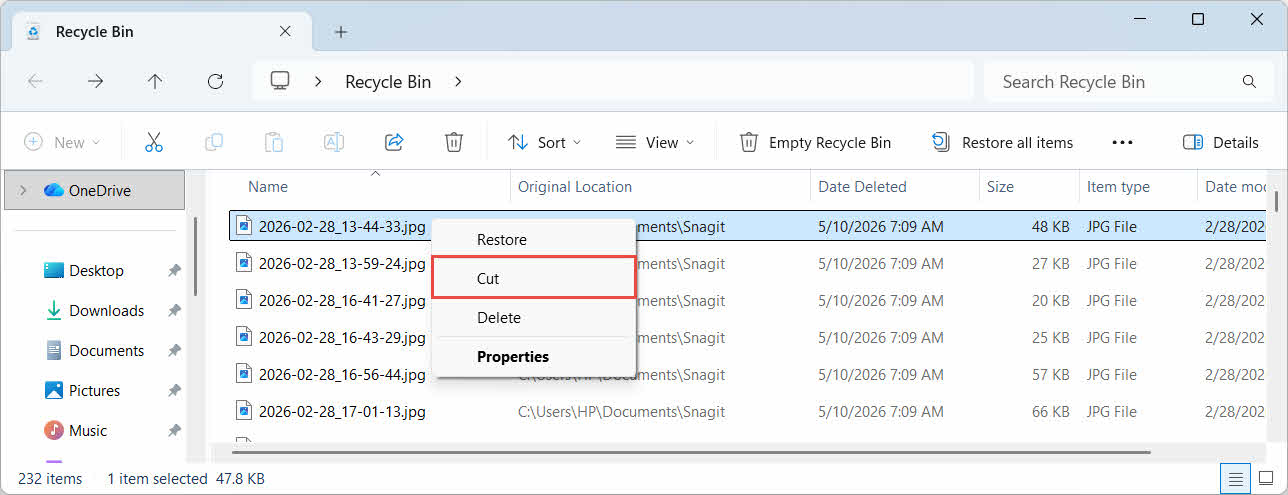
- Сонголт дээр хулганы баруун товчийг дараад сонгоно уу Cut, зорилтот хавтсыг нээгээд, хулганы баруун товчийг дараад сонгоно уу наах үүнийг буулгах

4. Гадаад, сүлжээний болон үүлэн диск дээрх Хогийн савнаас файлуудыг сэргээх
Алхамууд хэсэг 2 Файлыг таны компьютерын үндсэн дискнээс устгасан гэж үзье. Гадаад, сүлжээний болон үүлэн технологиор синхрончлогдсон хадгалалтын системүүд өөр өөрөөр ажилладаг.
4.1 Гадаад хатуу диск болон USB флаш дискүүд
Windows нь гадаад хатуу дискүүдийг (USB-ээр холбогдсон SSD-г оруулаад) дотоод дисктэй адилаар авч үздэг: тус бүр нь анхдагчаар өөрийн гэсэн далд Recycle Bin хавтастай байдаг. USB флаш диск болон SD карт зэрэг зөөврийн медиаг өөр өөрөөр авч үздэг бөгөөд анхдагчаар Recycle Bin авдаггүй тул тэдгээрээс устгасан файлуудыг тэр даруй устгадаг.
4.1.1 Драйвт зориулсан Хогийн савны дэмжлэгийг идэвхжүүлэх
Гадаад хатуу дискний хувьд Recycle Bin дэмжлэг асаалттай байгаа эсэхийг шалгана уу:
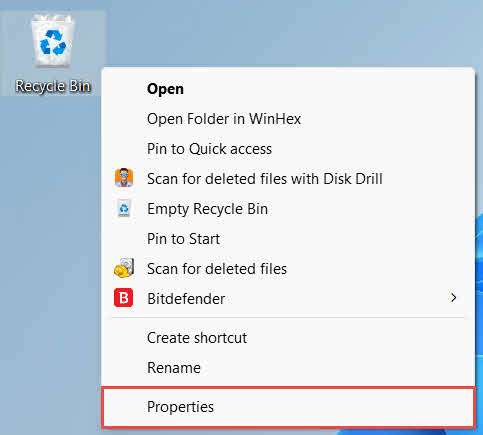
- Баруун товчлуурыг дарна уу Хогийн сав ширээний компьютер дээрх дүрсийг сонгоод сонгоно уу Үл хөдлөх хөрөнгө

- Дахь Хогийн савны байршил жагсаалтаас гадаад дискний мөрийг сонгоно уу. Энэ нь зөвхөн диск холбогдсон бөгөөд дискний үсэгтэй болсны дараа энд гарч ирнэ.
- дагуу Сонгосон байршлын тохиргоо, эсэхийг шалгаарай Гаалийн хэмжээ сонгогдсон, биш Файлуудыг Хогийн сав руу бүү зөө. Файлуудыг устгасан даруйд нь устга.

- Дарах түрхэнэ, дараа нь OK
Диск бүр энэ тохиргоог бие даан хадгалдаг тул системийн диск асаалттай байсан ч гадаад диск нь Хогийн савны дэмжлэгийг унтрааж болно.
USB флаш диск эсвэл SD картын хувьд энэ нь Recycle Bin Properties хэсэгт огт харагдахгүй, учир нь Windows нь анхдагчаар зөөврийн хэрэгсэл дээр Recycle Bin хавтас үүсгэдэггүй. Үүнийг идэвхжүүлэхийн тулд бүртгэлийн засвар шаардлагатай:
- Press Win + R, төрөл regedit, дар оруулна уу, мөн хүсэлтийг батлах
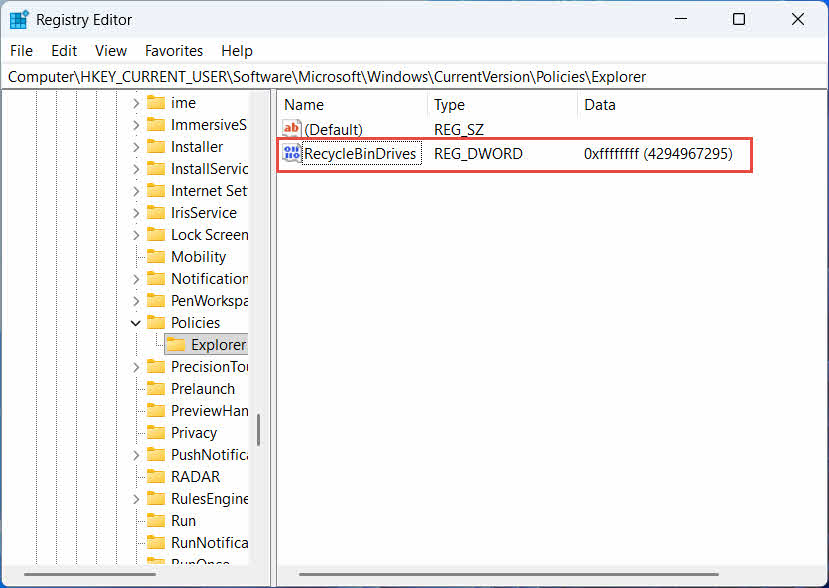
- Руу очих HKEY_CURRENT_USER\Software\Microsoft\Windows\CurrentVersion\Policies\Explorer. Хэрэв хайх түлхүүр доор байхгүй байна Бодлого, хулганы баруун товчийг дарна уу Бодлого, сонгоно уу Шинэ -> түлхүүр, тэгээд нэрлэ хайх
- Баруун талын самбар дээрх хоосон хэсэгт хулганы баруун товчийг дараад сонгоно уу Шинэ -> DWORD (32-бит) утга, тэгээд нэрлэ RecycleBinDrives
- Хоёр дарж RecycleBinDrives, тохируулсан үндсэн to Аравтын орон, оруулна уу ffffffff утгын өгөгдөл болгон оруулаад, дарна уу OK

- 2-4 алхмуудыг доор давтана уу HKEY_LOCAL_MACHINE \ SOFTWARE \ Microsoft \ Windows \ CurrentVersion \ Policies \ Explorer
- Компьютераа дахин эхлүүлээрэй
Өөрчлөлтийг буцаахын тулд устгана уу RecycleBinDrives хоёр байршлаас авсан утга. Энэ нь бүртгэлийг засварлахтай холбоотой тул эхлээд сэргээх цэг үүсгээд, зөвхөн хааяа ашигладаг дискнүүдийн хувьд нөөцлөлтөд найдах нь илүү хялбар эсэхийг авч үзээрэй.
4.1.2 Файлуудыг сэргээх
Драйвт зориулсан Recycle Bin идэвхжсэний дараа файлыг сэргээх нь дараах хэсэгт тайлбарласантай ижил процессыг дагана. хэсэг 2.3.
Файлыг холбосон сүлжээний драйв эсвэл хуваалцсан фолдероос устгах нь серверээс шууд устгадаг. Энэ нь таны компьютерын локал Хогийн саваар дамждаггүй. Гэхдээ хэрэв серверийн талын хогийн сав идэвхжсэн бол та устгасан файлуудыг сэргээж болно.
4.2.1 Серверийн талын хогийн сав (идэвхжүүлсэн бол)
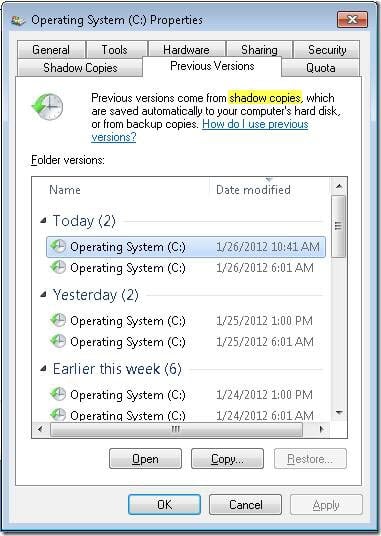
Зарим файлын серверүүд идэвхжүүлдэг Сүүдрийн хуулбар (Боть сүүдрийн хуулбарын үйлчилгээ), энэ функцийг ашиглан устгасан файлуудыг сэргээхийн тулд хуваалцсан фолдерын өмнөх хувилбаруудыг сэргээх боломжийг танд олгоно:
- Сүлжээний хуваалцах хэсэгт байгаа эцэг хавтас дээр хулганы баруун товчийг дараад сонгоно уу Үл хөдлөх хөрөнгө
- Нээх Өмнөх хувилбарууд таб
- Устгахаас өмнөх хувилбарыг сонгоод дарна уу Сэргээх
4.2.2 Серверийн талд хогийн сав байхгүй бол юу хийх вэ
Хэрвээ Өмнөх хувилбарууд таб хоосон эсвэл ашиглах боломжгүй байна, хуваалцах хэсэгт агшин зураг дээр суурилсан сэргээх тохиргоо хийгдээгүй байна. Сервер өөрийн гэсэн нөөцлөлтийн хуваарьтай эсэхийг шалгахын тулд сүлжээний админтайгаа холбогдоно уу.
4.3 OneDrive Recycle Bin (Cloud-Synced Folders)
OneDrive-тай синк хийгдсэн фолдерууд нь хоёр тусдаа Хогийн савыг агуулж болно: орон нутгийн Windows Хогийн сав болон вэб дээр суурилсан OneDrive Хогийн сав. Файлыг хаана хадгалах нь устгал хийгдсэнээс хамаарна.
4.3.1 Синк хийгдсэн файлыг орон нутгийн устгал (Орон нутгийн болон вэб хогийн сав руу хоёуланд нь очно)
Хэрэв та компьютер дээрх Файлын хайгчаас синк хийгдсэн файлыг устгавал энэ нь ...-д тайлбарласны дагуу орон нутгийн Хогийн сав руу очно. хэсэг 2, мөн OneDrive синк клиент нь устгалыг үүлэн дээр тусгадаг тул файлыг OneDrive вэб хогийн савнаас сэргээх боломжтой болдог.
4.3.2 Үүлэн эхлэлтэй устгал (Зөвхөн вэб хогийн сав, 2026 оны 5-р сараас хойш)
Хэрэв файлыг үүлэн талаас, жишээлбэл OneDrive вэбсайт эсвэл өөр синк хийгдсэн төхөөрөмжөөр дамжуулан устгавал 2026 оны 5-р сараас хойш зан төлөв өөрчлөгдсөн: Microsoft үүлэн дээр эхлүүлсэн устгалыг орон нутгийн Windows Recycle Bin руу илгээхээ больсон. Ийм байдлаар устгасан файл нь орон нутгийн Recycle Bin-д харагдахгүйгээр таны орон нутгийн хавтаснаас алга болох бөгөөд зөвхөн OneDrive эсвэл SharePoint вэб Recycle Bin-ээс сэргээх боломжтой.
4.3.3 OneDrive.com сайтаас сэргээх
OneDrive вэб хогийн савнаас файлыг сэргээхийн тулд:
- Нэвтрэх onedrive.live.com or onedrive.com
- сонгоно уу Хогийн сав навигацийн самбар дээр
- Файл эсвэл фолдерыг сонгоод, дарна уу Сэргээх
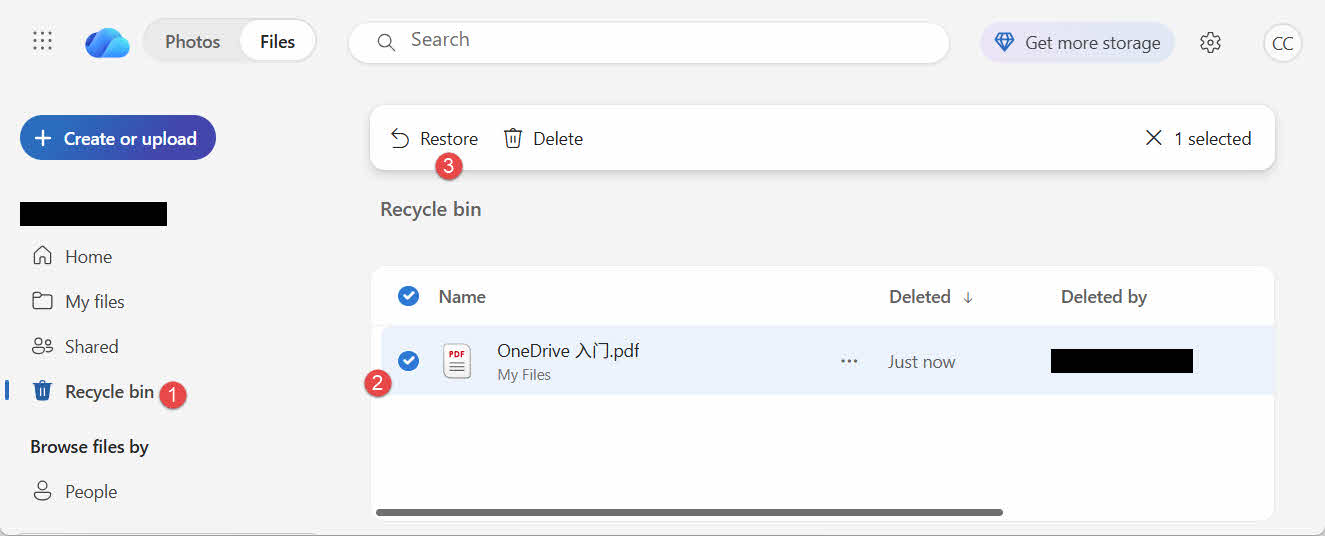
Хувийн Microsoft бүртгэлүүд устгагдсан зүйлсийг 30 хүртэл хоног хадгалдаг бол ажлын болон сургуулийн бүртгэлүүд 93 хүртэл хоног хадгалдаг.
5. Хогийн савыг сэргээхтэй холбоотой асуудлыг шийдвэрлэх
5.1 Ширээний компьютер дээр хогийн савны дүрс алга байна
Хогийн савны ширээний дүрсийг нуусан байсан ч гэсэн түүний дүрс хэвээр байна. Дүрсийг сэргээхийн тулд:
- Десктоп дээр хулганы баруун товчийг дараад сонгоно уу Хувьсагч
- Нээлттэй Сэдэв, дараа нь Ширээний дүрсний тохиргоо
- Шалгах Хогийн сав болон дарна уу OK
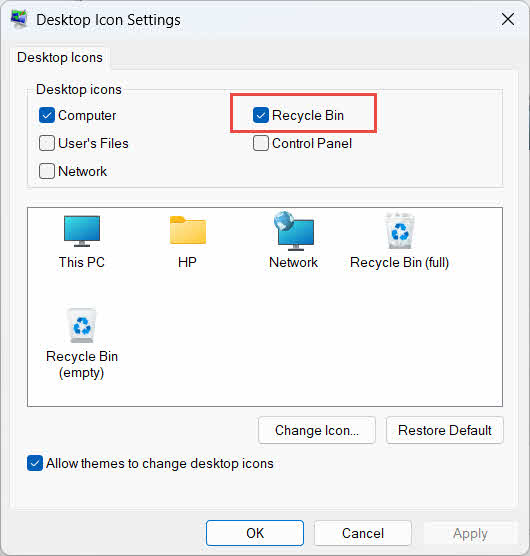
Та мөн үүнийг бичиж шууд нээж болно Хогийн сав тайлбарласны дагуу Windows Search, File Explorer эсвэл Win + R ашиглан хэсэг 2.1.
5.2 Файл нь Хогийн саванд байхгүй байна
Хэрэв таны хүссэн файлууд Хогийн саванд байхгүй бол дараах шалтгаануудыг анхаарч үзээрэй.
- Үүнийг Recycle Bin дэмжлэггүйгээр гадаад дискнээс устгасан (харна уу) хэсэг 4.1)
- Үүнийг сүлжээний драйваас устгасан (харна уу) хэсэг 4.2)
- Үүнийг вэб дээрх OneDrive-аас шууд устгасан (харна уу) хэсэг 4.3)
- Үүнийг бүрмөсөн устгасан, жишээлбэл Shift + устгахэсвэл Хогийн сав хоослогдсон байна
Хэрэв файл бүрмөсөн устгагдсан бол түүнийг сэргээхийн тулд өгөгдөл сэргээх тусгай програм хангамж шаардлагатай, тухайлбал DataNumen Data Recovery, Хогийн савны оронд. Өгөгдөл дарагдан бичигдэх магадлалыг бууруулахын тулд эхлээд тухайн диск рүү шинэ файл хадгалахаа боль.
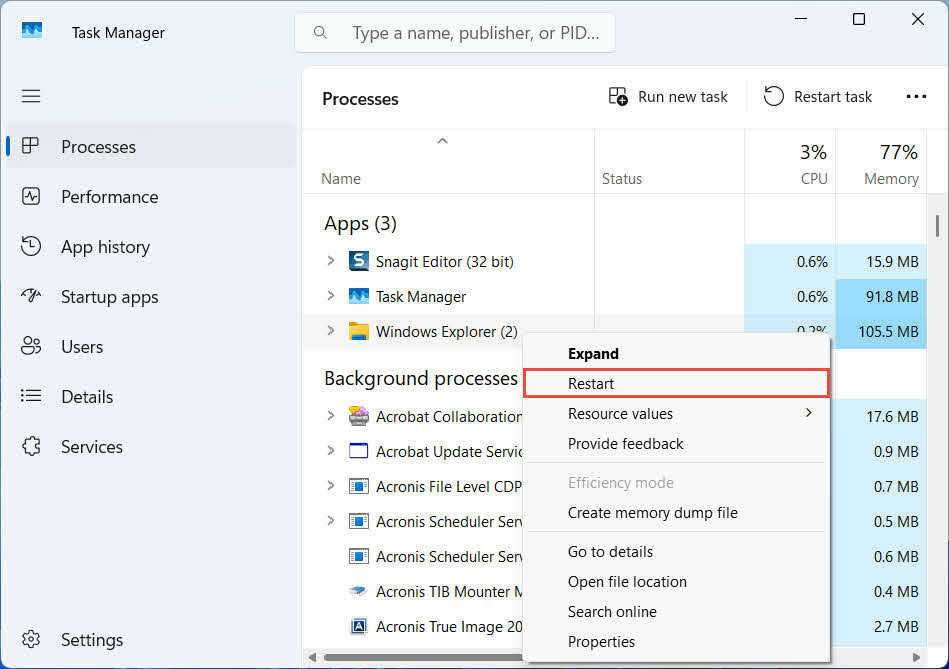
5.3 Сэргээх сонголт саарал өнгөтэй, байхгүй эсвэл ажиллахгүй байна
Энэ нь ихэвчлэн сонгосон зүйлс байхгүй болсон байршлаас ирсэн эсвэл Хогийн савны дотоод индекс синк хийгээгүй үед тохиолддог. Эдгээр засваруудыг туршаад үзээрэй:
- Файлын хайгчийг дахин эхлүүлнэ үү: Ctrl + Alt + Del товчлууруудыг ашиглан Task Manager-ийг нээгээд, хулганы баруун товчийг дарна уу Windows Explorer, сонгох Дахин ачааллах

- Зүйлсийг багцаар нь биш, нэг нэгээр нь сэргээх
- If Сэргээх гарч ирэхгүй хэвээр байвал, -д тайлбарласны дагуу файлыг гараар чирж гаргана уу хэсэг 3.2
5.4 Сэргээх үед "Хандалт хийхээс татгалзсан" эсвэл зөвшөөрлийн алдаа гарсан
Энэ нь файлын өөрөө биш харин анхны хавтас дээрх зөвшөөрлийн асуудал байгааг харуулж байна. Дараахыг шалгана уу:
- Та файлыг устгасан бүртгэлтэй ижил бүртгэлээр нэвтэрсэн байна
- Хүлээн авагч фолдерын зөвшөөрөл нь таны бүртгэлд бичих хандалтыг зөвшөөрсөөр байна
- Удирдлагатай эсвэл ажлын компьютер дээрх бодлогоор Файлын хайгчийг хаагаагүй байна
Хэрэв анхны фолдерын зөвшөөрөл өөрчлөгдсөн бол файлыг өөр байршилд сэргээнэ үү, дараа нь хэсэг 3.
5.5 Хогийн сав хоосон харагдаж байна, гэхдээ би хоослохгүй байна
Файлууд нь Хогийн савнаас хэн нэгэн гараар хоослохгүйгээр алга болж болно:
- Storage Sense нь тогтоосон өдрийн дараа зүйлсийг автоматаар устгахаар тохируулагдсан байж магадгүй
- Хогийн савны хэмжээ хязгаартаа хүрсэн тул Windows зай гаргахын тулд хамгийн хуучин зүйлсийг цэвэрлэсэн (харна уу). хэсэг 6.1)
- Хуваалцсан компьютер дээрх өөр бүртгэл үүнийг хоосолсон
- Удирдлагатай төхөөрөмж дээрх бүлгийн бодлого нь автоматаар хоослохыг шаарддаг
5.6 Сэргээгдсэн файл эвдэрсэн, хоосон эсвэл нээгдэхгүй байна
Сэргээх нь зөвхөн файлыг буцааж хөдөлгөдөг; энэ нь үүнийг засахгүй. Хэрэв файл устгахаас өмнө аль хэдийн гэмтсэн байсан эсвэл устгагдсан үед нь бичиж байсан бол сэргээлтийн дараа нээгдэхгүй байж магадгүй. Энэ тохиолдолд асуудал нь файлын эвдрэл болохоос Хогийн савны асуудал биш бөгөөд хэрэгцээ шаардлага юм. засварлах хэрэгсэл өөр сэргээх оролдлогоос илүү тухайн файлын форматад тохирсон.
6. Хогийн савыг удирдах болон тохируулах
6.1 Хогийн савны хадгалах хэмжээг өөрчлөх
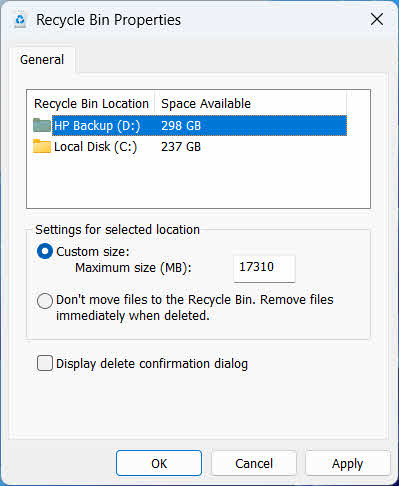
Драйв бүр өөрийн гэсэн Хогийн савны хуваарилалттай байдаг. Үүнийг хянах эсвэл өөрчлөхийн тулд:
- Баруун товчлуурыг дарна уу Хогийн сав дүрсийг сонгоод сонгоно уу Үл хөдлөх хөрөнгө
- Хогийн савны байршлын жагсаалтаас диск сонгоно уу
- сонгоно уу Гаалийн хэмжээ мөн оруулна уу Хамгийн их хэмжээ (МБ), эсвэл сонгоно уу Файлуудыг Хогийн сав руу бүү зөө. Файлуудыг устгасан даруйд нь устга. тэр драйвт үүнийг идэвхгүй болгох
- Дарах OK
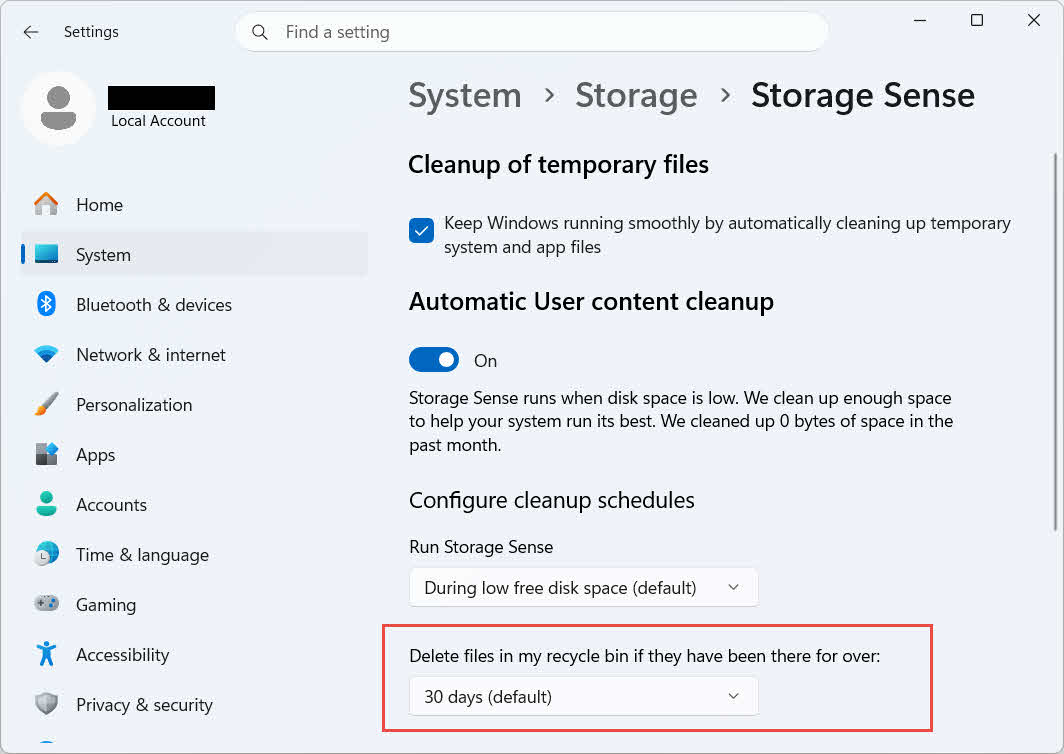
Windows нь мөн насжилтад суурилсан тусдаа цэвэрлэгээний сонголтыг санал болгодог: руу очно уу Тохиргоо -> Систем -> Хадгалах сан -> Хадгалах сангийн мэдрэмж ба тогтоосон Хэрэв миний хогийн саванд байгаа файлууд тэнд удаан хугацаанд байсан бол тэдгээрийг устгана уу сонгосон өдрийн тоо. Анхдагч хадгалах хугацаа нь 30 хоног.
6.2 Устгах баталгаажуулалтын харилцах цонхыг идэвхжүүлэх
Windows 11 нь файлуудыг Хогийн сав руу зөөхөөс өмнө баталгаажуулах хүсэлтийг анхдагчаар харуулдаггүй. Үүнийг асаахын тулд:
- Баруун товчлуурыг дарна уу Хогийн сав дүрсийг сонгоод сонгоно уу Үл хөдлөх хөрөнгө
- Шалгах Устгах баталгаажуулалтын харилцах цонхыг харуулах
- Дарах OK
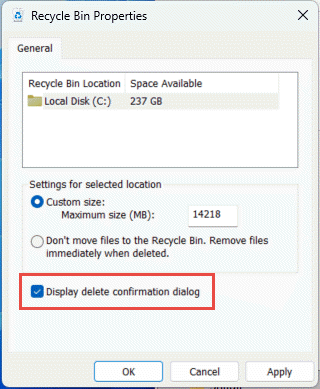
Энэ тохиргоо нь бүрмөсөн устгахаас сэргийлдэггүй, тухайлбал Shift + устгах эсвэл Recycle Bin дэмжлэггүй дискнээс устгалтууд.
6.3 Файлуудыг Хогийн савнаас зайлсхийхээр тохируулах (мөн яагаад үүнээс зайлсхийх хэрэгтэй вэ)
Үүнтэй адил Файлуудыг Хогийн сав руу бүү зөө. Файлуудыг устгасан даруйд нь устга. сонголт багтсан хэсэг 6.1 Устгасан файл бүрийг байнгын болгохын тулд ямар ч дискэнд хэрэглэж болно. Энэ нь дискний зайг шууд чөлөөлөх боловч энэ гарын авлагад тайлбарласан цорын ганц хурдан сэргээх сонголтыг арилгадаг тул тусгай зураас эсвэл түр хэмжээний диск гэх мэт хувийн файл агуулаагүй дискүүдэд хадгалах нь хамгийн тохиромжтой.
7. Ирээдүйд өгөгдлийн алдагдлаас урьдчилан сэргийлэх шилдэг туршлагууд
7.1 Файлын түүх эсвэл нөөцлөлтийн шийдлийг идэвхжүүлэх
Хогийн сав нь зөвхөн санамсаргүй устгалтаас хамгаалдаг бөгөөд дискний эвдрэл эсвэл аль хэдийн хоослогдсон Хогийн савнаас хамгаалдаггүй. Файлын түүхийг идэвхжүүлэх (Хяналтын самбар -> Систем ба аюулгүй байдал -> Файлын түүх)

эсвэл гуравдагч талын нөөцлөлтийн хэрэгсэл нь өөрийн хувилбарын түүхтэй хамгаалалтын хоёр дахь давхаргыг нэмдэг.
7.2 Чухал фолдеруудад зориулсан Cloud Sync ашиглах
Десктоп, баримт бичиг, зургийг OneDrive эсвэл өөр үүлэн үйлчилгээтэй синк хийх нь танд вэб Recycle Bin-ийг ...-д тайлбарласан болно. хэсэг 4.3 орон нутгийн Хогийн савнаас хамааралгүй нэмэлт сэргээх зам болгон.
7.3 Хогийн савыг хоослохоос өмнө дахин шалгана уу
Дарахаас өмнө Хоосон дахин боловсруулах Бин, эрэмбэлэх Устгасан огноо мөн саяхны зүйлсийг сканнердах. Хоосон болсны дараа үлдсэн цорын ганц сонголт бол өгөгдөл сэргээх тусгай програм хангамж бөгөөд амжилт нь баталгаатай биш юм.
8 дугаартай. Асуулт
А: Хогийн савыг хоосолсны дараа файлыг сэргээж болох уу?
А: Хогийн саваар дамжуулан биш. Энэ үед файлыг файлын системийн түвшинд устгасан гэж тэмдэглэнэ, гэхдээ дарж бичих хүртэл дискэн дээр бодитоор байж болно. Жишээ нь: DataNumen Data Recovery энэ төрлийн өгөгдлийг сканнердах, дахин бүтээх зориулалттай. Амжилттай сэргээх магадлалыг нэмэгдүүлэхийн тулд дискийг аль болох хурдан ашиглахаа боль.
А: Mac дээр Windows Recycle Bin-тэй төстэй зүйл байдаг уу?
А: Тийм ээ, үүнийг Хогийн сав гэж нэрлэдэг бөгөөд адилхан ажилладаг: Хогийн савыг нээгээд, файл дээр хулганы баруун товчийг дараад Буцаах-г сонгоно уу. Энэ гарын авлагад Windows Recycle Bin-ийг тусгайлан авч үзэх болно. Мөн энэ гарын авлага Mac хогийн савыг тусгайлан хамардаг.
А: Файлууд автоматаар устахаас өмнө Хогийн саванд хэр удаан хадгалагддаг вэ?
А: Орон нутгийн Хогийн Сав нь анхдагчаар тодорхой хугацааны хязгааргүй байдаг; зөвхөн хэмжээний хязгаарт хүрсэн эсвэл Storage Sense нь хуучин зүйлсийг цэвэрлэхээр тохируулагдсан үед л зүйлсийг устгадаг (харна уу). хэсэг 6.1OneDrive вэб хогийн сав нь тогтмол цонх ашигладаг: хувийн дансанд 30 хоног, ажил эсвэл сургуулийн дансанд 93 хүртэл хоног (харна уу). хэсэг 4.3).
А: Файлыг анхны байршилд нь сэргээх үү эсвэл шинэ байршилд нь сэргээх үү?
А: Анхны байршил руу сэргээх (хэсэг 2) нь илүү хялбар бөгөөд файлын анхны замыг хадгалдаг. Өөр байршилд сэргээх (хэсэг 3) оронд нь хэрэв тухайн анхны хавтас байхгүй болсон эсвэл ижил нэртэй файл агуулсан бол.
А: Хогийн сав ашиглан USB флаш дискнээс устгасан файлуудыг сэргээж болох уу?
А: Анхдагчаар биш. Флаш диск болон SD картууд нь Recycle Bin хавтастай байдаггүй, хэрэв та үүнийг гараар идэвхжүүлээгүй бол, дээр тайлбарласны дагуу хэсэг 4.1.
А: Яагаад Сэргээх сонголт саарал өнгөтэй эсвэл байхгүй байна вэ?
А: Энэ нь ихэвчлэн анхны хавтас байхгүй эсвэл Recycle Bin индекс синхрончлогдоогүйгээс болдог. Харна уу хэсэг 5.3 засваруудын хувьд.
А: Хогийн сав хоосон байсан ч би хоослоогүй бол яах вэ?
А: Storage Sense, хүрсэн хэмжээний хязгаар, өөр хэрэглэгчийн бүртгэл эсвэл Group Policy тохиргоо нь үүнийг автоматаар арилгах боломжтой. Харна уу. хэсэг 5.5.
А: Хогийн саванд байхаа больсон файлуудыг ямар програм хангамж сэргээж чадах вэ?
А: Зориулалтын өгөгдөл сэргээх програм хангамж, тухайлбал DataNumen Data Recovery, файлын систем цаашид лавлахаа больсон өгөгдлийг олохын тулд дискийг доод түвшинд сканнерддаг бөгөөд энэ нь Recycle Bin интерфэйс өөрөө хийж чадахгүй зүйл юм.
А: Файлыг сэргээх нь зөв нээгдэх баталгаа өгөх үү?
А: Үгүй. Сэргээх нь файлыг зөвхөн хавтас руу буцаана; энэ нь файлыг устгахаас өмнө эсвэл устгах явцад аль хэдийн гэмтсэнийг засахгүй. Харна уу хэсэг 5.6.
9. дүгнэлт
Устгасан файлуудыг Хогийн савнаас сэргээх нь тухайн зүйл байгаа л бол энгийн: Хогийн савыг нээгээд, файлыг олоод сэргээнэ үү. Гадаад диск, сүлжээний хуваалцсан файлууд болон OneDrive-тай синк хийгдсэн хавтаснууд тус бүр өөрийн гэсэн нөхцөл байдлыг нэмдэг бөгөөд дээрх алдааг олж засварлах болон тохиргооны хэсгүүд нь стандарт сэргээх үйл явц хүлээгдэж байснаар явагдахгүй байгаа нөхцөл байдлыг хамардаг. Хэрэв файл бүрмөсөн устгагдсан эсвэл Хогийн савыг аль хэдийн хоосолсон бол дараагийн алхам бол Хогийн сав өөрөө биш, харин тусгай өгөгдөл сэргээх програм хангамж юм.
Зохиогчийн Тухай
Чиан Гуа нь Windows файлын систем, хадгалалтын технологи, гамшгийн нөхөн сэргээх шийдлүүдийн чиглэлээр 10 гаруй жилийн туршлагатай өгөгдөл сэргээх мэргэжилтэн юм. Тэрээр хувийн болон байгууллагын орчинд өгөгдөл алдагдлын чухал нөхцөл байдлыг шийдвэрлэхэд мянга мянган хэрэглэгчдийг амжилттай чиглүүлж ирсэн.
Чиан Windows өгөгдөл сэргээх арга зүй, файлын системийн шинжилгээ, урьдчилан сэргийлэх нөөцлөлтийн стратегиудад мэргэшсэн. Түүний өргөн хүрээтэй практик туршлагад дискнээс өгөгдөл сэргээх, цогц нөөцлөлтийн шийдлүүдийг хэрэгжүүлэх, файлын системийн нарийн төвөгтэй асуудлуудыг шийдвэрлэх зэрэг орно. NTFS, FAT, exFAT, болон ReFS ботьнууд. Тэрээр Windows-ийн суулгасан хэрэгслүүдээс эхлээд мэргэжлийн өгөгдөл сэргээх програм хангамж хүртэл төрөл бүрийн сэргээх хэрэгсэл, техникүүдтэй ажиллаж байсан.
Техникийн бичвэрүүдээрээ дамжуулан Цянь хэрэглэгчдэд үнэ цэнэтэй мэдээллээ хамгаалах, сэргээх практик мэдлэг олгоход зориулагдсан. Тэрээр Windows файл сэргээх технологийн хамгийн сүүлийн үеийн хөгжил, хадгалах төхөөрөмжийн шинэчлэл, өгөгдөл хамгаалах шилдэг туршлагуудын талаар мэдээлэлтэй байдаг. Хэрэглэгчдэд мэдээлэл сэргээхэд нь туслахгүй үедost fileс, Цянь шинээр гарч ирж буй хадгалах технологийн талаар судалгаа хийх, ирээдүйд өгөгдөл алдагдахаас урьдчилан сэргийлэх өгөгдлийн аюулгүй байдлын зөвлөмжийг хуваалцах дуртай.
Энэ гарын авлагын талаар асуулт байна уу эсвэл өгөгдөл сэргээхэд тусламж хэрэгтэй байна уу? Цянь тавтай морилно уу санал хүсэлт, санал эдгээр өгөгдөл сэргээх нөөцийг сайжруулах зорилгоор.