
기본 받은 편지함 또는 보낸 항목 폴더 내에 하위 폴더가 있는 경우 VBA를 사용하여 재귀적이고 효율적인 방법으로 하위 폴더를 탐색하는 방법은 매우 유용한 팁입니다. 이 중요한 부분은 다른 많은 VBA 프로젝트에서 재사용할 수 있습니다.
폴더 이동의 중요한 문제
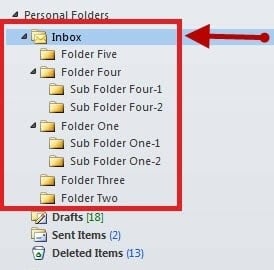 Outlook을 사용하는 기업 및 비즈니스 사용자는 기본 받은 편지함 또는 보낸 편지함 폴더 아래에 수백 개의 하위 폴더가 있고 각 폴더에 관련 이메일이 저장되어 있는 경우가 많습니다. 이러한 모든 폴더를 순회하며 특정 작업을 수행해야 할 때, 각 폴더마다 다른 VBA 스크립트를 작성하는 것은 매우 번거로운 일입니다. 기본 받은 편지함 폴더 아래에 500개의 하위 폴더가 있고 각 폴더에 대해 VBA 스크립트가 필요하다고 가정해 보세요. 사용자는 각 폴더에 대해 동일한 기능을 수행하는 500개의 고유한 스크립트를 작성해야 합니다. 더 심각한 문제는 수정이 필요한 경우 500개의 스크립트를 모두 업데이트해야 한다는 것입니다. 다행히 재귀라는 프로그래밍 기법을 사용하면 이러한 문제를 손쉽게 해결할 수 있습니다. 재귀는 함수가 동일한 논리를 사용하여 모든 항목을 처리하기 위해 동일한 패턴을 반복적으로 호출하는 방식입니다. 아래는 기본 받은 편지함 폴더에서 시작하여 모든 하위 폴더와 각 폴더의 항목을 순회하는 예제 스크립트입니다.
Outlook VBA 스크립트
다음은 전체 Outlook VBA 스크립트입니다.
Private Sub Main()
    Dim objNameSpace As Outlook.NameSpace
    Dim objMainFolder As Outlook.Folder

    Set objNameSpace = Application.GetNamespace("MAPI")
    Set objMainFolder = objNameSpace.GetDefaultFolder(olFolderInbox)

    Call ProcessCurrentFolder(objMainFolder)
End Sub

Private Sub ProcessCurrentFolder(ByVal objParentFolder As Outlook.MAPIFolder)
    Dim objCurFolder As Outlook.MAPIFolder
    Dim objMail As Outlook.MailItem

    On Error Resume Next

    '    Process each items in the folder
    For Each objMail In objParentFolder.Items
        '    Do your task here ...
    Next

    '    Process the subfolders in the folder recursively
    If (objParentFolder.Folders.Count > 0) Then
        For Each objCurFolder In objParentFolder.Folders
            Call ProcessCurrentFolder(objCurFolder)
        Next
    End If
End Sub
스크립트 실행 방법
PR 기사 Alt + F11 Outlook VBA 편집기를 열고 위의 코드를 "ThisOutlookSession"에 붙여넣으세요. 이 스크립트를 실행하기 전에 "도구" 메뉴에서 Microsoft Outlook XX 개체 라이브러리를 프로젝트 참조에 추가해야 합니다. 여기서 XX는 라이브러리 버전입니다.
스크립트 이해
 "ProcessCurrentFolder"는 현재 폴더 내에 하위 폴더가 발견되면 자기 자신을 재귀적으로 호출하는 함수입니다. 초기 계층 구조부터 시작하여 모든 폴더를 스캔하고 처리할 때까지 계속해서 자기 자신을 호출합니다. 이 스크립트는 모든 Outlook 폴더에서 작동합니다. "olFolderInbox"는 "olFolderSentMail", "olFolderOutbox" 또는 기본 Outlook 폴더가 아닌 다른 폴더로 대체할 수 있습니다. 또한, 루트 받은 편지함이나 보낸 편지함 폴더에서 처음 호출할 필요 없이 하위 폴더 어디에서든 시작할 수 있다는 점도 중요합니다. "For Each objMail In objParentFolder.Items"는 현재 스캔 중인 폴더에 포함된 모든 항목을 순회하는 핵심 코드 줄입니다. 따라서 사용자는 이 부분에 항목을 처리하는 코드를 작성해야 합니다.
재해 복구
Outlook이 충돌하거나 오류가 발생하는 상황에 직면하더라도 이메일 손실을 걱정할 필요가 없습니다. DataNumen 당신의 삶을 정상으로 되돌려 줄 것입니다. Outlook 손상 수정 효율적인 방식으로.
저자 소개 :
Mary Underwood는 다음 분야의 데이터 복구 전문가입니다. DataNumen, Inc.는 다음과 같은 데이터 복구 기술 분야의 세계적 리더입니다. dwg 복구 rar 복구 소프트웨어 제품. 자세한 내용은 WWW.datanumen.COM