
대부분의 사용자는 주말에 예약된 약속은 대개 비공개입니다. 따라서 Outlook에서 이러한 약속을 자동으로 비공개로 표시해 주기를 원합니다. 이 글에서는 스크립트를 사용하여 이러한 기능을 구현하는 방법을 살펴보겠습니다.
비즈니스 약속과 개인 약속을 보다 쉽게 구별하기 위해 Outlook에서는 사용자가 약속을 개인으로 표시할 수 있습니다. 이런 식으로 개인 약속 없이 캘린더를 매우 편리하고 쉽게 인쇄할 수 있습니다. 이 경우 Outlook에서 특정 약속을 비공개로 자동 인식하고 표시하도록 할 수 있습니다. 예를 들어 일반적으로 주말 약속은 비공개이므로 Outlook에서 자동으로 비공개로 표시하도록 할 수 있습니다. 이하, 우리는 당신이 그것을 달성하도록 안내할 것입니다.
주말 약속을 비공개로 자동 표시
- 먼저 "에 따라 Outlook VBA 편집기를 시작합니다.Outlook에서 VBA 코드를 실행하는 방법".
- 그런 다음 "응용 프로그램용 Microsoft Visual Basic" 창에서 다음 코드를 "ThisOutlookSession" 프로젝트에 넣습니다.
Public WithEvents objInspectors As Outlook.Inspectors
Public WithEvents objExplorer As Outlook.Explorer
Public WithEvents objAppointment As Outlook.AppointmentItem

Private Sub Application_Startup()
    Set objInspectors = Outlook.Application.Inspectors
    Set objExplorer = Outlook.Application.ActiveExplorer
End Sub

Private Sub objInspectors_NewInspector(ByVal Inspector As Inspector)
    If Inspector.CurrentItem.Class = olAppointment Then
       Set objAppointment = Inspector.CurrentItem
    End If
End Sub

Private Sub objExplorer_Activate()
    On Error Resume Next
    If objExplorer.Selection.Item(1).Class = olAppointment Then
       Set objAppointment = objExplorer.Selection.Item(1)
    End If
End Sub

Private Sub objAppointment_Open(Cancel As Boolean)
    Call MarkWeedendAppointmentPrivate(objAppointment)
End Sub

Private Sub objAppointment_PropertyChange(ByVal Name As String)
    If Name = "Start" Or Name = "End" Then
       Call MarkWeedendAppointmentPrivate(objAppointment)
    End If
End Sub

Private Sub MarkWeedendAppointmentPrivate(ByVal objAppointment As Outlook.AppointmentItem)
    Dim dStartDate As Date

    dStartDate = Format(objAppointment.Start, "Short Date")

    'If the appointment start falls on weekend
    Select Case Weekday(dStartDate)
           Case 7, 1
                'Mark it private
                objAppointment.Sensitivity = olPrivate
    End Select
End Sub
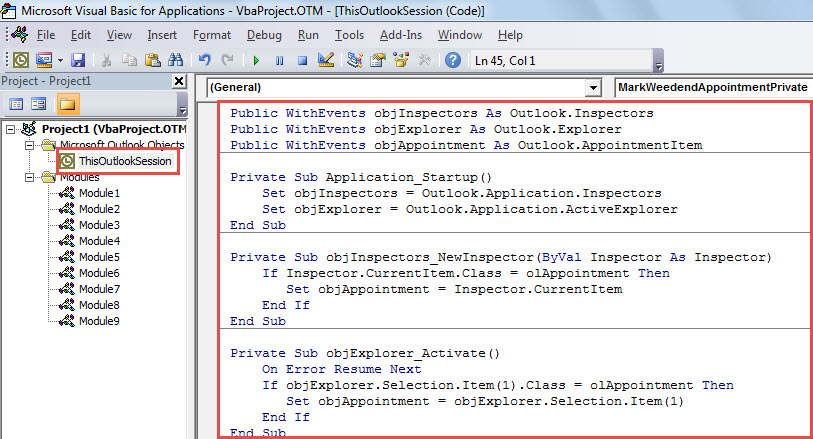
- 그 후 Outlook을 다시 시작하여 매크로를 활성화하십시오.
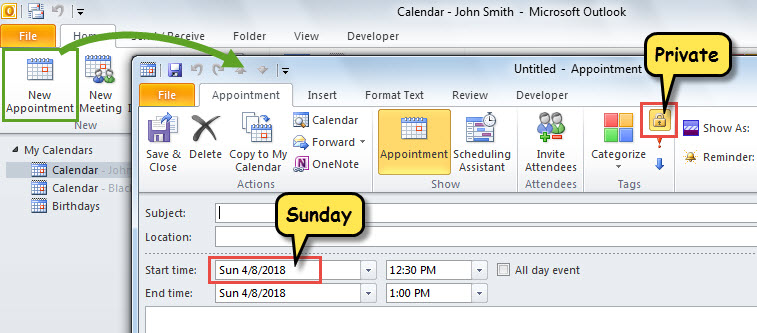
- 이제부터는 새 약속을 만들거나 기존 약속을 주말로 변경할 때마다 Outlook에서 자동으로 비공개로 표시합니다.

성가신 Outlook 문제 해결
예기치 않은 응용 프로그램 정지, 팝업 오류 메시지 등과 같은 Outlook을 처리할 때 몇 가지 문제가 발생했을 수 있습니다. 고통을 겪을 때 당신은 걱정할 것입니다. 진정하세요! 공황 상태는 아무 도움이 되지 않지만 상황을 악화시킵니다. 우선 평소와 같이 PST 파일에 액세스할 수 있는지 확인할 수 있습니다. 그렇다면 다음을 통해 수행할 수 있는 PST 파일을 복구해야 합니다. 받은 편지함 수리 도구 또는 다음과 같은 더 강력한 외부 도구 DataNumen Outlook Repair.
저자 소개 :
Shirley Zhang은 데이터 복구 전문가입니다. DataNumen, Inc.는 다음과 같은 데이터 복구 기술 분야의 세계적 리더입니다. mdf 수리 및 전망 수리 소프트웨어 제품. 자세한 내용은 WWW.datanumen.COM