
취소한 회의가 캘린더에 여전히 남아 있는 것을 보셨을 겁니다. 이 때문에 수동으로 삭제해야 하는데, 이는 매우 번거롭습니다. 따라서 Outlook에서 취소된 회의를 자동으로 삭제해 주는 기능이 있으면 좋겠다고 생각하실 것입니다. 이 글에서는 Outlook에서 취소된 회의를 자동으로 삭제하는 방법을 알려드립니다.
사실, 제 이전 기사 –“Outlook 일정에서 취소 된 모임을 재치있게 제거하는 방법”에서는 취소 된 회의를 수동으로 삭제하는 몇 가지 팁을 소개했습니다. 또한 해당 기사의 마지막 섹션에는 Outlook이 취소 된 회의를 자동으로 제거하도록하는 방법이 있습니다. 그러나이 방법을 사용하면 Outlook에서 모든 모임 초대를 자동으로 수락 할 수 있습니다. 이것은 때때로 당신이 원하는 것이 아닙니다. 따라서 여기에서는 매우 간단하고 훨씬 편리한 다른 방법을 보여 드리겠습니다.
달력에서 취소 된 회의 자동 제거
- 우선, Outlook 프로그램을 실행하세요.
- 그런 다음 Outlook 창에서 "Alt + F11"키 버튼을 눌러야합니다.
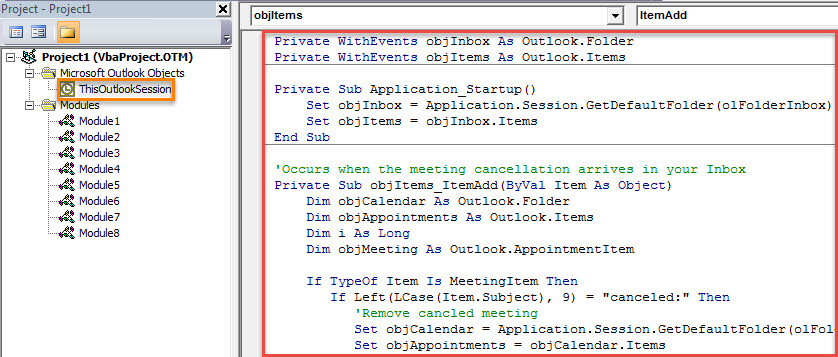
- 다음으로, 후속 VBA 편집기 창에서 왼쪽에있는 "ThisOutlookSession"프로젝트를 두 번 클릭해야합니다.
- 이후에 다음 VBA 코드를이 프로젝트에 복사해야합니다.
Private WithEvents objInbox As Outlook.Folder
Private WithEvents objItems As Outlook.Items

Private Sub Application_Startup()
    Set objInbox = Application.Session.GetDefaultFolder(olFolderInbox)
    Set objItems = objInbox.Items
End Sub

'Occurs when the meeting cancellation arrives in your Inbox
Private Sub objItems_ItemAdd(ByVal Item As Object)
    Dim objCalendar As Outlook.Folder
    Dim objAppointments As Outlook.Items
    Dim i As Long
    Dim objMeeting As Outlook.AppointmentItem

    If TypeOf Item Is MeetingItem Then
       If Left(LCase(Item.Subject), 9) = "canceled:" Then
          'Remove canceled meeting
          Set objCalendar = Application.Session.GetDefaultFolder(olFolderCalendar)
          Set objAppointments = objCalendar.Items

          For i = objAppointments.count To 1 Step -1
              Set objAppointment = objAppointments.Item(i)
              If Left(objAppointment.Subject, 9) = "Canceled:" Then
                 objAppointment.Delete
              End If
         Next
       End If
   End If
End Sub
- 그런 다음이 프로젝트에 디지털 인증서를 할당 할 수 있습니다. "도구"를 클릭하고 "디지털 서명"을 선택합니다. 그런 다음 마법사를 따라 완료하십시오.
- 나중에 "Microsoft Visual Basic for Applications"창을 닫고 서명 된 매크로를 허용하도록 Outlook 매크로 설정을 변경하십시오.
- 마지막으로 Outlook을 다시 시작하여 새 VBA 프로젝트를 활성화할 수 있습니다.
- 그 이후로 회의 취소 알림이 수신함에 도착할 때마다 매크로가 실행되어 캘린더에서 취소된 회의를 자동으로 삭제합니다.
받은 편지함 오류 수정 도구를 최대한 활용
많은 Outlook 사용자는 사소한 오작동, 오류 메시지, 갑작스런 응답 없음 및 심각한 손상 등 Outlook의 여러 가지 문제에 시달렸을 수 있습니다. 솔직히 말하면 Outlook에는 내장 된 복구 도구가 있습니다. 스캔프스트, 쉽게 수정할 수 있습니다. 따라서 Outlook에서 문제가 발생할 때이를 사용하여 촬영할 수 있습니다. 실패 할 경우 다음과 같은 경험 있고 뛰어난 타사 도구를 계속 사용할 수 있습니다. DataNumen Outlook Repair.
저자 소개 :
Shirley Zhang은 데이터 복구 전문가입니다. DataNumen, Inc.는 다음과 같은 데이터 복구 기술 분야의 세계적 리더입니다. SQL 복구 및 전망 수리 소프트웨어 제품. 자세한 내용은 WWW.datanumen.COM