---
description: In the following article, we would like to offer you 3 effective ways to remove unwanted spaces in table cells in your Word document.
title: 3 Effective Ways to Remove Unwanted Spaces in Table Cells in Your Word Document
image: https://www.datanumen.com/blogs/wp-content/uploads/2017/05/243.jpg
---


* [ ](https://www.facebook.com/DataNumen)
* [ ](http://www.linkedin.com/company/datanumen)
* [ ](https://twitter.com/DataNumen)

[Home](https://www.datanumen.com/blogs/) \> [Solutions](https://www.datanumen.com/blogs/category/solutions/) \> [Office Solutions](https://www.datanumen.com/blogs/category/solutions/office-solutions/) \> [Word Solutions](https://www.datanumen.com/blogs/category/solutions/office-solutions/word-solutions/) \> 3 Effective Ways to Remove Unwanted Spaces in Table Cells in Your Word Document

# 3 Effective Ways to Remove Unwanted Spaces in Table Cells in Your Word Document

[Word Solutions](https://www.datanumen.com/blogs/category/solutions/office-solutions/word-solutions/)  September 28, 2025 

Share Now: 
* [ ](https://www.facebook.com/sharer.php?u=https%3A%2F%2Fwww.datanumen.com%2Fblogs%2F3-effective-ways-remove-unwanted-spaces-table-cells-word-document%2F)
* [ ](https://x.com/share?url=https%3A%2F%2Fwww.datanumen.com%2Fblogs%2F3-effective-ways-remove-unwanted-spaces-table-cells-word-document%2F&text=3+Effective+Ways+to+Remove+Unwanted+Spaces+in+Table+Cells+in+Your+Word+Document)
* [ ](https://www.linkedin.com/sharing/share-offsite/?url=https%3A%2F%2Fwww.datanumen.com%2Fblogs%2F3-effective-ways-remove-unwanted-spaces-table-cells-word-document%2F)
* [ ](javascript:void%28%28function%28%29%7Bvar%20e=document.createElement%28'script'%29;e.setAttribute%28'type','text/javascript'%29;e.setAttribute%28'charset','UTF-8'%29;e.setAttribute%28'src','//assets.pinterest.com/js/pinmarklet.js?r='+Math.random%28%29%2A99999999%29;document.body.appendChild%28e%29%7D%29%28%29%29;)
* [ ](https://www.reddit.com/submit?url=https%3A%2F%2Fwww.datanumen.com%2Fblogs%2F3-effective-ways-remove-unwanted-spaces-table-cells-word-document%2F&title=3+Effective+Ways+to+Remove+Unwanted+Spaces+in+Table+Cells+in+Your+Word+Document)
* [ ](https://www.tumblr.com/share/link?url=https%3A%2F%2Fwww.datanumen.com%2Fblogs%2F3-effective-ways-remove-unwanted-spaces-table-cells-word-document%2F)
* [ ](https://vk.com/share.php?url=https%3A%2F%2Fwww.datanumen.com%2Fblogs%2F3-effective-ways-remove-unwanted-spaces-table-cells-word-document%2F)
* [ ](https://www.xing.com/spi/shares/new?url=https%3A%2F%2Fwww.datanumen.com%2Fblogs%2F3-effective-ways-remove-unwanted-spaces-table-cells-word-document%2F)

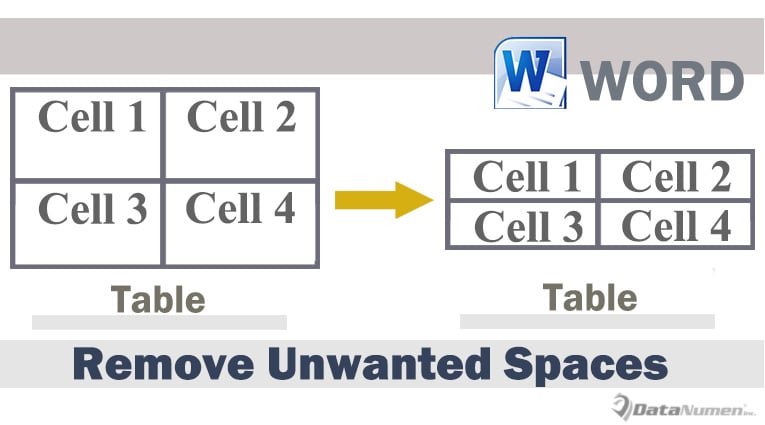
_In the following article, we would like to offer you 3 effective ways to remove unwanted spaces in table cells in your Word document.![Remove Unwanted Spaces in Table Cells](https://www.datanumen.com/blogs/wp-content/uploads/2017/05/243.jpg "Remove Unwanted Spaces in Table Cells")_

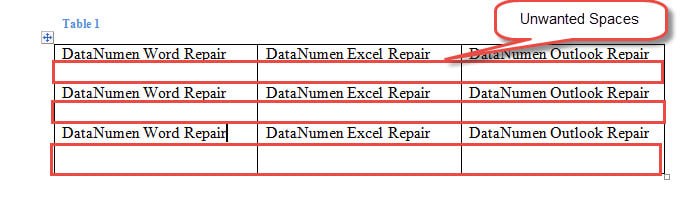
Now and then, we need to inset a table to hold texts and data. But we often have to adjust the table size after entering texts and data. And sometimes, we will get a table with unwanted spaces in cells after adjusting its size, such as below:![Unwanted Spaces in Cells](https://www.datanumen.com/blogs/wp-content/uploads/2017/05/Unwanted-Spaces-in-Cells.jpg "Unwanted Spaces in Cells")

In the example above, there is a blank line below the text in each cell. But we are unable to get rid of it simply by pressing “Delete”. Instead, we have to use other workarounds.

## Method 1: Narrow Down the Row Height Manually

1. First and foremost, check if there are removable blank lines in cells. If any, delete them first.
2. Then put cursor over the bottom line of a table row. Wait until cursor changes to the sign of double horizontal lines with 2 arrows.
3. Next click and drag the bottom line up until the unwanted space disappears.
4. Repeat step 2 and 3 on other rows in the table whose height needs to resize.

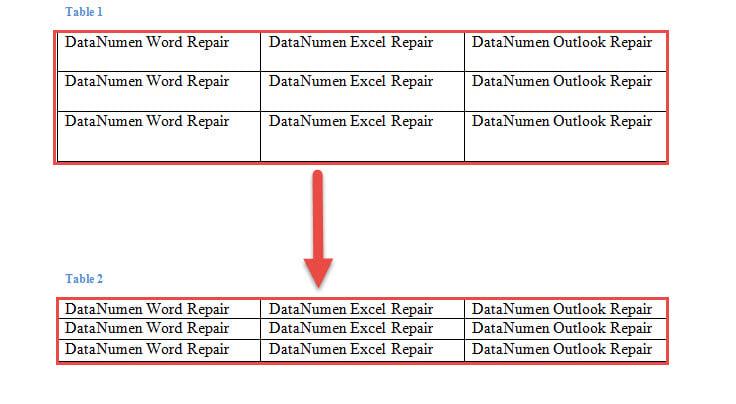
Here is the result:![Effect of Removing Unwanted Spaces in Table]()

## Method 2: Disable “Specify height” Function

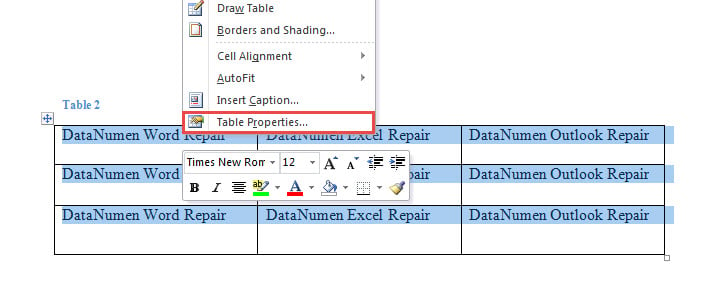
1. First of all, click on the cross sign on the upper-left to select the entire table.
2. Then right click and choose “Table Properties”.![Right Click->Choose "Table Properties"]()
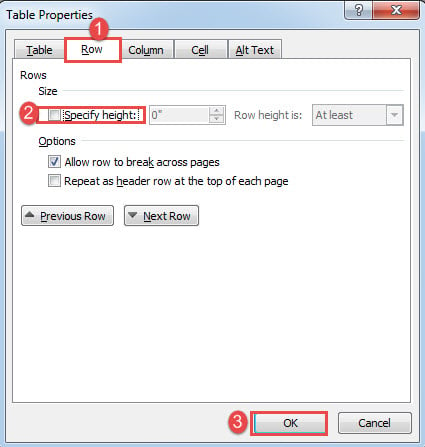
3. In “Table Properties” box. Click “Row” tab first.
4. Next clear “Specify height” box.
5. Lastly, click “OK”.![Click "Row" ->Clear "Specify height" Box->Click "OK"]()

The effect is as same as that in method 1.

## Method 3: Use Word Macro

1. To start off, click “Developer” then “Visual Basic” to open VBA editor. If the “Developer” tab is not available in the Ribbon, press “Alt+ F11” instead.![Click "Developer"->Click "Visual Basic"]()
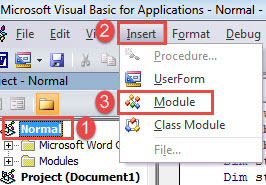
2. Next, go to create a new module. Click “Normal” in the left column.
3. Then click “Insert” at the menu bar.
4. Choose “Module” on the drop-down menu.![Click "Normal"->Click "Insert"->Click "Module"]()
5. Next double click on module to open it.
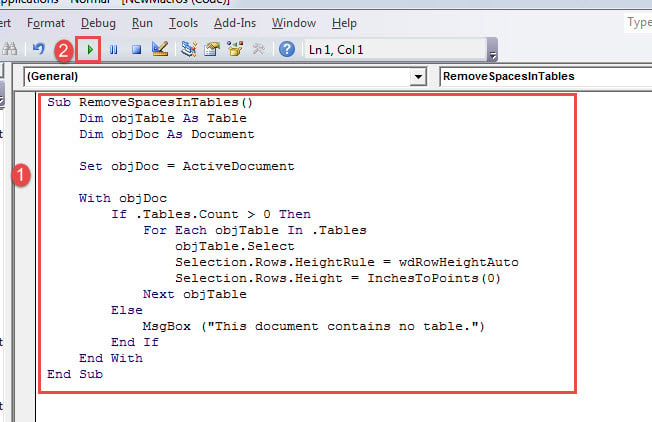
6. Now paste the following codes on the coding area:

Sub RemoveSpacesInTables()
  Dim objTable As Table
  Dim objDoc As Document
 
  Set objDoc = ActiveDocument
 
  With objDoc
    If .Tables.Count > 0 Then
      For Each objTable In .Tables
        objTable.Select
        Selection.Rows.HeightRule = wdRowHeightAuto
        Selection.Rows.Height = InchesToPoints(0)
      Next objTable
    Else
      MsgBox ("This document contains no table.")
    End If
  End With
End Sub

1. Finally, click “Run” or execute the codes pressing “F5”.![Paste Macro->Click "Run"]()

This macro shall work on all tables in a document and remove unnecessary spaces.

## Comparison of 3 Methods

Methods

Advantages

Disadvantages

Method 1: Narrow Down the Row Height Manually

Best for a document with only a few tables or tables with a few rows.

1\. You have to pull up the row line up manually and repeatedly. 2\. Not the nest way for multiple tables 

Method 2: Disable “Specify height” Function

1\. No need to manually pull the line up 2\. Quicker than method 1 

You can only deal with one table at a time.

Method 3: Use Word Macro

1\. The quickest way 

2\. Able to process multiple tables at a time 

It requires the use of a macro.

## Once a Document Corrupts

It’s not rare to get a corrupted document now and then. However, the moment your document is damaged, it’s also the time when fear sets in. Therefore, just to be on the safe side, the quickest course of action is to obtain a repairing tool to [fix docx](https://www.datanumen.com/word-repair/) so as to prevent it from further damage.

## Author Introduction:

Vera Chen is a data recovery expert in DataNumen, Inc., which is the world leader in data recovery technologies, including [repair Excel](https://www.datanumen.com/excel-repair/) and pdf repair software products. For more information visit [www.datanumen.com](https://www.datanumen.com/)

Share Now: 
* [ ](https://www.facebook.com/sharer.php?u=https%3A%2F%2Fwww.datanumen.com%2Fblogs%2F3-effective-ways-remove-unwanted-spaces-table-cells-word-document%2F)
* [ ](https://x.com/share?url=https%3A%2F%2Fwww.datanumen.com%2Fblogs%2F3-effective-ways-remove-unwanted-spaces-table-cells-word-document%2F&text=3+Effective+Ways+to+Remove+Unwanted+Spaces+in+Table+Cells+in+Your+Word+Document)
* [ ](https://www.linkedin.com/sharing/share-offsite/?url=https%3A%2F%2Fwww.datanumen.com%2Fblogs%2F3-effective-ways-remove-unwanted-spaces-table-cells-word-document%2F)
* [ ](javascript:void%28%28function%28%29%7Bvar%20e=document.createElement%28'script'%29;e.setAttribute%28'type','text/javascript'%29;e.setAttribute%28'charset','UTF-8'%29;e.setAttribute%28'src','//assets.pinterest.com/js/pinmarklet.js?r='+Math.random%28%29%2A99999999%29;document.body.appendChild%28e%29%7D%29%28%29%29;)
* [ ](https://www.reddit.com/submit?url=https%3A%2F%2Fwww.datanumen.com%2Fblogs%2F3-effective-ways-remove-unwanted-spaces-table-cells-word-document%2F&title=3+Effective+Ways+to+Remove+Unwanted+Spaces+in+Table+Cells+in+Your+Word+Document)
* [ ](https://www.tumblr.com/share/link?url=https%3A%2F%2Fwww.datanumen.com%2Fblogs%2F3-effective-ways-remove-unwanted-spaces-table-cells-word-document%2F)
* [ ](https://vk.com/share.php?url=https%3A%2F%2Fwww.datanumen.com%2Fblogs%2F3-effective-ways-remove-unwanted-spaces-table-cells-word-document%2F)
* [ ](https://www.xing.com/spi/shares/new?url=https%3A%2F%2Fwww.datanumen.com%2Fblogs%2F3-effective-ways-remove-unwanted-spaces-table-cells-word-document%2F)

[← Previous post](https://www.datanumen.com/blogs/3-ways-to-quickly-insert-section-breaks-into-your-word-document/)

[Next post →](https://www.datanumen.com/blogs/2-methods-batch-export-multiple-outlook-contacts-vcard-files/)

Comments are closed.

![Data Recovery Blog]() 

Follow or like us on Facebook, LinkedIn and Twitter to get all promotions, latest news and updates on our products and company.

* [ ](https://www.facebook.com/DataNumen)
* [ ](http://www.linkedin.com/company/datanumen)
* [ ](https://twitter.com/DataNumen)

### Featured Products

* [DataNumen Outlook Repair](https://www.datanumen.com/outlook-repair/)
* [DataNumen SQL Recovery](https://www.datanumen.com/sql-recovery/)
* [DataNumen Exchange Recovery](https://www.datanumen.com/exchange-recovery/)
* [DataNumen Access Repair](https://www.datanumen.com/access-repair/)
* [DataNumen Excel Repair](https://www.datanumen.com/excel-repair/)
* [DataNumen PDF Repair](https://www.datanumen.com/pdf-repair/)
* [DataNumen Word Repair](https://www.datanumen.com/word-repair/)
* [DataNumen Zip Repair](https://www.datanumen.com/zip-repair/)

### Popular posts

[ ](#masthead)

```json
{"@context":"https:\/\/schema.org","@graph":[{"@type":"Article","@id":"https:\/\/www.datanumen.com\/blogs\/3-effective-ways-remove-unwanted-spaces-table-cells-word-document\/#article","isPartOf":{"@id":"https:\/\/www.datanumen.com\/blogs\/3-effective-ways-remove-unwanted-spaces-table-cells-word-document\/"},"author":{"name":"AuthorCCW","@id":"https:\/\/www.datanumen.com\/blogs\/#\/schema\/person\/33ded6c47c77587f9158d99f05e23957"},"headline":"3 Effective Ways to Remove Unwanted Spaces in Table Cells in Your Word Document","datePublished":"2017-05-11T07:21:15+00:00","dateModified":"2025-09-28T15:08:54+00:00","mainEntityOfPage":{"@id":"https:\/\/www.datanumen.com\/blogs\/3-effective-ways-remove-unwanted-spaces-table-cells-word-document\/"},"wordCount":539,"commentCount":0,"publisher":{"@id":"https:\/\/www.datanumen.com\/blogs\/#organization"},"image":{"@id":"https:\/\/www.datanumen.com\/blogs\/3-effective-ways-remove-unwanted-spaces-table-cells-word-document\/#primaryimage"},"thumbnailUrl":"https:\/\/www.datanumen.com\/blogs\/wp-content\/uploads\/2017\/05\/243.jpg","articleSection":["Word Solutions"],"inLanguage":"en-US","potentialAction":[{"@type":"CommentAction","name":"Comment","target":["https:\/\/www.datanumen.com\/blogs\/3-effective-ways-remove-unwanted-spaces-table-cells-word-document\/#respond"]}]},{"@type":"WebPage","@id":"https:\/\/www.datanumen.com\/blogs\/3-effective-ways-remove-unwanted-spaces-table-cells-word-document\/","url":"https:\/\/www.datanumen.com\/blogs\/3-effective-ways-remove-unwanted-spaces-table-cells-word-document\/","name":"3 Effective Ways to Remove Unwanted Spaces in Table Cells in Your Word Document","isPartOf":{"@id":"https:\/\/www.datanumen.com\/blogs\/#website"},"primaryImageOfPage":{"@id":"https:\/\/www.datanumen.com\/blogs\/3-effective-ways-remove-unwanted-spaces-table-cells-word-document\/#primaryimage"},"image":{"@id":"https:\/\/www.datanumen.com\/blogs\/3-effective-ways-remove-unwanted-spaces-table-cells-word-document\/#primaryimage"},"thumbnailUrl":"https:\/\/www.datanumen.com\/blogs\/wp-content\/uploads\/2017\/05\/243.jpg","datePublished":"2017-05-11T07:21:15+00:00","dateModified":"2025-09-28T15:08:54+00:00","description":"In the following article, we would like to offer you 3 effective ways to remove unwanted spaces in table cells in your Word document.","inLanguage":"en-US","potentialAction":[{"@type":"ReadAction","target":["https:\/\/www.datanumen.com\/blogs\/3-effective-ways-remove-unwanted-spaces-table-cells-word-document\/"]}]},{"@type":"ImageObject","inLanguage":"en-US","@id":"https:\/\/www.datanumen.com\/blogs\/3-effective-ways-remove-unwanted-spaces-table-cells-word-document\/#primaryimage","url":"https:\/\/www.datanumen.com\/blogs\/wp-content\/uploads\/2017\/05\/243.jpg","contentUrl":"https:\/\/www.datanumen.com\/blogs\/wp-content\/uploads\/2017\/05\/243.jpg","width":765,"height":425,"caption":"Remove Unwanted Spaces in Table Cells"},{"@type":"WebSite","@id":"https:\/\/www.datanumen.com\/blogs\/#website","url":"https:\/\/www.datanumen.com\/blogs\/","name":"Data Recovery Blog","description":"Discuss every aspect of data recovery","publisher":{"@id":"https:\/\/www.datanumen.com\/blogs\/#organization"},"potentialAction":[{"@type":"SearchAction","target":{"@type":"EntryPoint","urlTemplate":"https:\/\/www.datanumen.com\/blogs\/?s={search_term_string}"},"query-input":{"@type":"PropertyValueSpecification","valueRequired":true,"valueName":"search_term_string"}}],"inLanguage":"en-US"},{"@type":"Organization","@id":"https:\/\/www.datanumen.com\/blogs\/#organization","name":"Data Recovery Blog","url":"https:\/\/www.datanumen.com\/blogs\/","logo":{"@type":"ImageObject","inLanguage":"en-US","@id":"https:\/\/www.datanumen.com\/blogs\/#\/schema\/logo\/image\/","url":"https:\/\/www.datanumen.com\/blogs\/wp-content\/uploads\/2019\/02\/logowithouttext.jpg","contentUrl":"https:\/\/www.datanumen.com\/blogs\/wp-content\/uploads\/2019\/02\/logowithouttext.jpg","width":296,"height":397,"caption":"Data Recovery Blog"},"image":{"@id":"https:\/\/www.datanumen.com\/blogs\/#\/schema\/logo\/image\/"},"sameAs":["https:\/\/www.facebook.com\/DataNumen","https:\/\/x.com\/DataNumen","http:\/\/www.linkedin.com\/company\/datanumen","https:\/\/myspace.com\/datanumen\/","http:\/\/www.pinterest.com\/datanumen\/","https:\/\/www.youtube.com\/channel\/UCVIIuuKfUBHSJauUaVP13tw"]},{"@type":"Person","@id":"https:\/\/www.datanumen.com\/blogs\/#\/schema\/person\/33ded6c47c77587f9158d99f05e23957","name":"AuthorCCW","image":{"@type":"ImageObject","inLanguage":"en-US","@id":"https:\/\/secure.gravatar.com\/avatar\/3516ed90fc242780d3947a989f895bc46e70c3e83485d30f2b457a007906aa58?s=96&d=mm&r=g","url":"https:\/\/secure.gravatar.com\/avatar\/3516ed90fc242780d3947a989f895bc46e70c3e83485d30f2b457a007906aa58?s=96&d=mm&r=g","contentUrl":"https:\/\/secure.gravatar.com\/avatar\/3516ed90fc242780d3947a989f895bc46e70c3e83485d30f2b457a007906aa58?s=96&d=mm&r=g","caption":"AuthorCCW"},"sameAs":["https:\/\/www.datanumen.com\/"]}]}
```