
기본적으로 Outlook은 모든 종류의 플래그가 지정된 항목에 대해 작업의 기본 미리 알림 시간을 자동으로 사용합니다. 그러나 항목 유형에 따라 플래그가 지정된 항목에 대해 다른 알림 시간을 사용하려면이 문서에서 소개 한 방법을 참조 할 수 있습니다.
Outlook에서는 항목 유형에 관계없이 플래그가 지정된 모든 항목에 대한 기본 미리 알림 시간을 설정할 수 있습니다. "파일"메뉴로 이동하여 "옵션"을 클릭 할 수 있습니다. 그러면 "Outlook 옵션"창에서 다음 스크린 샷과 같이 "작업"탭에 "기본 알림 시간"옵션이 표시됩니다.
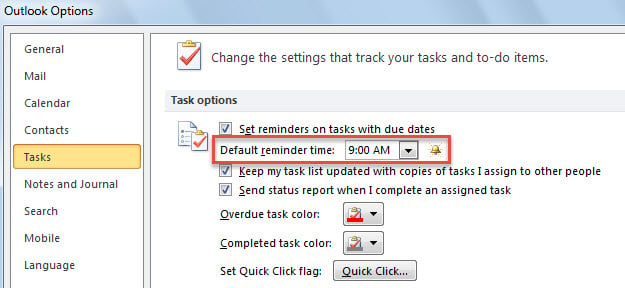
그럼에도 불구하고 most 사용자는 플래그가 지정된 메일의 경우 "9:00", 플래그가 지정된 연락처의 경우 "17:30"과 같이 플래그가 지정된 항목의 종류에 따라 다른 알림 시간을 사용하고자합니다. 이제 다음에서는이 예제를 중심으로 메서드를 소개합니다.
플래그가 지정된 항목의 종류에 따라 다른 기본 미리 알림 시간 설정
- 에tart와 함께 Outlook 응용 프로그램을 시작하십시오.
- 그런 다음 ""를 참조하여 Outlook VBA 편집기에 액세스합니다.Outlook에서 VBA 코드를 실행하는 방법".
- 다음 "Microsoft Visual Basic for Applications"창에서 다음 코드를 "ThisOutlookSession"프로젝트에 복사합니다.
Public WithEvents objExplorer As Outlook.Explorer
Public WithEvents objInspectors As Outlook.Inspectors
Public WithEvents objMail As Outlook.MailItem
Public WithEvents objContact As Outlook.ContactItem

Private Sub Application_Startup()
    Set objExplorer = Outlook.Application.ActiveExplorer
    Set objInspectors = Outlook.Application.Inspectors
End Sub

Private Sub objExplorer_SelectionChange()
    On Error Resume Next
    If objExplorer.Selection.Item(1).Class = olMail Then
       Set objMail = objExplorer.Selection.Item(1)
    ElseIf TypeOf objExplorer.Selection.Item(1) Is ContactItem Then
       Set objContact = objExplorer.Selection.Item(1)
    End If
End Sub

Private Sub objInspectors_NewInspector(ByVal Inspector As Inspector)
    If Inspector.CurrentItem.Class = olMail Then
       Set objMail = Inspector.CurrentItem
    ElseIf Inspector.CurrentItem.Class = olContact Then
       Set objContact = Inspector.CurrentItem
    End If
End Sub

Private Sub objMail_PropertyChange(ByVal Name As String)
    If Name = "ToDoTaskOrdinal" Then
       If objMail.IsMarkedAsTask = True Then
          If objMail.TaskDueDate <> "1/1/4501" Then
             With objMail
                  .ReminderSet = True
                  'Change the reminder time for flagged emails
                  .ReminderTime = objMail.TaskDueDate & " 10:00"
                  .Save
             End With
          End If
       End If
    End If
End Sub

Private Sub objContact_PropertyChange(ByVal Name As String)
    If Name = "ToDoTaskOrdinal" Then
       If objContact.IsMarkedAsTask = True Then
          If objContact.TaskDueDate <> "1/1/4501" Then
             With objContact
                  .ReminderSet = True
                  'Change the reminder time for flagged contacts
                  .ReminderTime = objContact.TaskDueDate & " 17:30"
                  .Save
             End With
          End If
       End If
    End If
End Sub
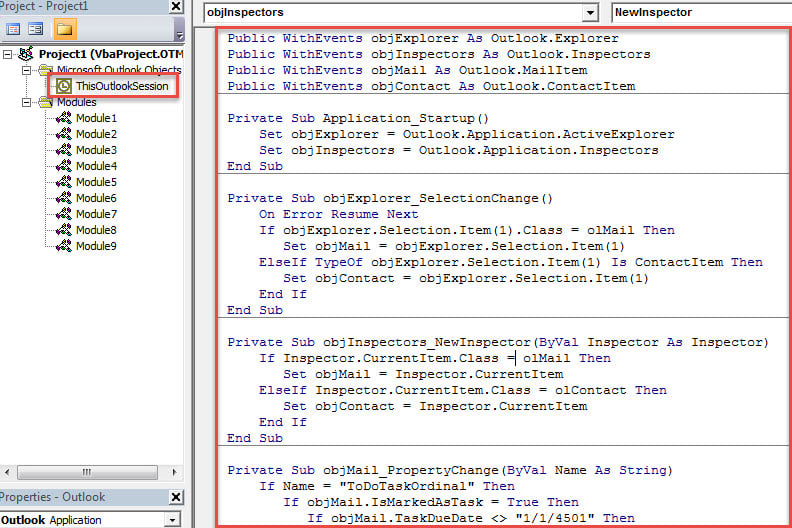
- 그 후, 입술tart Outlook에서이 매크로를 활성화합니다.
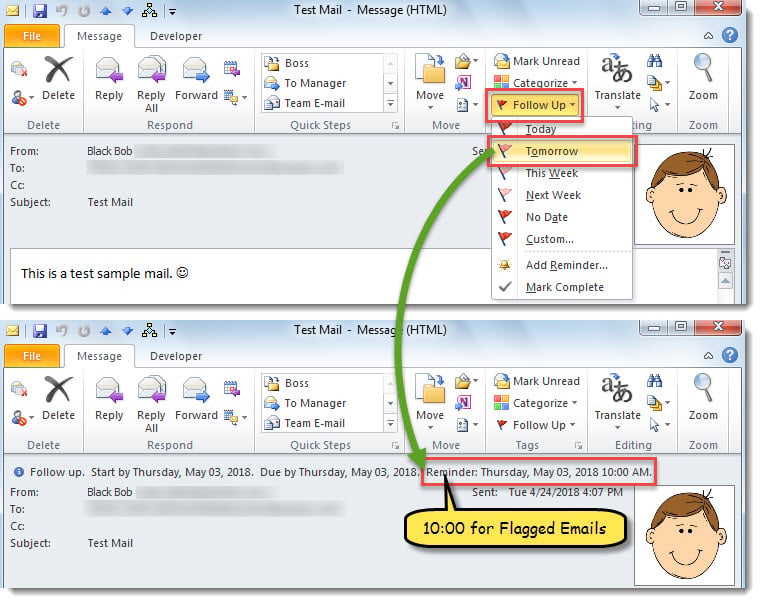
- 이제부터는 이메일에 플래그를 지정할 때마다 플래그 마감일에 알림 시간이 "10:00"로 설정됩니다.

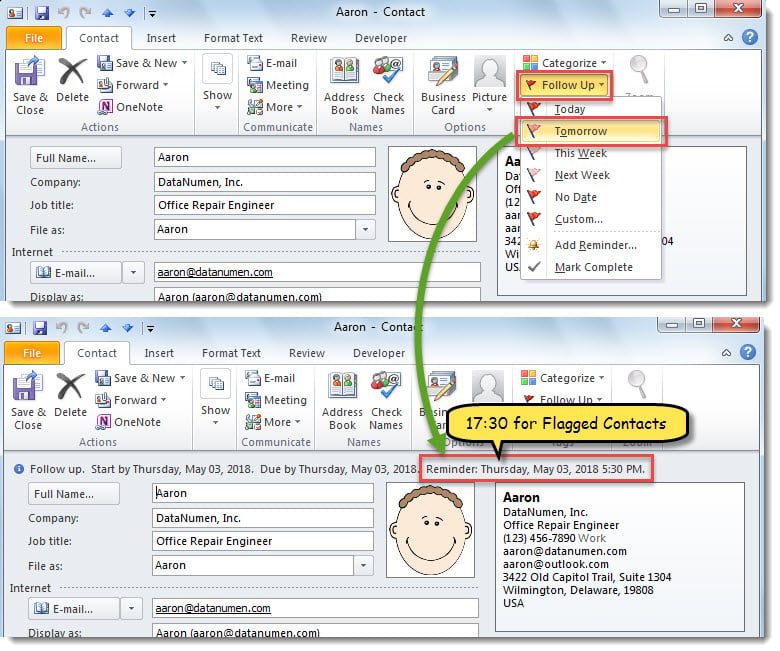
- 연락처에 플래그를 지정하면 플래그 마감일에 미리 알림 시간이 "17:30"으로 설정됩니다.

Outlook 문제를 유연하게 해결
Outlook에서 모든 종류의 문제가 발생할 수 있습니다. 따라서 미리 대처하기위한 몇 가지 조치를 배워야합니다. 예를 들어 Outlook이 자주tarts, Office를 복구하거나 타사 추가 기능 등을 비활성화해야합니다. 또는 Outlook PST가 손상된 경우 먼저 받은 편지함 수리 도구. 실패하면 다음과 같은 강력한 외부 도구에 계속 의지 할 수 있습니다. DataNumen Outlook Repair.
저자 소개 :
Shirley Zhang은 데이터 복구 전문가입니다. DataNumen, Inc.는 다음과 같은 데이터 복구 기술 분야의 세계적 리더입니다. mdf 복구 및 전망 수리 소프트웨어 제품. 자세한 내용은 WWW.datanumen.COM