
Outlookアイテムのカラーカテゴリを置き換える場合は、新しいカテゴリが割り当てられるため、元のカテゴリを削除する必要があります。 したがって、この記事では、VBAを介してこれを自動化する方法を説明します。
Outlookでカラーカテゴリを使用する主な理由は、Outlookアイテムをより適切に分類および管理するためです。 さらに、Outlookでは、XNUMXつ以上のカラーカテゴリをXNUMXつのアイテムに割り当てることができます。 ただし、XNUMXつのアイテムに割り当てられたカテゴリが多すぎると、分類ルールが乱雑になる場合があります。 したがって、多くのユーザーは、カテゴリをオーバーレイするのではなく、カラーカテゴリを置き換えたいと考えています。 ここでは、効果的な方法を紹介します。
Outlookアイテムの色カテゴリを置き換える
- 最初に、Outlookアプリケーションを起動します。
- 次に、「開発者」タブに切り替えて「Visual Basic」ボタンをクリックするか、「Alt + F11」キーショートカットを押します。
- 次に、「Microsoft Visual BasicforApplications」ウィンドウに入ります。
- この時点で、左側の「ThisOutlookSession」プロジェクトをダブルクリックして開きます。
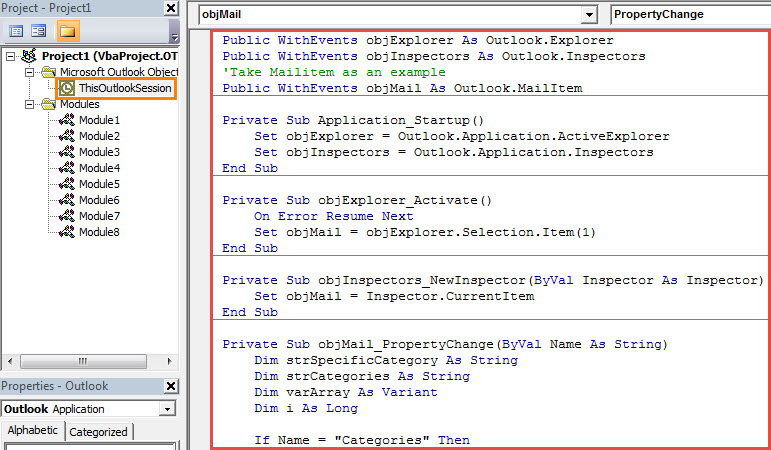
- 続いて、次のVBAコードをこのプロジェクトウィンドウにコピーします。
Public WithEvents objExplorer As Outlook.Explorer
Public WithEvents objInspectors As Outlook.Inspectors
'Take Mailitem as an example
Public WithEvents objMail As Outlook.MailItem

Private Sub Application_Startup()
    Set objExplorer = Outlook.Application.ActiveExplorer
    Set objInspectors = Outlook.Application.Inspectors
End Sub

Private Sub objExplorer_Activate()
    On Error Resume Next
    Set objMail = objExplorer.Selection.Item(1)
End Sub

Private Sub objInspectors_NewInspector(ByVal Inspector As Inspector)
    Set objMail = Inspector.CurrentItem
End Sub

Private Sub objMail_PropertyChange(ByVal Name As String)
    Dim strSpecificCategory As String
    Dim strCategories As String
    Dim varArray As Variant
    Dim i As Long

    If Name = "Categories" Then
       strCategories = objMail.Categories
       varArray = Split(objMail.Categories, ",")
       If UBound(varArray) >= 1 Then
          'If want to get a confirmation before removing the original category
          'Add the following lines
          'Dim strPrompt As String
          'Dim nResponse As Integer
          'strPrompt = "Do you want to remove the original color category?"
          'nResponse = MsgBox(strPrompt, vbQuestion + vbYesNo, "Color Category Assignment")
          'If nResponse = vbYes Then
          For i = 0 To UBound(varArray)
              'Remove the previous color categories
              varArray(1) = ""
              'Rebuild the categories
              objMail.Categories = Join(varArray, ",")
              Exit Sub
          Next i
          'End If
       End If
    End If
End Sub
- その後、この新しいマクロにデジタル証明書を割り当てる必要があります。
- 後で、Outlookマクロの設定をチェックして、署名付きマクロが有効になっていることを確認する必要があります。
- 最終的には、新しいVBAプロジェクトを有効にするためにOutlookを再起動する必要があります。
- これ以降、アイテムに新しいカテゴリを割り当てるたびに、前のカテゴリが自動的に削除されます。
NettlesomeOutlookの問題を処理する
Outlookはエラーや破損が発生しやすいため、Outlookでさまざまな問題が発生します。 したがって、十分に注意する必要があります。 たとえば、PSTファイルの定期的なバックアップを作成することをお勧めします。 さらに、あなたは強力なものを手に入れるべきです PST修正 などのツール DataNumen Outlook Repair.
著者紹介:
Shirley Zhangは、のデータ復旧の専門家です。 DataNumen、Inc。は、以下を含むデータ復旧技術の世界的リーダーです。 回復します Sql Server と見通し修理ソフトウェア製品。 詳細については、次のWebサイトをご覧ください。 WWW。datanumen.com