
既定では、Outlookは、フラグが立てられたすべての種類のアイテムに対して、タスクの既定のリマインダー時間を自動的に使用します。 ただし、アイテムタイプに基づいてフラグ付きアイテムに異なるリマインダー時間を使用する場合は、この記事で紹介した方法を参照できます。
Outlookでは、アイテムの種類に関係なく、フラグが設定されたすべてのアイテムのデフォルトのリマインダー時間を設定できます。 「ファイル」メニューに移動し、「オプション」をクリックできます。 次に、次のスクリーンショットに示すように、[Outlookオプション]ウィンドウで、[タスク]タブに[デフォルトのリマインダー時間]オプションが表示されます。
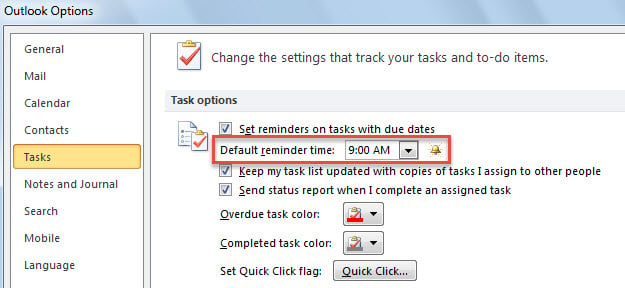
しかしながら、ほとんどのユーザーは、フラグ付きメールには「9:00」、フラグ付き連絡先には「17:30」など、フラグ付きアイテムの種類ごとに異なるリマインダー時間を使用したいと考えています。そこで、以下では、この例に焦点を当てて方法を紹介します。
フラグが立てられたアイテムの種類ごとに異なるデフォルトのリマインダー時間を設定する
- まず、Outlookアプリケーションを起動してください。
- 次に、「」を参照してOutlookVBAエディターにアクセスします。OutlookでVBAコードを実行する方法"
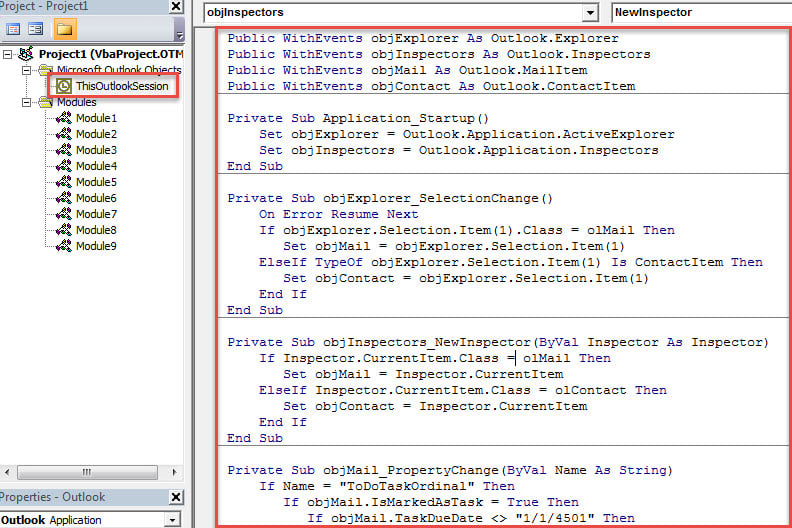
- 続く「MicrosoftVisualBasic for Applications」ウィンドウで、次のコードを「ThisOutlookSession」プロジェクトにコピーします。
Public WithEvents objExplorer As Outlook.Explorer
Public WithEvents objInspectors As Outlook.Inspectors
Public WithEvents objMail As Outlook.MailItem
Public WithEvents objContact As Outlook.ContactItem

Private Sub Application_Startup()
    Set objExplorer = Outlook.Application.ActiveExplorer
    Set objInspectors = Outlook.Application.Inspectors
End Sub

Private Sub objExplorer_SelectionChange()
    On Error Resume Next
    If objExplorer.Selection.Item(1).Class = olMail Then
       Set objMail = objExplorer.Selection.Item(1)
    ElseIf TypeOf objExplorer.Selection.Item(1) Is ContactItem Then
       Set objContact = objExplorer.Selection.Item(1)
    End If
End Sub

Private Sub objInspectors_NewInspector(ByVal Inspector As Inspector)
    If Inspector.CurrentItem.Class = olMail Then
       Set objMail = Inspector.CurrentItem
    ElseIf Inspector.CurrentItem.Class = olContact Then
       Set objContact = Inspector.CurrentItem
    End If
End Sub

Private Sub objMail_PropertyChange(ByVal Name As String)
    If Name = "ToDoTaskOrdinal" Then
       If objMail.IsMarkedAsTask = True Then
          If objMail.TaskDueDate <> "1/1/4501" Then
             With objMail
                  .ReminderSet = True
                  'Change the reminder time for flagged emails
                  .ReminderTime = objMail.TaskDueDate & " 10:00"
                  .Save
             End With
          End If
       End If
    End If
End Sub

Private Sub objContact_PropertyChange(ByVal Name As String)
    If Name = "ToDoTaskOrdinal" Then
       If objContact.IsMarkedAsTask = True Then
          If objContact.TaskDueDate <> "1/1/4501" Then
             With objContact
                  .ReminderSet = True
                  'Change the reminder time for flagged contacts
                  .ReminderTime = objContact.TaskDueDate & " 17:30"
                  .Save
             End With
          End If
       End If
    End If
End Sub
- その後、Outlookを再起動してこのマクロを有効にしてください。
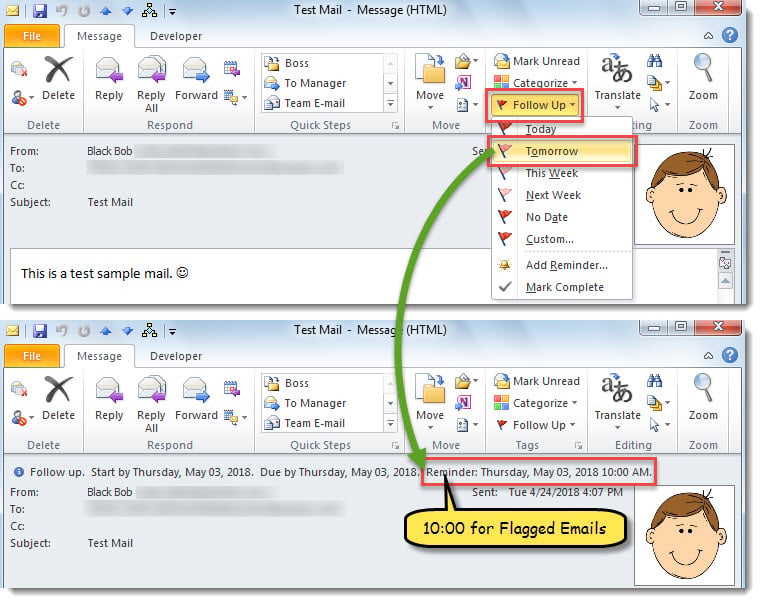
- これ以降、メールにフラグを付けるたびに、フラグの期日のリマインダー時刻が「10:00」に設定されます。

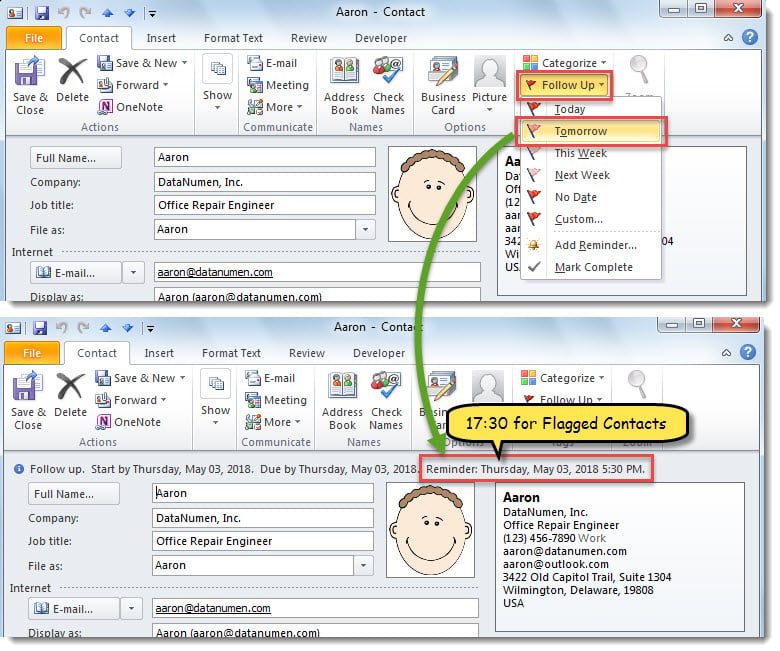
- また、連絡先にフラグを立てると、フラグの期日のリマインダー時間は「17:30」に設定されます。

Outlookの問題に柔軟に取り組む
Outlook ではあらゆる種類の問題が発生する可能性があります。そのため、事前に対処するための対策をいくつか学ぶ必要があります。たとえば、Outlook が頻繁に再起動する場合は、Office を修復するか、サードパーティのアドインを無効にするなどする必要があります。または、Outlook PST が破損した場合は、まず次のことを試してください。 受信トレイ修復ツール。 それが失敗した場合、あなたは次のような強力な外部ツールに頼り続けることができます DataNumen Outlook Repair.
著者紹介:
Shirley Zhangは、のデータ復旧の専門家です。 DataNumen、Inc。は、以下を含むデータ復旧技術の世界的リーダーです。 mdf回復 と見通し修理ソフトウェア製品。 詳細については、次のWebサイトをご覧ください。 WWW。datanumen.com