
Excelには幅広い用途があります。 この記事では、マクロを使用してワークシートにカレンダーを作成する方法を紹介します。
Excelにデータを保存して分析する以外に、他のタスクを完了するために使用することもできます。 たとえば、Excelを使用して情報を収集したり、ワークシートに計画を書き留めたりすることができます。 今日、私たちは新しい使用法を見つけました。 ワークシートにカレンダーを作成することができます。 下の画像で効果を確認できます。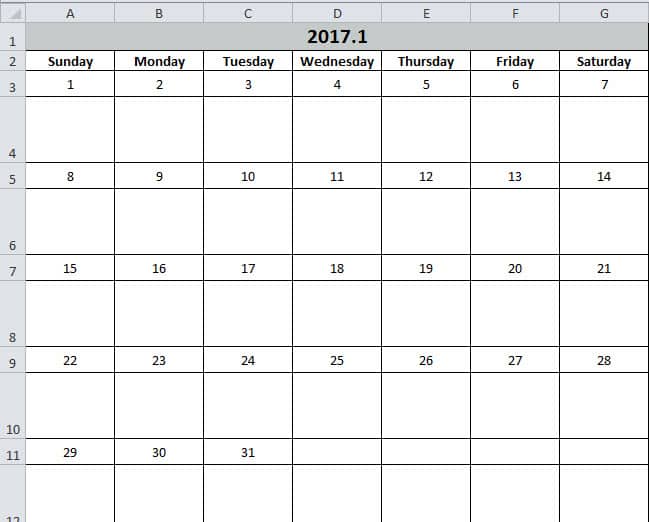
このカレンダーにいくつかのタスクを入力できます。 また、機能は覚書と同じです。 Excelを使用することにより、これらのタスクがより明確になります。 次のパートの手順に従って、どのように機能するかを確認してください。
カレンダーを作成する
- キーボードの「Alt + F11」ボタンを押して、ワークシートを開きます。
- 次に、VisualBasicエディターに新しいモジュールを挿入します。
- 次に、次のコードを新しいモジュールにコピーします。
Sub Create_Monthly_Calender()
    Dim firstweekday As Integer, EndDay As Integer, _
    FirstWeekColumnIndex As Integer, AssignmentDate As Integer, _
    FirstCountNumber As Integer, SecondCountNumber As Integer, _
    LastDay As Range, objRange As Range, RowIndexofLastday As Integer, FirstCountforTargetRange As Integer, SecondCountforTargetRange As Integer

    firstday = InputBox("Input the year, month and the first day with this format: year/month/day")
    If firstday = "" Then Exit Sub


    Range("A1:G1").Merge
    Range("A1") = Year(firstday) & "." & Month(firstday)
    Range("A2") = "Sunday"
    Range("A2").AutoFill Destination:=Range("A2:G2"), Type:=xlFillDefault
    firstweekday = Application.WorksheetFunction.Weekday(firstday)
    Cells(3, firstweekday) = 1

    Select Case Month(firstday)
        Case 1, 3, 5, 7, 8, 10, 12
            EndDay = 31
        Case 4, 6, 9, 11
            EndDay = 30
        Case 2
            If (Year(firstday) Mod 4) = 0 And (Year(firstday) Mod 100) <> 0 Or ((Year(firstday) Mod 400) = 0) Then
                EndDay = 29
            Else
                EndDay = 28
            End If
    End Select

    For FirstWeekColumnIndex = 1 To (7 - firstweekday)
        Cells(3, firstweekday).Offset(0, FirstWeekColumnIndex) = Cells(3, firstweekday).Offset(0, FirstWeekColumnIndex - 1) + 1
    Next FirstWeekColumnIndex

    AssignmentDate = Range("G3") + 1
    For FirstCountNumber = 2 To 10 Step 2
        For SecondCountNumber = 0 To 6
            Cells(3, firstweekday).Offset(FirstCountNumber, 1 - firstweekday + SecondCountNumber) = AssignmentDate
            AssignmentDate = AssignmentDate + 1
            If Cells(3, firstweekday).Offset(FirstCountNumber, 1 - firstweekday + SecondCountNumber) = EndDay Then
                Exit For
            End If
        Next SecondCountNumber
        If Cells(3, firstweekday).Offset(FirstCountNumber, 1 - firstweekday + SecondCountNumber) = EndDay Then
            Exit For
        End If
    Next FirstCountNumber

    ’set format for the range
    With Range("A1")
        .HorizontalAlignment = xlCenter
        .VerticalAlignment = xlCenter
        .Font.Size = 16
        .Font.Bold = True
        .Interior.Color = RGB(196, 202, 201)
    End With

    With Range("A2:G2")
        .HorizontalAlignment = xlCenter
        .VerticalAlignment = xlCenter
        .Font.Bold = True
    End With

    For Each LastDay In ActiveSheet.UsedRange
        If LastDay = EndDay Then
            RowIndexofLastday = LastDay.Row
        End If
    Next

    For FirstCountforTargetRange = RowIndexofLastday To 3 Step -2
            With Range("A" & FirstCountforTargetRange, "G" & FirstCountforTargetRange)
                .HorizontalAlignment = xlCenter
                .VerticalAlignment = xlCenter
                .RowHeight = 20
            End With
    Next FirstCountforTargetRange

        For SecondCountforTargetRange = RowIndexofLastday + 1 To 4 Step -2
            With Range("A" & SecondCountforTargetRange, "G" & SecondCountforTargetRange)
                .HorizontalAlignment = xlCenter
                .VerticalAlignment = xlCenter
                .Font.Bold = True
                .RowHeight = 50
                .ColumnWidth = 12
            End With
    Next SecondCountforTargetRange

    Set objRange = Range("A1", "G" & (RowIndexofLastday + 1))
    With objRange.Borders
        .Color = vbBlack
        .Weight = xlThin
        .LineStyle = xlContinuous
    End With

    ActiveWindow.DisplayGridlines = False
    Cells(3, firstweekday).Offset(1, 0).Select
End Sub
したがって、これは非常に孤独なマクロです。 ただし、直接使用することはできます。 そして、あなたはそれを変更する必要はありません。
- 次に、キーボードの「F5」ボタンを押します。
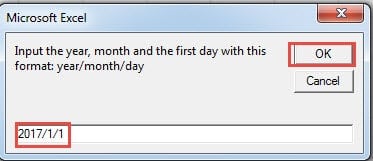
- ポップアップウィンドウで、「年/月/日」の形式で初日の日付を入力します。 「日」は今月のどの日でもかまいません。ここでは「1」を入力します。

- そして、「OK」ボタンをクリックします。 次に、エディターに戻ります。 結果を確認するために、ワークシートに戻ることができます。
カレンダーはすでにワークシートに表示されています。 そして、カーソルは初日の空白のセルに置かれます。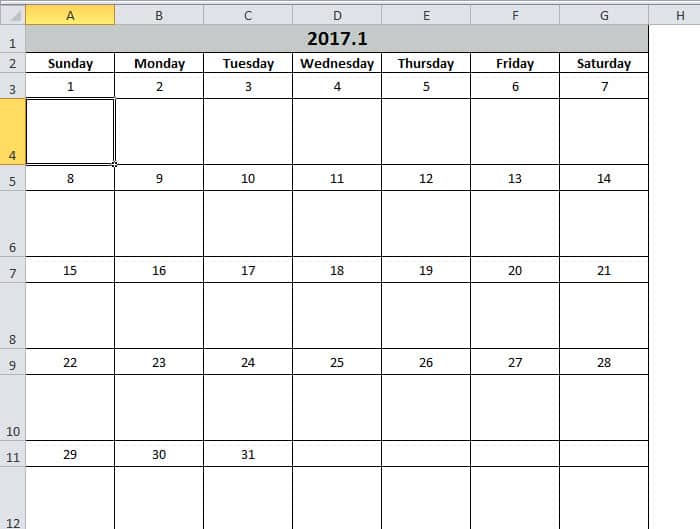
一方、セルの形式に満足できない場合は、好みに応じてコードを変更することもできます。 このカレンダーを使用すると、作業効率が確実に向上します。
Excelは失敗しにくいわけではありません
Excelを頻繁に使用している場合、Excelが頻繁に破損することに気づくでしょう。ほとんどの場合、Excelを終了して再起動すれば問題は解決します。しかし、時には深刻なExcelの破損に遭遇することもあります。このような場合、当社の強力なツールを使用して Excelxlsxデータエラーを修復しますこのツールを使えば、ほとんどすべてのエラーを簡単に解決できます。
著者紹介:
Anna Maは、のデータ復旧の専門家です。 DataNumen、Inc。は、以下を含むデータ復旧技術の世界的リーダーです。 Wordのdocxファイルを修復します と見通し修理ソフトウェア製品。 詳細については、次のWebサイトをご覧ください。 WWW。datanumen.com