
この記事では、脚注や文末脚注なしでWord文書を印刷する3つの実用的な方法を紹介します。
脚注と文末脚注は、Word文書のあいまいな点を説明するのに役立ちます。 そうは言っても、印刷に関しては、脚注と文末脚注のクラスターが紙のどこにも必要ない場合があります。 残念ながら、マークアップでできるように、それらを印刷から除外する直接的な方法はありません。 代わりに、ここで次の回避策を選択して、必要なことを実行できます。
方法1:「ドラフト」ビューで操作する
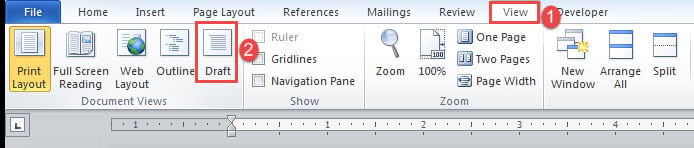
- まず、脚注の例を見てみましょう。 リボンの「表示」タブをクリックします。
- 次に「ドラフト」をクリックします。

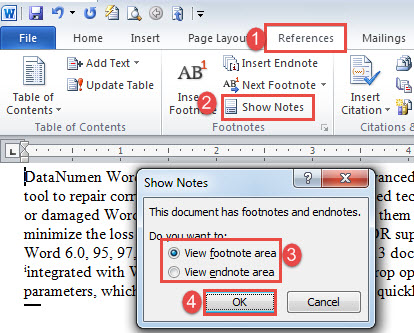
- 次に、「参照」をクリックし、「メモを表示」をクリックします。
- 開いたボックスで、「脚注領域を表示」または「文末脚注領域を表示」ボックスを選択します。
- [OK]をクリックします。

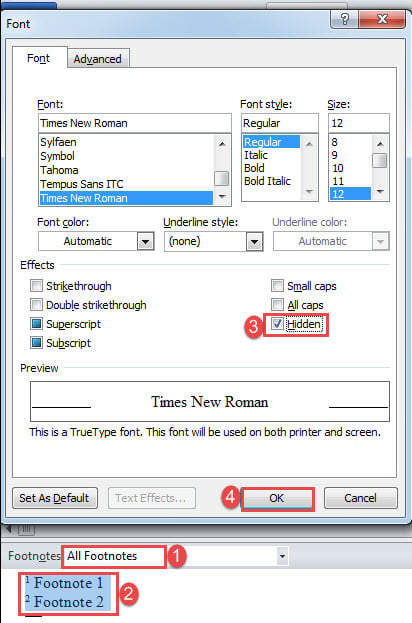
- 画面の下部にあるドロップダウンボタンをクリックして、[すべての脚注]を選択します。
- 次に、「Ctrl + A」を押してすべての脚注を選択します。
- 次に「Ctrl + D」を押して「フォント」ボックスを開きます。
- 「非表示」ボックスにチェックを入れ、「OK」をクリックします。

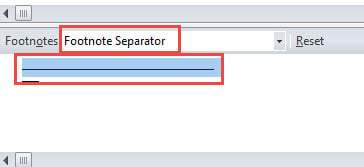
- 次に、ドロップダウンメニューから「脚注区切り記号」を選択します。
- 脚注区切り文字を選択します。

- 手順8と9を繰り返します。
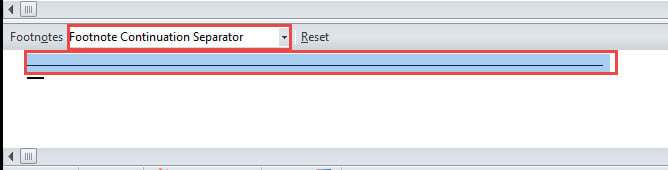
- 次に、「脚注継続セパレーター」を選択します。
- 脚注継続区切り記号を選択します。

- 手順8と9を繰り返します。
これで、脚注の参照番号は引き続きメインテキストに表示されます。 それらも非表示にする必要がある場合は、次の手順に従ってください。
- 「ホーム」タブをクリックし、「検索」のドロップダウンボタンをクリックします。
- 「高度な検索」を選択します。
![[ホーム]をクリック-> [検索]のドロップダウンボタンをクリック-> [詳細検索]を選択](data:image/svg+xml,%3Csvg%20xmlns='http://www.w3.org/2000/svg'%20viewBox='0%200%20958%20132'%3E%3C/svg%3E "[ホーム]をクリック-> [検索]のドロップダウンボタンをクリック-> [詳細検索]を選択")
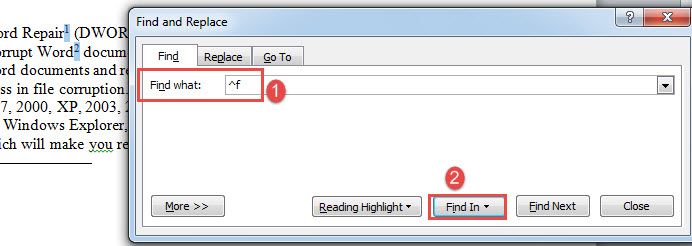
- 次に、「検索対象」テキストボックスに「^ f」と入力します。 文末脚注の参照を扱う場合は、「^ e」と入力します。
- 「検索」をクリックし、「メインドキュメント」を選択します。
- これで、すべての脚注参照番号が選択されました。 それらを非表示のテキストとしてフォーマットします。

![[ホーム]をクリック-> [検索]のドロップダウンボタンをクリック-> [詳細検索]を選択](https://www.datanumen.com/blogs/wp-content/uploads/2017/04/Click-Home-then-Click-the-drop-down-Button-on-Find-then-Choose-Advanced-Find.jpg "[ホーム]をクリック-> [検索]のドロップダウンボタンをクリック-> [詳細検索]を選択")
最後にもうXNUMXつあります。 「ファイル」、「オプション」の順にクリックして、「Wordオプション」ボックスを開きます。 開いたボックスで[表示]をクリックし、[非表示のテキストを印刷する]チェックボックスがオフになっていることを確認して、[OK]をクリックします。![[表示]-> [非表示のテキストを印刷する]チェックボックスをオフにする-> [OK]をクリックします](https://www.datanumen.com/blogs/wp-content/uploads/2017/04/Click-Display-then-Uncheck-Print-hidden-text-Box-then-Click-OK.jpg "[表示]-> [非表示のテキストを印刷する]チェックボックスをオフにする-> [OK]をクリックします")
巻末注の場合、手順はほとんど同じです。
方法2:スタイルを非表示にする
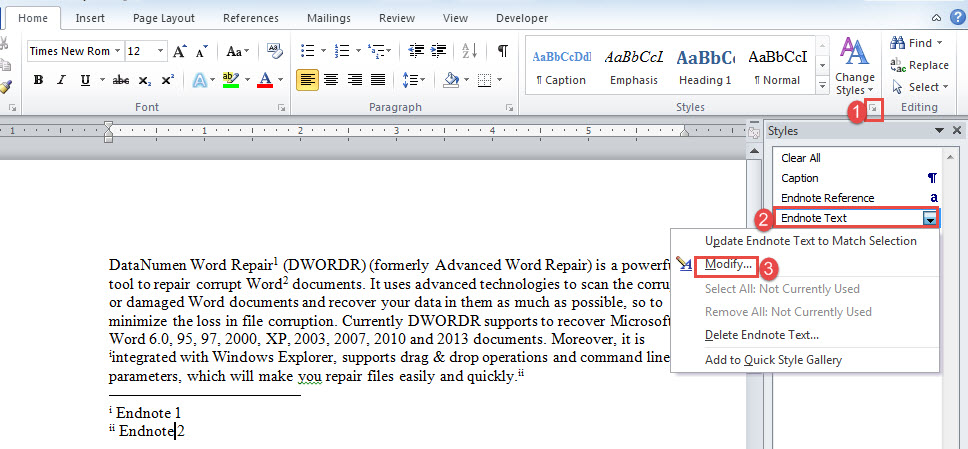
- まず、「スタイル」グループの矢印ボタンをクリックして、「スタイル」ウィンドウを開きます。
- たとえば、今回は文末脚注を非表示にする場合は、「文末脚注テキスト」スタイルを右クリックします。
- 「変更」を選択します。

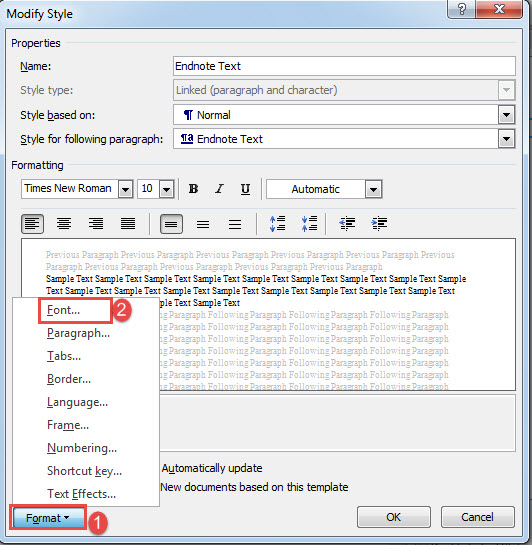
- 「スタイルの変更」ボックスで、「フォーマット」をクリックし、「フォント」を選択します。
- 「フォント」ボックスで「非表示」ボックスにチェックを入れ、「OK」をクリックします。

- 次に、「スタイルの変更」ボックスで「OK」をクリックします。
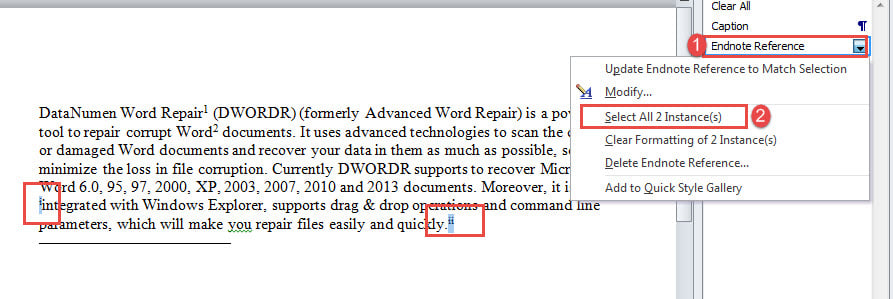
- 次に「スタイル」ウィンドウで、「EndnoteReference」を右クリックします。
- 「すべてのXXインスタンスを選択」を選択します。
- これで、すべての文末脚注の参照が選択されました。 それらを非表示のテキストとしてフォーマットします。

- ご覧のとおり、文末脚注の区切り文字はまだ残っているので、それも非表示にする必要があります。 方法1の手順に従います。
方法3:WordVBAを使用する
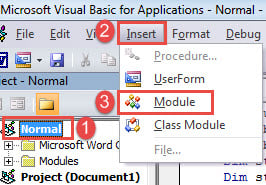
- まず、「Alt + F11」を押してVBAエディタを開きます。
- 次に、左の列の「通常」をクリックします。
- 次に、「挿入」と「モジュール」をクリックします。

- ダブルクリックして新しいモジュールを開き、次のコードを貼り付けます。
Sub PrintWithoutFootnotesAndEndnotes()
  Dim objDoc As Document
  Dim nFootnoteRefFontColorIndex As Integer
  Dim nFootnoteTxtFontColorIndex As Integer
  Dim nFootnoteSeparatorFontColorIndex As Integer
  Dim nFootnoteContinuationSeparatorColorIndex As Integer
  Dim nEndnoteRefFontColorIndex As Integer
  Dim nEndnoteTxtFontColorIndex As Integer
  Dim nEndnoteSeparatorFontColorIndex As Integer
  Dim nEndnoteContinuationSeparatorColorIndex As Integer

  Set objDoc = ActiveDocument

  With objDoc
    '  Save the current color index.
    nFootnoteRefFontColorIndex = .Styles("Footnote Reference").Font.ColorIndex
    nFootnoteTxtFontColorIndex = .Styles("Footnote Text").Font.ColorIndex
    nFootnoteSeparatorFontColorIndex = .Footnotes.Separator.Font.ColorIndex
    nFootnoteContinuationSeparatorColorIndex = .Footnotes.ContinuationSeparator.Font.ColorIndex

    nEndnoteRefFontColorIndex = .Styles("Endnote Reference").Font.ColorIndex
    nEndnoteTxtFontColorIndex = .Styles("Endnote Text").Font.ColorIndex
    nEndnoteSeparatorFontColorIndex = .Endnotes.Separator.Font.ColorIndex
    nEndnoteContinuationSeparatorColorIndex = .Endnotes.ContinuationSeparator.Font.ColorIndex

    .Styles("Footnote Reference").Font.ColorIndex = wdWhite
    .Styles("Footnote Text").Font.ColorIndex = wdWhite
    .Footnotes.Separator.Font.ColorIndex = wdWhite
    .Footnotes.ContinuationSeparator.Font.ColorIndex = wdWhite

    .Styles("Endnote Reference").Font.ColorIndex = wdWhite
    .Styles("Endnote Text").Font.ColorIndex = wdWhite
    .Endnotes.Separator.Font.ColorIndex = wdWhite
    .Endnotes.ContinuationSeparator.Font.ColorIndex = wdWhite
  End With

  Dialogs(wdDialogFilePrint).Show

  With objDoc
    '  Restore the color index
    .Styles("Footnote Reference").Font.ColorIndex = nFootnoteRefFontColorIndex
    .Styles("Footnote Text").Font.ColorIndex = nFootnoteTxtFontColorIndex
    .Footnotes.Separator.Font.ColorIndex = nFootnoteSeparatorFontColorIndex
    .Footnotes.ContinuationSeparator.Font.ColorIndex = nFootnoteContinuationSeparatorColorIndex

    .Styles("Endnote Reference").Font.ColorIndex = nEndnoteRefFontColorIndex
    .Styles("Endnote Text").Font.ColorIndex = nEndnoteTxtFontColorIndex
    .Endnotes.Separator.Font.ColorIndex = nEndnoteSeparatorFontColorIndex
    .Endnotes.ContinuationSeparator.Font.ColorIndex = nEndnoteContinuationSeparatorColorIndex
  End With
End Sub
- 最後に、「実行」をクリックします。
![コードの貼り付け-> [実行]をクリックします](data:image/svg+xml,%3Csvg%20xmlns='http://www.w3.org/2000/svg'%20viewBox='0%200%20866%20720'%3E%3C/svg%3E "コードの貼り付け-> [実行]をクリックします")
![コードの貼り付け-> [実行]をクリックします](https://www.datanumen.com/blogs/wp-content/uploads/2017/04/Paste-Codes-then-Click-Run-8.jpg "コードの貼り付け-> [実行]をクリックします")
マクロを実行すると、脚注と文末脚注のないドキュメントが印刷されますが、元のファイルにはそのまま残ります。
単語の問題に対処する
Wordはいつか失敗する可能性があります。 これは私たちの貴重な文書の安全性を絶対に脅かします。 ただし、Wordの使用で問題が発生した場合は、常に次のツールがあります。 単語の回復.
著者紹介:
Vera Chenは、のデータ復旧の専門家です。 DataNumen、Inc。は、以下を含むデータ復旧技術の世界的リーダーです。 回復する (NAIST) と pdf ソフトウェア製品を修理します。 詳細については、次のWebサイトをご覧ください。 WWW。datanumen.com