
今日の記事では、ドキュメント内のテキストボックス、脚注、文末脚注に関連する単語数の統計を取得する3つの簡単な方法があります。
ドキュメント内の単語の総数を取得することは難しくありません。 ただし、さまざまな種類のテキストの単語数を取得する場合は、さらに多くの操作が必要になります。 以下は3つの方法です。 何を使用できるかを確認するために読んでください。 
方法1:テキストボックス、脚注、文末脚注からのテキストを含む単語を数える
デフォルトでは、Wordは、テキストボックス内のテキストや、脚注や文末脚注の単語を含め、ドキュメントに表示されるすべての単語をカウントします。
- まず最初に、ステータスバーに移動し、「単語数」をクリックして「単語数」ボックスを開きます。
- そこにはあらゆる種類の統計が表示されます。 [テキストボックス、脚注、文末脚注を含める]チェックボックスがオンになっていることを確認します。
- 次に、「閉じる」をクリックします。
![ステータスバーの単語をクリック-> [テキストボックス、脚注、文末脚注を含める]チェックボックスをオフにする-> [閉じる]をクリックします](data:image/svg+xml,%3Csvg%20xmlns='http://www.w3.org/2000/svg'%20viewBox='0%200%20452%20326'%3E%3C/svg%3E "ステータスバーの単語をクリック-> [テキストボックス、脚注、文末脚注を含める]チェックボックスをオフにする-> [閉じる]をクリックします")
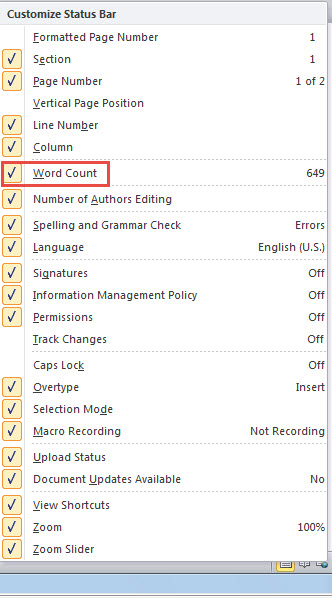
- ステータスバーに「単語」コマンドが見つからない場合は、そこを右クリックします。
- 次に、「単語数」を確認します。

![ステータスバーの単語をクリック-> [テキストボックス、脚注、文末脚注を含める]チェックボックスをオフにする-> [閉じる]をクリックします](https://www.datanumen.com/blogs/wp-content/uploads/2017/04/2Click-Words-on-Status-Bar-then-Uncheck-Include-textboxes-footnotes-and-endnotes-Box-then-Click-Close.jpg "ステータスバーの単語をクリック-> [テキストボックス、脚注、文末脚注を含める]チェックボックスをオフにする-> [閉じる]をクリックします")
方法2:テキストボックスからテキストを除外する、脚注と文末脚注を単語数から除外する
これは方法1の反対です。したがって、[テキストボックス、脚注、および文末脚注を含める]チェックボックスをオフにする必要があります。
方法3:Wordマクロを実行して、テキストボックス、脚注、および文末脚注から個別の単語数を取得する
- まず、方法1の方法を使用して「WordCount」ボックスをトリガーし、オプションボックスがチェックされていることを確認します。
- 次に「Alt + F11」を押して、VBAエディターを開きます。
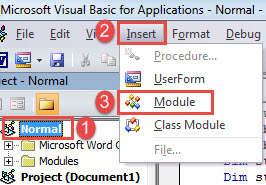
- 次に、最初に「通常」をクリックして、「通常」プロジェクトに新しいモジュールを挿入します。
- 次に「挿入」をクリックします。
- 次に「モジュール」を選択します。

- モジュールをダブルクリックしてコーディング領域を開き、次のコードをそこに貼り付けます。
Sub SeparateCountNumberOfTextboxFootnoteEndnote()
  Dim lTextboxWords As Long
  Dim lTextboxChars As Long
  Dim lDocumntWords As Long
  Dim lDocumntChars As Long
  Dim objTextboxShape As Shape
  Dim objTemp As Dialog
  Dim bDone As Boolean
  Dim objRange As Range
  Dim lFootnoteWords As Long
  Dim lFootnoteChars As Long
  Dim lEndnoteWords As Long
  Dim lEndnoteChars As Long

  Application.ScreenUpdating = False

 Do
   bDone = True
   For Each objTextboxShape In ActiveDocument.Shapes
     If objTextboxShape.Type = msoGroup Then
       objTextboxShape.Ungroup
       bDone = False
     End If
   Next objTextboxShape
 Loop Until bDone

 '  Count the words and characters in the whole document.
 Selection.HomeKey Unit:=wdStory
 Set objTemp = Dialogs(wdDialogToolsWordCount)
   objTemp.Update
   objTemp.Execute
   lDocumntWords = objTemp.Words
   lDocumntChars = objTemp.Characters

 With ActiveDocument
 '  Count the words and characters in all textboxes.
   lTextboxWords = 0
   lTextboxChars = 0
   If ActiveDocument.Shapes.Count > 0 Then
     For Each objTextboxShape In .Shapes
       objTextboxShape.Select
       objTemp.Execute
       lTextboxWords = lTextboxWords + objTemp.Words
       lTextboxChars = lTextboxChars + objTemp.Characters
     Next objTextboxShape
   Else
     MsgBox ("There is no text box in this document")
   End If

   '  Count the words and characters in all footnotes.
   lFootnoteWords = 0
   lFootnoteChars = 0
   If ActiveDocument.Footnotes.Count > 0 Then
     For Each objRange In .StoryRanges
       If objRange.StoryType = wdFootnotesStory Then
         objRange.Select
         objTemp.Execute
         lFootnoteWords = lFootnoteWords + objTemp.Words
         lFootnoteChars = lFootnoteChars + objTemp.Characters
       End If
     Next objRange
   Else
     MsgBox ("There is no footnote in this document")
   End If

   '  Count the words and characters in all endnotes.
   lEndnoteWords = 0
   lEndnoteChars = 0
   If ActiveDocument.Endnotes.Count > 0 Then
     For Each objRange In .StoryRanges
       If objRange.StoryType = wdEndnotesStory Then
         objRange.Select
         objTemp.Execute
         lEndnoteWords = lEndnoteWords + objTemp.Words
         lEndnoteChars = lEndnoteChars + objTemp.Characters
       End If
     Next objRange
   Else
     MsgBox ("There is no Endnote in this document")
   End If
 End With

 Application.ScreenUpdating = True

 MsgBox (" In this document there are totally" & vbCr _
   & Str(lDocumntWords) & " word(s) and" & Str(lDocumntChars) & " characters" & vbCr & vbCr _
   & "Including:" & vbCr _
   & Str(ActiveDocument.Shapes.Count) & " textboxes contain(s)" & vbCr _
   & Str(lTextboxWords) & " word(s)," & Str(lTextboxChars) & " characters" & vbCr & vbCr _
   & Str(ActiveDocument.Footnotes.Count) & " footnotes contain(s)" & vbCr _
   & Str(lFootnoteWords) & " word(s)," & Str(lFootnoteChars) & " characters" & vbCr & vbCr _
   & Str(ActiveDocument.Endnotes.Count) & " Endnotes contain(s)" & vbCr _
   & Str(lEndnoteWords) & " word(s)," & Str(lEndnoteChars) & " characters")
End Sub
- 最後に、「実行」ボタンをクリックします。
![コードを貼り付け-> [実行]をクリックします](data:image/svg+xml,%3Csvg%20xmlns='http://www.w3.org/2000/svg'%20viewBox='0%200%20544%20327'%3E%3C/svg%3E "コードを貼り付け-> [実行]をクリックします")
![コードを貼り付け-> [実行]をクリックします](https://www.datanumen.com/blogs/wp-content/uploads/2017/04/Paste-codes-then-Click-Run-5.jpg "コードを貼り付け-> [実行]をクリックします")
テキストボックス、脚注、または文末脚注がない場合は、次のようなメッセージボックスが表示されます。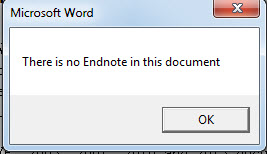
「OK」をクリックするだけで続行できます。 次に、単語数のすべての詳細を一覧表示する別のボックスが表示されます。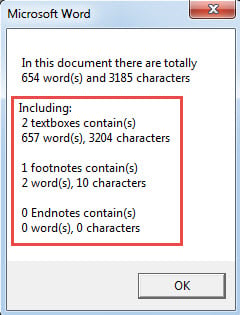
回復ツールを入手する
Wordは突然崩壊する可能性があるため、修正作業を行うには、高度な修復製品を入手することをお勧めします。 このようなツールは、 破損したWord。 したがって、できるだけ早く入手するために時間を取ってください。
著者紹介:
Vera Chenは、のデータ復旧の専門家です。 DataNumen、Inc。は、以下を含むデータ復旧技術の世界的リーダーです。 xlsを修正 (NAIST) と pdf ソフトウェア製品を修理します。 詳細については、次のWebサイトをご覧ください。 WWW。datanumen.com