
この記事では、Word文書から別の2つまたは複数のセクションにセクションを抽出するXNUMXつの高速で簡単な方法を提供します。
あるドキュメントから別のドキュメントにコンテンツを抽出することはよくあることです。 また、前回の記事では、ドキュメントからページを抽出する方法について説明しました。 詳細については、次の記事を参照してください。 Word文書から個々のページを抽出する2つの簡単な方法
今日は、セクションごとに抽出する方法を紹介します。 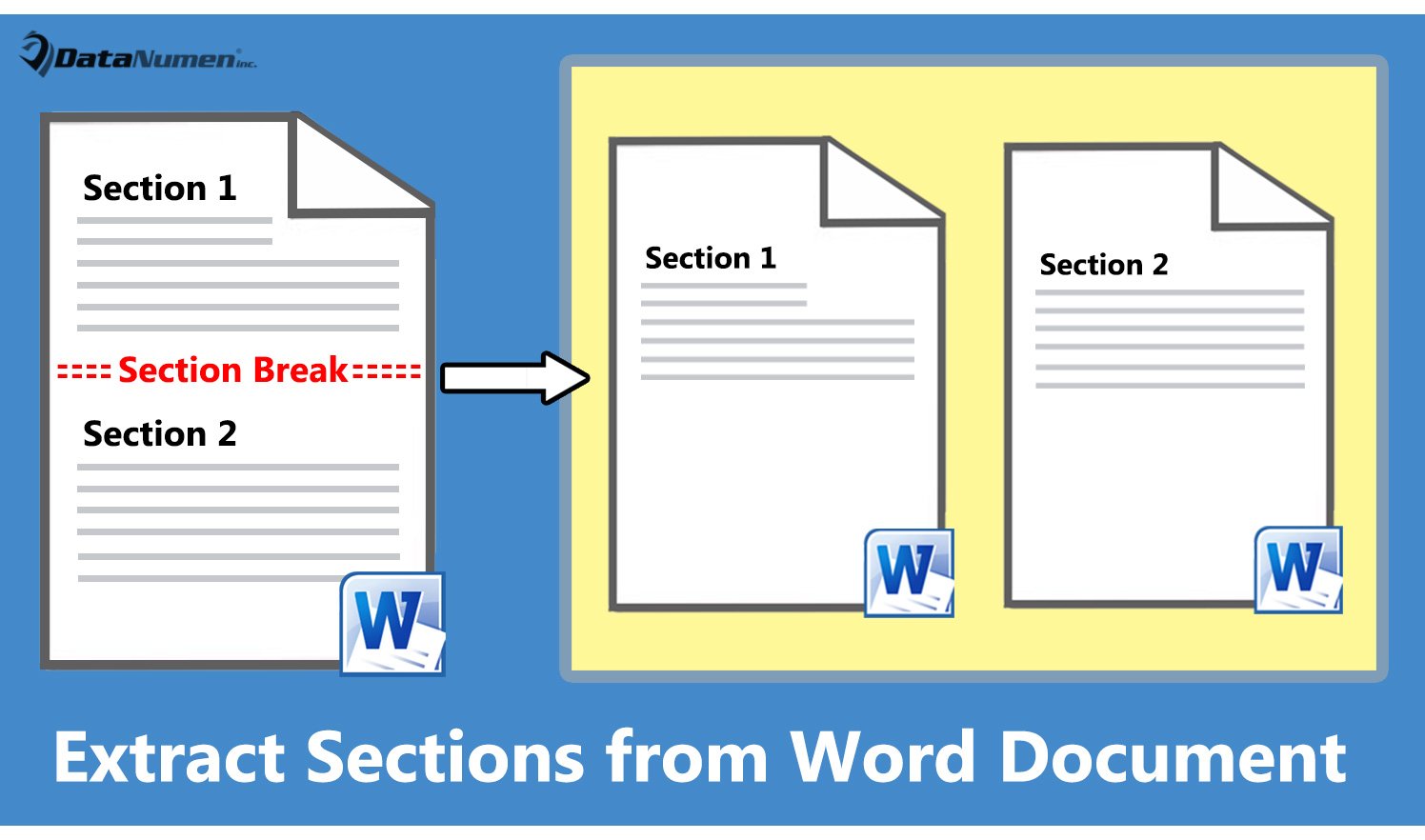
方法1:現在のセクションを新しいドキュメントに抽出する
- まず、カーソルを tarセクションを取得します。
- 次に、「Alt + F11」を押して、WordでVBAエディターを呼び出します。
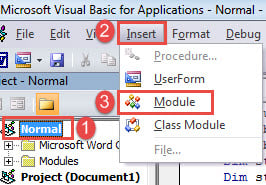
- 次に、左側の列で「通常」をクリックします。
- そしてメニューバーで、「挿入」をクリックします。
- 次に、そのドロップダウンメニューで「モジュール」を選択します。

- ダブルクリックして新しいモジュールを開き、次のコードをそこに貼り付けます。
Sub SaveCurrentSectionAsNewDoc()
  Dim strFolder As String
  Dim dlgFile As FileDialog
  Dim strNewFileName As String
  Dim objDocAdded As Document
  Dim objDoc As Document

  ' Initialization
  Set objDoc = ActiveDocument

  ' Pick a place to store the new file.
  Set dlgFile = Application.FileDialog(msoFileDialogFolderPicker)

  With dlgFile
    If .Show = -1 Then
      strFolder = .SelectedItems(1) & "\"
    Else
      MsgBox "Select a folder first!"
      Exit Sub
    End If
  End With

  strNewFileName = InputBox("Enter new file name here: ", "File Name")

  ' Select and copy current section range.
  objDoc.Bookmarks("\Section").Range.Select
  Selection.Copy

  ' Open a new document to paste the above selection.
  Set objDocAdded = Documents.Add
  Selection.Paste

  ' Save and close the new document.
  objDocAdded.SaveAs FileName:=strFolder & strNewFileName & ".docx"
  objDocAdded.Close
End Sub
- 次に、メニューバーの「実行」をクリックするか、「F5」を押します。
![コードの貼り付け-> [実行]をクリックします](data:image/svg+xml,%3Csvg%20xmlns='http://www.w3.org/2000/svg'%20viewBox='0%200%20682%20693'%3E%3C/svg%3E "コードの貼り付け-> [実行]をクリックします")
- 次に、「参照」ウィンドウがポップアップ表示されます。 新しいドキュメントを保存する場所を選択し、[OK]をクリックします。
![保存パスを選択-> [OK]をクリックします](data:image/svg+xml,%3Csvg%20xmlns='http://www.w3.org/2000/svg'%20viewBox='0%200%20624%20484'%3E%3C/svg%3E "保存パスを選択-> [OK]をクリックします")
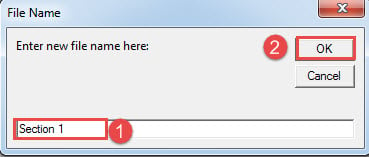
- そして、「ファイル名」ボックスに、新しいファイルの名前を入力し、「OK」をクリックします。

![コードの貼り付け-> [実行]をクリックします](https://www.datanumen.com/blogs/wp-content/uploads/2017/07/Paste-Codes-then-Click-Run-12.jpg "コードの貼り付け-> [実行]をクリックします")
![保存パスを選択-> [OK]をクリックします](https://www.datanumen.com/blogs/wp-content/uploads/2017/07/Choose-a-Storing-Path-then-Click-OK.jpg "保存パスを選択-> [OK]をクリックします")
これで、セクションが新しいドキュメントに抽出されました。
方法2:ドキュメントの各セクションを個々の新しいセクションに抽出する
この方法は、ドキュメント内のすべてのセクションをバッチ処理するのに役立ちます。 もちろん、マクロも必要になります。
- まず、開く tarドキュメントを取得します。
- 次に、方法1の手順に従って、マクロをインストールして実行します。
- 今回だけ、そのマクロを次のマクロに置き換えます。
Sub SaveEachSectionAsADoc()
  Dim objDocAdded As Document
  Dim objDoc As Document
  Dim nSectionNum As Integer
  Dim strFolder As String

  Dim dlgFile As FileDialog

  ' Initialization
  Set objDoc = ActiveDocument

  Set dlgFile = Application.FileDialog(msoFileDialogFolderPicker)

  ' Pick a location to keep new files.
  With dlgFile
    If .Show = -1 Then
      strFolder = .SelectedItems(1) & "\"
    Else
      MsgBox "Select a folder first!"
      Exit Sub
    End If
  End With

  ' Step through each section in current document, copy and paste each to a new one.
  For nSectionNum = 1 To ActiveDocument.Sections.Count
    Selection.GoTo What:=wdGoToSection, Which:=wdGoToNext, Name:=nSectionNum
    ActiveDocument.Sections(nSectionNum).Range.Copy

    Set objDocAdded = Documents.Add
    Selection.Paste

    ' Save and close new documents.
    objDocAdded.SaveAs FileName:=strFolder & "Section " & nSectionNum & ".docx"
    objDocAdded.Close
  Next nSectionNum
End Sub
- それでも、「参照」ウィンドウで、ストレージパスを選択し、「OK」をクリックします。
刺激的な単語エラーを修正
使用中にWordエラーが発生するのはよくあることです。 煩わしいかもしれませんが、 ワードを回復する できるだけ速やかに。 遅延が長ければ長いほど、データ損失が深刻になる可能性があります。 したがって、事前に修理ユーティリティを入手することをお勧めします。
著者紹介:
Vera Chenは、のデータ復旧の専門家です。 DataNumen、Inc。は、以下を含むデータ復旧技術の世界的リーダーです。 破損したxls の三脚と pdf ソフトウェア製品を修理します。 詳細については、次のWebサイトをご覧ください。 WWW。datanumen.com