
1. Introduction
La Corbeille est le système intégré de Windows qui conserve les fichiers supprimés. Tant qu'un fichier s'y trouve, sa récupération ne nécessite que quelques clics. Ce guide explique comment récupérer des fichiers supprimés de la Corbeille sous Windows, y compris ceux situés sur des disques externes, sur le réseau ou synchronisés avec OneDrive.
1.1 Ce que couvre ce guide
- Récupération des fichiers qui se trouvent encore dans la Corbeille
- Restauration des fichiers supprimés à leur emplacement d'origine
- Récupération de fichiers supprimés vers un nouvel emplacement lorsque le dossier d'origine est introuvable.
1.2 Ce que ce guide ne couvre pas
- Fichiers supprimés avec Shift + Supprimer , qui contournent entièrement la Corbeille
- Fichiers supprimés ou vidés de la Corbeille. Dans ce cas, vérifiez. pour récupérer les fichiers.
- Les fichiers qui dépassaient la limite de stockage de la Corbeille ont été définitivement supprimés.
2. Récupérer les fichiers supprimés de la Corbeille
Si le fichier a été supprimé d'un disque local avec le Supprimer touche ou clic droit Supprimer Si vous utilisez cette commande, le fichier est directement placé dans la Corbeille. Pour le récupérer, suivez les 3 étapes suivantes :
2.1 Ouvrez la corbeille à recyclage
Utilisez l'une des méthodes suivantes :
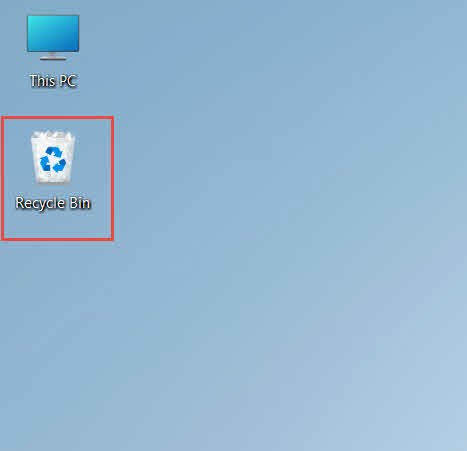
- Double-cliquez sur le Corbeille icône sur le bureau

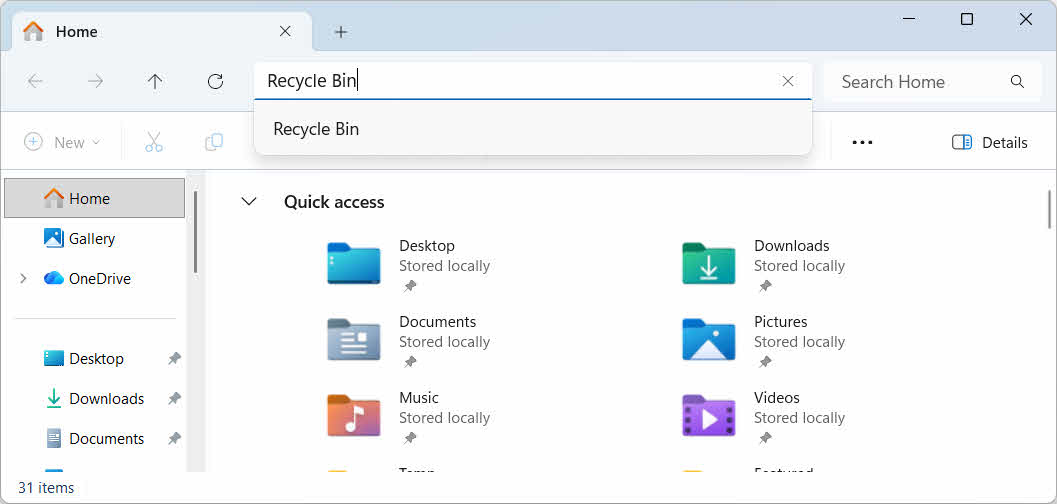
- Ouvrez l'explorateur de fichiers et saisissez Corbeille dans la barre d'adresse

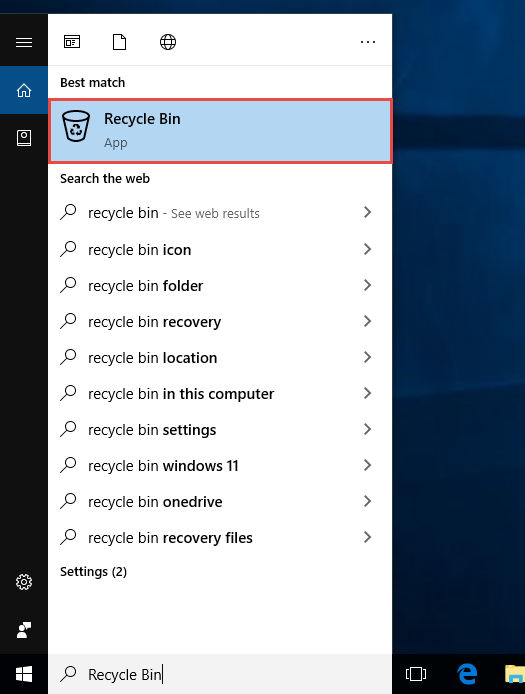
- Type Corbeille Saisissez « Recherche Windows » et sélectionnez-le dans les résultats.

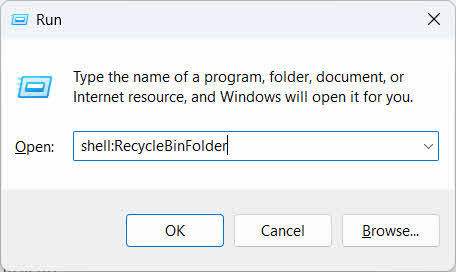
- Presse Win + R, Le type shell: RecycleBinFolderet appuyez sur Entrer

2.2 Trouver le fichier ou le dossier supprimé
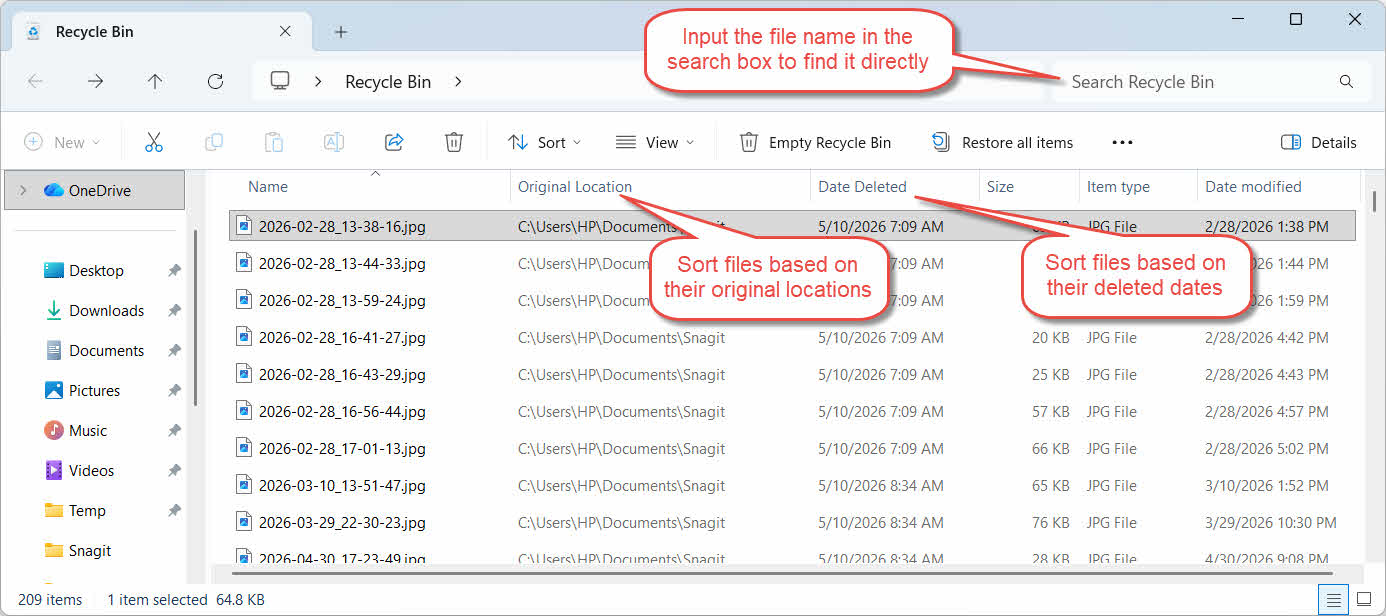
Une fois la corbeille de recyclage ouverte, localisez les éléments souhaités en utilisant l'une de ces méthodes :
- Saisissez le nom du fichier dans le champ de recherche situé en haut à droite.
- Cliquez sur Date de suppression En-tête de colonne pour trier par suppressions les plus récentes
- Vérifiez la Emplacement d'origine colonne pour confirmer que le fichier provient du dossier attendu
2.3 Restaurer des fichiers ou des dossiers
Pour restaurer un ou plusieurs articles :
- Sélectionnez un seul fichier ou maintenez la pression. Ctrl Cliquez pour sélectionner plusieurs fichiers, ou maintenez la touche enfoncée. Shift et cliquez pour sélectionner une plage
- Cliquez avec le bouton droit sur la sélection et choisissez Restaurer
- Ouvrez le dossier d'origine pour confirmer que le fichier est de retour.

Pour restaurer tous les éléments de la Corbeille en une seule fois, cliquez sur Restaurer tous les éléments dans la barre d'outils sans sélectionner au préalable aucun fichier individuel.
3. Restaurez les fichiers supprimés de la Corbeille vers un autre emplacement.
Le Restaurer Cette commande replace toujours le fichier dans son dossier d'origine. Dans certains cas, il est nécessaire de le déplacer vers un autre emplacement.
3.1 Quand utiliser cette méthode
- Le dossier d'origine n'existe plus.
- Un nouveau fichier portant le même nom existe déjà dans le dossier d'origine.
- Vous n'avez pas l'autorisation d'accéder au dossier d'origine
- Vous ne savez pas de quel dossier provient le fichier.
- Vous souhaitez examiner le fichier avant de le remettre à sa place d'origine.
3.2 Faites glisser ou coupez le fichier hors de la Corbeille
Pour déplacer un fichier de la Corbeille vers un dossier de votre choix :
- Ouvrir la poubelle de recyclage
- Sélectionnez le fichier ou le dossier à restaurer.
- Utilisez l'une des méthodes suivantes pour déplacer le fichier ou le dossier vers le dossier cible :
- Faites-le glisser directement dans la fenêtre du dossier cible
- Presse Ctrl + X Pour le couper, ouvrez le dossier cible et appuyez sur Ctrl + V pour le coller
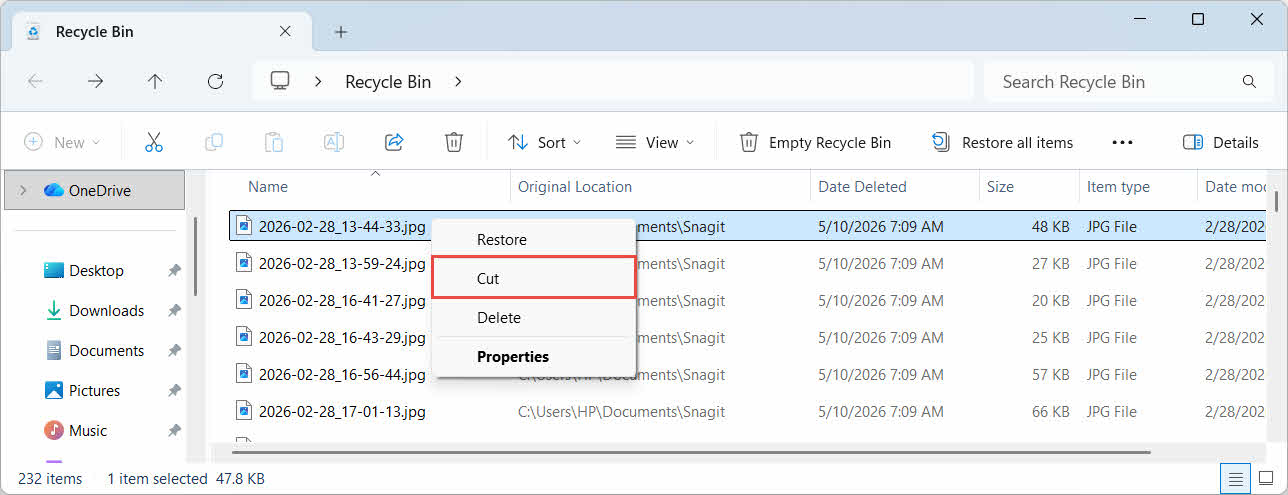
- Cliquez avec le bouton droit sur la sélection et sélectionnez Cut/TailleOuvrez le dossier cible, cliquez avec le bouton droit et sélectionnez Collez pour le coller

4. Récupération de fichiers depuis la Corbeille sur les disques externes, réseau et cloud
Les étapes de Section 2 Supposons que le fichier ait été supprimé du disque dur principal de votre ordinateur. Le comportement diffère selon qu'il s'agisse de stockage externe, réseau ou synchronisé avec le cloud.
4.1 Disques durs externes et clés USB
Windows traite les disques durs externes (y compris les SSD connectés en USB) de la même manière que les disques internes : chacun possède son propre dossier Corbeille caché par défaut. Les supports amovibles tels que les clés USB et les cartes SD sont traités différemment et ne possèdent pas de Corbeille par défaut ; les fichiers supprimés de ces supports sont donc immédiatement effacés.
4.1.1 Activation de la prise en charge de la Corbeille pour le lecteur
Pour un disque dur externe, vérifiez que la prise en charge de la Corbeille est activée :
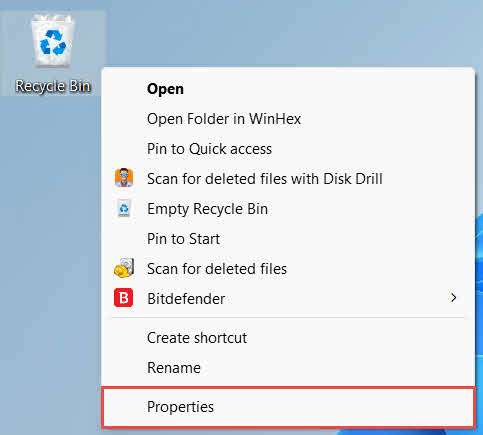
- Faites un clic droit sur le Corbeille icône sur le bureau et sélectionnez Propriétés

- Dans l' Emplacement de la corbeille Dans la liste, sélectionnez la ligne correspondant au disque dur externe. Cette ligne n'apparaît que lorsque le disque est connecté et qu'une lettre de lecteur lui est attribuée.
- Sous Paramètres pour l'emplacement sélectionné, assure-toi Taille personnalisée est sélectionné, pas Ne déplacez pas les fichiers dans la Corbeille. Supprimez-les immédiatement lorsqu'ils sont supprimés.

- Cliquez à nouveau Appliquer, puis OK
Chaque disque conserve ce paramètre indépendamment ; ainsi, la prise en charge de la Corbeille peut être désactivée sur un disque externe même si elle reste activée sur le disque système.
Pour une clé USB ou une carte SD, celle-ci n'apparaîtra pas du tout dans les propriétés de la Corbeille, car Windows ne crée pas de dossier Corbeille sur les supports amovibles par défaut. Pour l'activer, il est nécessaire de modifier le registre :
- Presse Win + R, Le type regedit, presse Entreret approuver la promptitude
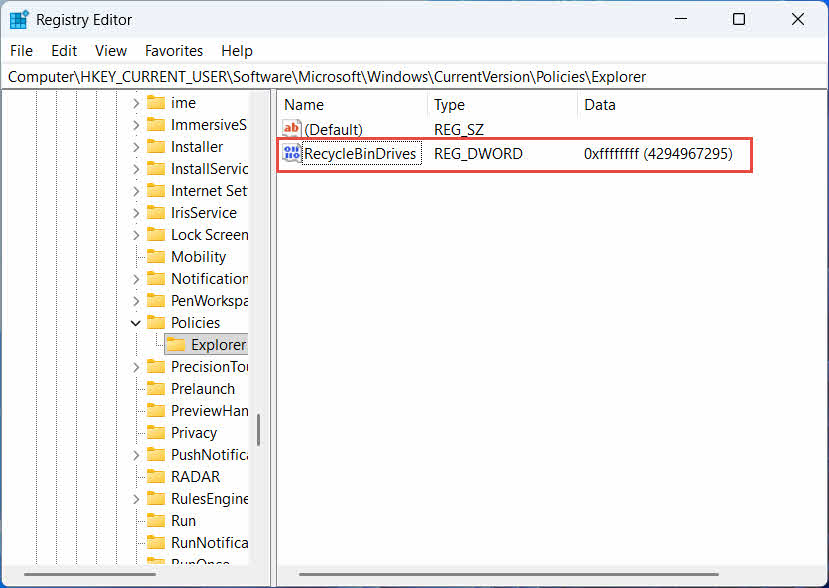
- Accédez à HKEY_CURRENT_USER \ Software \ Microsoft \ Windows \ CurrentVersion \ Policies \ Explorer. Si l' Explorer La clé n'existe pas sous Politiques, clic-droit Politiques, sélectionnez NOUVEAU -> ACTIVITES, et nommez-le Explorer
- Cliquez avec le bouton droit sur une zone vide du volet de droite, sélectionnez NOUVEAU -> DWORD (32 bits), et nommez-le Lecteurs de poubelle de recyclage
- Double-cliquez sur Lecteurs de poubelle de recyclage, ensemble Base à Hexadécimal, Entrer ffffffff comme données de valeur, et cliquez OK

- Répétez les étapes 2 à 4 sous HKEY_LOCAL_MACHINE \ SOFTWARE \ Microsoft \ Windows \ CurrentVersion \ Stratégies \ Explorateur
- Redémarrer le PC
Pour annuler la modification, supprimez le Lecteurs de poubelle de recyclage La valeur provient des deux emplacements. Comme cette opération implique la modification du registre, créez d'abord un point de restauration et réfléchissez à la simplicité d'utilisation des sauvegardes pour les disques que vous utilisez occasionnellement.
4.1.2 Restauration des fichiers
Une fois la Corbeille activée pour le lecteur, la restauration d'un fichier suit le même processus que celui décrit dans Section 2.3.
Supprimer un fichier d'un lecteur réseau mappé ou d'un dossier partagé le supprime directement du serveur. Il ne passe pas par la Corbeille locale de votre ordinateur. Toutefois, si une Corbeille est activée côté serveur, vous pouvez y récupérer les fichiers supprimés.
4.2.1 Corbeille côté serveur (si activée)
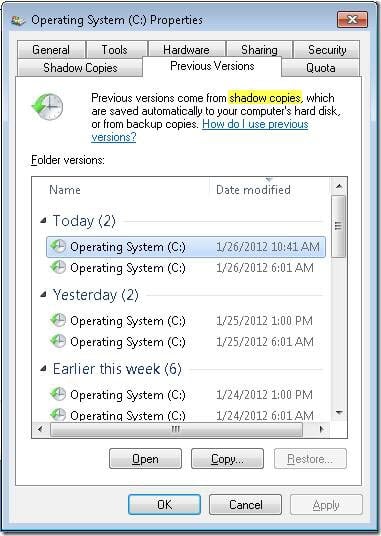
Certains serveurs de fichiers permettent Copies fantômes (Service de copies fantômes de volume), qui vous permet de restaurer des versions antérieures d'un dossier partagé, afin de récupérer des fichiers supprimés grâce à cette fonctionnalité :
- Cliquez avec le bouton droit sur le dossier parent du partage réseau et sélectionnez Propriétés
- Ouvrez le Versions précédentes languette
- Sélectionnez une version antérieure à la suppression et cliquez Restaurer
4.2.2 Que faire si aucune corbeille côté serveur n'existe
Si la Versions précédentes L'onglet est vide ou indisponible ; le partage ne dispose d'aucune restauration basée sur un instantané. Contactez votre administrateur réseau pour vérifier si le serveur possède sa propre planification de sauvegarde.
4.3 Corbeille OneDrive (Dossiers synchronisés dans le cloud)
Les dossiers synchronisés avec OneDrive peuvent impliquer deux Corbeilles distinctes : la Corbeille locale de Windows et la Corbeille OneDrive accessible via le Web. Le dossier contenant votre fichier dépend de l’endroit où il a été supprimé.
4.3.1 Suppression locale d'un fichier synchronisé (le fichier est placé dans la corbeille locale et la corbeille Web)
Si vous supprimez un fichier synchronisé depuis l'Explorateur de fichiers de votre PC, il est placé dans la Corbeille locale, exactement comme décrit dans Section 2et le client de synchronisation OneDrive réplique également la suppression dans le cloud, de sorte que le fichier devient également récupérable à partir de la Corbeille Web OneDrive.
4.3.2 Suppression initiée par le cloud (Corbeille Web uniquement, depuis mai 2026)
Si le fichier est supprimé depuis le cloud, par exemple via le site web OneDrive ou un autre appareil synchronisé, le comportement a changé depuis mai 2026 : Microsoft a cessé d’envoyer les suppressions effectuées depuis le cloud vers la Corbeille Windows locale. Un fichier supprimé de cette manière disparaît de votre dossier local sans apparaître dans la Corbeille locale, et sa récupération n’est possible que depuis la Corbeille web de OneDrive ou de SharePoint.
4.3.3 Restauration à partir de OneDrive.com
Pour restaurer un fichier depuis la Corbeille Web OneDrive :
- Connectez-vous à onedrive.live.com or onedrive.com
- Sélectionner Corbeille dans le volet de navigation
- Sélectionnez le fichier ou le dossier et cliquez Restaurer
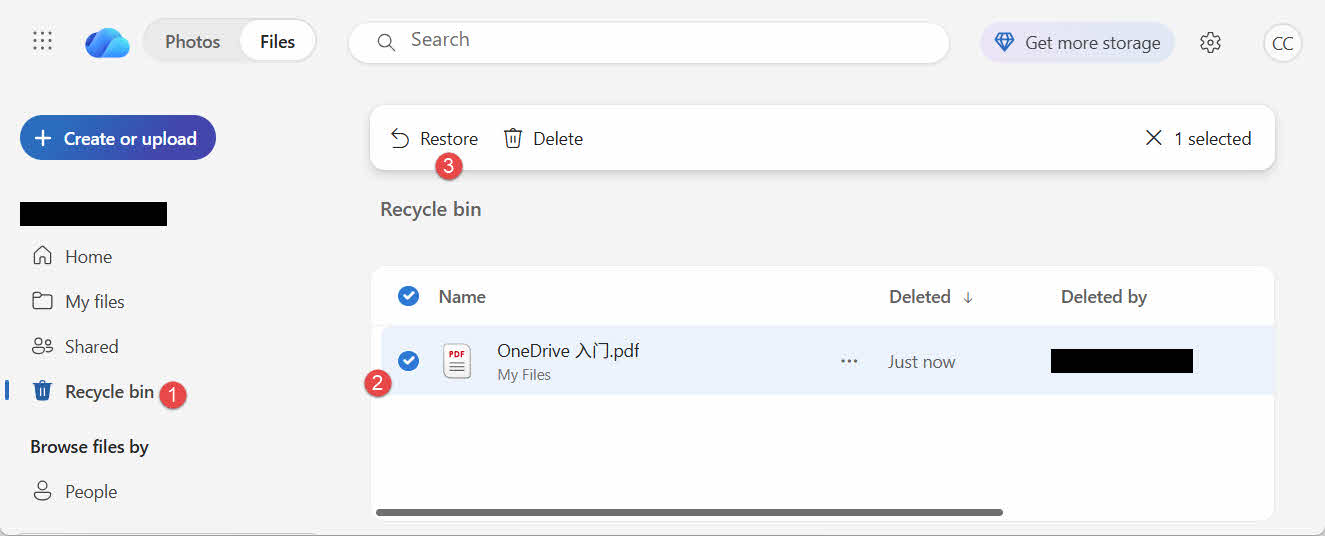
Les comptes Microsoft personnels conservent les éléments supprimés pendant 30 jours maximum ; les comptes professionnels ou scolaires les conservent pendant 93 jours maximum.
5. Dépannage des problèmes de récupération de la corbeille
5.1 L'icône de la Corbeille est absente du bureau.
La Corbeille existe toujours même si son icône sur le bureau a été masquée. Pour la faire réapparaître :
- Faites un clic droit sur le bureau et sélectionnez personnaliser
- Ouvrez Thèmes, puis Paramètres des icônes du bureau
- Vérifiez Corbeille et cliquez sur OK
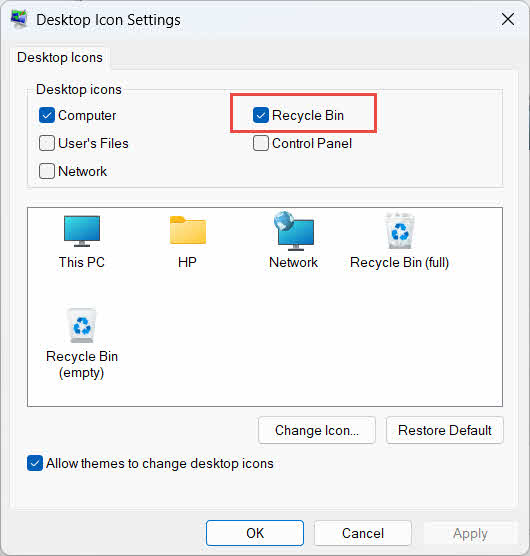
Vous pouvez également l'ouvrir directement en tapant Corbeille dans la recherche Windows, l'Explorateur de fichiers ou en utilisant Win + R, comme décrit dans Section 2.1.
5.2 Le fichier ne se trouve pas dans la corbeille
Si vos fichiers ne se trouvent pas dans la Corbeille, voici quelques causes possibles :
- Il a été supprimé d'un disque externe ne prenant pas en charge la Corbeille (voir Section 4.1)
- Il a été supprimé d'un lecteur réseau (voir Section 4.2)
- Il a été supprimé directement de OneDrive sur le Web (voir Section 4.3)
- Il a été supprimé définitivement, par exemple avec Shift + Supprimer , ou la corbeille de recyclage a été vidée
Si le fichier a été définitivement supprimé, sa récupération nécessite un logiciel de récupération de données dédié, tel que DataNumen Data RecoveryÉvitez d'enregistrer de nouveaux fichiers sur ce disque plutôt que dans la Corbeille. Pour réduire le risque d'écrasement des données, cessez d'abord d'y enregistrer de nouveaux fichiers.
5.3 L'option de restauration est grisée, manquante ou ne fonctionne pas.
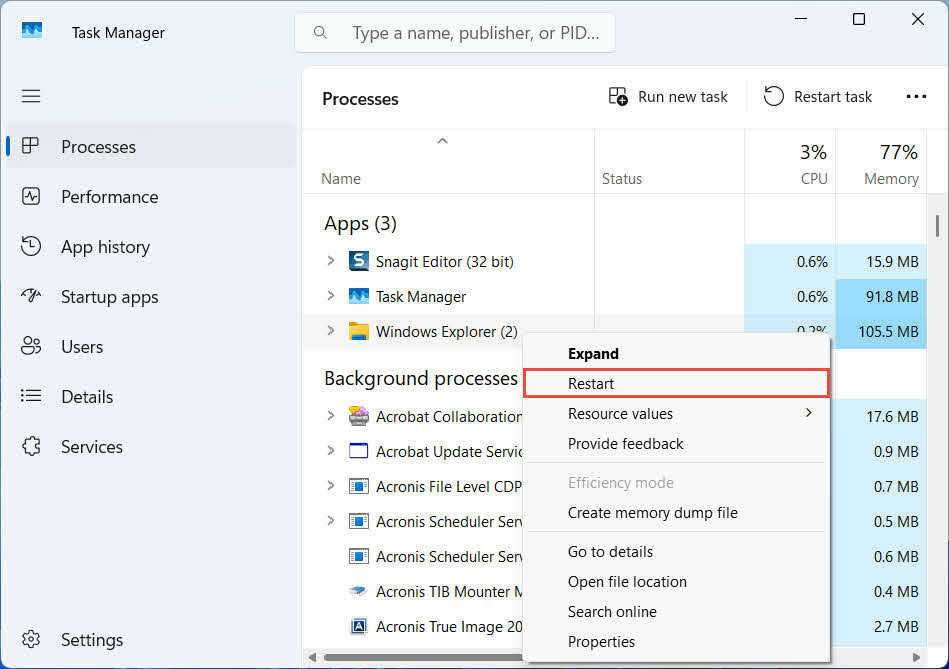
Cela se produit généralement lorsque les éléments sélectionnés proviennent d'un emplacement qui n'existe plus ou lorsque l'index interne de la Corbeille n'est plus synchronisé. Essayez les solutions suivantes :
- Redémarrez l'Explorateur de fichiers : utilisez Ctrl + Alt + Suppr pour ouvrir le Gestionnaire des tâches, puis cliquez avec le bouton droit. Explorateur windows, et sélectionnez Recommencer

- Restaurez les éléments un par un plutôt que par lots.
- If Restaurer Le fichier n'apparaît toujours pas ; faites-le glisser manuellement comme décrit dans Section 3.2
5.4 Erreurs d’accès refusé ou d’autorisation lors de la restauration
Cela indique un problème d'autorisations sur le dossier d'origine, et non sur le fichier lui-même. Vérifiez les points suivants :
- Vous êtes connecté avec le même compte qui a supprimé le fichier.
- Les autorisations du dossier de destination permettent toujours l'accès en écriture à votre compte.
- L'explorateur de fichiers n'est pas bloqué par une stratégie sur un ordinateur géré ou professionnel.
Si les autorisations du dossier d'origine ont changé, restaurez plutôt le fichier à un autre emplacement, en suivant les instructions. Section 3.
5.5 La corbeille semble vide, mais je ne la vide pas.
Des fichiers peuvent disparaître de la Corbeille sans que personne ne la vide manuellement :
- Storage Sense peut être configuré pour supprimer automatiquement les éléments après un nombre de jours défini.
- La Corbeille ayant atteint sa limite de taille, Windows a supprimé les éléments les plus anciens pour libérer de l'espace (voir Section 6.1)
- Un autre compte sur un ordinateur partagé l'a vidé
- Une stratégie de groupe sur un appareil géré impose la vidange automatique
5.6 Le fichier restauré est corrompu, vide ou ne s'ouvre pas.
La restauration ne fait que déplacer le fichier ; elle ne le répare pas. Si le fichier était déjà endommagé avant sa suppression, ou s’il était en cours d’écriture au moment de sa suppression, il se peut qu’il ne s’ouvre toujours pas après restauration. Dans ce cas, le problème est une corruption du fichier, et non un problème de la Corbeille, et nécessite une réparation. un outil de réparation adapté à ce format de fichier plutôt qu'une autre tentative de récupération.
6. Gestion et configuration de la corbeille
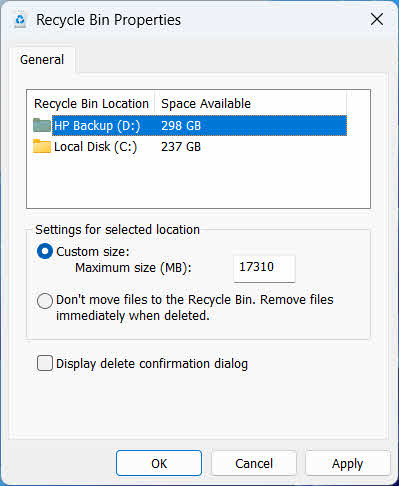
6.1 Modification de la taille du bac de recyclage
Chaque disque dur dispose de sa propre zone de corbeille. Pour la consulter ou la modifier :
- Faites un clic droit sur le Corbeille icône et sélectionnez Propriétés
- Sélectionnez un lecteur dans la liste des emplacements de la corbeille de recyclage
- Choisissez Taille personnalisée et entrez un Taille maximale (Mo), ou sélectionnez Ne déplacez pas les fichiers dans la Corbeille. Supprimez-les immédiatement lorsqu'ils sont supprimés. pour le désactiver pour ce lecteur
- Cliquez à nouveau OK
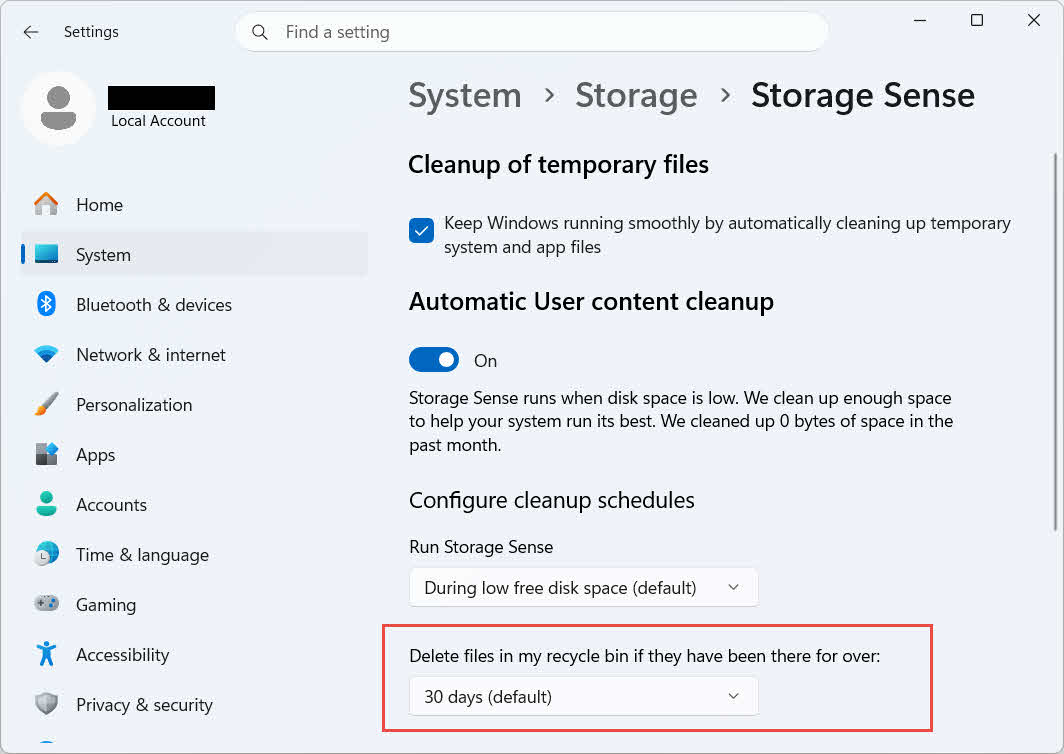
Windows propose également une option de nettoyage distincte, basée sur l'âge : accédez à Paramètres -> Système -> Stockage -> Assistant Stockage Et définir Supprimer les fichiers de ma corbeille s'ils y sont depuis plus de un nombre de jours choisi. La période de conservation par défaut est de 30 jours.
6.2 Activation de la boîte de dialogue de confirmation de suppression
Par défaut, Windows 11 n'affiche pas de confirmation avant de déplacer des fichiers vers la Corbeille. Pour activer cette option :
- Faites un clic droit sur le Corbeille icône et sélectionnez Propriétés
- Vérifiez Afficher suppression de dialogue de confirmation
- Cliquez à nouveau OK
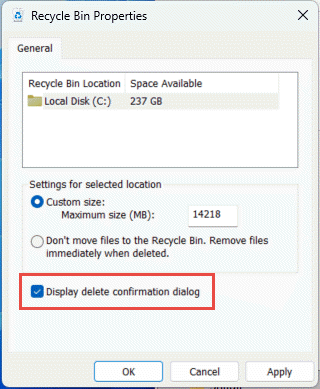
Ce paramètre n'empêche pas les suppressions définitives, telles que Shift + Supprimer ou les suppressions effectuées sur des disques ne prenant pas en charge la Corbeille.
6.3 Configuration des fichiers pour contourner la Corbeille (et pourquoi l'éviter)
Le même Ne déplacez pas les fichiers dans la Corbeille. Supprimez-les immédiatement lorsqu'ils sont supprimés. option couverte par Section 6.1 Cette méthode peut être appliquée à n'importe quel disque pour rendre toute suppression définitive. Elle libère immédiatement de l'espace disque, mais supprime la seule option de récupération rapide décrite dans ce guide. Il est donc préférable de la réserver aux disques ne contenant aucun fichier personnel, comme un volume temporaire ou de travail dédié.
7. Bonnes pratiques pour prévenir les futures pertes de données
7.1 Activer l'historique des fichiers ou une solution de sauvegarde
La Corbeille protège uniquement contre les suppressions accidentelles, et non contre les pannes de disque ou une Corbeille déjà vidée. Activer l'historique des fichiers (Panneau de configuration > Système et sécurité > Historique des fichiers)

ou un outil de sauvegarde tiers ajoute une deuxième couche de protection avec son propre historique des versions.
7.2 Utilisez la synchronisation cloud pour les dossiers importants
La synchronisation du Bureau, des Documents et des Images avec OneDrive ou un autre service cloud vous donne accès à la Corbeille web décrite dans Section 4.3 comme voie de récupération supplémentaire, indépendante de la corbeille de recyclage locale.
7.3 Vérifiez deux fois avant de vider la poubelle de recyclage
Avant de cliquer Vider la Corbeille, Trier par Date de suppression et recherchez les données récentes. Une fois le disque vidé, la seule solution restante est l'utilisation d'un logiciel de récupération de données spécialisé, mais le succès n'est pas garanti.
8. FAQ
Q : Puis-je encore récupérer un fichier après avoir vidé la Corbeille ?
R : Pas via la Corbeille elle-même. À ce stade, le fichier est marqué comme supprimé au niveau du système de fichiers, mais il peut toujours être physiquement présent sur le disque jusqu'à ce qu'il soit écrasé. Des outils tels que DataNumen Data Recovery Ils sont conçus pour rechercher et reconstruire ce type de données. Cessez d'utiliser le disque dès que possible afin d'optimiser vos chances de récupération.
Q : Mac possède-t-il un équivalent de la Corbeille Windows ?
R : Oui, cela s'appelle la Corbeille, et cela fonctionne de la même manière : ouvrez la Corbeille, cliquez avec le bouton droit sur le fichier et sélectionnez Remettre. Ce guide concerne spécifiquement la Corbeille de Windows. concerne spécifiquement la corbeille Mac.
Q : Combien de temps les fichiers restent-ils dans la Corbeille avant d'être supprimés automatiquement ?
R : La Corbeille locale n'a pas de limite de temps fixe par défaut ; les éléments sont supprimés uniquement lorsque la limite de taille est atteinte ou lorsque l'Assistant Stockage est configuré pour purger les anciens éléments (voir Section 6.1La Corbeille Web OneDrive utilise une durée de conservation fixe : 30 jours pour les comptes personnels et jusqu’à 93 jours pour les comptes professionnels ou scolaires (voir Section 4.3).
Q : Dois-je restaurer un fichier à son emplacement d'origine ou à un nouvel emplacement ?
A : Restauration à l'emplacement d'origine (Section 2) est plus simple et préserve le chemin d'accès d'origine du fichier. Restaurer à un emplacement différent (Section 3) à la place si ce dossier d'origine n'existe plus ou s'il contient déjà un fichier du même nom.
Q : Puis-je récupérer des fichiers supprimés d'une clé USB en utilisant la Corbeille ?
R : Non, pas par défaut. Les clés USB et les cartes SD ne disposent pas de dossier Corbeille, sauf si vous l'activez manuellement, comme expliqué dans Section 4.1.
Q : Pourquoi l'option Restaurer est-elle grisée ou absente ?
R : Ceci est généralement dû à l'absence du dossier d'origine ou à une désynchronisation de l'index de la Corbeille. Voir Section 5.3 pour les réparations.
Q : Que faire si la corbeille est vide alors que je ne l'ai jamais vidée ?
R : L'Assistant Stockage, une limite de taille atteinte, un autre compte d'utilisateur ou un paramètre de stratégie de groupe peuvent tous effacer automatiquement ce stockage. Voir Section 5.5.
Q : Quel logiciel permet de récupérer des fichiers qui ne se trouvent plus dans la Corbeille ?
A: Logiciels dédiés à la récupération de données, tels que DataNumen Data Recovery, analyse le disque à un niveau inférieur pour trouver les données auxquelles le système de fichiers ne fait plus référence, ce que l'interface de la Corbeille elle-même ne peut pas faire.
Q : La restauration d'un fichier garantit-elle son ouverture correcte ?
R : Non. La restauration ne fait que replacer le fichier dans un dossier ; elle ne répare pas les dommages que le fichier subissait déjà avant ou pendant sa suppression. Voir Section 5.6.
9. Conclusion
Récupérer des fichiers supprimés de la Corbeille est simple tant que le fichier s'y trouve : ouvrez la Corbeille, localisez le fichier et restaurez-le. Les disques externes, les partages réseau et les dossiers synchronisés avec OneDrive peuvent présenter des particularités ; les sections de dépannage et de configuration ci-dessus traitent des situations où la procédure de restauration standard ne se déroule pas comme prévu. Si le fichier a été définitivement supprimé ou si la Corbeille a déjà été vidée, il est nécessaire d'utiliser un logiciel de récupération de données dédié, et non la Corbeille elle-même.
À propos de l’auteur
Qian Gua est un spécialiste de la récupération de données possédant plus de 10 ans d'expérience dans les systèmes de fichiers Windows, les technologies de stockage et les solutions de reprise après sinistre. Il a accompagné avec succès des milliers d'utilisateurs confrontés à des pertes de données critiques, tant dans un contexte personnel qu'professionnel.
Qian est spécialisé dans les méthodes de récupération de données Windows, l'analyse des systèmes de fichiers et les stratégies de sauvegarde préventive. Son expérience pratique approfondie inclut la récupération de données sur disques durs, la mise en œuvre de solutions de sauvegarde complètes et le dépannage de problèmes complexes de systèmes de fichiers. NTFSIl maîtrise les volumes FAT, exFAT et ReFS. Il a travaillé avec divers outils et techniques de récupération, allant des utilitaires intégrés à Windows aux logiciels professionnels de récupération de données.
Grâce à ses écrits techniques, Qian s'attache à fournir aux utilisateurs les connaissances pratiques nécessaires pour protéger et récupérer leurs données précieuses. Il se tient informé des dernières évolutions en matière de technologies de récupération de fichiers Windows, d'innovations sur les périphériques de stockage et de bonnes pratiques de protection des données. Lorsqu'il n'aide pas les utilisateurs à récupérer leurs données, il partage son expertise.ost fileQian apprécie particulièrement la recherche sur les technologies de stockage émergentes et le partage de conseils de sécurité des données permettant de prévenir les pertes de données futures.
Vous avez des questions concernant ce guide ou besoin d'aide pour la récupération de données ? Qian vous accueille. commentaires et suggestions pour améliorer ces ressources de récupération de données.