
1. Introduktion
Papirkurven er Windows' indbyggede sikkerhedsnet for slettede filer. Så længe en fil stadig er i den, tager det kun et par klik at gendanne den. Denne vejledning forklarer, hvordan du gendanner slettede filer fra papirkurven i Windows, inklusive filer på eksterne, netværks- og OneDrive-synkroniserede placeringer.
1.1 Hvad denne vejledning dækker
- Gendannelse af filer, der stadig er i papirkurven
- Gendannelse af slettede filer til deres oprindelige placering
- Hentning af slettede filer til en ny placering, når den oprindelige mappe mangler
1.2 Hvad denne vejledning ikke dækker
- Filer slettet med Flytte + Slette, som omgår papirkurven helt
- Filer slettet eller tømt fra papirkurven. I dette tilfælde skal du kontrollere denne vejledning at gendanne filerne.
- Filer, der overskred papirkurvens lagerpladsgrænse og blev slettet permanent
2. Gendan slettede filer fra papirkurven
Hvis filen blev slettet fra et lokalt drev med Slette tasten eller højreklik Slette kommando, går den direkte til papirkurven. Gendan den med følgende 3 trin:
2.1 Åbn papirkurven
Brug en af følgende metoder:
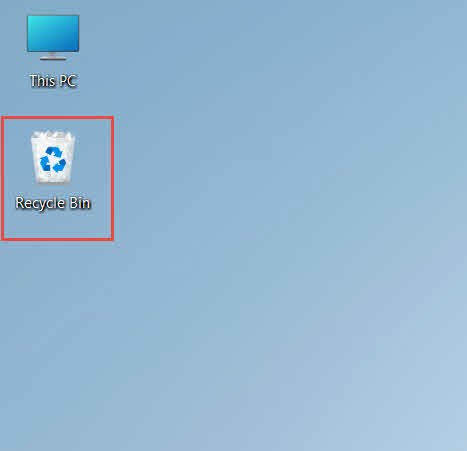
- Dobbeltklik på papirkurven ikonet på skrivebordet

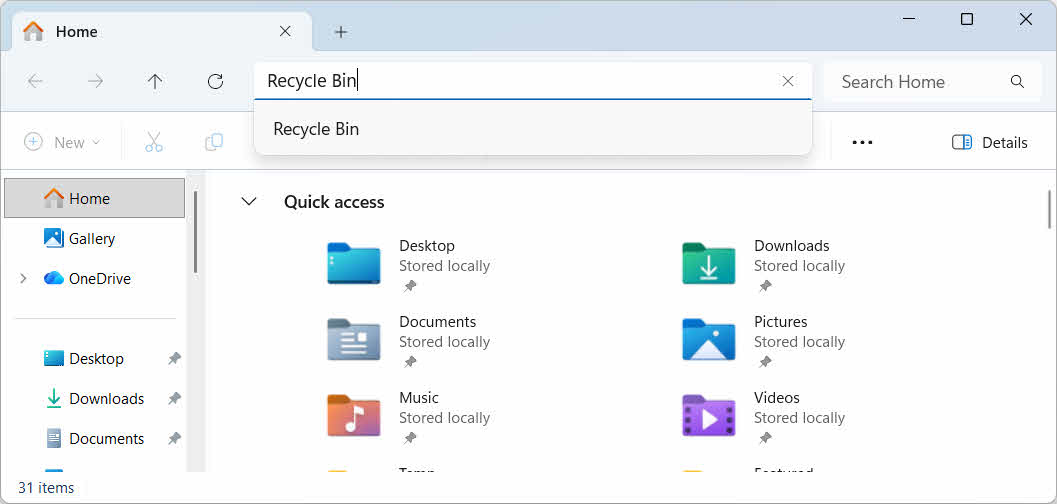
- Åbn Stifinder og indtast papirkurven i adresselinjen

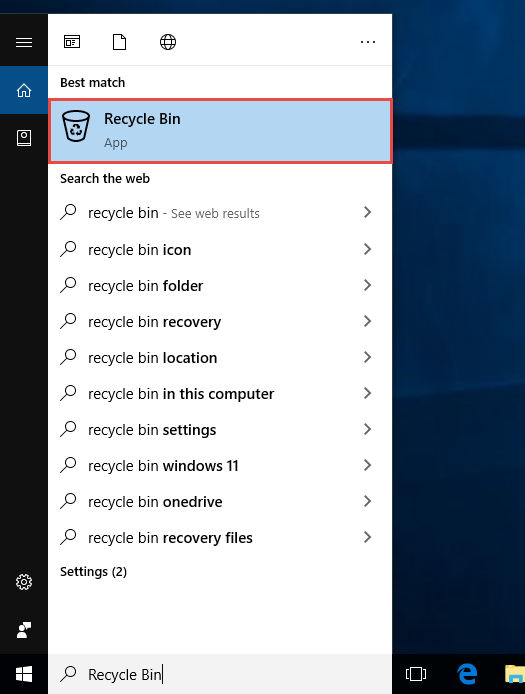
- Type papirkurven i Windows-søgning og vælg det fra resultaterne

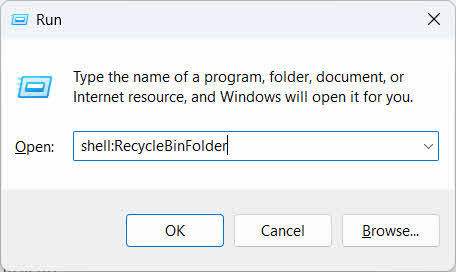
- Presse Vinde + RSkriv shell:PapirkurvMappe, og tryk på Indtast

2.2 Find den slettede fil eller mappe
Når papirkurven er åben, skal du finde de ønskede elementer med en af disse metoder:
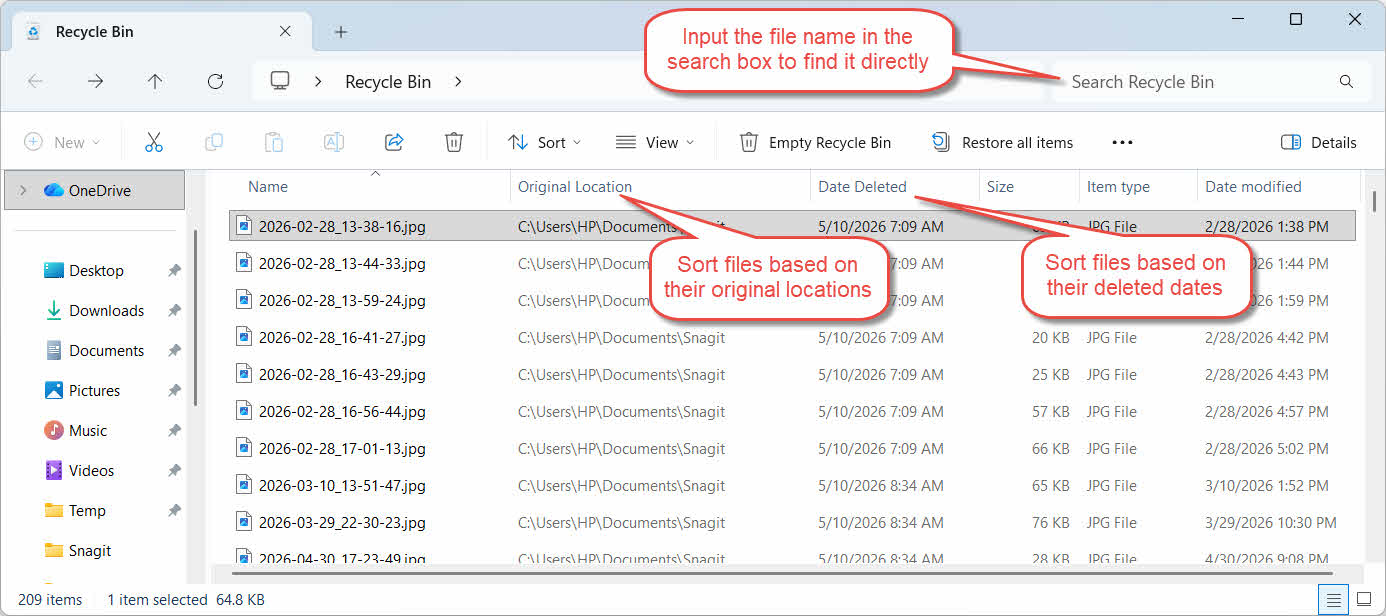
- Skriv filnavnet i søgefeltet i øverste højre hjørne
- Klik på knappen Dato slettet kolonneoverskrift for at sortere efter de seneste sletninger
- Tjek Oprindelig placering kolonne for at bekræfte, at filen kom fra den mappe, du forventer
2.3 Gendan filer eller mapper
Sådan gendanner du et eller flere elementer:
- Vælg en enkelt fil, eller hold nede Ctrl og klik for at vælge flere filer, eller hold nede Flytte og klik for at vælge et område
- Højreklik på markeringen og vælg Gendan
- Åbn den originale mappe for at bekræfte, at filen er tilbage

For at gendanne alle elementer i papirkurven på én gang skal du klikke på Gendan alle emner i værktøjslinjen uden først at vælge en enkelt fil.
3. Gendan slettede filer fra papirkurven til en anden placering
Gendan Kommandoen returnerer altid en fil til dens oprindelige mappe. Nogle situationer kræver, at den flyttes et andet sted hen i stedet.
3.1 Hvornår du bør bruge denne metode
- Den oprindelige mappe findes ikke længere
- En ny fil med samme navn findes allerede i den oprindelige mappe
- Du har ikke tilladelse til at få adgang til den oprindelige mappe
- Du er ikke sikker på, hvilken mappe filen kom fra
- Du vil gerne gennemgå filen, før du lægger den tilbage på sin oprindelige plads
3.2 Træk eller klip filen ud af papirkurven
Sådan flytter du en fil fra papirkurven til en mappe efter eget valg:
- Åbn papirkurven
- Vælg den fil eller mappe, der skal gendannes.
- Brug en af følgende metoder til at flytte filen eller mappen til destinationsmappen:
- Træk den direkte ind i målmappevinduet
- Presse Ctrl + X For at klippe den skal du åbne destinationsmappen og trykke på Ctrl + V at indsætte det
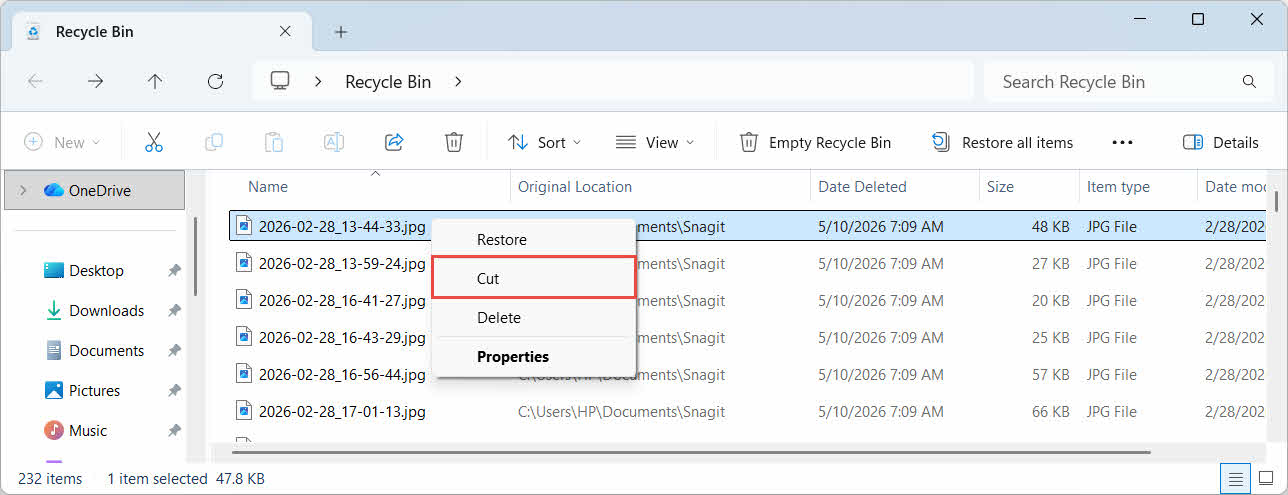
- Højreklik på det markerede, og vælg Klip, åbn målmappen, højreklik og vælg pasta at indsætte det

4. Gendannelse af filer fra papirkurven på eksterne, netværks- og clouddrev
Trinene ind Sektion 2 antag, at filen blev slettet fra din computers hoveddrev. Ekstern, netværks- og cloud-synkroniseret lagring opfører sig forskelligt.
4.1 Eksterne harddiske og USB-flashdrev
Windows behandler eksterne harddiske (inklusive SSD'er tilsluttet via USB) på samme måde som interne drev: hver enkelt får som standard sin egen skjulte papirkurvsmappe. Flytbare medier såsom USB-flashdrev og SD-kort behandles forskelligt og får ikke som standard en papirkurv, så filer, der slettes fra dem, fjernes med det samme.
4.1.1 Aktivering af understøttelse af papirkurv på drevet
For en ekstern harddisk skal du bekræfte, at understøttelse af papirkurv er aktiveret:
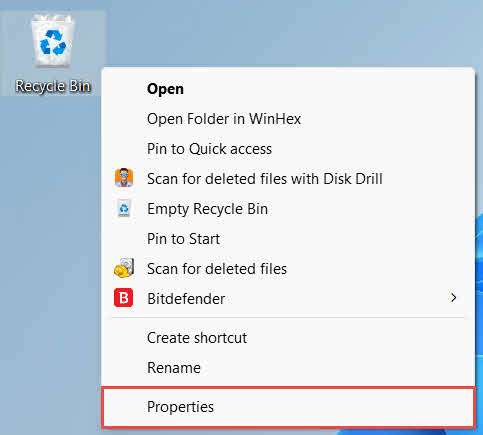
- Højreklik på papirkurven ikonet på skrivebordet og vælg Ejendomme

- I Placering af papirkurven liste, vælg rækken for det eksterne drev. Den vises kun her, når drevet er tilsluttet og har et drevbogstav
- Under Indstillinger for det valgte sted, sørge for at Brugerdefineret størrelse er valgt, ikke Flyt ikke filer til papirkurven. Fjern filer med det samme, når de slettes.

- Klik Ansøg, derefter OK
Hvert drev beholder denne indstilling uafhængigt, så et eksternt drev kan have understøttelse af papirkurven deaktiveret, selvom den forbliver aktiveret for systemdrevet.
For et USB-flashdrev eller SD-kort vises det slet ikke i Egenskaber for papirkurven, fordi Windows som standard ikke opretter en papirkurvsmappe på flytbare medier. Aktivering kræver en redigering i registreringsdatabasen:
- Presse Vinde + RSkriv regedit, tryk på Indtast, og godkend prompten
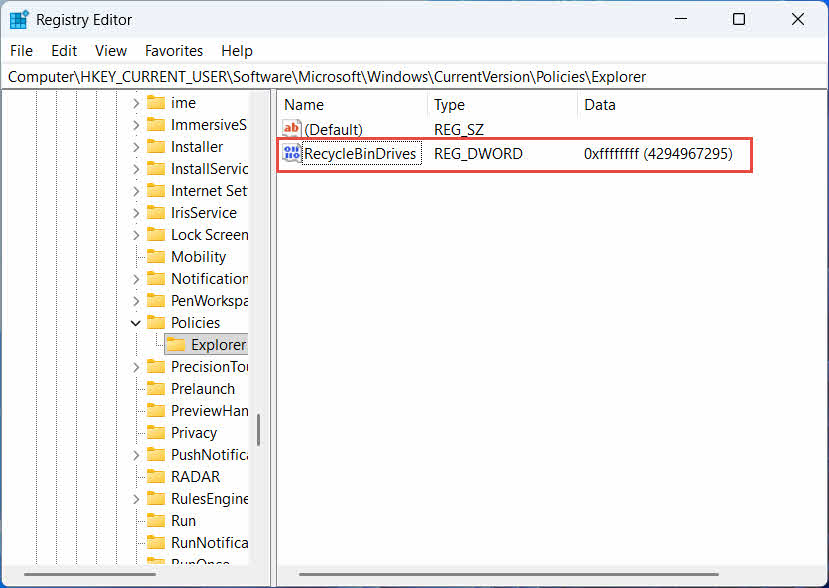
- Naviger til HKEY_CURRENT_USER \ Software \ Microsoft \ Windows \ CurrentVersion \ Policies \ Explorer. Hvis Explorer nøglen findes ikke under Politik, Højreklik Politik, Vælg Ny -> Nøgle, og navngiv det Explorer
- Højreklik på et tomt område i højre rude, vælg Ny -> DWORD (32-bit) Value, og navngiv det PapirkurvDrev
- Dobbeltklik på PapirkurvDrev, sæt Base til Hexadecimal, gå ind ffffffff som værdidata, og klik på OK

- Gentag trin 2 til 4 under HKEY_LOCAL_MACHINE \ SOFTWARE \ Microsoft \ Windows \ CurrentVersion \ Policies \ Explorer
- Genstart computeren
For at fortryde ændringen skal du slette PapirkurvDrev værdi fra begge placeringer. Da dette involverer redigering af registreringsdatabasen, skal du først oprette et gendannelsespunkt og overveje, om det er enklere at bruge sikkerhedskopier til drev, du kun bruger lejlighedsvis.
4.1.2 Gendannelse af filer
Når papirkurven er aktiveret for drevet, følger gendannelse af en fil den samme proces, der er beskrevet i Sektion 2.3.
Hvis du sletter en fil fra et tilknyttet netværksdrev eller en delt mappe, fjernes den direkte fra serveren. Den passerer ikke gennem din computers lokale papirkurv. Men hvis en serverside-papirkurv er aktiveret, kan du gendanne slettede filer fra den.
4.2.1 Serverside papirkurv (hvis aktiveret)
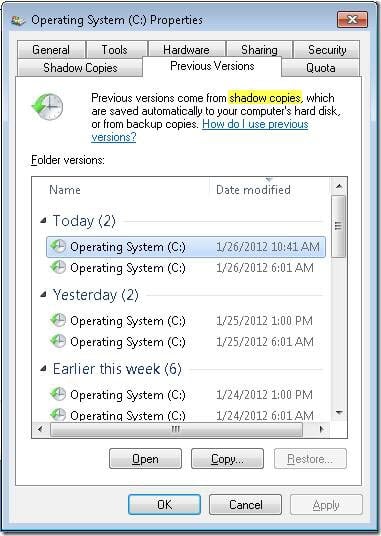
Nogle filservere aktiverer Skyggekopier (tjeneste til mængdeskyggekopiering), som giver dig mulighed for at gendanne til tidligere versioner af en delt mappe, så du kan gendanne slettede filer med denne funktion:
- Højreklik på den overordnede mappe på netværksdelingen, og vælg Ejendomme
- Åbne Tidligere versioner fanen
- Vælg en version dateret før sletningen, og klik på Gendan
4.2.2 Hvad skal man gøre, hvis der ikke findes en papirkurv på serversiden
Hvis Tidligere versioner Hvis fanen er tom eller ikke tilgængelig, har den delte deling ingen snapshot-baseret gendannelse konfigureret. Kontakt din netværksadministrator for at kontrollere, om serveren har sin egen backupplan.
4.3 OneDrive papirkurv (cloud-synkroniserede mapper)
OneDrive-synkroniserede mapper kan involvere to separate papirkurve: den lokale Windows-papirkurv og den webbaserede OneDrive-papirkurv. Hvilken der indeholder din fil afhænger af, hvor sletningen fandt sted.
4.3.1 Lokal sletning af en synkroniseret fil (går til både den lokale og web-papirkurv)
Hvis du sletter en synkroniseret fil fra Stifinder på din pc, går den til den lokale papirkurv præcis som beskrevet i Sektion 2, og OneDrive-synkroniseringsklienten spejler også sletningen til skyen, så filen også kan gendannes fra OneDrive-webpapirkurven.
4.3.2 Cloud-initieret sletning (kun web-papirkurv, siden maj 2026)
Hvis filen i stedet slettes fra cloud-siden, for eksempel via OneDrive-webstedet eller en anden synkroniseret enhed, har adfærden ændret sig siden maj 2026: Microsoft er stoppet med at sende cloud-initierede sletninger til den lokale Windows-papirkurv. En fil, der fjernes på denne måde, forsvinder fra din lokale mappe uden at blive vist i den lokale papirkurv, og gendannelse er kun mulig fra OneDrive- eller SharePoint-webpapirkurven.
4.3.3 Gendannelse fra OneDrive.com
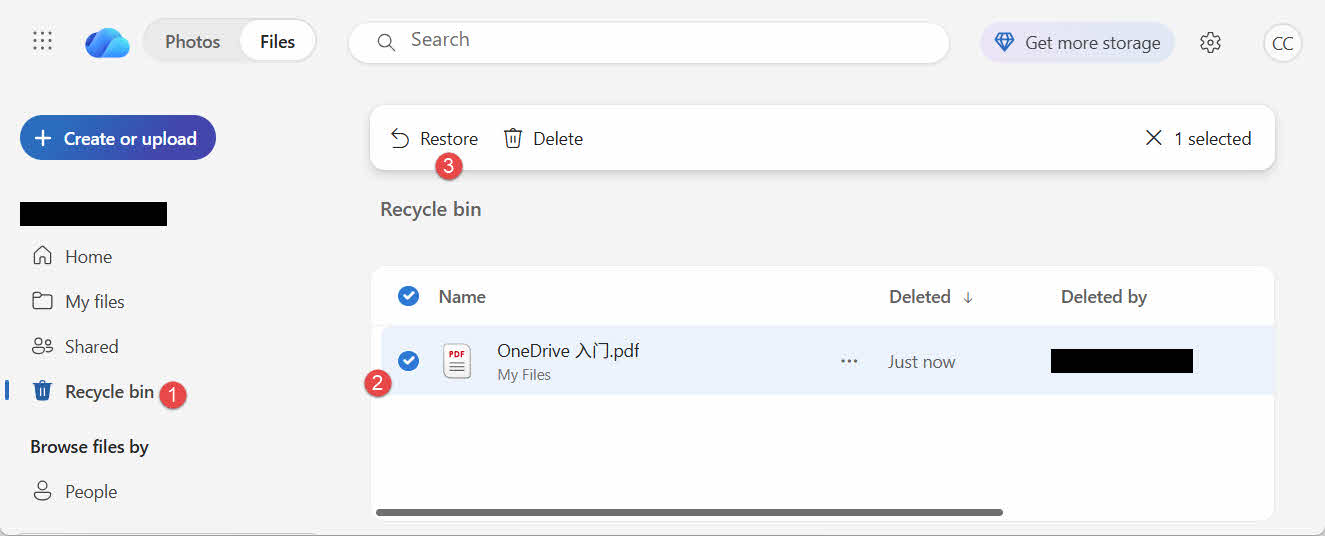
Sådan gendanner du en fil fra OneDrives webpapirkurv:
- Log ind på onedrive.live.com or onedrive.com
- Type Papirkurven i navigationsruden
- Vælg filen eller mappen, og klik på Gendan
Personlige Microsoft-konti opbevarer slettede elementer i op til 30 dage; arbejds- eller skolekonti opbevarer dem i op til 93 dage.
5. Fejlfinding af problemer med gendannelse af papirkurven
5.1 Papirkurvsikon mangler på skrivebordet
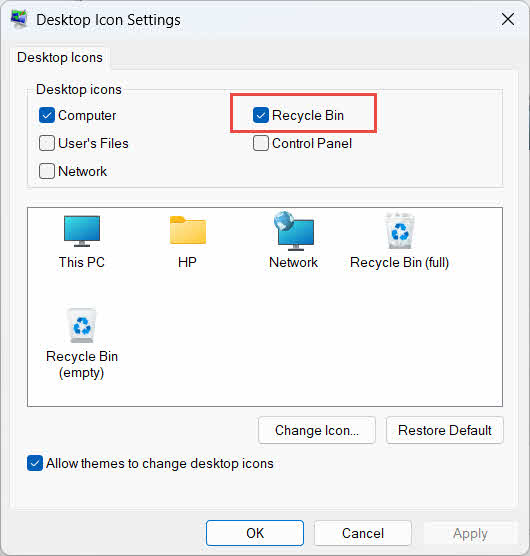
Papirkurven findes stadig, selvom skrivebordsikonet er skjult. Sådan gendanner du ikonet:
- Højreklik på skrivebordet og vælg Tilpas
- Åbne Temaer, derefter Indstillinger ikon Desktop
- Check (Skak) papirkurven og klik OK
Du kan også åbne den direkte ved at skrive papirkurven i Windows-søgning, Stifinder eller ved at bruge Win + R, som beskrevet i Sektion 2.1.
5.2 Filen er ikke i papirkurven
Hvis dine ønskede filer ikke er i papirkurven, skal du overveje disse årsager:
- Den blev slettet fra et eksternt drev uden understøttelse af papirkurven (se Sektion 4.1)
- Den blev slettet fra et netværksdrev (se Sektion 4.2)
- Den blev slettet direkte fra OneDrive på nettet (se Sektion 4.3)
- Den blev slettet permanent, for eksempel med Flytte + Slette, eller papirkurven er blevet tømt
Hvis filen blev slettet permanent, kræver gendannelsen af den dedikeret datagendannelsessoftware, f.eks. DataNumen Data Recoveryi stedet for papirkurven. Stop med at gemme nye filer på det drev først for at mindske risikoen for, at dataene bliver overskrevet.
5.3 Gendannelsesmuligheden er nedtonet, mangler eller fungerer ikke
Dette sker normalt, når de valgte elementer kommer fra en placering, der ikke længere findes, eller når papirkurvens interne indeks ikke er synkroniseret. Prøv disse løsninger:
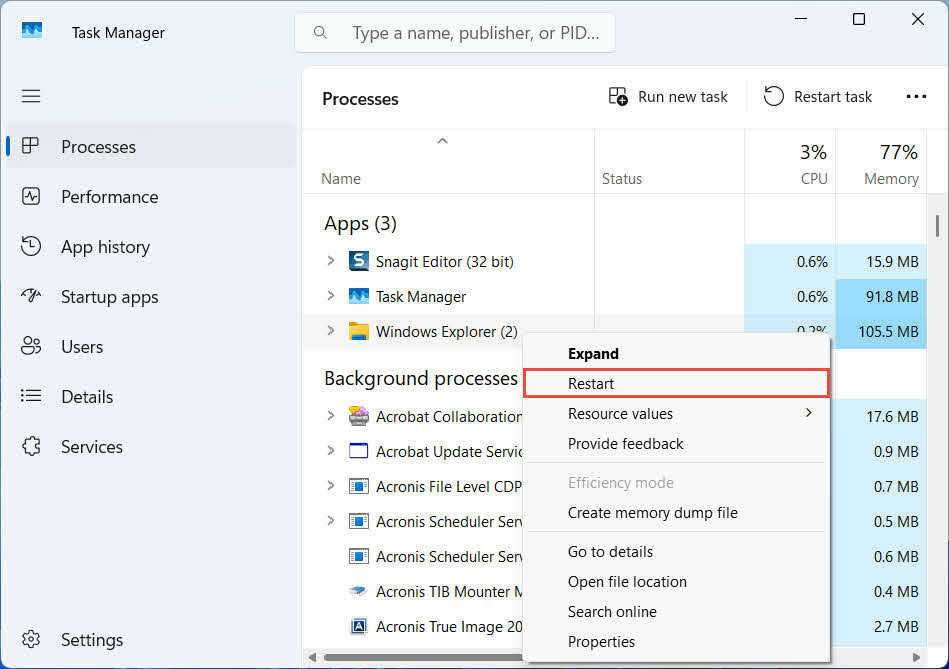
- Genstart Stifinder: brug Ctrl + Alt + Del for at åbne Jobliste, højreklik Windows Stifinder, og vælg Genstart

- Gendan elementer én ad gangen i stedet for som en batch
- If Gendan stadig ikke vises, skal du trække filen ud manuelt som beskrevet i Sektion 3.2
5.4 “Adgang nægtet” eller tilladelsesfejl ved gendannelse
Dette peger på et problem med tilladelserne i den oprindelige mappe, ikke i selve filen. Kontroller at:
- Du er logget ind med den samme konto, som slettede filen
- Destinationsmappens tilladelser giver stadig skriveadgang for din konto.
- Stifinder er ikke blokeret af en politik på en administreret computer eller arbejdscomputer
Hvis den oprindelige mappes tilladelser er ændret, skal du i stedet gendanne filen til en anden placering ved at følge Sektion 3.
5.5 Papirkurven ser tom ud, men jeg tømmer den ikke
Filer kan forsvinde fra papirkurven uden at nogen manuelt tømmer den:
- Storage Sense kan konfigureres til automatisk at slette elementer efter et bestemt antal dage.
- Papirkurven har nået sin størrelsesgrænse, så Windows har slettet de ældste elementer for at give plads (se Sektion 6.1)
- En anden konto på delt computer tømte den
- En gruppepolitik på en administreret enhed håndhæver automatisk tømning
5.6 Gendannet fil er beskadiget, tom eller kan ikke åbnes
Gendannelse flytter kun filen tilbage; den reparerer den ikke. Hvis filen allerede var beskadiget før sletning, eller hvis der blev skrevet til den på det tidspunkt, den blev slettet, kan den muligvis stadig ikke åbne efter gendannelsen. I så fald er problemet filbeskadigelse, ikke et problem med papirkurven, og det skal... et reparationsværktøj egnet til det pågældende filformat i stedet for endnu et gendannelsesforsøg.
6. Administration og konfiguration af papirkurven
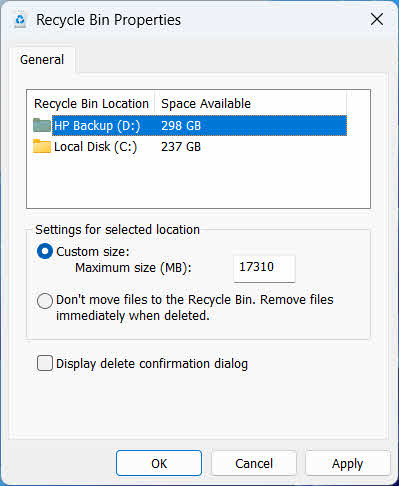
6.1 Ændring af papirkurvens lagerplads
Hvert drev har sin egen papirkurv. Sådan gennemgår eller ændrer du den:
- Højreklik på papirkurven ikonet og vælg Ejendomme
- Vælg et drev fra listen over placeringer i papirkurven
- Vælg Brugerdefineret størrelse og indtast a Maksimal størrelse (MB), eller vælg Flyt ikke filer til papirkurven. Fjern filer med det samme, når de slettes. at deaktivere det for det drev
- Klik OK
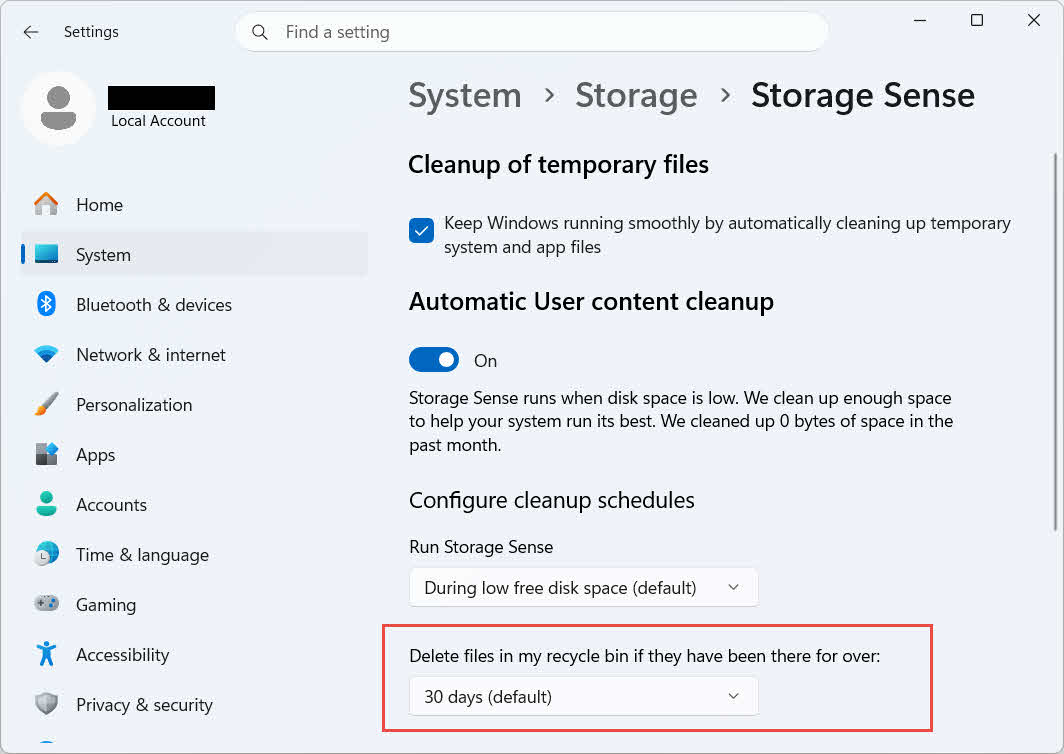
Windows tilbyder også en separat, aldersbaseret oprydningsmulighed: gå til Indstillinger -> System -> Lager -> Lagringssensor og sæt Slet filer i min papirkurv, hvis de har været der i over et valgt antal dage. Standardopbevaringsperioden er 30 dage.
6.2 Aktivering af dialogboksen for bekræftelse af sletning
Windows 11 viser som standard ikke en bekræftelsesprompt, før filer flyttes til papirkurven. Sådan aktiverer du det:
- Højreklik på papirkurven ikonet og vælg Ejendomme
- Check (Skak) Display slet bekræftelsesdialog
- Klik OK
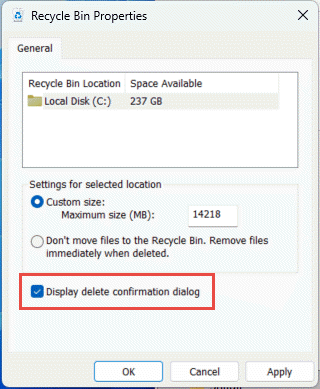
Denne indstilling forhindrer ikke permanent sletning, f.eks. Flytte + Slette eller sletninger fra drev uden understøttelse af papirkurven.
6.3 Indstilling af filer til at omgå papirkurven (og hvorfor man skal undgå det)
Det samme Flyt ikke filer til papirkurven. Fjern filer med det samme, når de slettes. mulighed dækket af Sektion 6.1 kan anvendes på ethvert drev for at gøre enhver sletning permanent. Dette frigør diskplads med det samme, men fjerner den eneste hurtiggendannelsesmulighed, som denne vejledning beskriver, så den er bedst reserveret til drev, der ikke indeholder personlige filer, såsom en dedikeret arbejdsdisk eller et midlertidigt volumen.
7. Bedste praksis for at forhindre fremtidigt datatab
7.1 Aktivér filhistorik eller en sikkerhedskopieringsløsning
Papirkurven beskytter kun mod utilsigtet sletning, ikke mod drevfejl eller en papirkurv, der allerede er blevet tømt. Aktivering af Filhistorik (Kontrolpanel -> System og sikkerhed -> Filhistorik)

eller et tredjeparts backupværktøj tilføjer et andet lag af beskyttelse med sin egen versionshistorik.
7.2 Brug Cloud Sync til vigtige mapper
Synkronisering af skrivebord, dokumenter og billeder til OneDrive eller en anden cloudtjeneste giver dig den web-papirkurv, der er beskrevet i Sektion 4.3 som en ekstra gendannelsessti, uafhængig af den lokale papirkurv.
7.3 Dobbelttjek inden tømning af papirkurven
Før du klikker Tøm papirkurv, sorter efter Dato slettet og scan efter noget nyt. Når den er tømt, er den eneste tilbageværende mulighed dedikeret datagendannelsessoftware, og succes er ikke garanteret.
8. FAQ
Q: Kan jeg stadig gendanne en fil efter at have tømt papirkurven?
A: Ikke via selve papirkurven. På det tidspunkt markeres filen som slettet på filsystemniveau, men den kan stadig være fysisk til stede på drevet, indtil den overskrives. Værktøjer som f.eks. DataNumen Data Recovery er bygget til at scanne efter og rekonstruere denne type data. Stop med at bruge drevet så hurtigt som muligt for at forbedre chancerne for en vellykket gendannelse.
Q: Har Mac noget lignende Windows papirkurven?
A: Ja, det kaldes Papirkurv, og det fungerer på samme måde: åbn Papirkurv, højreklik på filen, og vælg Læg tilbage. Denne vejledning dækker specifikt Windows papirkurv. Og denne vejledning dækker specifikt Mac-papirkurven.
Q: Hvor længe forbliver filer i papirkurven, før de slettes automatisk?
A: Den lokale papirkurv har som standard ingen fast tidsgrænse; elementer fjernes kun, når størrelsesgrænsen er nået, eller når Storage Sense er konfigureret til at rydde gamle elementer (se Sektion 6.1OneDrives webpapirkurv bruger et fast vindue: 30 dage for personlige konti og op til 93 dage for arbejds- eller skolekonti (se Sektion 4.3).
Q: Skal jeg gendanne en fil til dens oprindelige placering eller til en ny?
A: Gendannelse til den oprindelige placering (Sektion 2) er enklere og bevarer filens oprindelige sti. Gendan til en anden placering (Sektion 3) i stedet hvis den oprindelige mappe ikke længere findes eller allerede indeholder en fil med samme navn.
Q: Kan jeg gendanne filer, der er slettet fra et USB-flashdrev, ved hjælp af papirkurven?
A: Ikke som standard. Flashdrev og SD-kort får ikke en papirkurvsmappe, medmindre du aktiverer en manuelt, som forklaret i Sektion 4.1.
Q: Hvorfor er Gendan-indstillingen nedtonet eller mangler?
A: Dette skyldes normalt en manglende originalmappe eller et papirkurvsindeks, der ikke er synkroniseret. Se Sektion 5.3 til rettelser.
Q: Hvad hvis papirkurven er tom, men jeg aldrig har tømt den?
A: Storage Sense, en nået størrelsesgrænse, en anden brugerkonto eller en gruppepolitikindstilling kan alle rydde det automatisk. Se Sektion 5.5.
Q: Hvilken software kan gendanne filer, der ikke længere er i papirkurven?
A: Dedikeret software til datagendannelse, f.eks. DataNumen Data Recovery, scanner drevet på et lavere niveau for at finde data, som filsystemet ikke længere refererer til, hvilket ikke er noget, som papirkurvsgrænsefladen selv kan gøre.
Q: Garanterer gendannelse af en fil, at den åbner korrekt?
A: Nej. Gendannelse returnerer kun filen til en mappe; det udbedrer ikke eventuelle skader, som filen allerede havde før eller under sletningen. Se. Sektion 5.6.
9. konklusion
Det er ligetil at gendanne slettede filer fra papirkurven, så længe elementet stadig er der: åbn papirkurven, find filen, og gendan den. Eksterne drev, netværksdelinger og OneDrive-synkroniserede mapper tilføjer hver deres egne betingelser, og afsnittene om fejlfinding og konfiguration ovenfor dækker de situationer, hvor standardgendannelsesprocessen ikke går som forventet. Hvis filen blev slettet permanent, eller papirkurven allerede er blevet tømt, er dedikeret datagendannelsessoftware det næste trin, ikke selve papirkurven.
Om forfatteren
Qian Gua er en specialist i datagendannelse med over 10 års erfaring inden for Windows-filsystemer, lagringsteknologier og katastrofegendannelsesløsninger. Han har med succes guidet tusindvis af brugere gennem kritiske datatabsscenarier på tværs af både personlige og virksomhedsmiljøer.
Qian specialiserer sig i Windows-datagendannelsesmetoder, filsystemanalyse og forebyggende backupstrategier. Hans omfattende praktiske erfaring omfatter gendannelse af data fra drev, implementering af omfattende backupløsninger og fejlfinding af komplekse filsystemproblemer på tværs af NTFS, FAT-, exFAT- og ReFS-volumener. Han har arbejdet med forskellige gendannelsesværktøjer og -teknikker, lige fra indbyggede Windows-værktøjer til professionel datagendannelsessoftware.
Gennem sin tekniske skrivning er Qian dedikeret til at give brugerne praktisk viden til at beskytte og gendanne deres værdifulde data. Han holder sig opdateret med den seneste udvikling inden for Windows-filgendannelsesteknologier, innovationer inden for lagringsenheder og bedste praksis for databeskyttelse. Når han ikke hjælper brugerne med at gendanne deres ...ost fileQian nyder at undersøge nye lagringsteknologier og dele tips til datasikkerhed, der forhindrer fremtidigt datatab.
Har du spørgsmål om denne vejledning eller brug for hjælp til datagendannelse? Qian er velkommen feedback og forslag for at forbedre disse datagendannelsesressourcer.