
Ehtimol, sizda Outlook-da bir nechta elektron pochta qayd yozuvlari sozlangan va har bir pochta qutisi turli rang toifalariga ega. Agar siz barcha pochta qutilarining rang toifalari ro'yxatini Excelga eksport qilmoqchi bo'lsangiz, ushbu maqolada keltirilgan yondashuvdan foydalanishingiz mumkin.
Masalan, siz o'zingizning rang toifalaringizni boshqalar bilan baham ko'rishni xohlaysiz yoki turli pochta qutilarining rang toifalarini solishtirmoqchisiz. Ushbu stsenariyda siz pochta qutilaringizning rang toifalari ro'yxatini eksport qilishga umid qilasiz. Bu erda biz sizga uni VBA kodi orqali olishni o'rgatamiz. VBA-dan qanday foydalanish haqida siz murojaat qilishingiz mumkin - "Outlook-da VBA kodini qanday ishlatish kerak".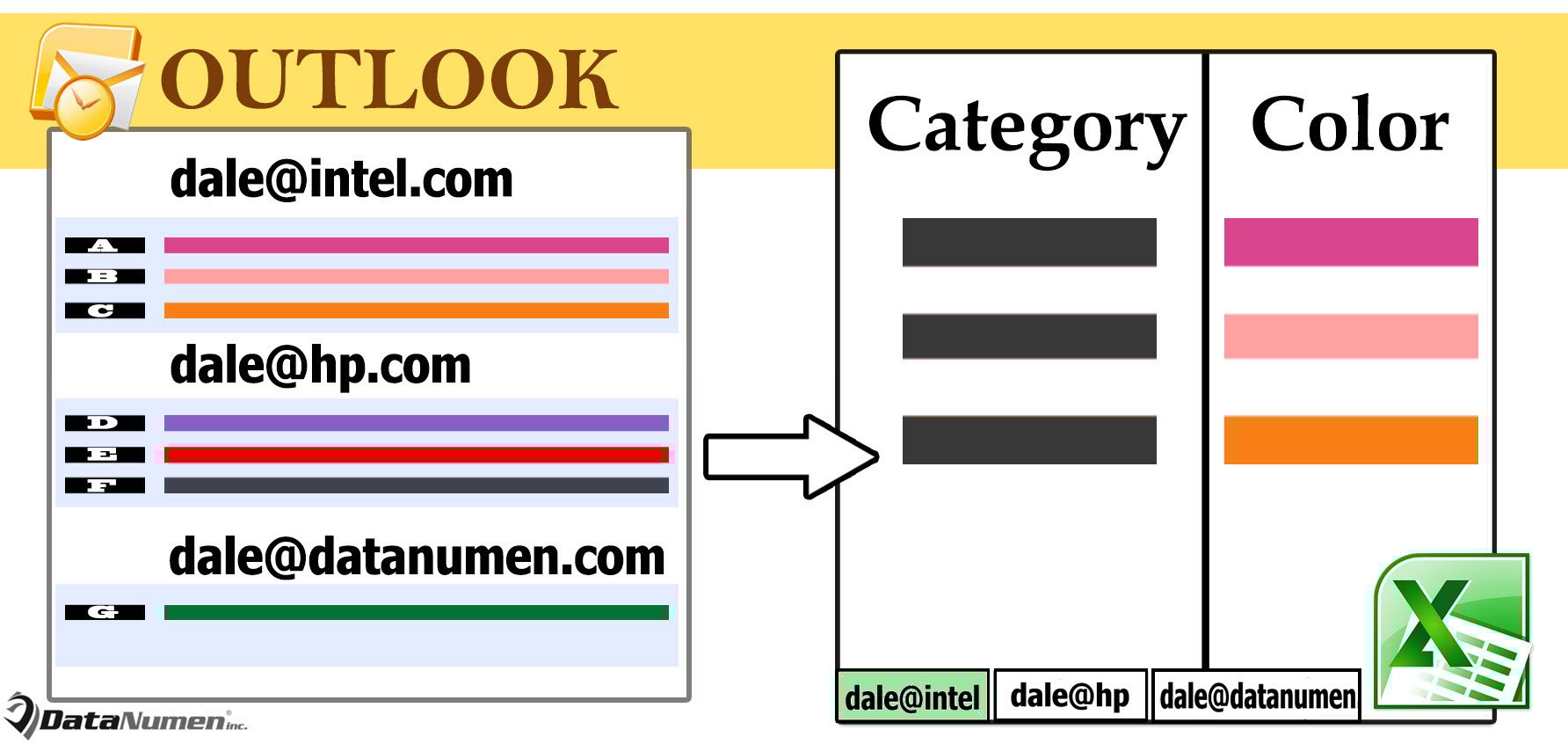
Barcha Outlook pochta qutilarining rangli toifalari ro'yxatini Excelga eksport qiling
- Boshlash uchun Outlook VBA muharririga “Alt + F11” orqali kiring.
- Keyin, yangi oynada maqolaga havola qilib “MS Excel obyektlar kutubxonasi” ni yoqing – “VBA da obyekt kutubxonasi havolasini qanday qo'shish mumkin".
- Keyinchalik, quyidagi VBA kodini modulga qo'ying.
Sub ExportAllColorCategories()
    Dim objExcelApp As Excel.Application
    Dim objExcelWorkbook As Excel.Workbook
    Dim objExcelWorksheet As Excel.Worksheet
    Dim objStores As Outlook.Stores
    Dim objStore As Outlook.Store
    Dim objCategories As Outlook.Categories
    Dim objCategory As Outlook.Category
    Dim nLastRow As Integer

    Set objExcelApp = CreateObject("Excel.Application")
    Set objExcelWorkbook = objExcelApp.Workbooks.Add
    objExcelApp.Visible = True

    Set objStores = Outlook.Application.Session.Stores

    For i = objStores.Count To 1 Step -1
        Set objStore = objStores.Item(i)
        Set objExcelWorksheet = objExcelWorkbook.Sheets(i)

        With objExcelWorksheet
             .Cells(1, 1) = "Category"
             .Cells(1, 1).Font.Size = 12
             .Cells(1, 1).Font.Bold = True
             .Cells(1, 2) = "Color"
             .Cells(1, 2).Font.Size = 12
             .Cells(1, 2).Font.Bold = True
       End With

       Set objCategories = objStore.Categories

       For Each objCategory In objCategories
           nLastRow = objExcelWorksheet.Range("A" & objExcelWorksheet.Rows.Count).End(xlUp).Row + 1
           With objExcelWorksheet
                .Cells(nLastRow, 1) = objCategory.Name
                .Cells(nLastRow, 2) = GetColor(objCategory.Color)
                .Cells(nLastRow, 2).Interior.Color = GetRGB(objCategory.Color)
           End With
       Next

       objExcelWorksheet.Name = objStore.DisplayName
       objExcelWorksheet.Columns("A:B").AutoFit
    Next
End Sub

Function GetColor(Color) As String
    Select Case Color
           Case -1
                GetColor = "No Color"
           Case 15
                GetColor = "Black"
           Case 8
                GetColor = "Blue"
           Case 23
                GetColor = "Dark Blue"
           Case 20
                GetColor = "Dark Green"
           Case 25
                GetColor = "Dark Maroon"
           Case 22
                GetColor = "Dark Olive"
           Case 17
                GetColor = "Dark Orange"
           Case 18
                GetColor = "Dark Peach"
           Case 24
                GetColor = "Dark Purple"
           Case 16
                GetColor = "Dark Red"
           Case 12
                GetColor = "Dark Steel"
           Case 21
                GetColor = "Dark Teal"
           Case 19
                GetColor = "Dark Yellow"
           Case 13
                GetColor = "Gray"
           Case 5
                GetColor = "Green"
           Case 10
                GetColor = "Maroon"
           Case 7
                GetColor = "Olive"
           Case 2
                GetColor = "Orange"
           Case 3
                GetColor = "Peach"
           Case 9
                GetColor = "Purple"
           Case 1
                GetColor = "Red"
           Case 11
                GetColor = "Steel"
           Case 6
                GetColor = "Teal"
           Case 4
                GetColor = "Yellow"
           Case Else
                GetColor = "Unknown"
    End Select
End Function

Function GetRGB(Color) As Long
    Select Case Color
           Case -1
                GetRGB = RGB(255, 255, 255)
           Case 15
                GetRGB = RGB(0, 0, 0)
           Case 8
                GetRGB = RGB(115, 155, 203)
           Case 23
                GetRGB = RGB(42, 99, 168)
           Case 20
                GetRGB = RGB(0, 126, 0)
           Case 25
                GetRGB = RGB(126, 0, 126)
           Case 22
                GetRGB = RGB(138, 172, 70)
           Case 17
                GetRGB = RGB(226, 107, 10)
           Case 18
                GetRGB = RGB(151, 120, 7)
           Case 24
                GetRGB = RGB(103, 66, 130)
           Case 16
                GetRGB = RGB(192, 0, 0)
           Case 12
                GetRGB = RGB(82, 110, 144)
           Case 21
                GetRGB = RGB(49, 147, 98)
           Case 19
                GetRGB = RGB(180, 176, 0)
           Case 13
                GetRGB = RGB(224, 224, 244)
           Case 5
                GetRGB = RGB(0, 176, 80)
           Case 10
                GetRGB = RGB(216, 136, 176)
           Case 7
                GetRGB = RGB(181, 205, 133)
           Case 2
                GetRGB = RGB(249, 176, 115)
           Case 3
                GetRGB = RGB(255, 218, 185)
           Case 9
                GetRGB = RGB(171, 153, 195)
           Case 1
                GetRGB = RGB(255, 113, 113)
           Case 11
                GetRGB = RGB(204, 216, 218)
           Case 6
                GetRGB = RGB(123, 211, 167)
           Case 4
                GetRGB = RGB(255, 255, 0)
           Case Else
                GetRGB = RGB(255, 255, 255)
     End Select
End Function
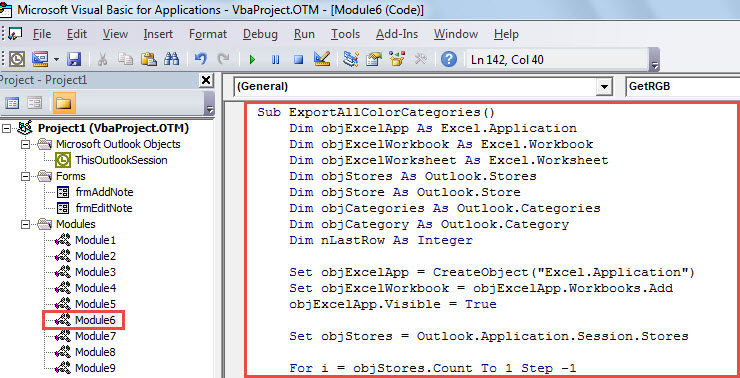
- Oxir-oqibat, "ExportAllColorCategories" pastki dasturini bosing va "F5" tugmasini bosing.
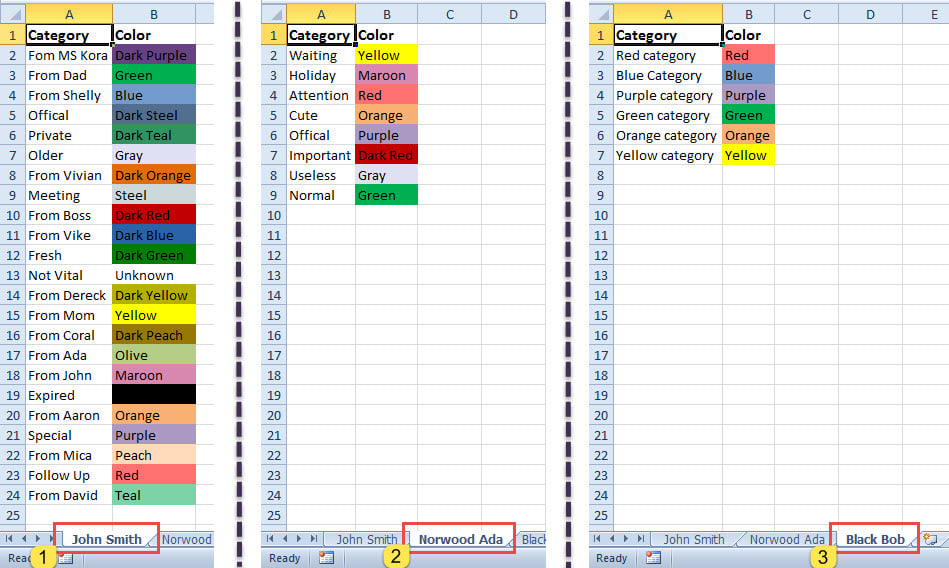
- Makros tugagach, quyidagi skrinshotga o'xshash yangi Excel ish kitobi paydo bo'ladi.

Outlook ma'lumotlaringizni tartibli saqlang
Outlook foydalanuvchilarga elementlarni tartibga solishga qaratilgan ranglar toifasini taqdim etadi. U juda ko'p foydalanuvchilar tomonidan ishlatilgan. Fayllarni yaxshi tartibga solishdan tashqari, Outlook fayllarini kichik hajmda saqlash ham tavsiya etiladi. Katta PST fayli buzilishlarga moyil. Agar PST shikastlangan bo'lsa, sizda qiyin harakat qilishdan boshqa tanlovingiz yo'q PST ta'mirlash kuchli vosita orqali, aytaylik DataNumen Outlook Repair.
Muallif kirish:
Shirli Chjan ma'lumotlarni qayta tiklash bo'yicha mutaxassis DataNumenMa'lumotlarni qayta tiklash texnologiyalari bo'yicha jahon yetakchisi bo'lgan , Inc mdf-ni tiklash va Outlook ta'mirlash dasturiy mahsulotlar. Qo'shimcha ma'lumot olish uchun tashrif buyuring www.datanumen.com