
1. кіріспе
Қоқыс жәшігі – жойылған файлдарға арналған Windows жүйесіне орнатылған қауіпсіздік торы. Файл әлі ішінде болған кезде, оны қалпына келтіру үшін бірнеше рет басу жеткілікті. Бұл нұсқаулықта Windows жүйесіндегі қоқыс жәшігінен жойылған файлдарды, соның ішінде сыртқы, желілік және OneDrive синхрондалған орындардағы файлдарды қалай қалпына келтіру керектігі түсіндіріледі.
1.1 Бұл нұсқаулық нені қамтиды
- Қоқыс жәшігінде әлі де бар файлдарды қалпына келтіру
- Жойылған файлдарды бастапқы орнына қалпына келтіру
- Бастапқы қалта жоқ болған кезде жойылған файлдарды жаңа орынға қалпына келтіру
1.2 Бұл нұсқаулық нені қамтымайды
- Файлдар жойылды ауысым + Жою, бұл қоқыс жәшігін толығымен айналып өтеді
- Қоқыс жәшігінен жойылған немесе босатылған файлдар. Бұл жағдайда, тексеріңіз Бұл нұсқаулық файлдарды қалпына келтіру үшін.
- Себеттегі сақтау шегінен асып кеткен және біржола жойылған файлдар
2. Жойылған файлдарды қоқыс жәшігінен қалпына келтіріңіз
Егер файл жергілікті дискіден жойылған болса Жою пернесін басыңыз немесе тінтуірдің оң жақ батырмасын басыңыз Жою пәрменін орындасаңыз, ол тікелей қоқыс жәшігіне түседі. Оны келесі 3 қадаммен қалпына келтіріңіз:
2.1 Қоқыс жәшігін ашыңыз
Келесі әдістердің кез келгенін пайдаланыңыз:
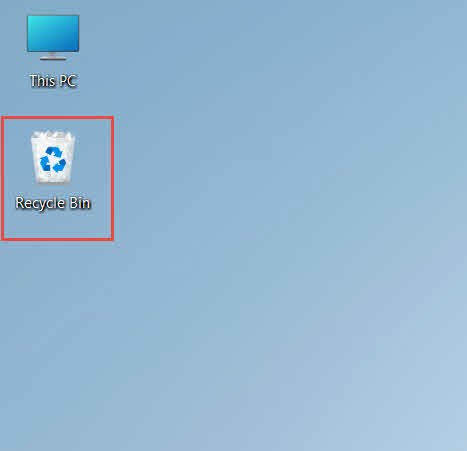
- Екі рет нұқыңыз Қоржын жұмыс үстеліндегі белгіше

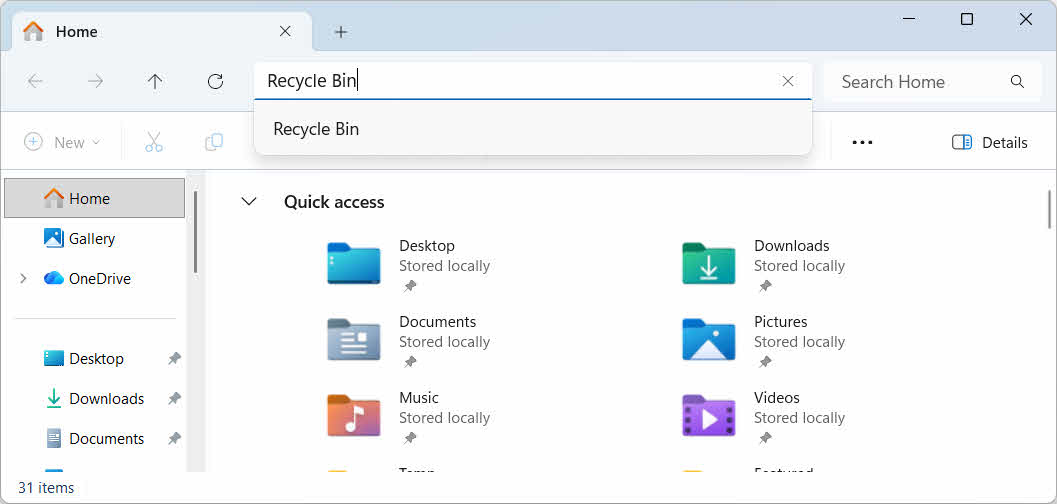
- File Explorer бағдарламасын ашып, енгізіңіз Қоржын мекенжай жолағында

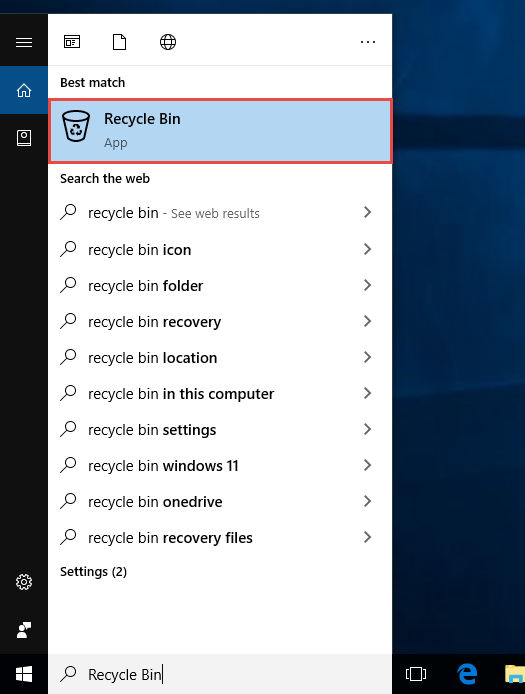
- түрі Қоржын Windows іздеу жүйесіне өтіп, нәтижелерден таңдаңыз

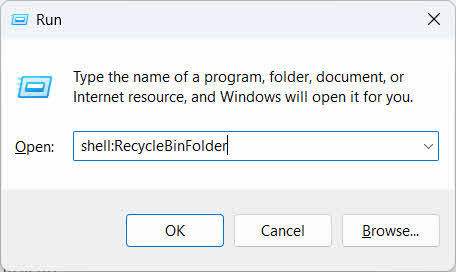
- баспасөз Жеңу + R, теріңіз қабық:Қайта өңдеу қалтасытүймесін басып, түймесін басыңыз кіру

2.2 Жойылған файлды немесе қалтаны табыңыз
Қоқыс жәшігі ашылғаннан кейін, келесі тәсілдердің бірімен қажетті заттарды табыңыз:
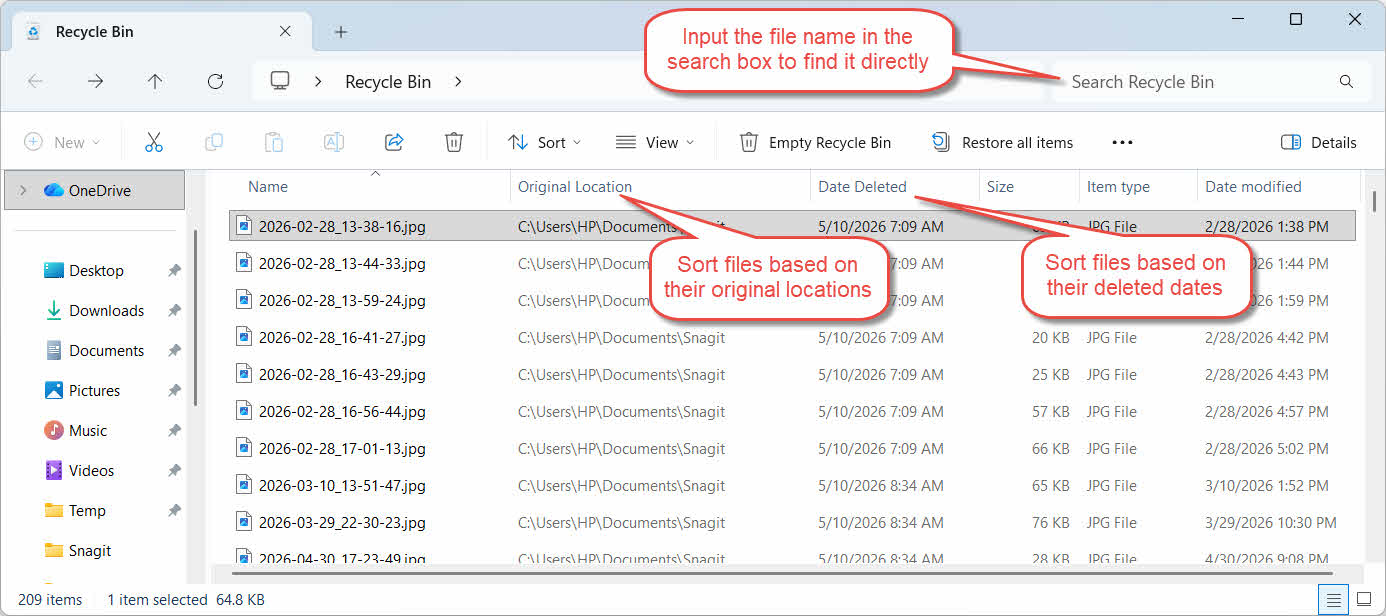
- Жоғарғы оң жақ бұрыштағы іздеу жолағына файл атауын теріңіз
- басыңыз Жойылған күні ең соңғы жоюлар бойынша сұрыптауға арналған баған тақырыбы
- тексеріңіз Бастапқы орналасқан жері файлдың сіз күткен қалтадан келгенін растау үшін баған
2.3 Файлдарды немесе қалталарды қалпына келтіру
Бір немесе бірнеше элементті қалпына келтіру үшін:
- Бір файлды таңдаңыз немесе ұстап тұрыңыз Ctrl және бірнеше файлды таңдау үшін басыңыз немесе ұстап тұрыңыз ауысым және диапазонды таңдау үшін басыңыз
- Таңдауды тінтуірдің оң жақ түймешігімен басып, таңдаңыз қалпына келтіру
- Файлдың оралғанын растау үшін бастапқы қалтаны ашыңыз

Қоқыс жәшігіндегі барлық элементтерді бірден қалпына келтіру үшін түймесін басыңыз Барлық элементтерді қалпына келтіру алдымен кез келген жеке файлды таңдамай, құралдар тақтасында.
3. Жойылған файлдарды қоқыс жәшігінен басқа жерге қалпына келтіріңіз
The қалпына келтіру команда әрқашан файлды бастапқы қалтасына қайтарады. Кейбір жағдайларда оны басқа жерге жылжыту қажет.
3.1 Бұл әдісті қашан қолдану керек
- Бастапқы қалта енді жоқ
- Бастапқы қалтада дәл осындай атаумен жаңа файл бар
- Бастапқы қалтаға кіруге рұқсатыңыз жоқ
- Файл қай қалтадан алынғанын білмейсіз
- Файлды бастапқы орнына қайтармас бұрын қарап шығыңыз
3.2 Файлды қоқыс жәшігінен сүйреп шығарыңыз немесе қиып алыңыз
Файлды қоқыс жәшігінен өзіңіз таңдаған қалтаға жылжыту үшін:
- Қоқыс жәшігін ашыңыз
- Қалпына келтірілетін файлды немесе қалтаны таңдаңыз.
- Файлды немесе қалтаны мақсатты қалтаға жылжыту үшін келесі әдістердің бірін пайдаланыңыз:
- Оны тікелей мақсатты қалта терезесіне сүйреңіз
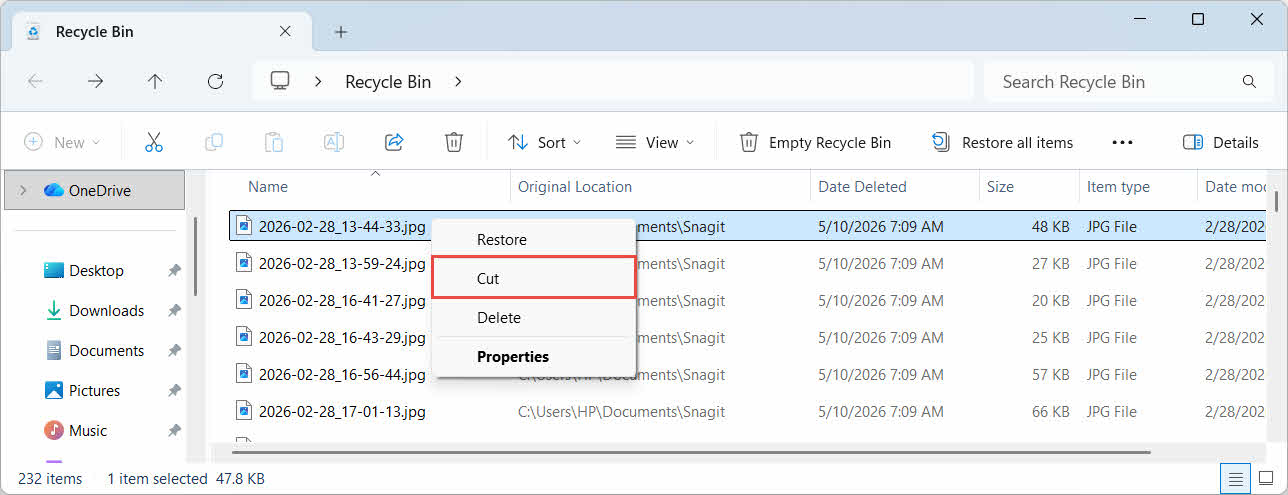
- баспасөз Ctrl + X оны кесу үшін мақсатты қалтаны ашып, түймесін басыңыз Ctrl + V оны қою үшін
- Таңдауды тінтуірдің оң жақ түймешігімен басып, таңдаңыз кесу, мақсатты қалтаны ашып, тінтуірдің оң жақ түймешігін басып, таңдаңыз Қою оны қою үшін

4. Сыртқы, желілік және бұлттық дискілердегі қоқыс жәшігінен файлдарды қалпына келтіру
Ішке кіретін қадамдар бөлім 2 файл компьютеріңіздің негізгі дискісінен жойылған деп есептеңіз. Сыртқы, желілік және бұлттық синхрондалған сақтау орны басқаша жұмыс істейді.
4.1 Сыртқы қатты дискілер және USB флэш-дискілері
Windows сыртқы қатты дискілерді (USB арқылы қосылған SSD дискілерін қоса алғанда) ішкі дискілермен бірдей өңдейді: әрқайсысының әдепкі бойынша жасырын қоқыс жәшігі қалтасы болады. USB флэш-дискілері мен SD карталары сияқты алынбалы медиа әртүрлі өңделеді және әдепкі бойынша қоқыс жәшігі болмайды, сондықтан олардан жойылған файлдар бірден жойылады.
4.1.1 Диск үшін қоқыс жәшігін қолдауды қосу
Сыртқы қатты диск үшін, қоқыс жәшігін қолдау қосулы екеніне көз жеткізіңіз:
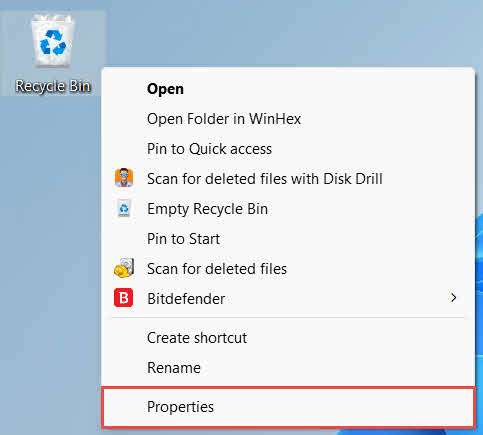
- Тінтуірдің оң жағын басыңыз Қоржын жұмыс үстеліндегі белгішені басып, таңдаңыз Сипаттар

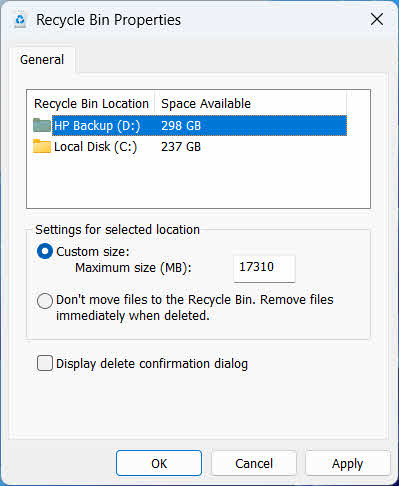
- Ішінде Қоқыс жәшігінің орналасқан жері тізімінде сыртқы дискіге арналған жолды таңдаңыз. Ол тек диск қосылғаннан кейін және диск әрпі болғаннан кейін ғана пайда болады.
- астында Таңдалған орынға арналған параметрлер, сенімді болу Өзгертпелі өлшем таңдалған, емес Файлдарды қоқыс жәшігіне тастамаңыз. Жойылған файлдарды дереу жойыңыз.

- басыңыз Қолдану, содан кейін OK
Әрбір диск бұл параметрді бөлек сақтайды, сондықтан сыртқы диск жүйелік диск қосулы тұрған кезде де қоқыс жәшігін қолдауды өшіре алады.
USB флэш-дискісінде немесе SD картасында ол «Қоқыс себетінің сипаттарында» мүлдем көрінбейді, себебі Windows әдепкі бойынша алынбалы құралда «Қоқыс себеті» қалтасын жасамайды. Оны қосу үшін тізілімді өңдеу қажет:
- баспасөз Жеңу + R, теріңіз regeditтүймесін басыңыз кіружәне сұрауды мақұлдаңыз
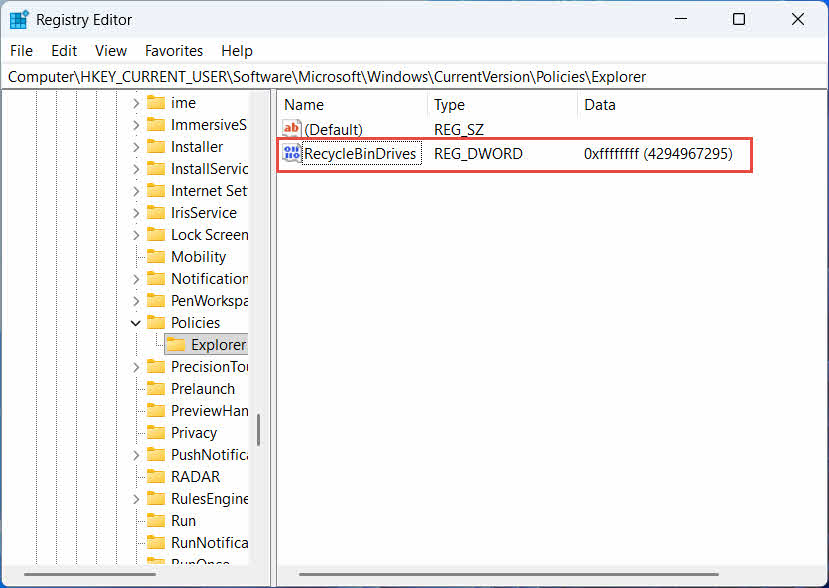
- Шарлау тармағына өтіңіз HKEY_CURRENT_USER\Software\Microsoft\Windows\CurrentVersion\Policies\Explorer. Егер зерттеуші кілт астында жоқ саясат, тінтуірдің оң жағын басыңыз саясаттаңдаңыз жаңа -> кілт, және оны атаңыз зерттеуші
- Оң жақ панельдегі бос аймақты тінтуірдің оң жақ түймешігімен басып, таңдаңыз жаңа -> DWORD (32-bit) мәні, және оны атаңыз RecycleBinDrives
- Екі рет басу RecycleBinDrives, орнатылған Негіз дейін Оналтылық, енгізіңіз фффффф мән деректері ретінде енгізіп, түймесін басыңыз OK

- Төмендегі 2-ден 4-ке дейінгі қадамдарды қайталаңыз HKEY_LOCAL_MACHINE \ SOFTWARE \ Microsoft \ Windows \ CurrentVersion \ Policies \ Explorer
- Компьютерді қайта қосыңыз
Өзгерісті кері қайтару үшін, оны жойыңыз RecycleBinDrives екі орыннан да мән. Бұл тізілімді өңдеуді қамтитындықтан, алдымен қалпына келтіру нүктесін жасаңыз және сақтық көшірмелерге тек анда-санда ғана пайдаланатын дискілер үшін сүйену оңайырақ па екенін қарастырыңыз.
4.1.2 Файлдарды қалпына келтіру
Диск үшін қоқыс жәшігі қосылғаннан кейін, файлды қалпына келтіру сипатталғандай процесті орындайды бөлім 2.3.
Файлды картаға түсірілген желілік дискіден немесе ортақ қалтадан жою оны тікелей серверден жояды. Ол компьютеріңіздің жергілікті қоқыс жәшігінен өтпейді. Бірақ егер сервер жағындағы қоқыс жәшігі қосылған болса, одан жойылған файлдарды қалпына келтіре аласыз.
4.2.1 Сервер жағындағы қоқыс жәшігі (егер қосылған болса)
Кейбір файл серверлері мүмкіндік береді Көлеңкелі көшірмелер (Көлеңкелі көшірме қызметі), бұл сізге ортақ қалтаның бұрынғы нұсқаларын қалпына келтіруге мүмкіндік береді, осылайша сіз осы мүмкіндіктің көмегімен жойылған файлдарды қалпына келтіре аласыз:
- Желілік ортақ пайдаланудағы аталық қалтаны тінтуірдің оң жақ түймешігімен басып, таңдаңыз Сипаттар
- Ашыңыз Алдыңғы нұсқалар қойындысы
- Жою алдындағы нұсқасын таңдап, түймесін басыңыз қалпына келтіру
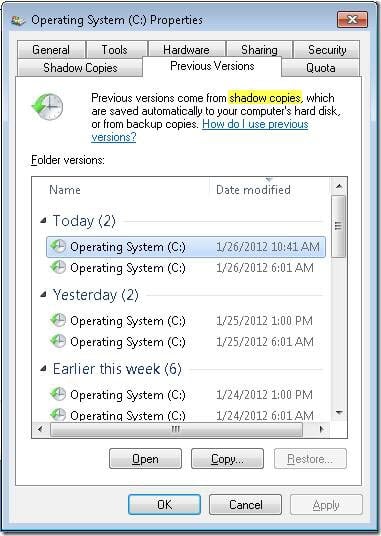
4.2.2 Сервер жағындағы қоқыс жәшігі болмаса не істеу керек
егер Алдыңғы нұсқалар қойынды бос немесе қолжетімді емес, ортақ пайдалануда суретке негізделген қалпына келтіру конфигурацияланбаған. Сервердің өзіндік сақтық көшірме кестесі бар-жоғын тексеру үшін желі әкімшісіне хабарласыңыз.
4.3 OneDrive қоқыс жәшігі (бұлтпен синхрондалған қалталар)
OneDrive синхрондалған қалталар екі бөлек қоқыс жәшігін қамтуы мүмкін: жергілікті Windows қоқыс жәшігі және веб-негізделген OneDrive қоқыс жәшігі. Файлыңыздың қайсысы жойылған жерге байланысты.
4.3.1 Синхрондалған файлды жергілікті жою (жергілікті және веб-қоқыс жәшігіне өтеді)
Егер синхрондалған файлды компьютеріңіздегі File Explorer бағдарламасынан жойсаңыз, ол жергілікті қоқыс жәшігіне дәл сипатталғандай түседі бөлім 2, және OneDrive синхрондау клиенті де жоюды бұлтқа көрсетеді, сондықтан файлды OneDrive веб-қоқыс жәшігінен де қалпына келтіруге болады.
4.3.2 Бұлт арқылы жою (тек веб-қоқыс жәшігі, 2026 жылдың мамыр айынан бастап)
Егер файл бұлт жағынан жойылса, мысалы, OneDrive веб-сайты немесе басқа синхрондалған құрылғы арқылы, 2026 жылдың мамыр айынан бастап әрекет өзгерді: Microsoft бұлттан басталған жоюларды жергілікті Windows себетіне жіберуді тоқтатты. Осылайша жойылған файл жергілікті себетте пайда болмай, жергілікті қалтаңыздан жоғалады, ал қалпына келтіру тек OneDrive немесе SharePoint веб себетінен мүмкін болады.
4.3.3 OneDrive.com сайтынан қалпына келтіру
OneDrive веб-қоқыс жәшігінен файлды қалпына келтіру үшін:
- Кіру: onedrive.live.com or onedrive.com
- таңдау Қоржын навигация тақтасында
- Файлды немесе қалтаны таңдап, түймесін басыңыз қалпына келтіру
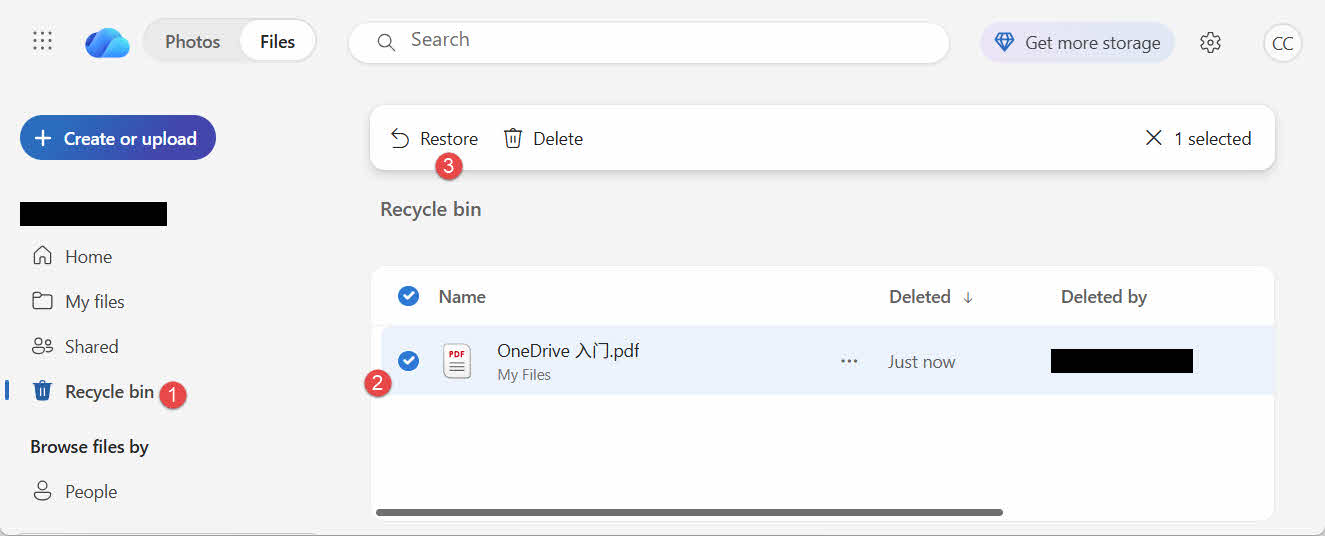
Жеке Microsoft тіркелгілері жойылған элементтерді 30 күнге дейін сақтайды; жұмыс немесе мектеп тіркелгілері оларды 93 күнге дейін сақтайды.
5. Қоқыс жәшігін қалпына келтіру мәселелерін шешу
5.1 Жұмыс үстелінде қоқыс жәшігі белгішесі жоқ
Жұмыс үстеліндегі белгішесі жасырылған болса да, қоқыс жәшігі әлі де бар. Белгішені қалпына келтіру үшін:
- Жұмыс үстелін тінтуірдің оң жақ түймешігімен басып, таңдаңыз жекелендіру
- ашық Тақырыптар, содан кейін Жұмыс үстелі белгішесінің параметрлері
- тексеру Қоржын және нұқыңыз OK
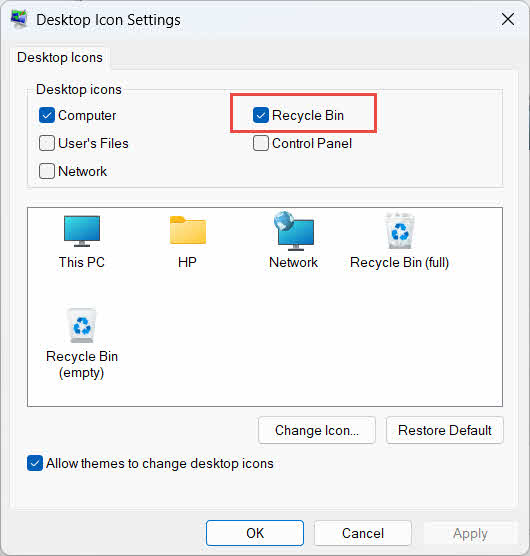
Оны тікелей теру арқылы да ашуға болады Қоржын сипатталғандай, Windows іздеу, File Explorer немесе Win + R пайдалану арқылы бөлім 2.1.
5.2 Файл қоқыс жәшігінде жоқ
Егер қажетті файлдар қоқыс жәшігінде болмаса, келесі себептерді қарастырыңыз:
- Ол қоқыс жәшігін қолдаусыз сыртқы дискіден жойылды (қараңыз) бөлім 4.1)
- Ол желілік дискіден жойылды (қараңыз бөлім 4.2)
- Ол вебтегі OneDrive қызметінен тікелей жойылды (қараңыз бөлім 4.3)
- Ол біржола жойылды, мысалы, ауысым + Жоюнемесе қоқыс жәшігі босатылған
Егер файл біржола жойылған болса, оны қалпына келтіру үшін арнайы деректерді қалпына келтіру бағдарламалық жасақтамасы қажет, мысалы DataNumen Data Recovery, қоқыс жәшігіне емес. Деректердің қайта жазылу мүмкіндігін азайту үшін алдымен сол дискіге жаңа файлдарды сақтауды тоқтатыңыз.
5.3 Қалпына келтіру опциясы сұр түсті, жоқ немесе жұмыс істемейді
Бұл әдетте таңдалған элементтер енді жоқ орыннан келгенде немесе қоқыс жәшігінің ішкі индексі синхрондалмаған кезде орын алады. Келесі түзетулерді қолданып көріңіз:
- File Explorer бағдарламасын қайта іске қосыңыз: Тапсырмалар менеджерін ашу үшін Ctrl + Alt + Del пернелер тіркесімін пайдаланыңыз, тінтуірдің оң жақ түймешігін басыңыз Windows Explorerтаңдаңыз Қайтадан қосу

- Элементтерді топтық емес, бір-бірлеп қалпына келтіріңіз
- If қалпына келтіру әлі де пайда болмаса, файлды сипатталғандай қолмен сүйреп шығарыңыз бөлім 3.2
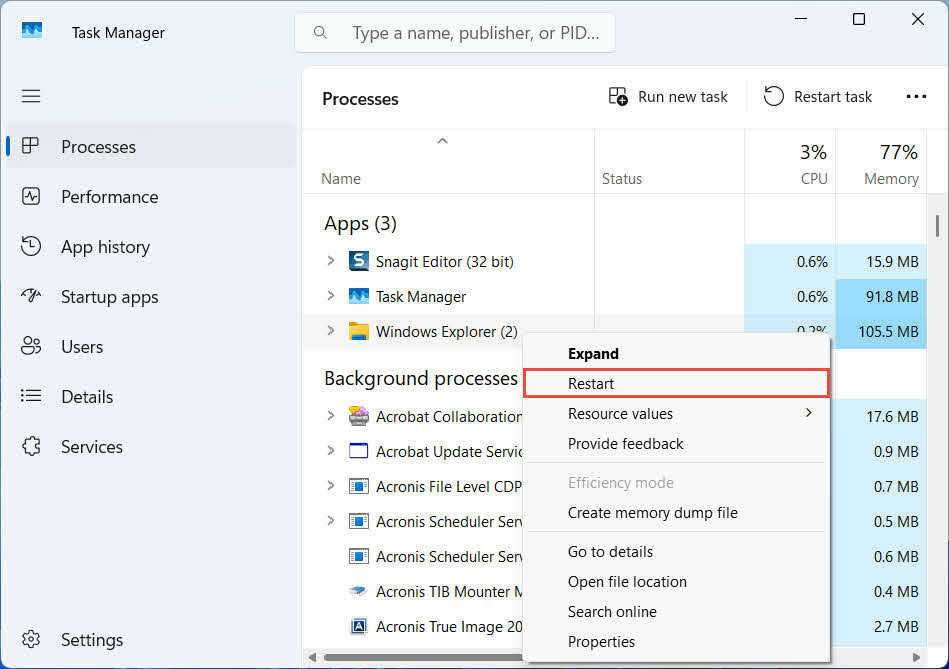
5.4 Қалпына келтіру кезіндегі «Кіруге тыйым салынды» немесе рұқсат қателері
Бұл файлдың өзінде емес, бастапқы қалтадағы рұқсаттар мәселесін көрсетеді. Мынаны тексеріңіз:
- Сіз файлды жойған есептік жазбамен кірдіңіз
- Мақсатты қалтаның рұқсаттары әлі де тіркелгіңізге жазуға мүмкіндік береді
- Басқарылатын немесе жұмыс компьютеріндегі саясат File Explorer бағдарламасын бұғаттамайды
Егер бастапқы қалтаның рұқсаттары өзгерген болса, файлды басқа орынға қалпына келтіріңіз, келесі әрекеттерді орындаңыз бөлім 3.
5.5 Қоқыс жәшігі бос сияқты көрінеді, бірақ мен оны босатпаймын
Файлдар себетті ешкім қолмен босатпай-ақ жоғалып кетуі мүмкін:
- Storage Sense белгілі бір күндер санынан кейін элементтерді автоматты түрде жою үшін конфигурациялануы мүмкін
- Қоқыс жәшігінің өлшем шегіне жетті, сондықтан Windows орын босату үшін ең ескі элементтерді тазалады (қараңыз) бөлім 6.1)
- Ортақ компьютердегі басқа тіркелгі оны босатты
- Басқарылатын құрылғыдағы топтық саясат автоматты түрде босатуды қамтамасыз етеді
5.6 Қалпына келтірілген файл бүлінген, бос немесе ашылмайды
Қалпына келтіру тек файлды кері жылжытады; оны қалпына келтірмейді. Егер файл жойылғанға дейін зақымдалған болса немесе жойылған кезде оған жазылып жатса, ол қалпына келтірілгеннен кейін де ашылмауы мүмкін. Бұл жағдайда мәселе қоқыс жәшігінің мәселесінде емес, файлдың бүлінуінде және қажеттіліктерінде жөндеу құралы басқа қалпына келтіру әрекетіне қарағанда сол файл пішіміне сәйкес келеді.
6. Қоқыс жәшігін басқару және конфигурациялау
6.1 Қоқыс жәшігінің сақтау көлемін өзгерту
Әрбір дискінің өзіндік қоқыс жәшігі бар. Оны қарап шығу немесе өзгерту үшін:
- Тінтуірдің оң жағын басыңыз Қоржын белгішесін басыңыз және таңдаңыз Сипаттар
- Қоқыс жәшігінің орналасу тізімінен дискіні таңдаңыз
- таңдау Өзгертпелі өлшем және енгізіңіз Ең үлкен өлшемі (МБ)немесе таңдаңыз Файлдарды қоқыс жәшігіне тастамаңыз. Жойылған файлдарды дереу жойыңыз. оны сол диск үшін өшіру үшін
- басыңыз OK
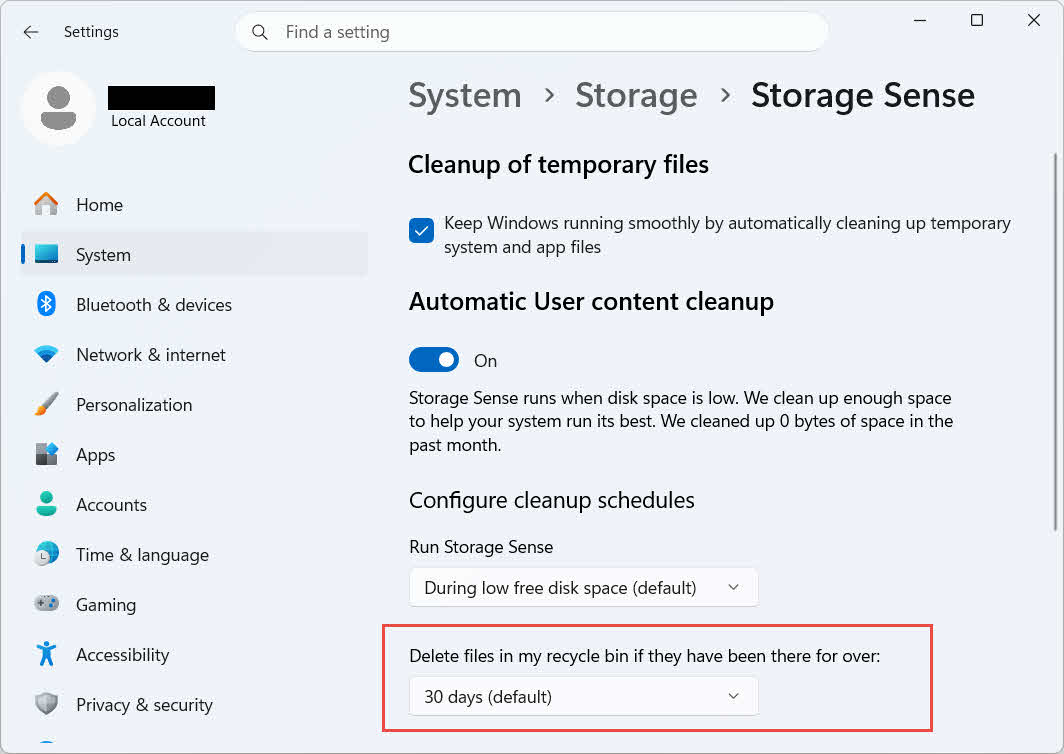
Windows сонымен қатар жасқа негізделген бөлек тазалау опциясын ұсынады: өтіңіз Параметрлер -> Жүйе -> Сақтау орны -> Сақтау орнын анықтау және орнатыңыз Егер файлдар қоқыс жәшігімде ұзақ уақыт болса, оларды жойыңыз таңдалған күндер саны. Әдепкі сақтау мерзімі 30 күн.
6.2 Жоюды растау диалогтық терезесін қосу
Windows 11 файлдарды қоқыс жәшігіне жылжытпас бұрын әдепкі бойынша растау сұрауын көрсетпейді. Оны қосу үшін:
- Тінтуірдің оң жағын басыңыз Қоржын белгішесін басыңыз және таңдаңыз Сипаттар
- тексеру Жоюды растау диалогтық терезесін көрсету
- басыңыз OK
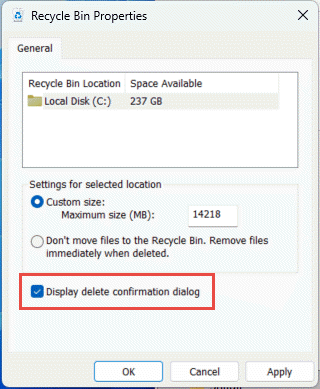
Бұл параметр тұрақты жоюлардың алдын алмайды, мысалы ауысым + Жою немесе қоқыс жәшігін қолдаусыз дискілерден жою.
6.3 Файлдарды қоқыс жәшігін айналып өтуге орнату (және неге одан аулақ болу керек)
Бірдей Файлдарды қоқыс жәшігіне тастамаңыз. Жойылған файлдарды дереу жойыңыз. опция қамтылған бөлім 6.1 әрбір жоюды тұрақты ету үшін кез келген дискіге қолдануға болады. Бұл дискідегі орынды бірден босатады, бірақ осы нұсқаулықта сипатталған жалғыз жылдам қалпына келтіру опциясын жояды, сондықтан оны арнайы сызу немесе уақытша дыбыс деңгейі сияқты жеке файлдары жоқ дискілерге сақтаған дұрыс.
7. Болашақта деректердің жоғалуын болдырмаудың ең жақсы тәжірибелері
7.1 Файл тарихын немесе сақтық көшірме жасау шешімін қосу
Себет тек кездейсоқ жоюдан қорғайды, дискінің істен шығуынан немесе босатылған себеттен қорғамайды. Файлдар журналын қосу (Басқару панелі -> Жүйе және қауіпсіздік -> Файлдар журналы)

немесе үшінші тараптың сақтық көшірме жасау құралы өзінің нұсқа тарихымен екінші қорғаныс қабатын қосады.
7.2 Маңызды қалталар үшін бұлттық синхрондауды пайдаланыңыз
Жұмыс үстелін, құжаттарды және суреттерді OneDrive немесе басқа бұлттық қызметпен синхрондау сізге веб-қоржынды береді. сипатталғандай бөлім 4.3 жергілікті қоқыс жәшігінен тәуелсіз қосымша қалпына келтіру жолы ретінде.
7.3 Қоқыс жәшігін босатпас бұрын екі рет тексеріңіз
Баспас бұрын Бос себет, бойынша сұрыптау Жойылған күні және жақында болған кез келген нәрсені сканерлеңіз. Ол босатылғаннан кейін, қалған жалғыз нұсқа - деректерді қалпына келтіруге арналған бағдарламалық жасақтама, және сәттілікке кепілдік берілмейді.
8. Жиі қойылатын сұрақтар
С: Себетті босатқаннан кейін файлды қалпына келтіре аламын ба?
A: Себеттің өзі арқылы емес. Сол кезде файл файлдық жүйе деңгейінде жойылған деп белгіленеді, бірақ қайта жазылғанға дейін дискіде физикалық түрде болуы мүмкін. Мысалы, құралдар. DataNumen Data Recovery осындай деректерді сканерлеу және қалпына келтіру үшін жасалған. Қалпына келтірудің сәтті болу мүмкіндігін арттыру үшін дискіні мүмкіндігінше тезірек пайдалануды тоқтатыңыз.
С: Mac жүйесінде Windows қоқыс жәшігіне ұқсас нәрсе бар ма?
A: Иә, ол Себет деп аталады және дәл солай жұмыс істейді: Себетті ашып, файлды тінтуірдің оң жақ түймешігімен басып, Артқа қоюды таңдаңыз. Бұл нұсқаулықта Windows себеті туралы нақты айтылады. Бұл нұсқаулық Mac қоқысын арнайы қамтиды.
С: Файлдар автоматты түрде жойылғанға дейін қоқыс жәшігінде қанша уақыт тұрады?
A: Жергілікті қоқыс жәшігінің әдепкі бойынша белгіленген уақыт шегі жоқ; элементтер тек өлшем шегіне жеткенде немесе Storage Sense ескі элементтерді тазарту үшін конфигурацияланған кезде ғана жойылады (қараңыз) бөлім 6.1OneDrive веб-қоқыс жәшігі бекітілген терезені пайдаланады: жеке тіркелгілер үшін 30 күн және жұмыс немесе мектеп тіркелгілері үшін 93 күнге дейін (қараңыз бөлім 4.3).
С: Файлды бастапқы орнына немесе жаңасына қалпына келтіруім керек пе?
A: Бастапқы орнына қалпына келтіру (бөлім 2) қарапайым және файлдың бастапқы жолын сақтайды. Басқа орынға қалпына келтіру (бөлім 3) оның орнына, егер сол бастапқы қалта енді жоқ болса немесе бұрыннан бірдей атаудағы файл болса.
С: USB флэш-дискісінен жойылған файлдарды қоқыс жәшігін пайдаланып қалпына келтіре аламын ба?
A: Әдепкі бойынша емес. Флэш-дискілер мен SD карталары, егер сіз оны қолмен қоспасаңыз, «Қоқыс себеті» қалтасын алмайды, түсіндірілгендей. бөлім 4.1.
С: Неліктен Қалпына келтіру опциясы сұр немесе жоқ?
A: Бұл әдетте түпнұсқа қалтаның жоқтығынан немесе синхрондалмаған қоқыс жәшігі индексінен туындайды. Қараңыз бөлім 5.3 түзетулер үшін.
С: Қоқыс жәшігі бос болса, бірақ мен оны ешқашан босатпасам ше?
A: Storage Sense, жеткен өлшем шегі, басқа пайдаланушы тіркелгісі немесе топтық саясат параметрі оны автоматты түрде жоя алады. Қараңыз бөлім 5.5.
С: Қайта өңдеу себетінде жоқ файлдарды қандай бағдарламалық жасақтама қалпына келтіре алады?
A: Арнайы деректерді қалпына келтіру бағдарламалық жасақтамасы, мысалы DataNumen Data Recovery, файлдық жүйе енді сілтеме жасамайтын деректерді табу үшін дискіні төменгі деңгейде сканерлейді, бұл Recycle Bin интерфейсінің өзі жасай алмайтын нәрсе.
С: Файлды қалпына келтіру оның дұрыс ашылатынына кепілдік бере ме?
A: Жоқ. Қалпына келтіру файлды тек қалтаға қайтарады; ол файлды жою алдында немесе жою кезінде болған кез келген зақымды түзетпейді. Қараңыз бөлім 5.6.
9. қорытынды
Жойылған файлдарды қоқыс жәшігінен қалпына келтіру, егер элемент әлі де сол жерде болса, өте оңай: қоқыс жәшігін ашып, файлды тауып, қалпына келтіріңіз. Сыртқы дискілер, желілік ортақ файлдар және OneDrive синхрондалған қалталардың әрқайсысы өз шарттарын қосады, ал жоғарыдағы ақаулықтарды жою және конфигурациялау бөлімдері стандартты қалпына келтіру процесі күтілгендей жүрмейтін жағдайларды қамтиды. Егер файл біржола жойылған болса немесе қоқыс жәшігі босатылған болса, келесі қадам - қоқыс жәшігінің өзі емес, арнайы деректерді қалпына келтіру бағдарламалық жасақтамасы.
Автор туралы
Цянь Гуа Windows файлдық жүйелерінде, сақтау технологияларында және апаттық жағдайлардан қалпына келтіру шешімдерінде 10 жылдан астам тәжірибесі бар деректерді қалпына келтіру маманы. Ол мыңдаған пайдаланушыларға жеке және кәсіпорындық орталарда деректердің жоғалуының маңызды сценарийлері бойынша сәтті басшылық жасады.
Цянь Windows деректерін қалпына келтіру әдіснамаларына, файлдық жүйені талдауға және сақтық көшірме жасаудың алдын алу стратегияларына маманданған. Оның кең практикалық тәжірибесіне дискілерден деректерді қалпына келтіру, кешенді сақтық көшірме жасау шешімдерін енгізу және күрделі файлдық жүйе мәселелерін шешу кіреді. NTFS, FAT, exFAT және ReFS томдары. Ол кіріктірілген Windows утилиталарынан бастап кәсіби деректерді қалпына келтіру бағдарламалық жасақтамасына дейін әртүрлі қалпына келтіру құралдары мен әдістерімен жұмыс істеді.
Техникалық жазбалары арқылы Цянь пайдаланушыларға құнды деректерін қорғау және қалпына келтіру үшін практикалық білім беруге арналған. Ол Windows файлдарын қалпына келтіру технологияларындағы, сақтау құрылғыларындағы инновациялардағы және деректерді қорғаудың ең жақсы тәжірибелеріндегі соңғы жаңалықтардан хабардар болып отырады. Пайдаланушыларға деректерді қалпына келтіруге көмектеспеген кезде...ost fileс., Цянь жаңа сақтау технологияларын зерттеуді және болашақта деректердің жоғалуын болдырмауға көмектесетін деректер қауіпсіздігі бойынша кеңестермен бөлісуді ұнатады.
Осы нұсқаулық бойынша сұрақтарыңыз бар ма немесе деректерді қалпына келтіруге көмек керек пе? Цянь қарсы алады кері байланыс пен ұсыныстар деректерді қалпына келтіру ресурстарын жақсарту үшін.