
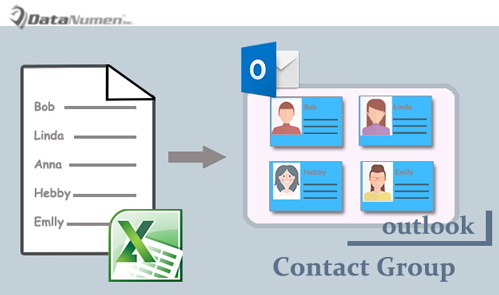
Excelファイルの連絡先リストからOutlook連絡先グループを作成する場合は、この記事で紹介した2つの方法を使用できます。
一部のユーザーは、連絡先のリストを含むExcelファイルからOutlook連絡先グループをすばやく作成する方法を探しています。 もちろん、そのような連絡先グループを手動で作成することもできます。 ただし、少し面倒です。 したがって、手動の手段とは別に、ここではVBAを使用する別の簡単な方法を追加で紹介します。
方法1:手動で作成する
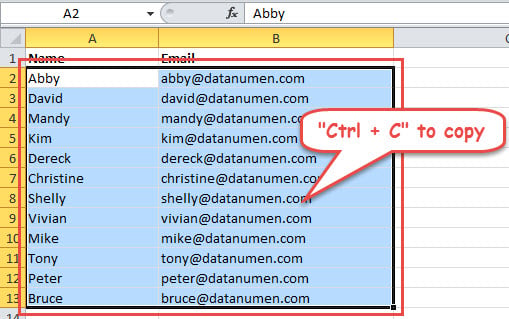
- 最初に、Excelファイルを開きます。
- 次に、電子メールアドレスを含む列を選択します。 オプションで、名前の列を含めることもできます。
- 次に、選択したすべてのセルに対して「Ctrl + C」を押します。

- その後、Outlookプログラムを起動してください。
- 次に、連絡先ペインに切り替えて、「新しい連絡先グループ」ボタンを押します。
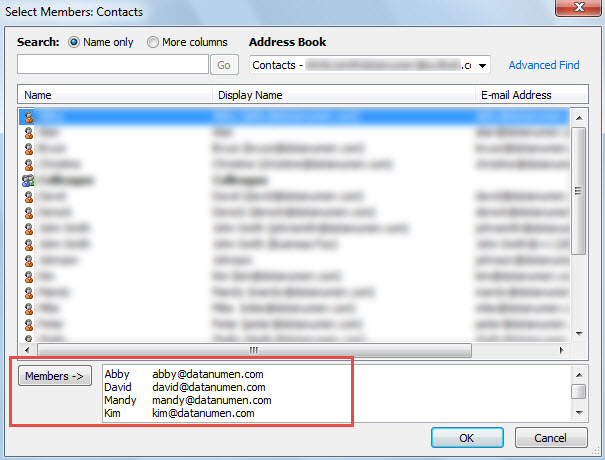
- 続いて、[メンバーの追加]-> [Outlookの連絡先から]をクリックします
- 後で「メンバー->」フィールドをクリックし、「Ctrl + V」キーを押して、以前にコピーした連絡先を貼り付けます。

- 「OK」ボタンを押してください。
- 次に、新しい連絡先グループに名前を割り当てます。
- 最後に「保存して閉じる」をクリックして、このグループを保存します。
方法2:OutlookVBAを介して作成する
- まず、Outlookの「Alt + F11」キーボタンを押します。
- 次に、新しいモジュールを開きます。
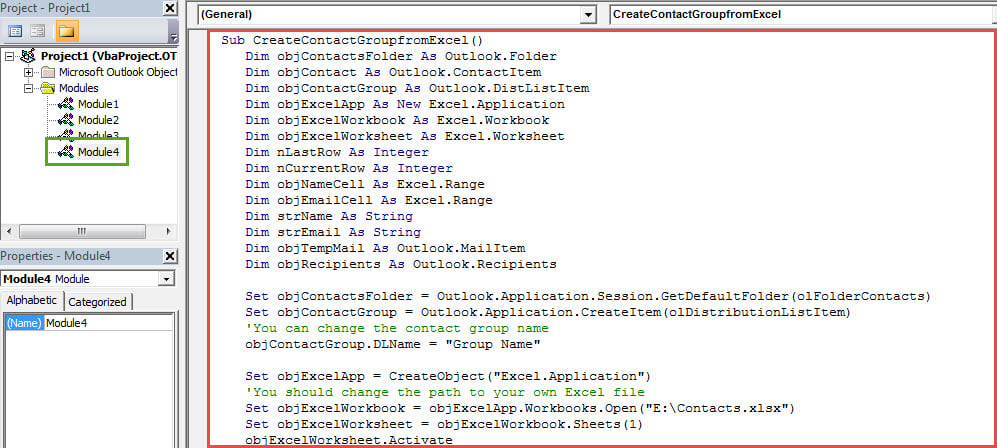
- 続いて、以下のコードをコピーして貼り付けます。
Sub CreateContactGroupfromExcel()
    Dim objContactsFolder As Outlook.Folder
    Dim objContact As Outlook.ContactItem
    Dim objContactGroup As Outlook.DistListItem
    Dim objExcelApp As New Excel.Application
    Dim objExcelWorkbook As Excel.Workbook
    Dim objExcelWorksheet As Excel.Worksheet
    Dim nLastRow As Integer
    Dim nCurrentRow As Integer
    Dim objNameCell As Excel.Range
    Dim objEmailCell As Excel.Range
    Dim strName As String
    Dim strEmail As String
    Dim objTempMail As Outlook.MailItem
    Dim objRecipients As Outlook.Recipients

    Set objContactsFolder = Outlook.Application.Session.GetDefaultFolder(olFolderContacts)
    Set objContactGroup = Outlook.Application.CreateItem(olDistributionListItem)
    'You can change the contact group name
    objContactGroup.DLName = "Group Name"

    Set objExcelApp = CreateObject("Excel.Application")
    'You should change the path to your own Excel file
    Set objExcelWorkbook = objExcelApp.Workbooks.Open("E:\Contacts.xlsx")
    Set objExcelWorksheet = objExcelWorkbook.Sheets(1)
    objExcelWorksheet.Activate

    nLastRow = objExcelWorksheet.UsedRange.Rows.Count
    'The "A2" varies with the first contact's name cell in your own Excel file
    Set objNameCell = objExcelApp.Range("A2")
    objNameCell.Select

    While nCurrentRow <= nLastRow
          nCurrentRow = objNameCell.Row

          strName = objNameCell.Value

          If strName = "" Then
             GoTo NextRow
          End If

          Set objEmailCell = objExcelApp.ActiveCell.Offset(0, 1)
          strEmail = objEmailCell.Value

          Set objContact = objContactsFolder.Items.Find("[FullName] = '" & strName & "'")

          'If there is no such a contact, create it.
          If objContact Is Nothing Then
             Set objContact = Outlook.Application.CreateItem(olContactItem)
             With objContact
                  .FullName = strName
                  .Email1Address = strEmail
                  .Save
             End With
          End If

          'Add the contacts to the new contact group
          Set objTempMail = Application.CreateItem(olMailItem)
          objTempMail.Recipients.Add (strName)
          Set objRecipients = objTempMail.Recipients
          objContactGroup.AddMembers objRecipients

    NextRow:
          Set objNameCell = objExcelApp.ActiveCell.Offset(1, 0)
          objNameCell.Select
    Wend

    'Use "objContactGroup.Save" to straightly save it
    objContactGroup.Display
    objTempMail.Close olDiscard
    objExcelApp.Quit
End Sub
- その後、ツールバーの「実行」アイコンを押します。
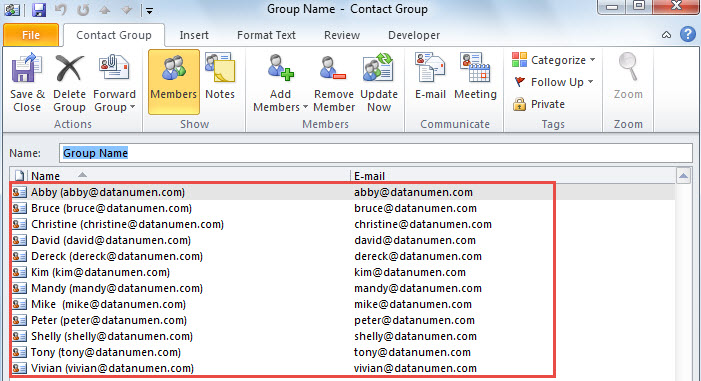
- 次のスクリーンショットのように、すぐに新しい連絡先グループが表示されます。

厄介なOutlookのトラブルを巧みに処理する
Outlookでさまざまなエラーが頻繁に発生する場合は、卓越した信頼性を維持することを強くお勧めします Outlookの回復 近くのツール、 DataNumen Outlook Repair。 この場合、それを使用して、時間内にそれを介して厄介な問題に対処することができます。
著者紹介:
Shirley Zhangは、のデータ復旧の専門家です。 DataNumen、Inc。は、以下を含むデータ復旧技術の世界的リーダーです。 SQLを回復する と見通し修理ソフトウェア製品。 詳細については、次のWebサイトをご覧ください。 WWW。datanumen.com