
Quando crei o modifichi un appuntamento nel calendario di Outlook, Outlook verifica automaticamente la presenza di appuntamenti in conflitto. Se desideri controllare i conflitti, puoi utilizzare il metodo descritto in questo articolo.
Forse hai mai visto il testo "Conflitti con un altro appuntamento" durante la creazione o la modifica di un appuntamento di Outlook. È perché Outlook può controllare automaticamente i conflitti. Tuttavia, Outlook non può aiutarti a trovare rapidamente i conflitti grazie alle sue funzionalità predefinite. Pertanto, qui ti diremo un metodo per generare la funzione per cercare tutti gli appuntamenti in conflitto.
Scopri tutti gli altri appuntamenti in conflitto con un appuntamento specifico
- All'inizio, avvia il tuo programma Outlook.
- Quindi, nella finestra principale di Outlook, premi i pulsanti "Alt + F11".
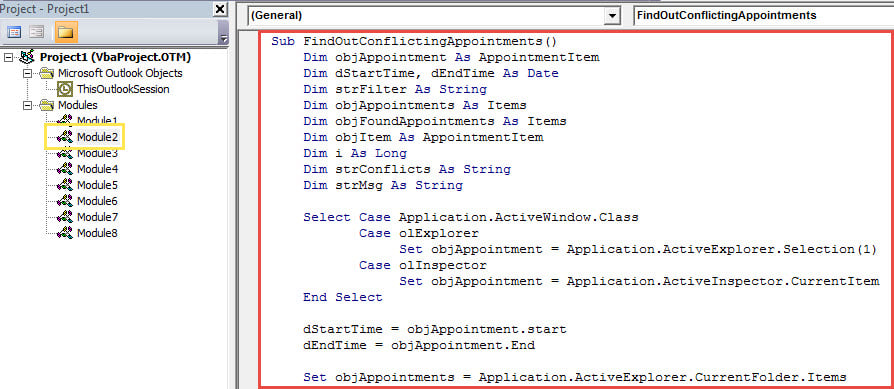
- Immediatamente, accederai all'editor VBA di Outlook, in cui devi aprire un modulo inutilizzato.
- Successivamente, copia il seguente codice VBA in questo modulo.
Sub FindOutConflictingAppointments()
    Dim objAppointment As AppointmentItem
    Dim dStartTime, dEndTime As Date
    Dim strFilter As String
    Dim objAppointments As Items
    Dim objFoundAppointments As Items
    Dim objItem As AppointmentItem
    Dim i As Long
    Dim strConflicts As String
    Dim strMsg As String

    Select Case Application.ActiveWindow.Class
           Case olExplorer
                Set objAppointment = Application.ActiveExplorer.Selection(1)
           Case olInspector
                Set objAppointment = Application.ActiveInspector.CurrentItem
    End Select

    dStartTime = objAppointment.start
    dEndTime = objAppointment.End

    Set objAppointments = Application.ActiveExplorer.CurrentFolder.Items

    i = 1

    '1: Find all appts whose end time within the start and end time of source appt
    strFilter = "[End] >= " & Chr(34) & Format(dStartTime, "mm/dd/yyyy hh:mm AMPM") & Chr(34) & " AND [End] <= " & Chr(34) & Format(dEndTime, "mm/dd/yyyy hh:mm AMPM") & Chr(34)

    Set objFoundAppointments = objAppointments.Restrict(strFilter)

    For Each objItem In objFoundAppointments
        If objItem.Subject <> objAppointment.Subject Then
           strConflicts = strConflicts & i & ". " & objItem.Subject & vbCrLf
           i = i + 1
        End If
    Next

    '2: Find all appts occurring within the start and end time of source appt
    strFilter = "[Start] >= " & Chr(34) & Format(dStartTime, "mm/dd/yyyy hh:mm AMPM") & Chr(34) & " AND [End] <= " & Chr(34) & Format(dEndTime, "mm/dd/yyyy hh:mm AMPM") & Chr(34)

    Set objFoundAppointments = objAppointments.Restrict(strFilter)

    For Each objItem In objFoundAppointments
        If objItem.Subject <> objAppointment.Subject Then
           strConflicts = strConflicts & i & ". " & objItem.Subject & vbCrLf
           i = i + 1
        End If
    Next

    '3: Find all appts whose start time within the start and end time of source appt
    strFilter = "[Start] >= " & Chr(34) & Format(dStartTime, "mm/dd/yyyy hh:mm AMPM") & Chr(34) & " AND [Start] <= " & Chr(34) & Format(dEndTime, "mm/dd/yyyy hh:mm AMPM") & Chr(34)

    Set objFoundAppointments = objAppointments.Restrict(strFilter)

    For Each objItem In objFoundAppointments
        If objItem.Subject <> objAppointment.Subject Then
           strConflicts = strConflicts & i & ". " & objItem.Subject & vbCrLf
           i = i + 1
        End If
    Next

    '4: Find all appts cover the entire source appt
    strFilter = "[Start] <= " & Chr(34) & Format(dStartTime, "mm/dd/yyyy hh:mm AMPM") & Chr(34) & " AND [End] >= " & Chr(34) & Format(dEndTime, "mm/dd/yyyy hh:mm AMPM") & Chr(34)

    Set objFoundAppointments = objAppointments.Restrict(strFilter)

    For Each objItem In objFoundAppointments
        If objItem.Subject <> objAppointment.Subject Then
           strConflicts = strConflicts & i & ". " & objItem.Subject & vbCrLf
           i = i + 1
        End If
    Next

    strMsg = i - 1 & " Conflicting Appointments:" & vbCrLf & vbCrLf & strConflicts
    MsgBox strMsg, vbInformation + vbOKOnly, "Check Conflicts"
End Sub
- Successivamente, puoi uscire dalla finestra corrente.
- Quindi aggiungi questa macro alla barra degli strumenti di accesso rapido come al solito.
- Successivamente dovresti anche assicurarti che le macro siano abilitate in Outlook. Basta andare su "Impostazioni macro" per verificarlo.
- Finalmente puoi provare.
- Innanzitutto, seleziona o apri un appuntamento, in cui è presente un prompt "Conflitti con un altro appuntamento".
- Quindi fare clic sul pulsante macro nella barra di accesso rapido.
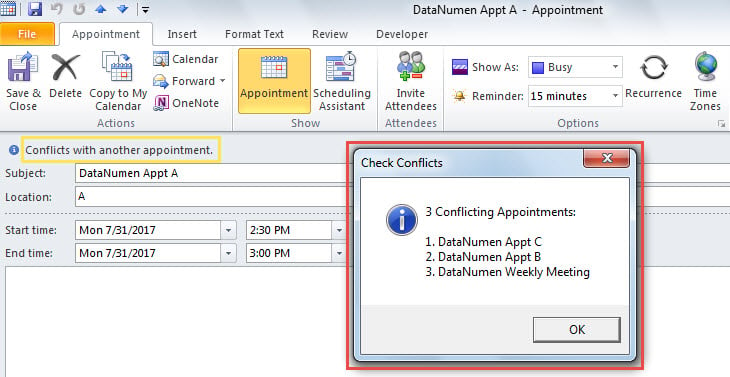
- Immediatamente, riceverai un messaggio che elenca tutti gli appuntamenti in conflitto, mostrato come la seguente schermata:

Precauzioni essenziali prima della corruzione di Outlook
È noto che Outlook è soggetto a blocchi e errori. Pertanto, è fondamentale essere ben preparati in caso di danneggiamento di Outlook. Una delle precauzioni più importanti è il backup periodico. Inoltre, si consiglia di predisporre un backup specializzato e potente. Riparazione di Outlook strumento, come DataNumen Outlook Repair.
Introduzione dell'autore:
Shirley Zhang è un'esperta di recupero dati in DataNumen, Inc., che è il leader mondiale nelle tecnologie di recupero dati, tra cui recupero mdf e prodotti software di riparazione di Outlook. Per maggiori informazioni visita www.datanumen.com