
1. Giriş
Zibil qutusu, Windows-un silinmiş fayllar üçün daxili təhlükəsizlik şəbəkəsidir. Fayl hələ də içində olduğu müddətcə, onu bərpa etmək üçün bir neçə klik kifayətdir. Bu təlimat, xarici, şəbəkə və OneDrive ilə sinxronlaşdırılmış yerlərdəki fayllar da daxil olmaqla, Windows-da Zibil qutusundan silinmiş faylları necə bərpa edəcəyinizi izah edir.
1.1 Bu Bələdçi Nələri əhatə edir
- Hələ də Zibil qutusunda olan faylların bərpası
- Silinmiş faylları orijinal yerinə bərpa etmək
- Orijinal qovluq yoxdursa, silinmiş faylları yeni bir yerə qaytarmaq
1.2 Bu Təlimat Nələri Əhatə Etmir
- Silinmiş fayllar ÜstKrkt + Sil, bu da Zibil qutusunu tamamilə aşır
- Zibil qutusundan silinmiş və ya boşaldılmış fayllar. Bu halda, yoxlayın Bu təlimatda faylları bərpa etmək üçün.
- Zibil qutusunun yaddaş limitini aşan və birdəfəlik silinmiş fayllar
2. Silinmiş faylları Zibil qutusundan bərpa edin
Əgər fayl yerli diskdən silinibsə Sil düyməni və ya sağ klik düyməsini basın Sil əmrini yerinə yetirdikdən sonra birbaşa Zibil qutusuna gedir. Aşağıdakı 3 addımla onu bərpa edin:
2.1 Zibil qutusunu açın
Aşağıdakı üsullardan hər hansı birini istifadə edin:
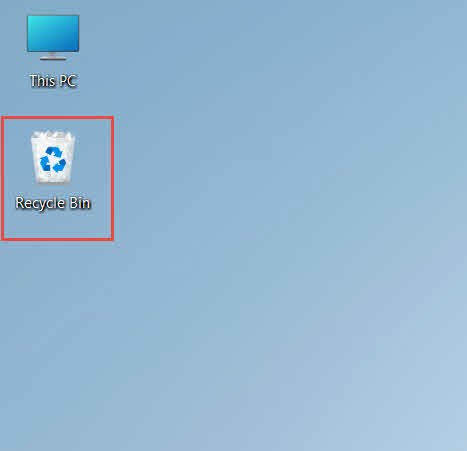
- Cüt basın Zibil qabı masaüstündəki işarə

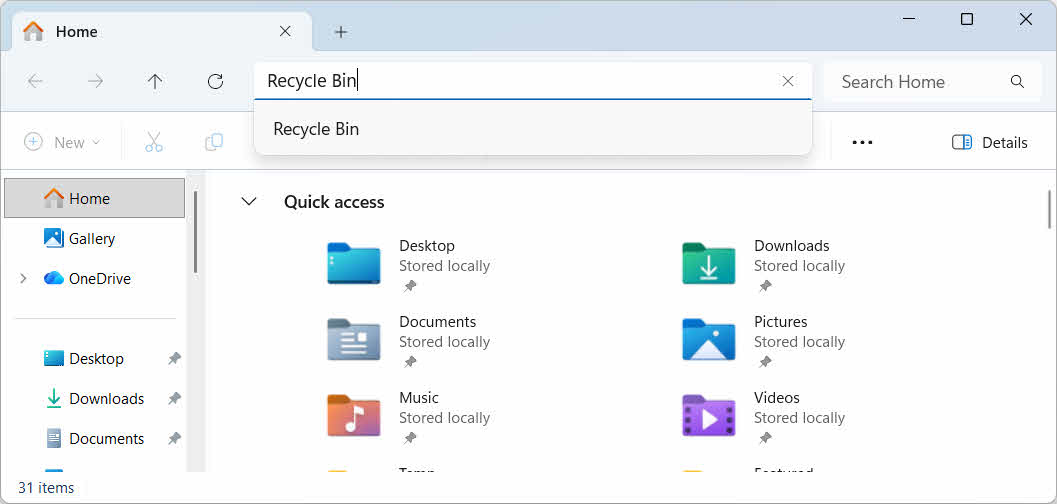
- Fayl Explorer-i açın və daxil edin Zibil qabı ünvan çubuğunda

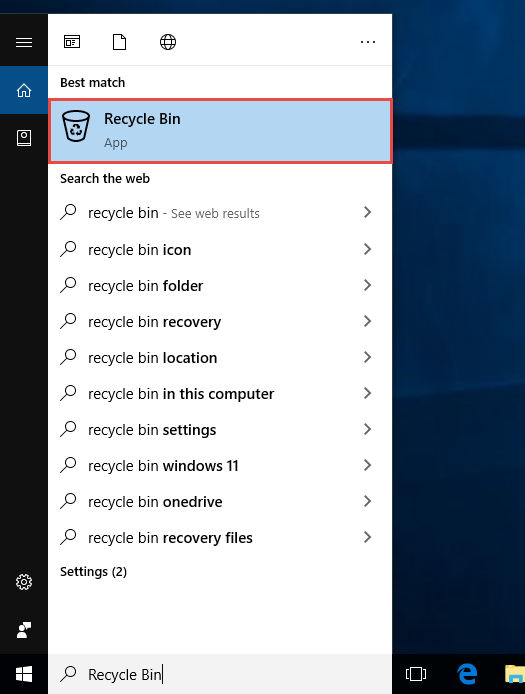
- növü Zibil qabı Windows Axtarışına daxil olun və nəticələrdən seçin

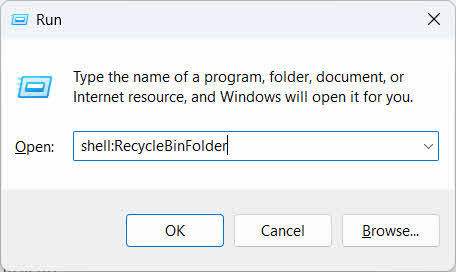
- mətbuat Qazanmaq + R, növü qabıq:RecycleBinQovluğuvə basın Daxil edin

2.2 Silinmiş Faylı və ya Qovluğu Tapın
Zibil qutusu açıldıqdan sonra, bu üsullardan biri ilə istədiyiniz əşyaları tapın:
- Faylın adını yuxarı sağ küncdəki axtarış qutusuna daxil edin
- Basın Silinmə Tarixi Ən son silinmələrə görə çeşidləmək üçün sütun başlığı
- Də yoxlayın Orijinal Yer Faylın gözlədiyiniz qovluqdan gəldiyini təsdiqləmək üçün sütun
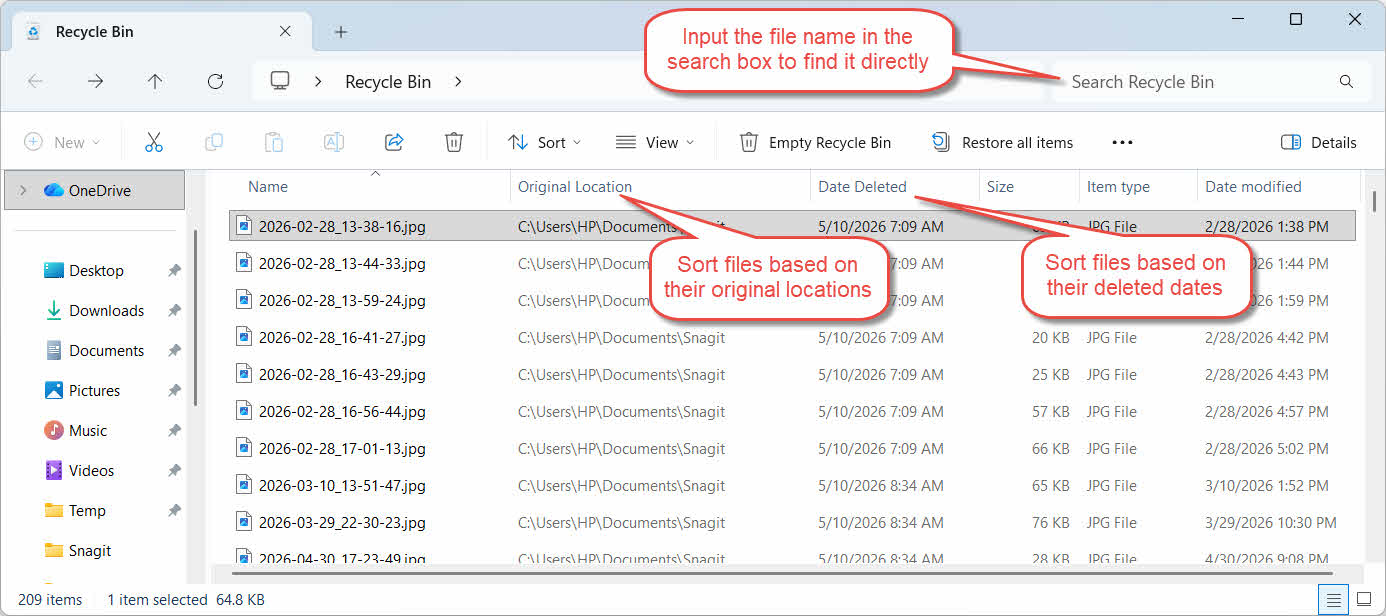
2.3 Faylları və ya Qovluqları Bərpa Edin
Bir və ya daha çox elementi bərpa etmək üçün:
- Tək bir fayl seçin və ya saxlayın Ctrl və birdən çox fayl seçmək üçün klikləyin və ya saxlayın ÜstKrkt və diapazon seçmək üçün klikləyin
- Seçimi sağ klikləyin və seçin Bərpa etmək
- Faylın geri qayıtdığını təsdiqləmək üçün orijinal qovluğu açın

Zibil qutusundakı bütün elementləri birdən bərpa etmək üçün vurun Bütün elementləri bərpa edin əvvəlcə heç bir fərdi fayl seçmədən alətlər panelində.
3. Silinmiş faylları Zibil qutusundan fərqli bir yerə bərpa edin
The Bərpa etmək əmri həmişə faylı orijinal qovluğuna qaytarır. Bəzi hallarda onu başqa yerə köçürmək tələb olunur.
3.1 Bu metoddan nə vaxt istifadə etməlisiniz
- Orijinal qovluq artıq mövcud deyil
- Eyni adlı yeni fayl artıq orijinal qovluqda mövcuddur
- Orijinal qovluğa daxil olmaq üçün icazəniz yoxdur
- Faylın hansı qovluqdan gəldiyini bilmirsiniz
- Faylı orijinal yerinə qaytarmazdan əvvəl nəzərdən keçirmək istəyirsiniz
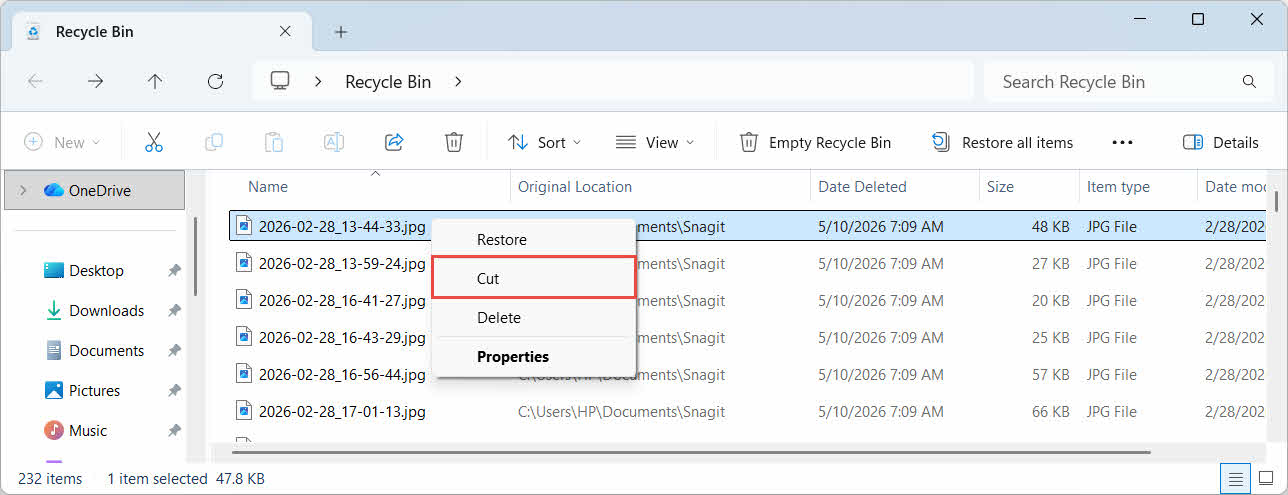
3.2 Faylı Zibil qutusundan sürüşdürün və ya kəsin
Faylı Zibil qutusundan seçdiyiniz qovluğa köçürmək üçün:
- Zibil qutusunu açın
- Bərpa ediləcək faylı və ya qovluğu seçin.
- Faylı və ya qovluğu hədəf qovluğa köçürmək üçün aşağıdakı üsullardan birini istifadə edin:
- Onu birbaşa hədəf qovluq pəncərəsinə sürükləyin
- mətbuat Ctrl + X kəsmək üçün hədəf qovluğunu açın və basın Ctrl + V yapışdırmaq üçün
- Seçimi sağ klikləyin və seçin Kəsmək, hədəf qovluğu açın, sağ klikləyin və seçin Yapışdırmaq yapışdırmaq üçün

4. Xarici, Şəbəkə və Bulud Disklərində Zibil qutusundan faylların bərpası
İçəridəki addımlar Bölmə 2 Faylın kompüterinizin əsas diskindən silindiyini düşünün. Xarici, şəbəkə və buludla sinxronlaşdırılmış yaddaş fərqli işləyir.
4.1 Xarici Sərt Disklər və USB Fləş Disklər
Windows xarici sərt diskləri (USB üzərindən qoşulmuş SSD-lər də daxil olmaqla) daxili disklərlə eyni şəkildə qəbul edir: hər birinin öz gizli Zibil qutusu qovluğu var. USB flash sürücülər və SD kartlar kimi çıxarıla bilən media fərqli şəkildə qəbul edilir və standart olaraq Zibil qutusu almır, buna görə də onlardan silinmiş fayllar dərhal silinir.
4.1.1 Sürücü üçün Zibil qutusu dəstəyinin aktivləşdirilməsi
Xarici sərt disk üçün, Geri Qaytarma Binası dəstəyinin aktiv olduğunu təsdiqləyin:
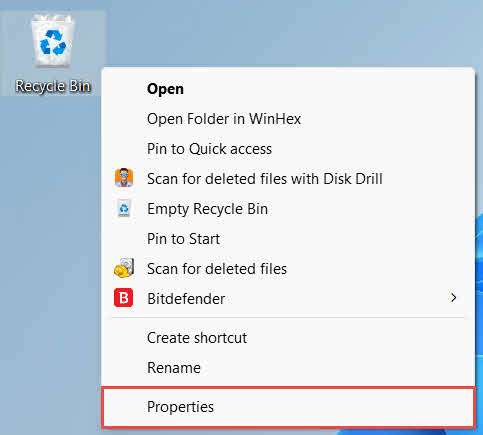
- Sağa vurun Zibil qabı masaüstündəki işarəni seçin və Xüsusiyyətlər

- Ci Zibil qutusunun yeri siyahıda xarici sürücü üçün sətri seçin. Yalnız sürücü qoşulduqdan və sürücü hərfi olduqda burada görünür.
- Altında Seçilmiş yer üçün parametrlər, əmin olmaq Xüsusi ölçüsü seçilir, deyil Faylları Zibil qutusuna atmayın. Silindikdən dərhal sonra faylları silin.

- Basın tətbiq etmək, Sonra OK
Hər bir sürücü bu ayarı müstəqil olaraq saxlayır, beləliklə, xarici sürücü sistem sürücüsü üçün aktiv qaldıqda belə, Zibil qutusu dəstəyini söndürə bilər.
USB fləş sürücüsü və ya SD kart üçün, Windows standart olaraq çıxarıla bilən mediada Geri Dönüşüm Qutusu qovluğu yaratmadığı üçün, bu, ümumiyyətlə Geri Dönüşüm Qutusu Xüsusiyyətlərində görünməyəcək. Onu aktivləşdirmək üçün qeyd defteri redaktəsi tələb olunur:
- mətbuat Qazanmaq + R, növü regeditmətbuat Daxil edinvə sorğunu təsdiqləyin
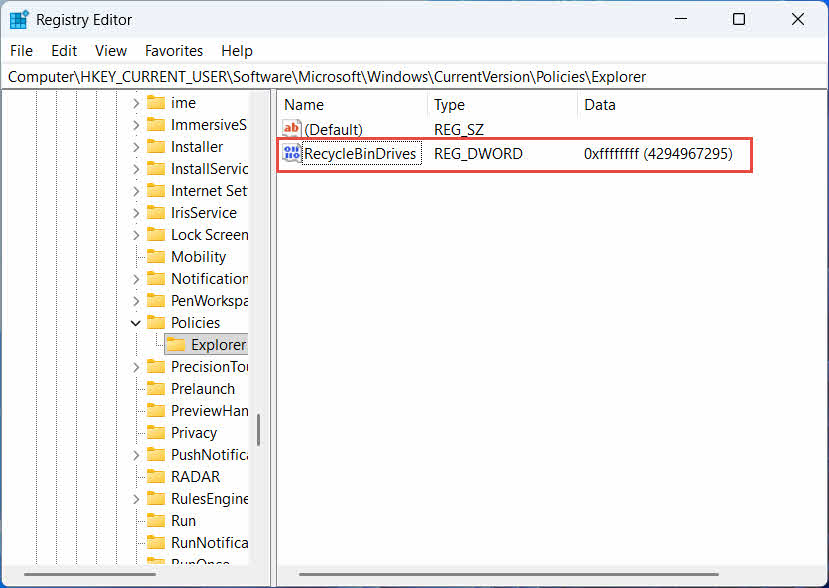
- gedin HKEY_CURRENT_USER\Software\Microsoft\Windows\CurrentVersion\Policies\Explorer. Əgər Tədqiqatçı altında açar yoxdur Siyasəti, sağ basın Siyasətiseçin yeni -> Aparıcıvə adını verin Tədqiqatçı
- Sağ paneldəki boş bir sahəyə sağ klikləyin, seçin yeni -> DWORD (32-bit) dəyərivə adını verin RecycleBinDrives
- İki dəfə vurun RecycleBinDrives, dəsti Baza üçün Hexadecimal, gir ffffffff dəyər məlumatları kimi və klikləyin OK

- Aşağıdakı 2-4 addımlarını təkrarlayın HKEY_LOCAL_MACHINE \ SOFTWARE \ Microsoft \ Windows \ CurrentVersion \ Policies \ Explorer
- Kompüteri yenidən başladın
Dəyişikliyi geri qaytarmaq üçün silin RecycleBinDrives hər iki yerdən dəyər. Bu, qeydiyyat reyestrini redaktə etməyi əhatə etdiyindən, əvvəlcə bərpa nöqtəsi yaradın və yalnız bəzən istifadə etdiyiniz disklər üçün ehtiyat nüsxələrinə etibar etməyin daha asan olub-olmadığını düşünün.
4.1.2 Faylların Bərpası
Sürücü üçün Tullantıların Geri Qaytarılması Qutusu aktivləşdirildikdən sonra, faylın bərpası aşağıdakı kimi təsvir edilən eyni prosesi yerinə yetirir: Bölmə 2.3.
Xəritələnmiş şəbəkə sürücüsündən və ya paylaşılan qovluqdan faylı silmək onu birbaşa serverdən silir. Bu, kompüterinizin yerli Zibil qutusundan keçmir. Lakin server tərəfindəki zibil qutusu aktivdirsə, silinmiş faylları oradan bərpa edə bilərsiniz.
4.2.1 Server Tərəfindəki Geri Qaytarma Qutusu (aktivdirsə)
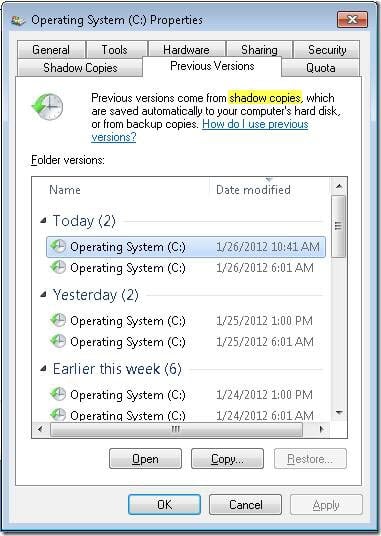
Bəzi fayl serverləri aktivləşdirir Kölgə Nüsxələri (Cild Kölgə Nüsxəsi Xidməti), bu xüsusiyyət ilə silinmiş faylları bərpa edə bilmək üçün paylaşılan qovluğun əvvəlki versiyalarına bərpa etməyə imkan verir:
- Şəbəkə paylaşımındakı ana qovluğu sağ klikləyin və seçin Xüsusiyyətlər
- Açmaq Əvvəlki Sürümler nişanı
- Silinmədən əvvəl tarixlənmiş versiyanı seçin və klikləyin Bərpa etmək
4.2.2 Server Tərəfindəki Zibil Qutusu Mövcud Olmazsa Nə Etməli
Əgər Əvvəlki Sürümler Əgər sekme boşdursa və ya əlçatan deyilsə, paylaşımda anlıq görüntü əsaslı bərpa konfiqurasiyası yoxdur. Serverin öz ehtiyat nüsxə cədvəlinin olub-olmadığını yoxlamaq üçün şəbəkə administratorunuzla əlaqə saxlayın.
4.3 OneDrive Geri Qaytarma Binası (Buludla Sinxronlaşdırılmış Qovluqlar)
OneDrive ilə sinxronlaşdırılmış qovluqlar iki ayrı Zibil qutusundan ibarət ola bilər: yerli Windows Zibil qutusu və veb əsaslı OneDrive Zibil qutusu. Faylınızın hansında saxlanması silinmənin harada baş verdiyindən asılıdır.
4.3.1 Sinxronlaşdırılmış Faylın Yerli Silinməsi (Həm Yerli, həm də Veb Zibil qutusuna gedir)
Sinxronlaşdırılmış faylı kompüterinizdəki Fayl Explorer-dən silsəniz, o, tam olaraq təsvir edildiyi kimi yerli Zibil qutusuna gedir. Bölmə 2, və OneDrive sinxronizasiya klienti də silinməni buluda əks etdirir, beləliklə, fayl OneDrive veb Tullantılar qutusundan da bərpa edilə bilər.
4.3.2 Buludla Başlatılmış Silinmə (Yalnız Veb Təkrar Zibil qutusu, 2026-cı ilin may ayından bəri)
Əgər fayl bulud tərəfindən, məsələn, OneDrive veb saytı və ya başqa sinxronizasiya olunmuş cihaz vasitəsilə silinirsə, davranış 2026-cı ilin may ayından bəri dəyişdi: Microsoft bulud tərəfindən başladılan silinmələri yerli Windows Tullantılar qutusuna göndərməyi dayandırdı. Bu şəkildə silinən fayl yerli Tullantılar qutusunda görünmədən yerli qovluğunuzdan yox olur və bərpa yalnız OneDrive və ya SharePoint veb Tullantılar qutusundan mümkündür.
4.3.3 OneDrive.com saytından bərpa
OneDrive veb Geri Döndürmə Qutusundan faylı bərpa etmək üçün:
- Daxil ol onedrive.live.com or onedrive.com
- seçmək Zibil qabı naviqasiya panelində
- Fayl və ya qovluğu seçin və klikləyin Bərpa etmək
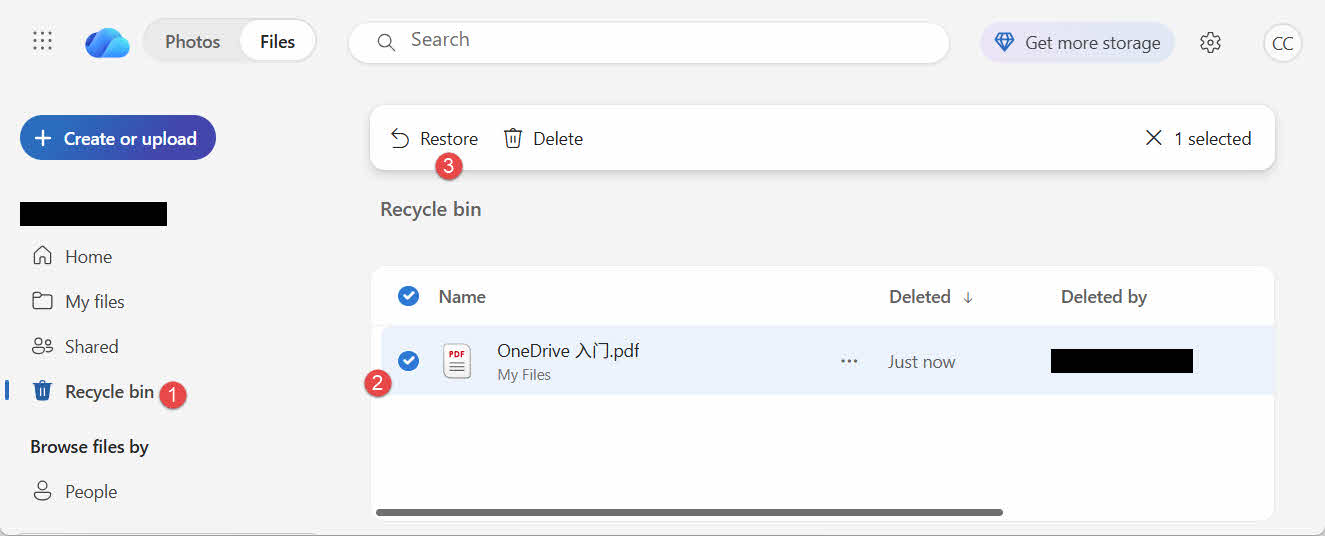
Şəxsi Microsoft hesabları silinmiş elementləri 30 günə qədər, iş və ya məktəb hesabları isə 93 günə qədər saxlayır.
5. Zibil qutusunun bərpası ilə bağlı problemlərin həlli
5.1 Masaüstündə Zibil qutusu işarəsi yoxdur
Masaüstündəki işarəsi gizlədilsə belə, Zibil qutusu hələ də mövcuddur. İşarəni bərpa etmək üçün:
- Masaüstünə sağ klikləyin və seçin Fərdiləşdirin
- açıq Mövzular, Sonra Masaüstü işarəsi parametrləri
- Check Zibil qabı basın OK
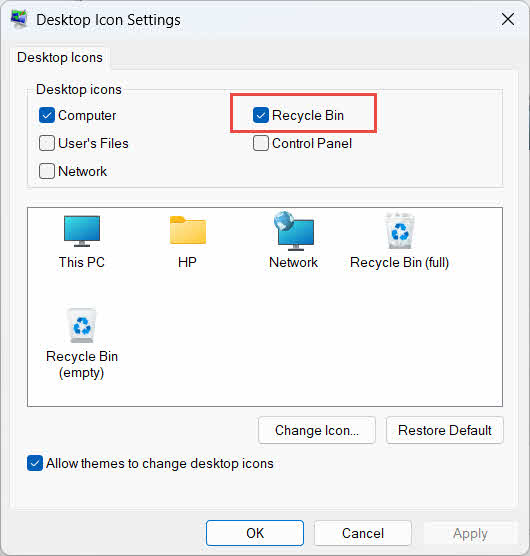
Yazaraq birbaşa aça bilərsiniz Zibil qabı təsvir edildiyi kimi, Windows Axtarışında, Fayl Explorer-də və ya Win + R istifadə edərək Bölmə 2.1.
5.2 Fayl Zibil qutusunda deyil
İstədiyiniz fayllar Zibil qutusunda deyilsə, bu səbəbləri nəzərdən keçirin:
- Zibil qutusu dəstəyi olmadan xarici sürücüdən silindi (bax: Bölmə 4.1)
- Şəbəkə sürücüsündən silindi (bax: Bölmə 4.2)
- Bu, birbaşa vebdə OneDrive-dan silindi (bax: Bölmə 4.3)
- Məsələn, birdəfəlik silindi ÜstKrkt + Sil, və ya Zibil qutusu boşaldılıb
Fayl birdəfəlik silinibsə, onu bərpa etmək üçün xüsusi məlumat bərpa proqramı tələb olunur, məsələn DataNumen Data Recovery, Zibil qutusu əvəzinə. Məlumatların üzərinə yazılmaq ehtimalını azaltmaq üçün əvvəlcə həmin diskə yeni faylları saxlamağı dayandırın.
5.3 Bərpa Seçimi Boz, Yox və ya İşləmir
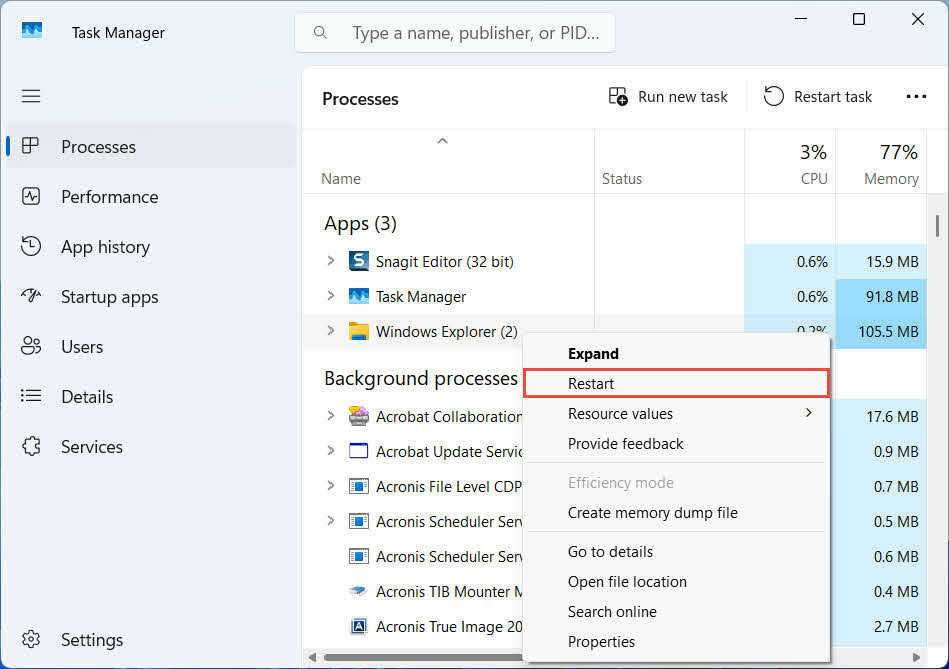
Bu, adətən, seçilmiş elementlər artıq mövcud olmayan bir yerdən gəldikdə və ya Zibil qutusunun daxili indeksi sinxronizasiya olunmadıqda baş verir. Bu düzəlişləri sınayın:
- Fayl Explorer-i yenidən başladın: Tapşırıq Menecerini açmaq üçün Ctrl + Alt + Del düymələrindən istifadə edin, sağ klikləyin Windows Explorerseçin və seçin Yenidən başlamaq

- Elementləri toplu şəkildə deyil, tək-tək bərpa edin
- If Bərpa etmək hələ də görünmür, faylı təsvir edildiyi kimi əl ilə sürüşdürün Bölmə 3.2
5.4 Bərpa zamanı “Giriş rədd edildi” və ya icazə xətaları
Bu, faylın özündə deyil, orijinal qovluqda icazə probleminə işarə edir. Yoxlayın:
- Faylı silən hesabla eyni hesabla daxil olmusunuz
- Təyinat qovluğunun icazələri hələ də hesabınız üçün yazma girişinə icazə verir
- İdarə olunan və ya iş kompüterində Fayl Explorer siyasət tərəfindən bloklanmayıb
Əgər orijinal qovluğun icazələri dəyişibsə, faylı başqa bir yerə bərpa edin, aşağıdakıları edin Bölmə 3.
5.5 Zibil qutusu boş görünür, amma mən onu boşaltmıram
Fayllar, heç kimin onu əl ilə boşaltması olmadan Zibil qutusundan yoxa çıxa bilər:
- Storage Sense müəyyən bir gündən sonra elementləri avtomatik olaraq silmək üçün konfiqurasiya edilə bilər
- Zibil qutusu ölçü həddinə çatdı, buna görə də Windows yer boşaltmaq üçün ən köhnə əşyaları təmizlədi (bax: Bölmə 6.1)
- Paylaşılan kompüterdəki başqa bir hesab onu boşaltdı
- İdarə olunan cihazdakı Qrup Siyasəti avtomatik boşaltmanı təmin edir
5.6 Bərpa Edilmiş Fayl Zədələnib, Boşdur və ya Açılmır
Bərpa yalnız faylı geri qaytarır; onu təmir etmir. Əgər fayl silinməzdən əvvəl zədələnmişdisə və ya silindiyi anda ona yazılırdısa, bərpadan sonra da açılmaya bilər. Bu halda, problem faylın zədələnməsidir, Zibil qutusu problemi deyil və ehtiyaclar... təmir aləti başqa bir bərpa cəhdi əvəzinə həmin fayl formatına uyğundur.
6. Zibil qutusunun idarə edilməsi və konfiqurasiyası
6.1 Zibil qutusunun saxlama ölçüsünün dəyişdirilməsi
Hər bir diskin öz Zibil qutusu bölməsi var. Onu nəzərdən keçirmək və ya dəyişdirmək üçün:
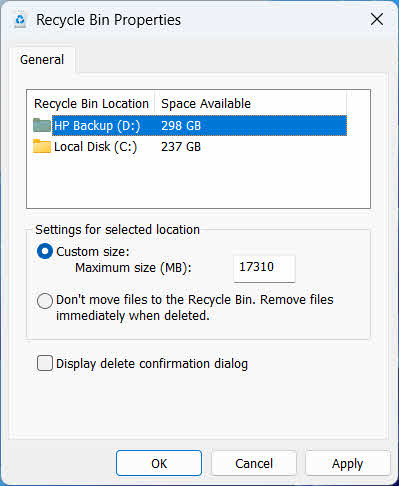
- Sağa vurun Zibil qabı simgesini seçin və seçin Xüsusiyyətlər
- Zibil qutusu yerlərinin siyahısından bir sürücü seçin
- Seçmək Xüsusi ölçüsü və daxil olun Maksimum ölçü (MB), və ya seçin Faylları Zibil qutusuna atmayın. Silindikdən dərhal sonra faylları silin. həmin sürücü üçün onu deaktiv etmək
- Basın OK
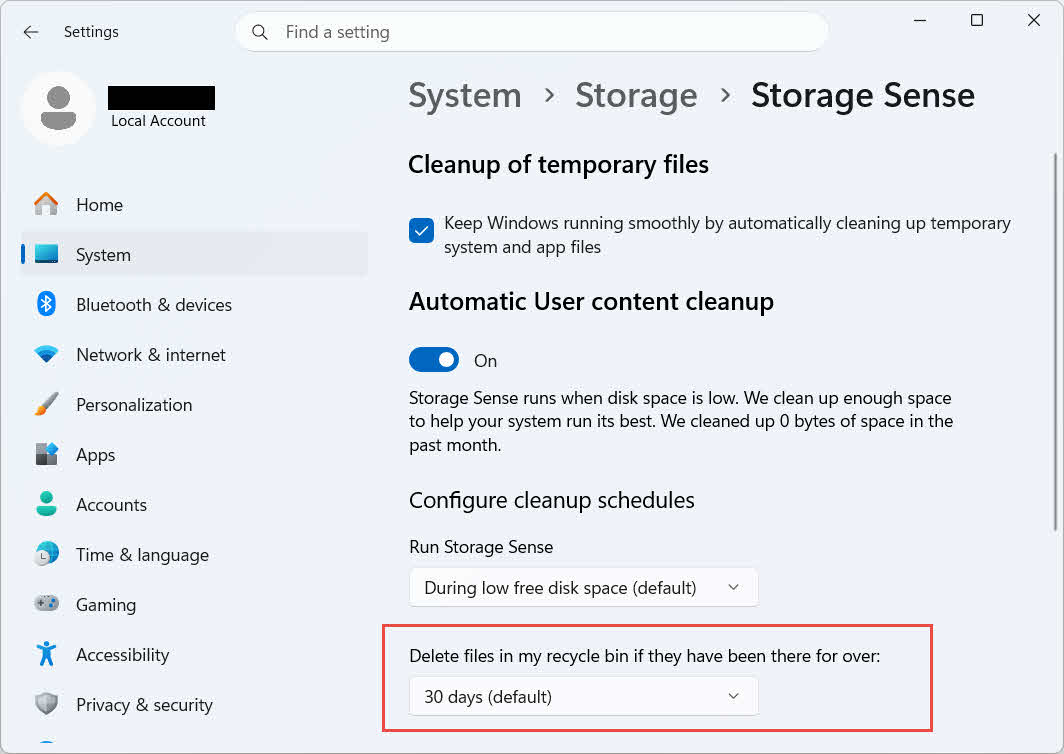
Windows həmçinin yaşa əsaslanan ayrıca təmizləmə seçimi təklif edir: keçin Parametrlər -> Sistem -> Yaddaş -> Yaddaş Sensoru və qurduq Zibil qutusundakı fayllar orada çoxdandırsa, onları silin seçilmiş gün sayı. Varsayılan saxlama müddəti 30 gün.
6.2 Sil Təsdiqləmə Dialoqunun Aktivləşdirilməsi
Windows 11, faylları Zibil qutusuna köçürməzdən əvvəl təsdiq sorğusu göstərmir. Onu aktivləşdirmək üçün:
- Sağa vurun Zibil qabı simgesini seçin və seçin Xüsusiyyətlər
- Check Silinmə təsdiqləmə dialoqunu göstərin
- Basın OK
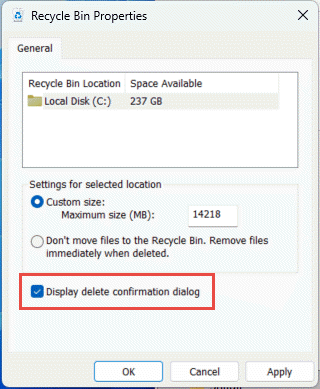
Bu parametr, məsələn, daimi silinmələrin qarşısını almır ÜstKrkt + Sil və ya Geri Döndürmə Binası dəstəyi olmayan disklərdən silinmələr.
6.3 Faylların Zibil qutusundan keçməsi üçün təyin edilməsi (və niyə bundan çəkinmək lazımdır)
Eyni Faylları Zibil qutusuna atmayın. Silindikdən dərhal sonra faylları silin. əhatə olunan seçim Bölmə 6.1 Hər silinməni daimi etmək üçün istənilən diskə tətbiq oluna bilər. Bu, disk yerini dərhal boşaldır, lakin bu təlimatda təsvir edilən yeganə sürətli bərpa seçimini silir, ona görə də xüsusi bir sıfırlama və ya müvəqqəti səs həcmi kimi şəxsi faylları saxlamayan disklər üçün ən yaxşısıdır.
7. Gələcəkdə Məlumat İtkisinin Qarşısının Alınması üçün Ən Yaxşı Təcrübələr
7.1 Fayl Tarixçəsini və ya Yedəkləmə Həllini Aktivləşdirin
Zibil qutusu yalnız təsadüfi silinmədən qoruyur, diskin sıradan çıxmasından və ya artıq boşaldılmış Zibil qutusundan qorumur. Fayl Tarixçəsini Aktivləşdirir (İdarəetmə Paneli -> Sistem və Təhlükəsizlik -> Fayl Tarixçəsi)

və ya üçüncü tərəf ehtiyat nüsxələmə vasitəsi öz versiya tarixçəsi ilə ikinci bir qoruma qatı əlavə edir.
7.2 Vacib Qovluqlar üçün Bulud Sinxronizasiyasından İstifadə Edin
Masaüstünü, Sənədləri və Şəkilləri OneDrive və ya başqa bir bulud xidməti ilə sinxronlaşdırmaq sizə veb Tullantılar qutusunu təqdim edir. Bölmə 4.3 yerli Tullantılar qutusundan asılı olmayaraq əlavə bir bərpa yolu kimi.
7.3 Zibil qutusunu boşaltmazdan əvvəl ikiqat yoxlayın
Tıklamadan əvvəl Boş Geri Qaytarma Binası, sırala Silinmə Tarixi və son zamanlar üçün hər hansı bir şeyi skan edin. Boşaldıldıqdan sonra qalan yeganə seçim xüsusi məlumat bərpa proqramıdır və uğur zəmanətli deyil.
8. FAQ
S: Zibil qutusunu boşaltdıqdan sonra yenə də faylı bərpa edə bilərəmmi?
A: Zibil qutusunun özü vasitəsilə deyil. Bu zaman fayl fayl sistemi səviyyəsində silinmiş kimi qeyd olunur, lakin yenidən yazılana qədər diskdə fiziki olaraq mövcud ola bilər. Kimi alətlər DataNumen Data Recovery bu cür məlumatları skan etmək və yenidən qurmaq üçün hazırlanmışdır. Uğurlu bərpa şansını artırmaq üçün diskdən istifadəni mümkün qədər tez dayandırın.
S: Mac-da Windows Zibil qutusuna bənzər bir şey varmı?
A: Bəli, bu, Zibil qutusu adlanır və eyni şəkildə işləyir: Zibil qutusunu açın, faylı sağ klikləyin və Geriyə Qoy seçin. Bu təlimat xüsusilə Windows Zibil qutusunu əhatə edir. Və Bu təlimatda Mac Zibil qutusunu xüsusilə əhatə edir.
S: Fayllar avtomatik silinməzdən əvvəl Zibil qutusunda nə qədər qalır?
A: Yerli Zibil qutusunun standart olaraq sabit bir vaxt məhdudiyyəti yoxdur; əşyalar yalnız ölçü həddinə çatdıqda və ya Storage Sense köhnə əşyaları təmizləmək üçün konfiqurasiya edildikdə silinir (bax: Bölmə 6.1OneDrive veb Tullantıların Geri Qaytarılması Qutusu sabit bir pəncərədən istifadə edir: şəxsi hesablar üçün 30 gün və iş və ya məktəb hesabları üçün 93 günə qədər (bax Bölmə 4.3).
S: Faylı orijinal yerinə, yoxsa yenisinə bərpa etməliyəm?
A: Orijinal yerə bərpa (Bölmə 2) daha sadədir və faylın orijinal yolunu saxlayır. Başqa bir yerə bərpa edin (Bölmə 3) əvəzinə, əgər həmin orijinal qovluq artıq mövcud deyilsə və ya artıq eyni adlı fayl ehtiva edirsə.
S: USB flash sürücüsündən silinmiş faylları Geri Dönüşüm Kutusu vasitəsilə bərpa edə bilərəmmi?
A: Varsayılan olaraq deyil. Fləş sürücülər və SD kartlar, izah edildiyi kimi, əl ilə aktivləşdirməsəniz, "Tullantı qutusu" qovluğuna sahib olmur. Bölmə 4.1.
S: Niyə Bərpa seçimi boz rəngdədir və ya yoxdur?
A: Bu, adətən, orijinal qovluğun olmaması və ya sinxronizasiya olunmamış Zibil qutusu indeksi səbəbindən baş verir. Baxın Bölmə 5.3 düzəlişlər üçün.
S: Zibil qutusu boşdursa, amma mən onu heç vaxt boşaltmamışamsa, nə etməliyəm?
A: Yaddaş Sensoru, çatılmış ölçü limiti, başqa bir istifadəçi hesabı və ya Qrup Siyasəti parametri bunu avtomatik olaraq silə bilər. Baxın Bölmə 5.5.
S: Artıq Zibil qutusunda olmayan faylları hansı proqram bərpa edə bilər?
A: Xüsusi məlumat bərpa proqramı, məsələn DataNumen Data Recovery, fayl sisteminin artıq istinad etmədiyi məlumatları tapmaq üçün sürücünü daha aşağı səviyyədə skanlayır, bu isə Geri Qaytarma Binası interfeysinin özünün edə biləcəyi bir şey deyil.
S: Faylın bərpası onun düzgün açılacağına zəmanət verirmi?
C: Xeyr. Bərpa etmə faylı yalnız qovluğa qaytarır; faylın silinmədən əvvəl və ya silinmə zamanı aldığı heç bir zədəni düzəltmir. Baxın Bölmə 5.6.
9. Nəticə
Silinmiş faylları Zibil qutusundan bərpa etmək, element hələ də orada olduğu müddətcə sadədir: Zibil qutusunu açın, faylı tapın və bərpa edin. Xarici disklər, şəbəkə paylaşımları və OneDrive ilə sinxronlaşdırılmış qovluqların hər biri öz şərtlərini əlavə edir və yuxarıdakı problemlərin aradan qaldırılması və konfiqurasiya bölmələri standart bərpa prosesinin gözlənildiyi kimi getmədiyi halları əhatə edir. Fayl birdəfəlik silinibsə və ya Zibil qutusu artıq boşaldılıbsa, növbəti addım Zibil qutusunun özü deyil, xüsusi məlumat bərpa proqramıdır.
Müəllif haqqında
Qian Qua Windows fayl sistemləri, saxlama texnologiyaları və fəlakət bərpa həlləri sahəsində 10 ildən çox təcrübəsi olan məlumatların bərpası üzrə mütəxəssisdir. O, həm şəxsi, həm də müəssisə mühitlərində minlərlə istifadəçiyə kritik məlumat itkisi ssenarilərində uğurla rəhbərlik etmişdir.
Qian Windows məlumatlarının bərpası metodologiyaları, fayl sisteminin təhlili və profilaktik ehtiyat nüsxələmə strategiyaları üzrə ixtisaslaşıb. Onun geniş praktik təcrübəsi disklərdən məlumatların bərpasını, hərtərəfli ehtiyat nüsxələmə həllərinin tətbiqini və mürəkkəb fayl sistemi problemlərini həll etməyi əhatə edir. NTFS, FAT, exFAT və ReFS cildləri. O, daxili Windows yardım proqramlarından tutmuş peşəkar məlumat bərpa proqramlarına qədər müxtəlif bərpa alətləri və üsulları ilə işləmişdir.
Texniki yazıları ilə Qian istifadəçilərə dəyərli məlumatlarını qorumaq və bərpa etmək üçün praktik biliklər verməyə həsr olunub. O, Windows fayl bərpa texnologiyaları, yaddaş cihazları sahəsindəki yeniliklər və məlumatların qorunması üzrə ən yaxşı təcrübələr sahəsindəki ən son inkişaflardan xəbərdardır. İstifadəçilərə məlumatlarının bərpasına kömək etmədikdə...ost files, Qian yeni yaddaş texnologiyalarını araşdırmaqdan və gələcəkdə məlumat itkisinin qarşısını alan məlumat təhlükəsizliyi tövsiyələrini paylaşmaqdan zövq alır.
Bu təlimatla bağlı suallarınız varmı və ya məlumatların bərpası ilə bağlı köməyə ehtiyacınız varmı? Qian xoş qarşılayır rəy və təkliflər bu məlumatların bərpası resurslarını təkmilləşdirmək üçün.