

By pure coincidence, just before I upgraded to the latest version yesterday, I received two PDF files by email that I couldn't open. The person who
Overview
Features
How to Recover
More Information
Related Products
Why DataNumen PDF Repair?

#1 Recovery
Rate

10+ Million
Users

20+ Years of
Experience

100% Satisfaction
Guarantee
Our Customers' Testimonials

... Read more
By pure coincidence, just before I upgraded to the latest version yesterday, I received two PDF files by email that I couldn't open. The person who sent them to me had gone on vacation, and sending her an email resulted in a vacation auto reply.
The program opens in less than two seconds using Windows 10 on a computer that is seven years old. After that, you just browse to your PDF file, and it takes 1-2 seconds to repair a file.
I have never experienced better customer service. I had some questions about the upgrade, and received an informative response just hours later yesterday, on a Saturday!
I have repaired at least a dozen PDF files with this program, some of which were available from only one automated source with no contact info to request an undamaged file.
If a PDF file you originally create using a PDF program became corrupted, or if you permanently deleted a file you converted into PDF format and the PDF file became corrupted, this program would spare you the time-consuming process of recovering the permanently deleted file (at least so far as Windows 10 is concerned).
I'm not claiming there isn't another program out there that could not have repaired my PDF files, but I have not come across a more effective alternative.
I have no financial conflict-of-interest with DataNumen either directly or indirectly. I have just been really impressed by the two programs I have purchased from them.
If you wish to assure yourself that I'm really a customer, I'd be happy to confirm that by email if DataNumen passed on your request to me. Of course, I don't want to publicly post my email address.
Sincerely,
Anthony
Anthony Murawski
Formerly an attorney for 10+ years at National Veterans' Legal Services Program, U.S. Consumer Product Safety Commission, etc.; independent medical researcher since 2010.
Seattle, USA
August 7, 2022
Extremely Simple Interface
Repair
Batch Repair
Options
Free Download20+ Years Of Experience
Buy Now100% Satisfaction Guarantee
Main Features
- Recover all versions of Adobe Acrobat PDF files.
- Recover pages, images, fonts, and all other elements in the PDF documents.
- Fix PDF file corruptions caused by different format errors.
- Repair damaged PDF files that do not comply with the PDF specification.
Free Download20+ Years Of Experience
Buy Now100% Satisfaction Guarantee
Using DataNumen PDF Repair to Recover Damaged or Corrupt PDF Documents
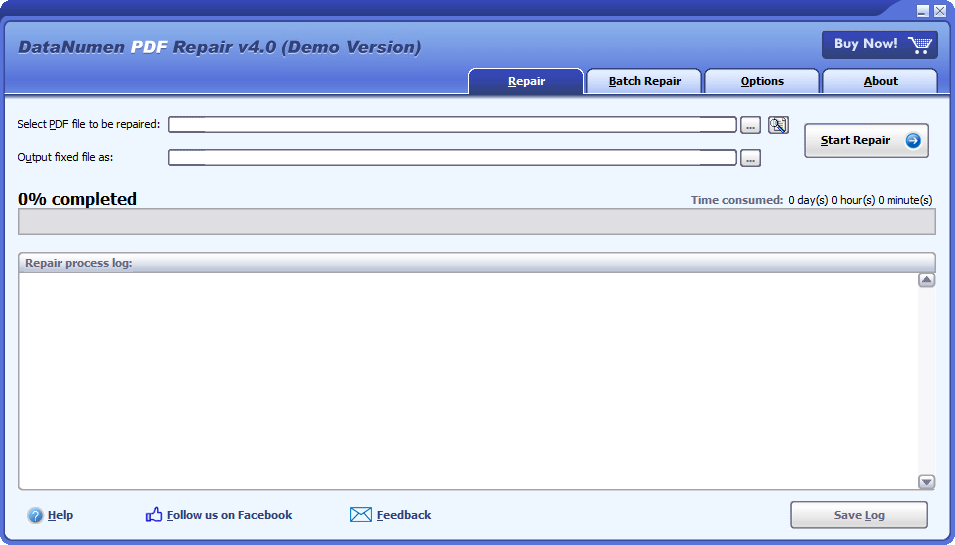
Start DataNumen PDF Repair.
Note: Before recovering any damaged or corrupt PDF file with our recovery software, please close Adobe Reader and any other applications that may access the PDF file.
Select the corrupt or damaged PDF file to be repaired:

You can input the PDF file name directly or click the  button to browse and select the file. You may also click the
  button to find the corrupt PDF file to be repaired on the local computer. Or drop file to the edit box.
By default, our PDF repair software will save the fixed PDF file into a new file named xxxx_fixed.pdf, where xxxx is the name of the source PDF file. For example, for source PDF file Damaged.pdf, the default name for the fixed file will be Damaged_fixed.pdf. If you want to use another name, then please select or set it accordingly:

You can input the fixed file name directly or click the button to browse and select the fixed file. Make sure there are enough disk spaces on your hard drive for the fixed PDF file.
Click the  button, and DataNumen PDF Repair will start scanning and repairing the damaged file. Progress bar

will indicate the data recovery progress.
After the repair process, if the source PDF file can be repaired successfully, you will see a message box like this:
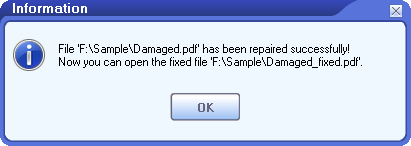
Now you can open the fixed PDF file with Adobe Reader or other PDF-compatible applications.
More Information
Maersk Drilling’s Voyage to Efficiency: Repairing PDF Documents with DataNumen PDF Repair
Northrop Grumman Improves Document Robustness and Efficiency with DataNumen PDF Repair
Bank of America Recovers Corrupted PDF Files Using DataNumen PDF Repair: A Case Study
Goldman Sachs Enhanced PDF Recovery Success with DataNumen PDF Repair: A Case Study
What is the PDF file format?
PDF (Portable Document Format) is an electronic document file format developed by Adobe. It is one of the most common-used formats in computer and mobile phone systems.
Why PDF documents will get corrupted?
There are many reasons that will cause PDF file corruption, including power failure during editing, software bug, virus, hard drive failure, storage media damage, unplugging an external hard drive unsafely, unstable Internet connection when downloading PDF files, etc. To reduce the data loss, it is important to have a PDF repair tool on hand so that whenever PDF corruption occurs, you can use it to repair the damaged file as soon as possible.
Can your PDF recovery tool work in Mac?
Our PDF data recovery tool cannot run on Mac. However, you can still use the following way to repair PDF documents in Mac system:
- Copy the corrupt PDF document from Mac to a PC/Windows system.
- Install our tool in the PC/Windows system.
- Use our recovery software to repair the damaged PDF document.
- Copy the fixed PDF document back to the Mac system.
What is the difference between the demo version and the full version?
The demo version and the full version use the same recovery engine. You can use the demo version to repair the corrupt PDF file. It will show you a preview of the recovered document, but will not save it.
Is there a free way to repair corrupt or damaged PDF files?
Yes, there are several free ways to repair PDF files, as below:
1. Update Acrobat Reader or Acrobat Professional to the latest version
Sometimes, the PDF file is not corrupt. Instead, the version of your Adobe Acrobat Reader or Acrobat Professional is older than the version of the PDF file. So, you only need to update Adobe Acrobat Reader or Professional to the latest version and open the PDF file again, as follows:
- Start Adobe Acrobat Reader or Professional.
- Click Help > Check for updates to check for updates.
- Follow the instructions to update Acrobat Reader or Professional to the latest version.
- Re-open the PDF file again.
2. Repair the installation
Sometimes, the installation of Acrobat Reader or Professional is corrupt, which makes you fail to open the PDF file. So, you only need to repair the installation, as follows:
- Start Adobe Acrobat Reader or Professional.
- Click Help > Repair Acrobat Installation.
- Follow the instructions to repair the installation.
- Re-open the PDF file again.
3. Use different PDF apps
Sometimes, the PDF file is not fully compatible with Acrobat Reader or Professional, so you cannot open it with these PDF readers. However, you can try to use other PDF tools, such as Foxit PDF Reader, to open the file.
4. USE CLOUD DRIVES
Some cloud drives, such as Google Drive and DropBox, also have the built-in function to open PDF files, including damaged files. You can try to open your corrupt PDF file in these apps, and then print or download it as a new error-free file.
If all above methods fail, then you should use our PDF repair tool to repair the PDF file and fix the PDF file corruption.
How long will it take to repair a corrupt PDF file?
It depends on the following two factors:
- File size.
- The number of elements in the file.
Normally, it takes several minutes for our repair software to repair a 10MB PDF file.
Do you support to output the recovered data as PowerPoint, Excel or JPG files?
Sorry but currently our tool does not support such a feature.
Related Products
DataNumen Word Repair
Repair and recover corrupt Microsoft Word documents (.doc and .docx files).
Details DataNumen PDF Repair