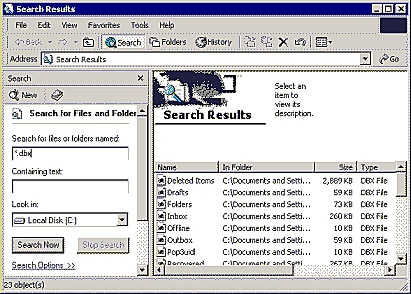
There are three ways to locate the dbx file associated with an Outlook Express mail folder, as described below:
Method 1: In Outlook Express 5/6, all mail folders, messages, subscribed newsgroups, and their messages are stored in the Store Folder. To find it, navigate to Tools > Options > Maintenance > Store Folder within Outlook Express.
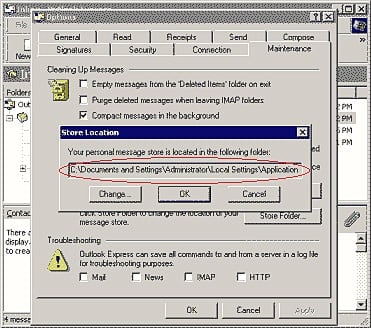
To locate the dbx file for an Outlook Express mail folder, navigate to the Store Folder using Windows Explorer and find the dbx file with the same name as the mail folder. For instance, Inbox.dbx contains messages in the Inbox folder, and Outbox.dbx contains messages in the Outbox folder, and so on.
Note: Typically, Outlook Express assigns different Store Folders for different users on the same computer.
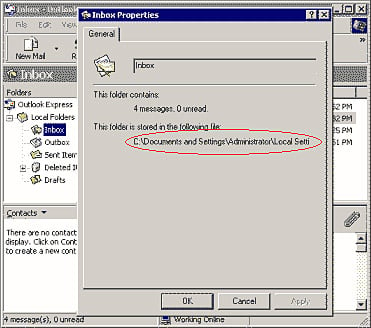
Method 2: To obtain the full path of a dbx file associated with an Outlook Express mail folder, right-click the mail folder in Outlook Express and select Properties:
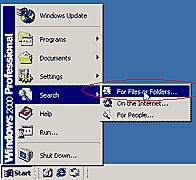
Method 3: Additionally, you can use Windows Explorer’s Search function to locate .dbx files:
- Click the Start menu.
- Select the Search menu item, followed by For Files and Folders.
- Enter *.dbx as the search criterion and choose the locations to search.
- Click Search Now to find all .dbx files in the specified locations.
- In the Search Results, locate the desired dbx files.