
Note: If you have Outlook 2003 or higher versions installed, we recommend you to use this method to recover your oversized OST file instead. Otherwise, please use the method in this guide.
If your OST file is created by Microsoft Outlook 2002 or lower versions, and its size reaches or exceeds 2GB, you will encounter the oversized OST file problem and cannot operate the OST file any more. In such a case, you can use DataNumen Exchange Recovery to split the oversized OST file into several smaller PST files that are less than 2GB and compatible with Outlook 2002 and lower versions. Then you can use Outlook 2002 or lower versions to open the splitted PST files one by one and access their data without any problems.
Start DataNumen Exchange Recovery.
Note: Before splitting the oversized OST file with DataNumen Exchange Recovery, please close Microsoft Outlook and any other application that may access or modify the OST file.
Go to  tab, then select the following option:

and set the size limit to a value less than 2GB. It is recommended to use a value that is only a fraction of 2GB so that your PST file will not reach 2GB again soon, for example, 1000MB. Please note the unit is MB.
Go back to  tab.
tab.
Select the oversized OST file to be splitted:

You can input the oversized OST file name directly or click the  button to browse and select the OST file. You may also click the
  button to find the oversized OST file to be splitted on the local computer.
By default, when DataNumen Exchange Recovery scans and splits the source oversized OST file into several smaller PST files, the first splitted PST file is named xxxx_fixed.pst, the second one is xxxx_fixed_1.pst, the third one is xxxx_fixed_2.pst, and so on, where xxxx is the name of the source oversized OST file. For example, for source oversized OST file Source.ost, by default, the first splitted PST file will be Source_fixed.pst, and the second will be Source_fixed_1.pst, and the third will be Source_fixed_2.pst, etc..
If you want to use another name, then please select or set it accordingly:

You can input the output PST file name directly or click the button to browse and select the PST file name.
Since we only have Outlook 2002 or lower versions installed, we should set the format of the output PST file to “Outlook 97-2002” in the combo box  beside the output file edit box. If you set the format to “Auto Determined”, then DataNumen Exchange Recovery will generate the output PST file compatible with the Outlook installed on the local computer.
Click the  button, and DataNumen Exchange Recovery will start scanning the source oversized OST file, recovering and collecting the data in it, and then putting them into a new splitted PST file whose name is set in Step 5. We will use Source_fixed.pst as an example.
When the size of Source_fixed.pst reaches the limit preset in Step 2, DataNumen Exchange Recovery will create a second new PST file called Source_fixed_1.pst, and try to put the remaining data into that file.
When the second file reaches the preset limit again, DataNumen Exchange Recovery will create a third new PST file called Source_fixed_2.pst to accommodate the remaining data, and so on.
In the process, the progress bar

will advance accordingly to indicate the split progress.
After the split process, if any data have be migrated to the splitted PST files successfully, you will see a message box like this:
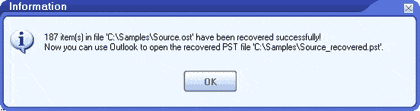
Now you can open the splitted PST files one by one with Microsoft Outlook 2002 or lower versions. And you will find all the data of the original oversized OST file are spreaded among these splitted PST files.
Note: The demo version will display the following message box to indicate the success of the split process:
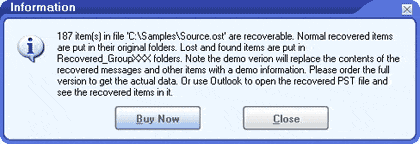
Then you can open the splitted PST files with Microsoft Outlook 2002 or lower versions. However, for each message and attachment in the splitted PST files, their contents will be replaced with the following demo information:
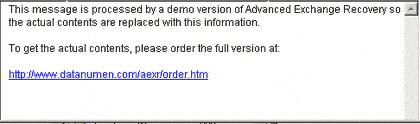
To get the actual contents, please order the full version.